
Knowledge SuperBox
How to Factory Reset SuperBox S6 and Restore Your Apps





To factory reset SuperBox S6, open Settings → Device Preferences → About → Factory Reset. Read the warning, select Factory Reset again if prompted, and choose Erase Everything to begin. Keep the box connected to power while it erases its local data and restarts.
This guide covers the S6 Pro, S6 Max, and S6 Ultra interface. It also explains the remote reset shortcut and the steps needed to reconnect and reinstall your viewing apps afterward.
A factory reset removes downloaded apps, saved WiFi details, accounts, and local preferences. Have your network password and recovery information ready before confirming. A normal restart is a different action and does not perform this wipe.
If your main concern is an App Store that has already disappeared, go straight to the S6 and older-model App Store recovery guide before considering another reset.
Decide whether your S6 needs a factory reset
A reset can be useful when a persistent software problem remains after more targeted troubleshooting, or when technical support asks you to start with a clean configuration. It can also prepare a device for a new user by removing local personal information.
Start by identifying what is failing:
| What you notice | Better first step |
|---|---|
| One app has trouble while other apps work | Restart that app and check its available update or cache options. |
| Only one channel or movie fails | Try another selection and report the affected item. |
| Several devices in the home have no internet | Check the router or internet service before erasing the SuperBox. |
| The green App Store is missing after an earlier reset | Restore the App Store instead of resetting again. |
| The S6 remains broadly unstable after basic checks | Prepare for a reset or follow support’s recommendation. |
| A Device Forbidden message appears | Contact the original seller about the device status. |
For a troublesome app, clearing its cache is different from clearing its data or resetting the whole box. Choose the action that matches the problem.
If you simply want to restart, do not select Factory Reset or Erase Everything. Stop normal playback and use a clearly labeled restart option if your interface provides one. If no installation or system update is running, a normal power cycle is another way to restart the device.
Prepare before you erase the S6
Spend a few minutes collecting the information you will need afterward. This makes recovery much easier, especially if you are helping a parent or another family member.
Save the details you want to recreate
Take photos of your Home screen, installed apps, Favorites, and any settings you changed. Record the exact error you are trying to solve before it disappears during the reset.
A photo is a reference for rebuilding the setup; it does not back up the underlying app data. Files stored only on the box need to be copied elsewhere if you want to keep them.
Make sure you know the passwords for any optional services you personally use. Reinstalling an app is different from signing back into its account.
Have your connection and support details ready
Keep the following available on a phone or written note:
- Your home WiFi name and password, unless you will reconnect through Ethernet.
- Your exact model: S6 Pro, S6 Max, or S6 Ultra.
- The email and order details for the seller you bought from.
- The link to the App Store recovery instructions.
- Any model-specific instructions already provided by support.
The recovery address used for the S6-and-earlier App Store procedure is 143326.cc. Knowing where the restoration guide is before resetting avoids having to search for installers while the box is waiting to be set up.
Keep the supplied power equipment connected securely. If you use external USB storage for personal files, finish any active transfer and disconnect it before beginning.
Factory reset SuperBox S6 through Settings
Use this method whenever you can navigate the interface. It lets you read the reset warnings before starting the data erasure.
Step 1 Open the SuperBox Home screen and Settings
Select the TV’s HDMI input connected to your S6. Press Home on the SuperBox remote, then highlight the Settings icon and press OK.
Check that you are in the box’s menu. A Samsung, LG, Roku TV, or other television’s own reset menu controls the television, not the external SuperBox.
If the Home screen is difficult to use but your remote has a working Settings shortcut, try opening the settings panel that way.
Step 2 Go to Device Preferences and About
Select Device Preferences, then About.
You are looking for the SuperBox system settings, rather than a reset control inside Blue TV or another viewing app.
The manufacturer’s documented system route is Settings → Device Preferences → About → Factory reset. Follow the displayed labels if capitalization differs. If those categories are absent, photograph the screen for support instead of choosing an unrelated reset command.
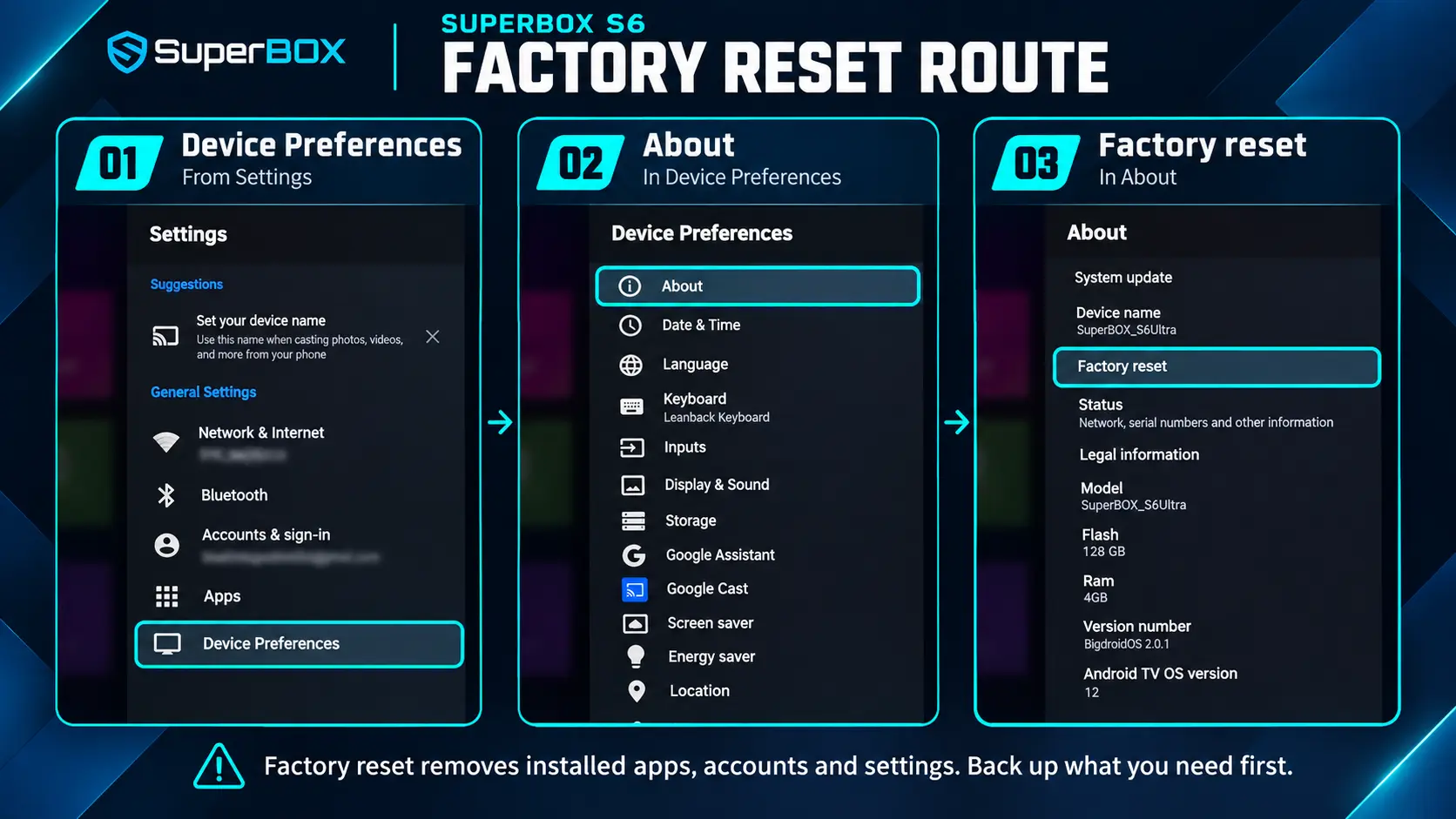
Step 3 Select Factory Reset and read the warning
Find Factory Reset inside About and press OK.
Read the message about removing accounts, files, downloaded applications, and other local information. Opening this warning is your opportunity to check that you have prepared everything.
If you are not ready, back out before confirming. If you are ready, select Factory Reset again where that confirmation appears.
A factory reset is not an app update, a WiFi reconnect, or a cache cleanup. It resets the device’s local configuration and creates setup work afterward.
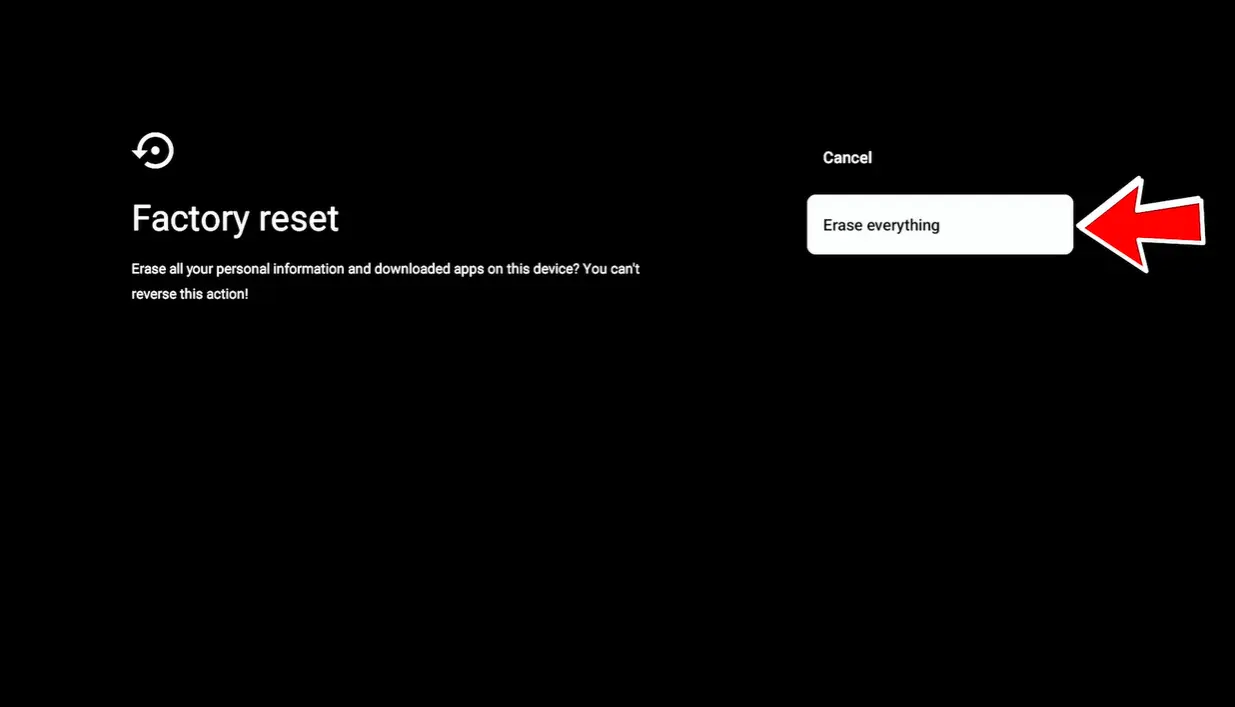
Step 4 Confirm Erase Everything
On the final confirmation screen, select Erase Everything.
This begins the wipe. Once it starts, allow the process to continue without entering more reset commands or disconnecting the power.
Step 5 Wait for the initial setup screen
The box will erase its local data and restart. During the process, the TV may briefly show a blank screen or the SuperBox startup logo.
Keep the TV on the same HDMI input and leave the power connected. The reset is ready for the next stage when the first-time setup screen appears.
There is no useful reason to press the shortcut again while erasing is already underway. If the box keeps returning to the same startup screen without progressing, record that behavior and contact support rather than cycling through more reset attempts.
Resetting an S6 with the remote shortcut
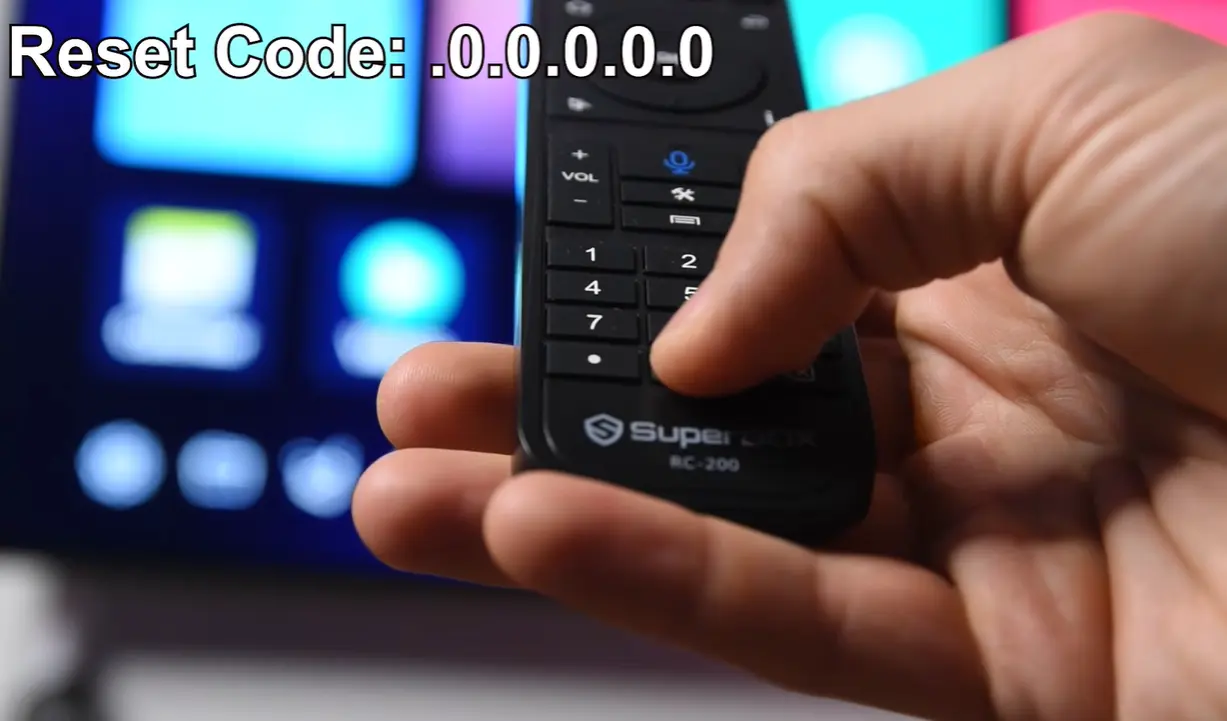
On S6 software supporting the remote reset shortcut, use the Dot button and the number 0, repeated in sequence:
.0.0.0.0.0
That means Dot, 0 — five times, with separate presses. It does not mean holding Dot and 0 together or entering five zeros.
Only use this shortcut after completing the preparation above. It can start a factory reset without the same warning screens as the Settings method.
To use the shortcut:
- Use the SuperBox remote, with the box powered on and able to receive remote input.
- Return to Home if you can.
- Press Dot, then 0.
- Repeat that pair until you have entered five Dot-and-Zero pairs.
- If erasing begins, stop pressing buttons and let the reset complete.
This route may help when normal navigation is partly working but reaching Settings is difficult. It is not a recovery command for a box that has no power or cannot receive input.
Shortcut support can vary with the remote and installed software. If nothing happens, return to the menu method if available or ask support for the next step. Do not try unrelated codes.
What about a reset pinhole
Do not substitute a generic Android-box pinhole procedure for the S6 menu method. If your S6 cannot open Settings and does not accept its supported remote shortcut, request model-specific recovery assistance.
Different devices and firmware can use different recovery procedures. A pinhole, matching connector, or similar-looking box is not enough to establish the correct steps.
Set up SuperBox S6 again after the reset
The reset is only the first part of the job. Complete the following stages before deciding whether it resolved the original problem.
Reconnect the network and check the clock
Follow the initial setup prompts shown by your software. For WiFi, open the network selection, choose your home connection, and enter the password again. For a wired connection, attach the Ethernet cable and check that the box is online.
A saved network name does not guarantee working internet. Confirm online access before attempting multiple app downloads.
Then check the date and local time zone. If the clock is wrong, use the SuperBox date and time instructions to correct it. Keep the system clock accurate rather than adjusting it to match one program listing.
If voice control needs pairing again, follow the on-screen remote prompt or the instructions for your remote. Use the normal navigation controls to finish setup while you resolve voice pairing.
Restore the App Store if it is missing
First, check the installed-app area as well as Home. If the green SuperBox App Store opens from there, you may only need to restore its shortcut.
If the store itself needs reinstalling, use the browser to enter 143326.cc directly in the address bar. Download and install the App Store package, then follow the compatible TV ROM Updater stage in the S6 App Store restoration guide.
Use the system update offered for your own model, keep power connected, and allow any requested restart to finish. A version number shown in another device’s screenshot is not an instruction to install that version on every S6.
The green SuperBox App Store and Google Play Store are different catalogs. If you are looking for the SuperBox viewing apps, make sure you have opened the correct green store.
Reinstall the core apps and restore shortcuts
Install Blue TV, Blue VOD, Playback, and Backup TV where offered for your S6. Wait for each installation to finish, then open the apps you plan to use.
Blue TV is for live channels; Blue VOD is for on-demand movies and series. Playback provides supported catch-up viewing. Backup TV offers an alternative live-TV and VOD route, explained in the Backup TV guide.
If an app shows as installed but is absent from Home, check the available shortcut selector before downloading it again.
Recreate the preferences you saved in your notes, including Favorites and any parental controls you use. Reconnect external storage only after the initial setup and recovery have finished.
Check the original problem before making more changes
Return to the exact task that led you to reset.
If an app would not open, launch it and use its main screen. If WiFi was the problem, confirm the connection and check online access. If the interface kept freezing, repeat the normal navigation that previously failed.
Use a small, clear check rather than immediately installing every extra app you used before. When the core setup works, restore additional items gradually.
If a problem returns after one particular installation, note that timing. If it appears before installing extra apps, tell support that too.
For a continuing network problem, the SuperBox WiFi troubleshooting guide provides focused checks. Another factory reset is not a substitute for finding where the connection fails.
Get help if the S6 cannot complete recovery
For an S6 purchased directly from SuperBox TV Box Store, contact customer@superboxtvboxstore.com for technical or order questions. We value your experience and can review the issue and coordinate the appropriate next step.
Include the exact S6 model, order number, a photo or short video, and:
- Whether Settings opens.
- Whether the reset started and reached initial setup.
- Whether the box can connect to the internet afterward.
- Whether the green App Store is available.
- The app or action that still fails.
- The full wording of any error.
Keep identifiers and purchase details in private support messages.
If you bought from another retailer, start with the seller on your receipt. Manufacturer assistance is also available through SuperBox technical support on WhatsApp. Different retailers have separate order records.
Device Forbidden requires a separate review. Resetting local apps and settings does not resolve a device restriction. Use the seller-support route rather than repeatedly erasing the box.
Frequently asked questions
Does factory resetting an S6 delete Blue TV and Blue VOD
Downloaded apps may need to be installed again. Plan to restore the App Store, then reinstall the available viewing apps and rebuild your preferences. The reset does not automatically recreate your former Home screen.
Is an S6 Max reset different from an S6 Ultra reset
The Settings route described here covers the S6 Pro, Max, and Ultra interface. Follow the prompts actually displayed on your installed software; do not use a firmware file from another model simply because the menu names match.
Can I factory reset SuperBox S6 without a remote
If you cannot navigate the box, ask support for an input or recovery method appropriate to your device. Do not assume that holding a physical pinhole button will perform the same reset as the Settings command.
Will a reset change my internet service or TV settings
The S6 reset changes the SuperBox’s local setup. It does not reset your separate router, alter your internet plan, or factory-reset the television. You will need to reconnect the box to the network and may need to select its HDMI input again.
Should I reset again if the App Store is gone
Start with App Store recovery. The confirmed S6-and-earlier recovery address is 143326.cc, and the linked restoration guide covers installation and the compatible TV ROM update. Repeating the wipe creates more setup work without completing those steps.
Can a factory reset fix every buffering problem
No. A reset can help with some local software problems, but it cannot restore an unavailable channel or repair an internet outage. Compare the affected app and network behavior before deciding on another full reset.
Finish with a usable S6
A successful factory reset ends with more than a fresh Home screen. The box should be online, the green App Store accessible, and your core apps installed and opening.
Keep your recovery notes until you have checked the original problem. Once the S6 handles that task normally, finish rebuilding your shortcuts and preferences so everyday viewing is easy again.
The article was updated on:
