
Knowledge SuperBox
What Is Time Shift TV? Complete Guide to Live TV Playback





Time shift refers to a television broadcasting and digital media technology that records live program streams to a temporary storage buffer or cloud server network, empowering viewers to pause, rewind, fast-forward, or replay broadcast programming at their own convenience rather than adhering to rigid broadcast schedules.
Here is what you need to know about time shift technology at a glance:
- It allows instant pausing, rewinding, and fast-forwarding of live television streams directly from your remote control.
- It operates through an automated rolling buffer stored either in local memory, external storage, or high-capacity cloud server clusters.
- It powers 7-day catch-up playback, allowing you to watch full television programs broadcast over the preceding 168 hours.
- It requires zero manual scheduling or tape management, recording programming automatically in the background.
- On SuperBox hardware consoles, time shift and 7-day cloud playback are 100 percent subscription-free with no recurring monthly leasing charges.
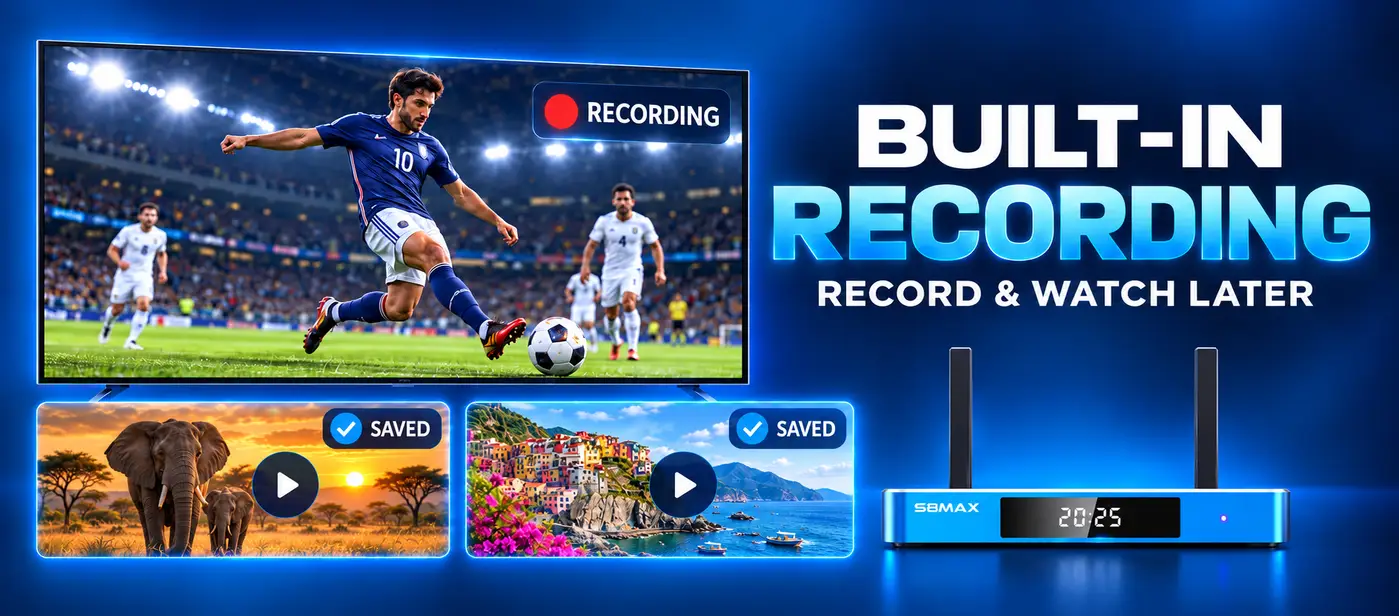
Defining Time Shift: What Does Time-Shifted Viewing Actually Mean?
Time shift describes the process of consuming broadcast media at a time distinct from its original transmission schedule. In traditional linear television, broadcasters dictate the precise moment an audience can experience a program, creating substantial scheduling friction for busy households and working professionals.
The concept originated during the home video revolution of the 1970s and 1980s, when consumer videocassette recorders allowed households to record over-the-air broadcasts for evening viewing. This practice gained legal protection in the historic United States Supreme Court ruling in Sony Corp. of America v. Universal City Studios, which established that non-commercial home time shifting of broadcast television constitutes fair use.
In modern high-definition streaming and IPTV environments, time shift has evolved far beyond noisy mechanical tapes. Today, intelligent streaming players like SuperBox maintain a continuous digital transport stream cache. If your phone rings during a dramatic live movie moment, or if you arrive home thirty minutes after a crucial football kickoff, time shift grants you complete sovereignty over time. You simply press pause to freeze the action, rewind to the opening whistle, or skip directly back to the live edge whenever you choose.
How Time Shift Technology Works Under the Hood
Time shift functions by dividing incoming continuous live transport streams into encrypted, indexed data chunks that are written simultaneously to a circular storage buffer while playback continues. Rather than reading directly from an unbuffered live edge, your media player reads the stream from this synchronized buffer.
The underlying process follows four coordinated engineering stages:
- Continuous Transport Ingestion: As live broadcast packets arrive via MPEG-TS or HTTP Live Streaming (HLS) protocols, the media engine separates audio, video, and subtitle data into rolling segments.
- Circular Buffer Indexing: The system writes these sequential chunks into a temporary cache. In local setups, this cache resides in system RAM or solid-state storage; in advanced cloud architectures, the cache resides on enterprise edge servers.
- Timeline Synchronization: The media player synchronizes the media timeline with an interactive electronic program guide. This synchronization enables the software to identify the exact second a specific television episode or sporting match started.
- Trick Play Execution: When you press rewind, pause, or fast-forward, the player shifts its read pointer backward or forward across the indexed chunk timeline without severing the incoming live feed.
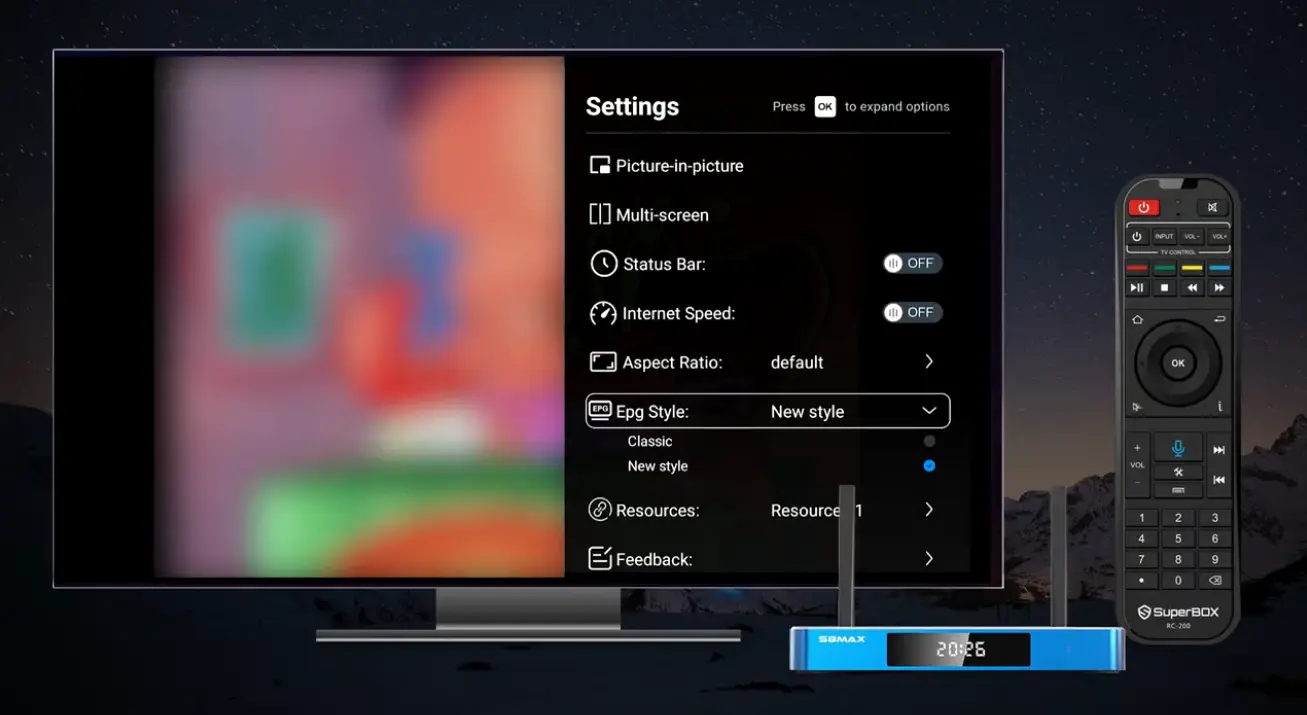
Comparison Breakdown
Understanding how time shift differs from related recording and video technologies helps cord-cutters configure the most convenient entertainment setup for their household. While consumers often use these terms interchangeably, each technology serves distinct practical viewing scenarios.
A traditional digital video recorder requires manual program scheduling and dedicated physical hard disk space. If two programs air simultaneously on different channels, a dual-tuner hardware DVR may fail or force you to sacrifice one recording. Furthermore, cable providers routinely charge between 15 and 25 dollars every month in recurring DVR rental fees.
Cloud DVR services hosted by subscription streaming apps shift storage to remote data centers, but they frequently impose strict recording caps, 30-day expiration windows, and restrictions that block commercial skipping. In contrast, modern automated time shift requires zero scheduling. The server cluster automatically captures 100 percent of scheduled channel programming, creating a frictionless 7-day retrospective archive accessible at any moment.
Time Shift on SuperBox: Dual Real-Time Buffer and 7-Day Cloud Playback
SuperBox integrates time-shifting directly into its hardware and media apps, combining short-term live pause buffering with an extensive 7-day retrospective cloud playback system across the SuperBox S8 Ultra, S8 Max, S8 Pro, S8 Plus, S7, and S6 series. This dual-layer architecture ensures you never miss a breaking news segment or major sports highlight.
Within the Blue TV streaming application, pressing the left directional arrow on your voice remote immediately calls up an interactive timeline scrub bar. If you step away from the living room to answer the door, you can pause live sports instantly. When you resume, the video plays smoothly from the paused moment while continuing to cache the live feed in the background.
Complementing the live pause buffer is the dedicated 7-day live playback system. While traditional set-top boxes force you to plan recordings in advance, SuperBox server clusters continuously archive broadcasts across major US, Canadian, and sports channels. If your favorite team played an overtime game three days ago while you were working late, you simply browse to that day on the program grid and enjoy the complete telecast.
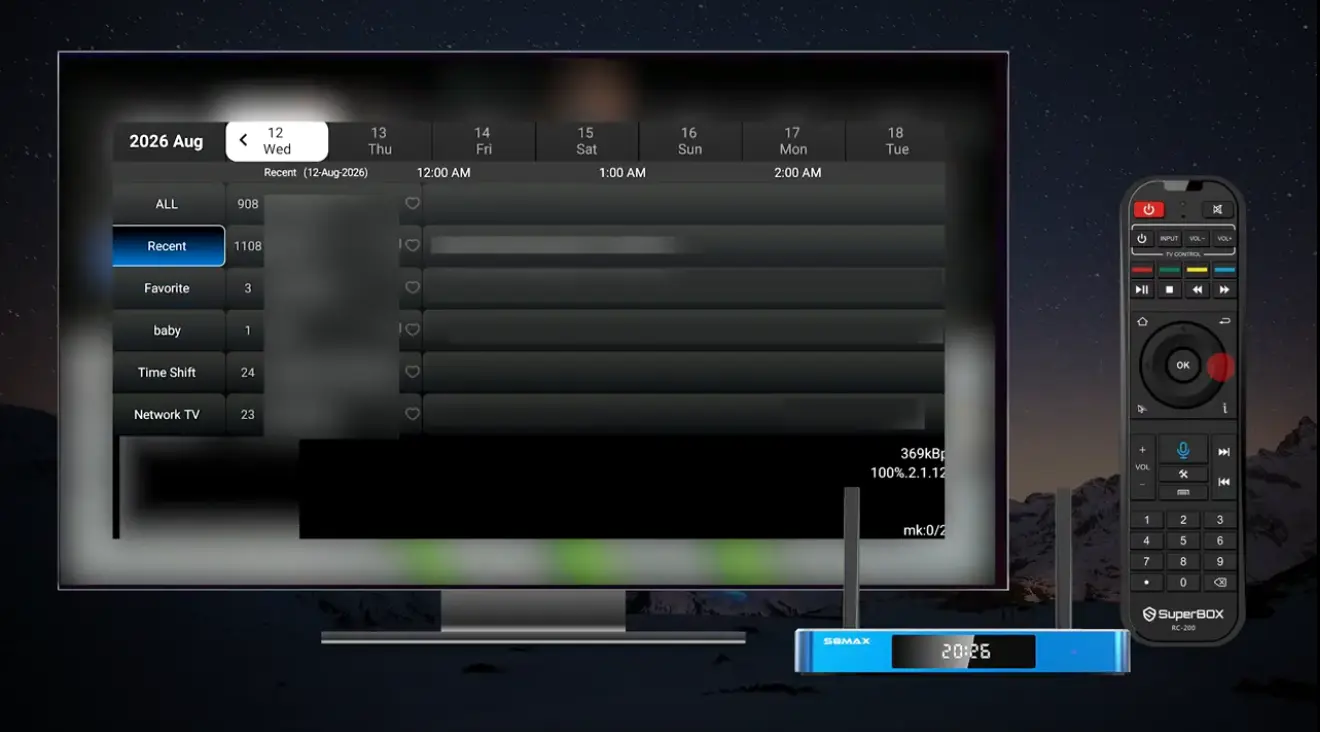
Step-by-Step Guide
Step 1: Launch Blue TV on Your SuperBox Console
Power on your television and SuperBox media console, ensuring your device has an active Wi-Fi or wired Ethernet connection. From the primary launcher home screen, navigate to and select the Blue TV application icon. Allow the channel guide to synchronize for a few seconds upon initial startup.
Step 2: Open the Interactive Channel List and Electronic Program Guide
While viewing any live stream, press the OK button on your remote control to bring up the translucent on-screen channel list. Navigate through categories such as Sports, News, or National Networks using the directional arrows. Press the Right directional arrow to open the expanded Electronic Program Guide (EPG) grid.
Step 3: Identify Time Shift and Playback Compatible Channels
In the channel directory, look for channels displaying the dedicated Playback symbol or clock icon next to the channel logo. This icon confirms that the SuperBox cloud server infrastructure is actively maintaining a rolling 7-day time shift archive for that specific network feed.
Step 4: Navigate Backward Through Past Broadcast Hours and Days
Inside the EPG grid for your selected channel, use the Left directional button to scroll backward past the current live timeline marker. You can scroll through earlier hours from today or jump back across individual calendar days up to seven full days (168 hours) in the past. Highlight the specific episode or sporting event you wish to watch.
Step 5: Engage Media Playback Controls to Scrub and Enjoy
Press the OK button to launch the archived broadcast stream. Once the video starts playing, use the Left arrow to rewind 10-second increments or hold it down to rewind in fast-seek mode. Use the Right arrow to fast-forward through commercial breaks, and press the Play/Pause button on your remote whenever you need to take a break.
Cloud Time Shift vs Built-in Local Recording on SuperBox S8 Series
While earlier media hardware relied exclusively on server-side cloud buffers, the SuperBox S8 series introduces an advanced local recording architecture that complements the 7-day cloud time shift system. Understanding how these two tools interact enables you to preserve valuable telecasts permanently.
The cloud time shift archive operates on a continuous rolling 168-hour window. Once an airing passes the seven-day threshold, the server automatically overwrites those data blocks with fresh broadcast streams. This design works perfectly for daily viewing, weekly sports catch-up, and routine primetime entertainment.
However, if you want to archive a championship trophy ceremony, a historic news broadcast, or a rare concert forever, the SuperBox S8 Recorder application allows you to capture live streams directly to internal flash storage or an external USB solid-state drive. You can review the dual-system comparison checklist below:
- Cloud Time Shift requires no external USB drive or storage setup.
- Cloud Time Shift archives 7 full days of programming automatically.
- Built-in S8 Local Recording preserves content indefinitely beyond seven days.
- Built-in S8 Local Recording allows exporting video files to external storage drives.
- Both systems provide full pause, rewind, and fast-forward controls without fees.

Network Optimization and Bandwidth Rules for Smooth Time Shifting
Because time shift retrieves media segments from cloud CDN edge caches rather than simple linear broadcast antennas, maintaining consistent network throughput is critical to avoid stuttering or buffering during scrubbing.
When you scrub backward through a live television timeline, your SuperBox client requests multiple non-consecutive video chunks in rapid succession to rebuild the video keyframes. If your home network experiences packet drops, high jitter, or bandwidth contention, the player will pause momentarily to refill its playback buffer.
We recommend connecting your SuperBox console via a direct Cat6 Ethernet cable whenever possible. If you utilize wireless connectivity, connect to the 5 GHz Wi-Fi band or the upgraded Wi-Fi 6 wireless band available on the SuperBox S8 Ultra and S8 Max to maintain low latency.
Troubleshooting Common Time Shift and Playback Glitches
When configured properly, time shift delivers a rock-solid viewing experience. If you ever experience audio desynchronization, spinning loading rings, or mismatched program listings, apply these verified diagnostic solutions.
- Resolving Timeline Buffering Loops: If pausing or rewinding results in a persistent spinning wheel, your media player has likely encountered a network packet drop. Press the Stop button, return to the channel for two seconds to re-establish the live socket, and then seek backward again.
- Correcting EPG Schedule Offsets: If the playback schedule indicates a show begins at 8:00 PM but the stream starts thirty minutes late, check your SuperBox system time zone settings. Navigate to Settings > Device Preferences > Date and Time, and verify that your local time zone matches your actual geographical location.
- Clearing Accumulated App Cache: Over weeks of active streaming, residual chunk indexes can accumulate in device RAM. Navigate to Settings > Apps > Blue TV, select Clear Cache, and reboot your SuperBox to restore peak responsiveness.
- Checking Channel Archive Availability: Keep in mind that while major broadcast networks and sports channels support 7-day retrospective playback, certain niche local feeds only support live real-time pausing. Verify the presence of the playback clock icon next to the channel title.
Frequently Asked Questions About Time Shift
What is the fundamental difference between time shift and regular DVR recording?
Time shift is an automated, rolling technology that records live television continuously to a temporary cloud or memory buffer without requiring manual timers, program scheduling, or physical hard drive space. In contrast, traditional DVR recording requires the viewer to manually identify a show in advance and dedicate finite internal storage to that file until manually deleted.
Can I pause live sports on SuperBox using time shift?
Yes, SuperBox fully supports live pausing across live sports broadcasts. While watching a game on Blue TV, press the Pause button or left arrow on your remote to freeze the stream. You can leave the room, return, and resume play exactly where you stopped while the console continues capturing the live game.
Do I need an external USB hard drive for time shift on SuperBox?
No, you do not need an external hard drive to enjoy time shift and 7-day playback on SuperBox. The time shift archive is managed on high-capacity cloud server clusters, allowing you to access past broadcasts seamlessly through your internet connection. However, if you wish to record programs permanently using the S8 series Recorder app, connecting a USB drive is recommended.
How many days back can I watch programming using time shift playback?
On supported channels, SuperBox provides up to seven full days (168 continuous hours) of automated retrospective playback. You can scroll through the interactive Electronic Program Guide and select any aired episode, match, or news broadcast from the previous week.
Is there an additional monthly subscription fee for time shift on SuperBox?
No, time shift and 7-day playback are included free of charge with authentic SuperBox hardware consoles. There are no monthly DVR fees, recurring equipment leases, activation penalties, or subscription contracts.
Can I fast forward through commercial breaks on time-shifted broadcasts?
Yes, when watching a time-shifted or historical playback stream, you have full unrestricted trick-play control. You can fast-forward at variable speeds to bypass commercial advertisements, halftimes, or station breaks and get directly back to your show.
Why is time shift unavailable on certain niche live channels?
Server-side cloud archiving requires significant processing and cloud storage resources, so SuperBox prioritizes the most popular news, national entertainment, premium cinema, and live sports networks for 7-day retention. Certain low-demand regional channels may offer live real-time pausing but lack the full 7-day historical archive.
What internet speed is necessary for buffer-free time shift streaming?
We recommend a stable internet download speed of at least 25 to 35 Mbps for standard 1080p high-definition time-shifting. For the smoothest experience when jumping across days and scrubbing through video timelines, 50 to 100 Mbps over a 5 GHz Wi-Fi or wired Ethernet connection is ideal.
How does time shift differ from Video on Demand (VOD)?
Video on Demand (VOD) consists of pre-packaged digital catalogs of movies and complete television series organized like an online media library, such as Blue VOD. Time shift, on the other hand, captures linear, real-time television station broadcasts exactly as they air over the network schedule, including live commentaries, score tickers, and commercial breaks.
What should I do if the time shift schedule is out of sync with my local time?
If the program guide shows schedules that are off by one or several hours, ensure that your SuperBox system time zone is accurately configured. Go to your device home screen, click Settings, choose Device Preferences, select Date & Time, and confirm that Automatic Date & Time and your local time zone (such as Eastern, Central, Mountain, or Pacific) are correctly chosen.
The article was updated on:
