






Are you struggling to get your Superbox S7 to respond to your voice? Voice commands offer a seamless, hands-free way to navigate your Superbox S7 TV box, but setting them up or troubleshooting issues can sometimes be a puzzle.
This comprehensive guide from SuperBox TV Box Store is designed to demystify the process, helping you activate, use, and fix any voice control problems, ensuring you unlock the full potential of your device.
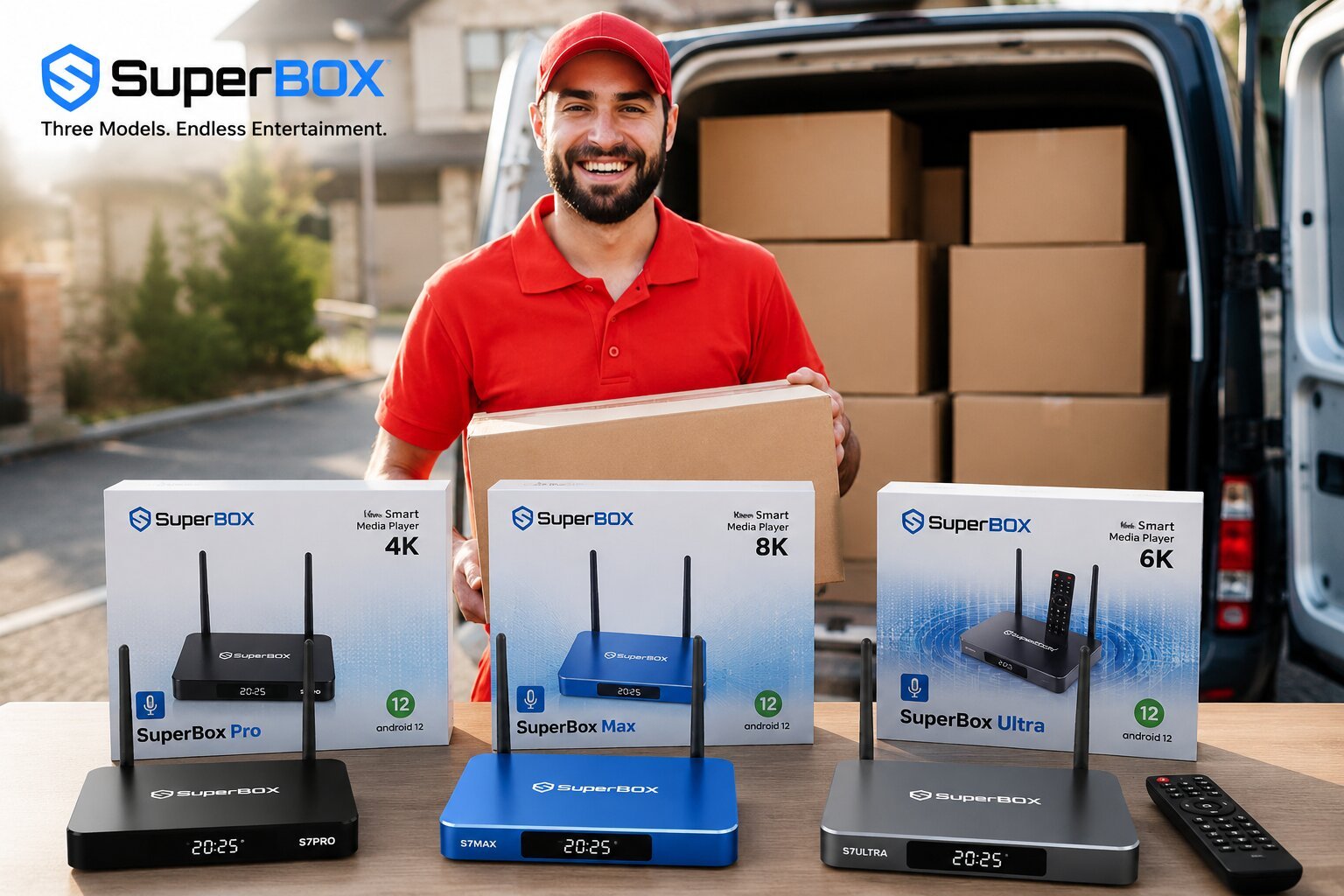
The SuperBox S7 models are selling very well at the SuperBox TV Box Store
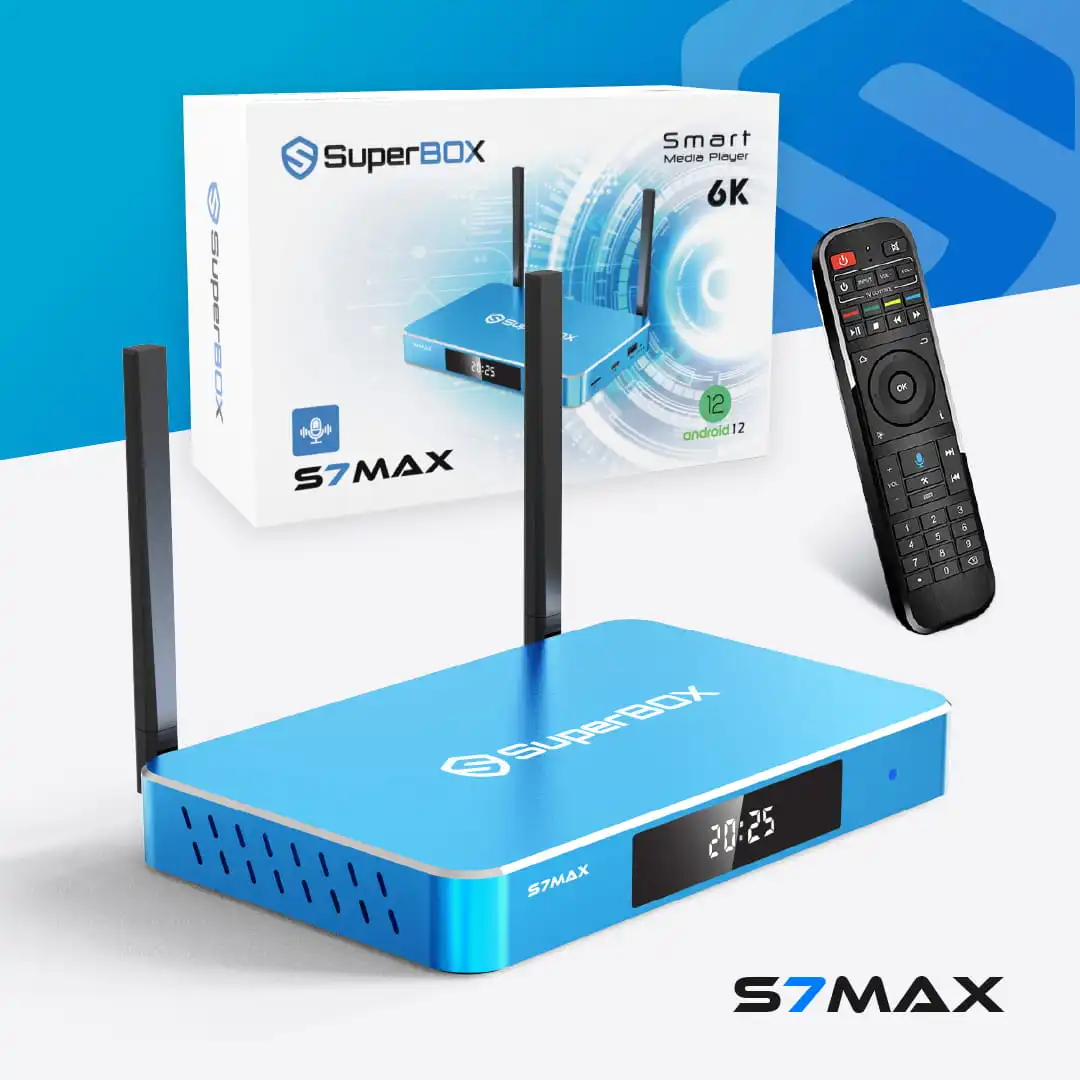
SuperBox S7 Max
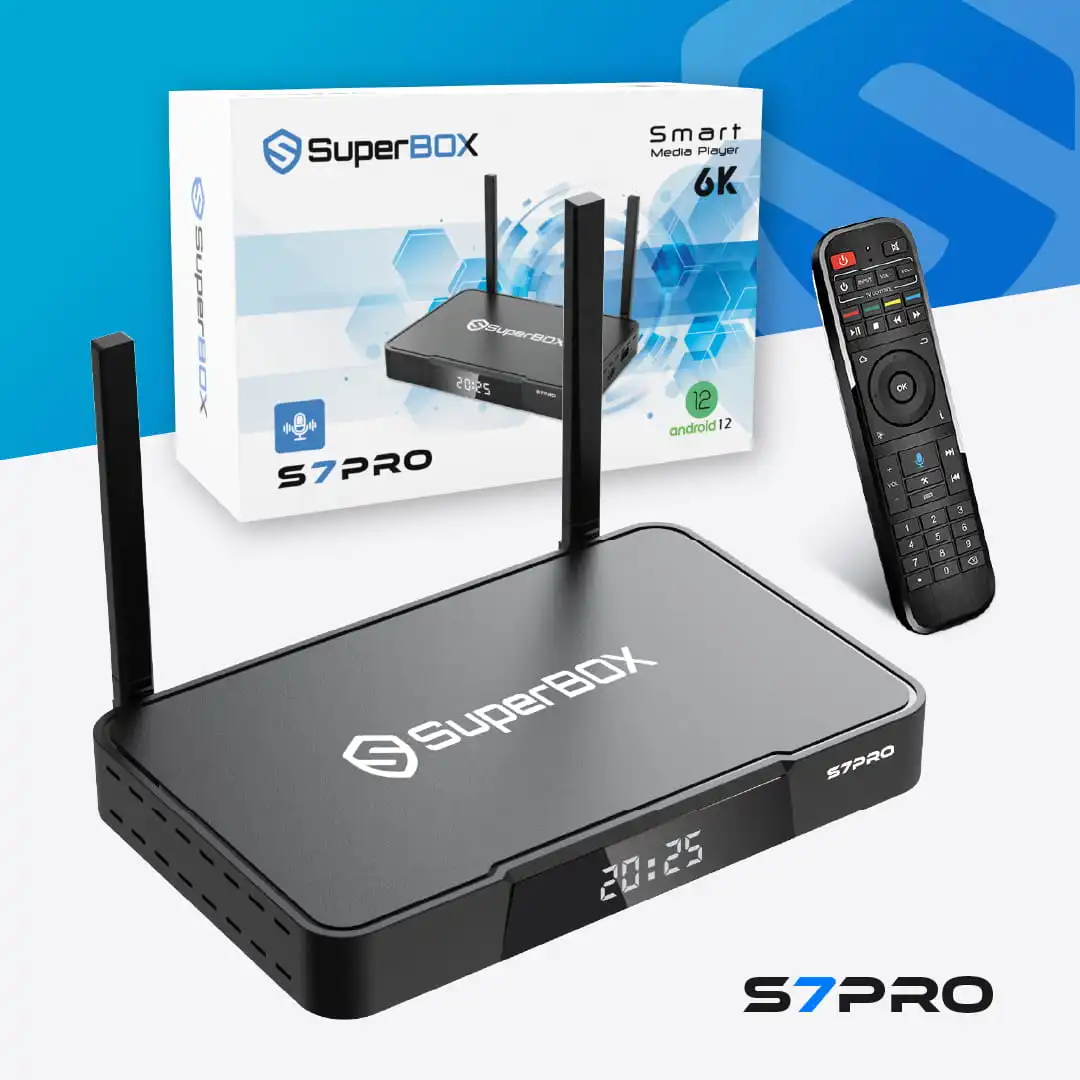
Original price was: 429.00 $.399.00 $Current price is: 399.00 $.SuperBox S7 Pro
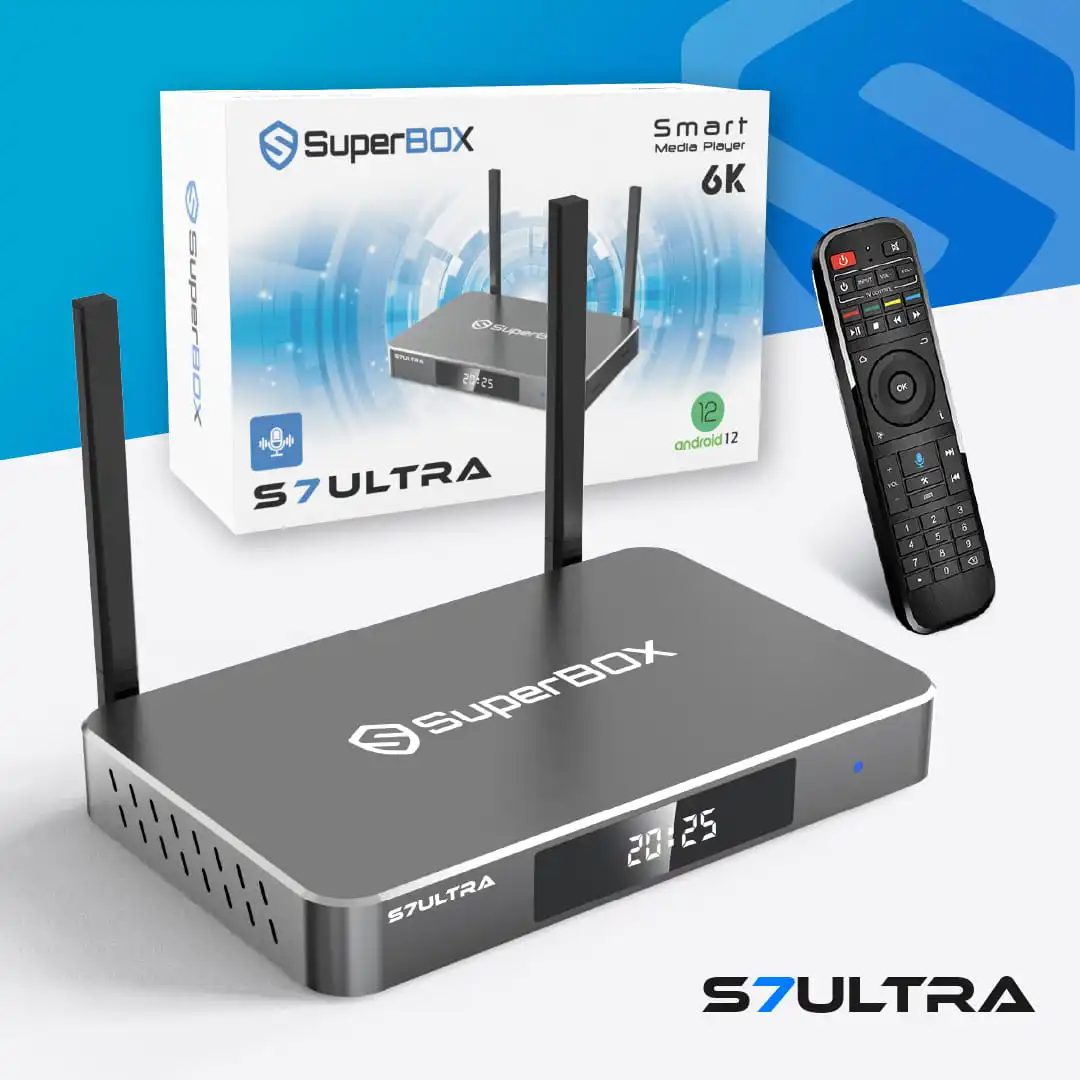
Original price was: 399.00 $.359.00 $Current price is: 359.00 $.SuperBox S7 Ultra
Original price was: 489.00 $.449.00 $Current price is: 449.00 $.
Overview of Mastering Voice Command on Superbox S7
Many Superbox S7 users seek to leverage voice control for a more convenient streaming experience, only to find themselves unsure where to start or how to resolve common issues. This often stems from unfamiliarity with the pairing process, specific settings, or the range of available commands.

Without proper setup, you might miss out on the ease of hands-free navigation, quick searches, and seamless app launching. There isn’t just one single way to approach voice control; different scenarios, from initial setup to advanced troubleshooting, require distinct solutions. This article compiles the most effective methods for using voice commands on your Superbox S7, providing clear instructions to help you choose and apply the best approach for your needs.
Quick Summary of Methods to Utilize Superbox S7 Voice Command
This section offers a quick glance at your options for Superbox S7 voice control.
- Method 1: Initial Setup and Activation – This method is ideal for new users or after a factory reset, focusing on enabling the core voice command features.
- Method 2: Remote Pairing and Connection – This is essential when your Superbox S7 voice remote isn’t responding, ensuring a stable Bluetooth connection.
- Method 3: Executing Voice Commands – This method is for users looking to explore the full range of basic and advanced voice inputs, including Google Assistant.
- Method 4: Basic Troubleshooting for Non-Responsive Voice Control – This is perfect for quick fixes when voice commands stop working unexpectedly.
- Method 5: Advanced Diagnostics for Microphone and Search Issues – This method addresses persistent problems where the Superbox S7 remote microphone not working or search functions fail.
- Method 6: Optimizing Voice Input and Settings – This method is for users aiming to enhance the accuracy and responsiveness of their Superbox S7 voice assistant.
Before Choosing a Method, You Need to Identify Your Situation or Need
To effectively use voice commands on your Superbox S7, it’s crucial to understand the specific challenge you’re facing. Consider these questions to pinpoint your situation.
- Is this your first time setting up voice control? This indicates a need for initial activation and pairing, focusing on the Superbox S7 voice command setup.
- Is your voice remote not responding at all? This suggests a pairing or battery issue, often pointing to the need for Superbox S7 voice remote pairing.
- Are voice commands working, but only for certain apps or functions? This points to compatibility or specific app settings.
- Is the microphone button on your remote not eliciting any response? This could be a hardware or connection problem, such as the Superbox S7 remote microphone not working.
- Are you looking for a list of commands to maximize your hands-free experience? This focuses on command lists and Google Assistant integration, helping you how to use Google Assistant on Superbox S7.
- Have you recently updated your Superbox S7 and now voice control is acting up? This might require re-pairing or checking new settings.
Understanding whether your issue is a minor glitch or a complete malfunction will guide you to the most appropriate solution, saving you time and frustration and helping you how to fix Superbox S7 voice control.
General Preparations Before Applying Any Method
Before diving into specific solutions for your Superbox S7 voice command, ensure you have these fundamental elements in place for a smooth experience.
- Stable Internet Connection: Voice commands, especially those involving search and Google Assistant, often require an active internet connection to process requests. Ensure your Superbox S7 TV box is connected to a reliable network.
- Charged Remote Batteries: A common oversight, ensure your Superbox S7 voice remote has fresh or fully charged batteries to prevent intermittent functionality. This is a key step in troubleshooting Superbox S7 voice command issues.
- Proximity to Superbox S7: Maintain a reasonable distance between your voice remote control and the Superbox S7 TV box during pairing and usage for optimal Bluetooth communication.
- Superbox S7 Powered On: Confirm your Superbox S7 TV box is fully powered on and connected to your TV.
- Clear Environment: Minimize background noise when attempting to use voice commands to ensure the microphone accurately captures your voice input.
While specific methods may require additional tools or settings, these general preparations form the baseline for successful voice command operation and help with Superbox S7 voice control guide.
Detailed Guide to Using Voice Command on Superbox S7
Method 1: Activating Voice Control and Initial Setup
This method is ideal for users setting up voice control for the first time or after a factory reset. It ensures the foundational settings for voice input are correctly configured on your Superbox S7.
- When to apply: Apply this method when you’ve never used voice commands before, or if your Superbox S7 has been reset. It is suitable for all Superbox S7 users looking for Superbox S7 voice command setup.
- Specific preparations: Ensure your Superbox S7 is connected to the internet.
- How to perform:
1. Navigate to the “Settings” menu on your Superbox S7.
2. Look for “Device Preferences” or “Remote & Accessories” within the Superbox S7 settings.
3. Select “Google Assistant” or “Voice Input” settings.
4. Ensure the “Google Assistant” or “Voice Control” feature is enabled. This is how to activate voice control on Superbox S7 remote.
5. Follow any on-screen prompts to grant necessary permissions for the microphone and voice services.
- Pros: This establishes the core functionality for voice activated control.
- Cons: It requires navigating through several settings menus.
- Tips: Speak clearly and confirm internet connectivity during setup.
- Signs of success: You will see a confirmation message that voice control is active, or the Google Assistant prompt appears when you press the microphone button.
Method 2: Pairing Your Superbox S7 Voice Remote
This method addresses issues where the voice remote isn’t communicating with your Superbox S7, often due to a lost or failed Bluetooth pairing. This is crucial for Superbox S7 voice remote pairing.
- When to apply: Use this method if your Superbox S7 voice remote is not responding to voice commands, or if the microphone button does nothing. It is suitable for users experiencing connectivity issues.
- Specific preparations: Ensure you have new batteries in the remote.
- How to perform:
1. Go to “Settings” on your Superbox S7.
2. Select “Remote & Accessories” or “Bluetooth.” This is where you manage Superbox S7 remote pairing Bluetooth.
3. Put your Superbox S7 voice remote (e.g., RC-200 remote) into pairing mode. This is typically done by pressing and holding specific buttons, often “OK” and “Volume Down,” until an indicator light flashes.
4. On your Superbox S7, select “Add accessory” and choose your remote from the list of available devices.
5. Confirm the pairing on both the screen and the remote if prompted. These are the Superbox S7 voice remote programming steps.
- Pros: This resolves most connectivity problems, especially when the Superbox S7 voice command not working.
- Cons: It may require multiple attempts to achieve successful pairing.
- Tips: Keep the remote close to the Superbox S7 during pairing. If it fails, try removing existing pairings and re-pairing.
- Signs of success: The remote’s indicator light stops flashing, and you can navigate the Superbox S7 interface with the remote.
Method 3: Executing Voice Commands
Once activated and paired, this method guides you on how to effectively use various voice commands, including leveraging Google Assistant on Superbox S7.
- When to apply: Apply this method after successful setup and pairing, for users wanting to utilize the full range of voice control features. It is suitable for all users of the Android TV box voice commands.
- Specific preparations: None, other than a working voice control setup.
- How to perform:
1. Press and hold the microphone button (often a dedicated voice button) on your Superbox S7 voice remote.
2. Speak your command clearly into the remote’s microphone.
3. Basic Commands: Try phrases like “Open YouTube,” “Search for action movies,” “Play Netflix,” “Volume up/down.” These are common Superbox S7 voice control commands list examples.
4. Advanced Commands (Google Assistant): Ask “What’s the weather like?”, “Show me comedies on Blue VOD,” “Go to settings,” “Find movies starring [actor].” This shows how to use Google Assistant on Superbox S7.
5. Release the microphone button after speaking.
- Pros: This provides hands-free control and quick access to content, enhancing your streaming device voice commands experience.
- Cons: It requires clear articulation for accurate recognition.
- Tips: Speak naturally, but clearly. Experiment with different phrasing. Remember to hold the button while speaking.
- Signs of success: Your Superbox S7 responds to your commands by opening apps, performing searches, or adjusting settings.
Method 4: Troubleshooting Common Voice Command Issues
This method focuses on common problems like Superbox S7 voice command not working and provides initial steps to fix them.
- When to apply: Use this method when voice commands suddenly stop working or are inconsistent. It is suitable for users experiencing minor glitches.
- Specific preparations: Check remote battery levels.
- How to perform:
1. Check Batteries: Replace the batteries in your Superbox S7 voice remote.
2. Re-pair Remote: Follow Method 2 to re-pair your remote. This is a key step to how to fix Superbox S7 voice control.
3. Restart Superbox S7: Unplug your Superbox S7 from the power outlet, wait 30 seconds, and plug it back in.
4. Check Internet Connection: Ensure your Superbox S7 has a stable internet connection.
5. Verify Voice Input Settings: Revisit “Settings > Device Preferences > Google Assistant” to ensure everything is enabled, addressing Superbox S7 voice input.
- Pros: This often resolves simple issues quickly, providing effective troubleshoot Superbox S7 voice command issues.
- Cons: It may not fix complex problems.
- Tips: Perform these steps systematically. Do not skip any.
- Signs of success: Voice commands start working normally again after performing these checks.
Method 5: Advanced Diagnostics for Microphone and Search Issues
This method addresses more specific problems like Superbox S7 remote microphone not working or Superbox S7 voice search not responding within applications.
- When to apply: Apply this method when basic troubleshooting fails, and the issue seems specific to the Superbox S7 microphone or search functionality. It is suitable for users with persistent problems.
- Specific preparations: Ensure no physical obstructions are blocking the remote’s microphone.
- How to perform:
1. Test Microphone in Different Apps: Try voice commands in various applications (e.g., YouTube, Google Search, Blue VOD) to see if the issue is app-specific.
2. Clear Cache for Voice Input Apps: Go to “Settings > Apps > See all apps,” find “Google Assistant” or “Google Search,” and clear its cache and data.
3. Check App Permissions: Ensure that apps like Google Assistant have microphone permissions enabled under their app settings.
4. Update System Software: Check for any available system updates for your Superbox S7 in “Settings > Device Preferences > About > System update.” This ensures you have the latest Android 12 voice control features.
5. Factory Reset (Last Resort): If all else fails, consider a factory reset of your Superbox S7 (back up important data first). This can resolve deep software conflicts.
- Pros: This can fix more complex software-related issues.
- Cons: Clearing data might require re-login to some apps; a factory reset is time-consuming.
- Tips: Perform updates and cache clearing before attempting a factory reset.
- Signs of success: The microphone responds across all apps, and voice search functions correctly.
Method 6: Optimizing Voice Control Performance
This method provides tips and settings adjustments to improve the accuracy and responsiveness of your Superbox S7 voice control.
- When to apply: This method is for users who want to enhance their voice command experience. It is suitable for all users of Superbox S7 voice control features.
- Specific preparations: None.
- How to perform:
1. Speak Clearly and Concisely: Avoid mumbling or speaking too fast. Articulate your words distinctly for better voice activated control.
2. Reduce Background Noise: Use voice commands in a quiet environment to minimize interference with the Superbox S7 microphone.
3. Regularly Update Superbox S7: Keep your device’s software up-to-date to benefit from the latest voice recognition improvements and Android 12 voice control enhancements.
4. Calibrate Microphone (if available): Some devices offer microphone calibration options in their settings, though this is less common for TV box remotes.
5. Familiarize with Commands: Learn the common phrases and commands that Google Assistant or the Superbox S7 voice control understands best, expanding your Superbox S7 voice control commands list knowledge.
- Pros: This improves user experience and reduces frustration with your smart TV box voice control.
- Cons: It requires conscious effort from the user.
- Tips: Practice using commands regularly.
- Signs of success: Voice commands are recognized more consistently and accurately.
When to Use Which Method? And Which Method is Most Effective?
Choosing the right method for your Superbox S7 voice command issue depends on the specific symptoms and your comfort level with troubleshooting.
- Criteria for selection:
- Problem Severity: Is it a new setup, a minor glitch, or a complete failure of your Superbox S7 voice control?
- Time Available: Do you need a quick fix or can you dedicate time to deeper troubleshooting?
- Technical Comfort: Are you comfortable navigating advanced settings or performing resets?
- Specific Symptom: Is it a Superbox S7 remote pairing Bluetooth issue, a microphone problem, or an app-specific search failure?
- Mapping Scenarios:
- New Setup/First Time User: Prioritize Method 1 (Activation) and Method 2 (Pairing) for Superbox S7 voice command setup.
- Remote Not Responding (No Voice/No Navigation): Start with Method 2 (Pairing), then Method 4 (Basic Troubleshooting) to how to fix Superbox S7 voice control.
- Voice Commands Inconsistent/Not Working: Begin with Method 4 (Basic Troubleshooting), then move to Method 5 (Advanced Diagnostics) if the issue persists, addressing Superbox S7 voice command not working.
- Seeking Better Performance/More Commands: Focus on Method 3 (Executing Commands) and Method 6 (Optimizing Performance) for a better Superbox S7 voice control guide.
- Combo Suggestions:
- Quick Fix Combo: Start with Method 4 (Basic Troubleshooting), then a quick re-attempt of Method 2 (Pairing).
- Maximum Effectiveness Combo: Begin with Method 1 (Activation), then Method 2 (Pairing), followed by Method 5 (Advanced Diagnostics) if problems arise, and finally Method 6 (Optimizing Performance) for refinement.
- Safe, Low-Risk Combo: Focus on Method 1 (Activation), Method 2 (Pairing), and Method 4 (Basic Troubleshooting) before considering more drastic steps.
There isn’t one best method; the most effective approach is the one that directly addresses your specific problem. For most users, ensuring proper pairing and basic troubleshooting will resolve the majority of issues.
Important Considerations When Applying Superbox S7 Voice Command Methods
When working with your Superbox S7’s voice command features, keep these crucial points in mind to avoid common pitfalls and ensure a smooth experience.
- Incorrect Problem Identification: A common mistake is jumping to complex solutions when a simple battery change or re-pairing would suffice. Always start with the most basic checks when troubleshooting Superbox S7 voice command issues.
- Skipping Steps: When troubleshooting, follow the methods systematically. Missing a step can lead to prolonged frustration.
- Ignoring Internet Connection: Many voice command functions rely on internet connectivity for processing. Ensure your Superbox S7 is connected to a stable Wi-Fi or Ethernet network for optimal streaming device voice commands.
- Overlooking Remote Battery Life: A weak battery can cause intermittent or non-responsive voice control. Always check and replace batteries if needed for your Superbox S7 voice remote.
- Not Granting Permissions: Ensure that Google Assistant or other voice input apps have the necessary microphone permissions enabled in your Superbox S7 settings.
- Physical Obstructions: Make sure the Superbox S7 microphone on your remote is not covered or blocked by your hand or other objects.
- When to Seek Support: If you’ve diligently followed all troubleshooting steps and your Superbox S7 voice command still isn’t working, it might indicate a hardware defect with the remote or the Superbox S7 itself. In such cases, it’s advisable to contact SuperBox TV Box Store customer support for further assistance.
Checking Results and Improving Efficiency After Using Voice Commands
After applying any of the methods to set up or troubleshoot your Superbox S7 voice command, it’s important to verify the results and continuously optimize your experience.
- Signs of Improvement or Success:
- The microphone button on your Superbox S7 voice remote now activates the voice assistant.
- Your Superbox S7 responds accurately to your spoken commands.
- Voice search works consistently across different applications, indicating that Superbox S7 voice search not responding issues are resolved.
- You can open apps, search for content, and control playback hands-free.
- How to Quickly and Thoroughly Check:
- Press the microphone button and say a simple command like “Open YouTube.”
- Try a more complex search, e.g., “Find action movies on Blue VOD.”
- Test voice commands in different applications to ensure broad compatibility.
- What to Adjust if Not Effective:
- If still not working: Revisit the troubleshooting steps (Method 4 and 5) for how to fix Superbox S7 voice control.
- If inconsistent: Focus on Method 6 (Optimizing Performance), practicing clear articulation and reducing background noise.
- Check for updates: Ensure both your Superbox S7 and its apps are updated to the latest versions.
- Maintenance Tips:
- Regularly check remote batteries: Replace them proactively to prevent Superbox S7 voice command not working issues.
- Keep Superbox S7 software updated: This ensures you have the latest features and bug fixes for Android 12 voice control.
- Practice clear speech: The more you use voice commands, the better the system learns your voice, and the better you become at phrasing commands effectively, improving your Superbox S7 voice control features.
Frequently Asked Questions About Superbox S7 Voice Command
Does the Superbox S7 remote come with voice control?
Yes, the Superbox S7 typically comes with a voice remote control, often featuring a dedicated microphone button.
Do I need an internet connection for Superbox S7 voice commands?
While some basic commands might work offline, most voice commands, especially those involving search and Google Assistant, require an active internet connection.
Can I use Google Assistant on my Superbox S7?
Yes, the Superbox S7 runs on Android 12 OS, which integrates Google Assistant, allowing you to use its features via voice commands.
What are some common voice commands for Superbox S7?
You can say “Open [App Name],” “Search for [Movie/Show Title],” “Play [Content],” “Volume up/down,” or ask general questions to Google Assistant. This is part of the Superbox S7 voice control commands list.
My Superbox S7 voice control is slow, how can I improve it?
Ensure a strong Wi-Fi signal, clear the cache of voice-related apps, and keep your Superbox S7 software updated. Speaking clearly and concisely also helps.
What if my Superbox S7 remote microphone isn’t working at all?
First, check for physical obstructions. Then, try re-pairing the remote (Method 2) and troubleshooting common issues (Method 4 and 5). If it persists, the remote might be faulty.
Are there any language limitations for Superbox S7 voice control?
Google Assistant on Android TV supports multiple languages. Ensure your Superbox S7’s language settings are configured correctly for your preferred language.
Conclusion and Recommendations for You
Mastering voice command on your Superbox S7 significantly enhances your entertainment experience, offering unparalleled convenience and efficiency. The key to success lies in three core principles: accurately identifying your situation, selecting the appropriate method, and consistently monitoring the results.
For new users, we recommend starting with a straightforward roadmap: begin by ensuring your voice control is properly activated (Method 1) and your remote is correctly paired (Method 2). Once these foundational steps are complete, explore the range of commands (Method 3) to familiarize yourself with the capabilities. If you encounter any issues, always start with the basic troubleshooting steps (Method 4) before moving to more advanced diagnostics (Method 5). Finally, continuously refine your experience by optimizing your voice input and settings (Method 6).