





Welcome to the ultimate guide from SuperBox TV Box Store, your trusted retailer for authentic Superbox devices in the US and Canada. Are you looking to unlock the full potential of your Superbox S7, S7 Pro, S7 Max, or S7 Ultra with hands-free control?
Many users find themselves wondering how to activate this convenient feature, what commands are available, or how to troubleshoot when things don’t go as planned. Without proper setup and un derstanding, you might be missing out on a significantly more intuitive and efficient entertainment experience. This article will provide you with clear, step-by-step instructions and practical tips to master voice commands on your Superbox S7, ensuring you get the most out of your device.
Overview of Superbox S7 Voice Command Functionality
The voice command feature on your Superbox S7 series, including models like the S7 Max, S7 Pro, and S7 Ultra, offers a seamless solution for hands-free control. This functionality transforms your entertainment experience by eliminating the need for traditional button presses, especially when searching for specific content or launching apps. This guide will cover the essential methods for setting up, utilizing, and troubleshooting voice commands, ensuring you can efficiently search, control playback, and manage your device using just your voice.
Quick Summary of How to Use Voice Command on Superbox S7
For a rapid overview of the options available, here is a quick summary of how to use voice command on Superbox S7.
- Method 1: Pairing Your Superbox S7 Voice Remote via Bluetooth – This method is ideal for initial setup or when your remote loses connection, ensuring the voice feature is activated.
- Method 2: Effectively Using Voice Commands for Content and Navigation – This approach is perfect for users who have paired their remote and want to explore the range of available commands for searching, playback, and app control.
- Method 3: Troubleshooting Common Voice Control Issues – This method is essential for anyone experiencing problems with their voice command functionality, offering solutions for unresponsive remotes or unrecognized commands.
Before You Start: Identify Your Superbox S7 Voice Command Needs
To ensure you select the most relevant guidance, consider your current situation or goal before proceeding.
- Is your Superbox S7 remote already paired via Bluetooth, or is this your first time setting up voice control?
- Are you looking for a list of commands to search for movies, open apps, or control playback?
- Is your voice command feature not working, and you need solutions for common issues like an unresponsive microphone or connection problems?
- Do you know if your remote control, such as the RC-200, has a dedicated microphone button?
- Is your Superbox S7 connected to a stable Wi-Fi network?
Detailed Guide to Using Voice Command on Superbox S7
Method 1: Pairing Your Superbox S7 Voice Remote via Bluetooth
This method is crucial for initial setup or if your remote’s voice command feature is not responding due to a lost connection, allowing you to activate voice command on Superbox S7. It is suitable for all Superbox S7 users, especially those with new devices or who have recently replaced their remote.
- When to Apply: Apply this method when setting up voice control for the first time, if your remote is not responding to voice commands, or if the Bluetooth connection seems lost.
- What to Prepare: You will need your Superbox S7 device, the voice command remote control (e.g., RC-200), and two fresh AAA batteries.
- How to Perform:
- 1. Ensure your Superbox S7 is powered on and your remote has fresh batteries.
- 2. Place the remote within 10 inches of your Superbox device.
- 3. On your Superbox remote, locate and press the dedicated Voice Command button, often marked with a microphone icon.
- 4. While holding the Voice Command button, simultaneously press and hold the [OK] (center) button and the [Return] button on the remote.
- 5. Continue holding these buttons until the red indicator light on the remote begins flashing.
- 6. Keep holding the [OK] button until the red light stops blinking and remains steadily lit.
- 7. Release the buttons.
- 8. On your TV screen, navigate to your Superbox Settings > Bluetooth. You should see “RC-200” or a similar model name listed as “Connected,” confirming successful pairing. For newer models, you might be prompted to follow on-screen instructions after pressing the mic button.
- 9. Once paired, press and hold the Voice (microphone) button on your remote.
- 10. Speak your command clearly into the top of the remote, keeping it close to your mouth. Release the button when you finish speaking.
- Advantages, Limitations, or Risks: This method directly enables the core functionality of your Superbox S7 remote pairing voice. The main limitation is ensuring the correct button combination is pressed and held.
- Tips for Enhanced Effectiveness and Avoiding Errors: Ensure batteries are new. Do not release the buttons too early during pairing.
- Signs of Success: The remote appears as “Connected” in Superbox Bluetooth settings, and the Superbox responds to voice commands when the mic button is pressed.
Method 2: Effectively Using Voice Commands for Content and Navigation
Once your remote is successfully paired, this method guides you through the practical application of voice commands to enhance your streaming and navigation experience. This is suitable for all users who have activated voice control and want to explore what voice commands work on Superbox S7.
- When to Apply: Apply this method after successfully pairing your remote, to explore and utilize the various voice command capabilities of your Superbox S7.
- What to Prepare: You will need your paired Superbox S7 voice remote and a clear speaking voice.
- How to Perform:
- 1. Press and hold the Voice (microphone) button on your remote.
- 2. Speak your command clearly into the top of the remote, keeping it close to your mouth.
- 3. Release the button when you finish speaking. The Superbox will then process and execute your command.
- 4. When using voice commands for the first time, a Google Assistant notice may pop up, prompting you to sign in or use the Assistant without signing in.
- 5. Common Voice Commands:
- Direct Content Search: “Find Marvel superhero movies from 2024,” “Search for cooking shows,” “Play The Crown on Netflix,” “Search for 8K nature videos,” “Find a comedy movie,” “Search TV channels in Blue TV,” “Search VOD name, caster, or director in Blue VOD,” “Search anything on the home screen with Google Assistant,” “Say movie name in video or TV series name in video to find specific content.”
- Playback Control: “Pause,” “Resume in 10 minutes,” “Skip forward 2 minutes,” “Volume up.”
- App Navigation & Control: “Open YouTube,” “Launch Disney Plus,” “Go to Home Screen,” “Open Settings,” “Open browser,” “Open TV” (to open Blue TV app), “Open VIDEO” or “Open VOD” (to open Blue VOD app), “Open Playback” (to open Playback app), “Install app name” or “Delete app name” (to manage applications).
- System Control: “Open Settings,” “Take a screenshot,” “Wi-Fi” (to set up a Wi-Fi connection), “Date” (to adjust time and date), “Display” (to set up screen options), “OTA” (to check for over-the-air updates).
- Advantages, Limitations, or Risks: This method offers hands-free navigation and quick content access. Limitations may include specific app compatibility or requiring clear pronunciation.
- Tips for Enhanced Effectiveness and Avoiding Errors: Speak clearly and at a moderate pace. Hold the remote close to your mouth. Try rephrasing commands if not recognized.
- Signs of Success: The Superbox S7 executes the spoken commands accurately, such as opening the correct app or finding the requested content.
Method 3: Troubleshooting Common Voice Control Issues
If your Superbox S7 voice command isn’t working as expected, this method provides a systematic approach to diagnose and resolve common problems. This is for users experiencing “Superbox S7 voice command not working” or needing to fix Superbox S7 voice control issues.
- When to Apply: Apply this method if your voice commands are not being recognized, the microphone button is unresponsive, or the remote is not pairing correctly.
- What to Prepare: You will need your Superbox S7 device and its remote control.
- How to Perform:
1. Check Remote Batteries: Ensure the AAA batteries in your remote are fresh and correctly inserted. Low batteries are a common cause of unresponsive remotes.
2. Re-pair the Remote via Bluetooth: If the connection is lost or unstable, re-pairing can resolve the issue. Follow the steps outlined in “Method 1: Pairing Your Superbox S7 Voice Remote via Bluetooth” to program Superbox S7 voice remote.
3. Ensure Clear Line of Sight: While voice commands primarily use Bluetooth, ensure no obstructions are blocking the path between your remote and the Superbox, especially for initial setup or if the remote defaults to infrared (IR) before Bluetooth pairing.
4. Speak Clearly and Close to the Microphone: Hold the remote close to your mouth and speak loudly and clearly into the microphone for better recognition. Try rephrasing your command if it is not recognized.
5. Check Microphone Permissions: Navigate to Settings > Apps on your Superbox and ensure that microphone permissions are enabled for the apps you are trying to use with voice commands.
6. Reboot Your Superbox and Remote: Power off the Superbox using the remote, unplug it from its power supply, wait 10-30 seconds, then plug it back in and power it on. Remove the remote batteries, wait a few seconds, then reinsert them.
7. Update Superbox Software: Go to Settings > About > System Update and install any available updates. Outdated software can sometimes cause functionality issues.
8. Factory Reset Remote (as a last resort): Some remotes may have a factory reset option, often involving holding specific buttons (e.g., dot/period and zero buttons together for about 5 minutes).
9. Consider a Newer Remote: If your Superbox remote does not have a microphone button, you may need to purchase a newer, compatible voice-enabled remote like the RC-200.
- Advantages, Limitations, or Risks: This method provides a comprehensive approach to resolving most issues. A factory reset of the remote should be a last resort as it might erase custom settings.
- Tips for Enhanced Effectiveness and Avoiding Errors: Address the simplest solutions first, such as checking batteries and re-pairing. Be patient and systematic.
- Signs of Success: The voice command feature starts working correctly after applying the troubleshooting steps.
Checking Results and Improving Efficiency After Using Voice Commands
After applying any of the methods, it is important to verify the outcome and maintain optimal performance for your Superbox S7 voice search functionality.
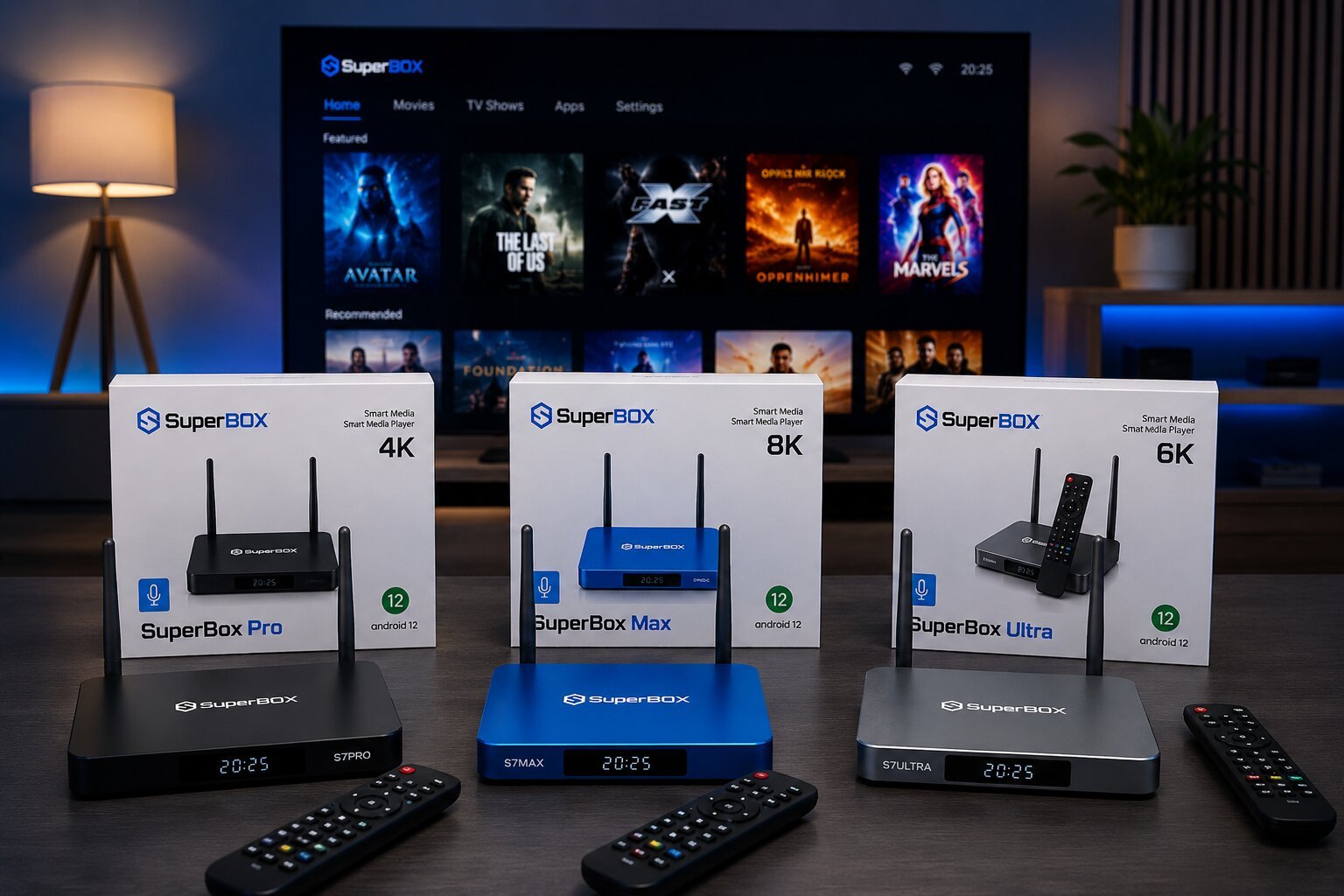
- Signs of Improvement/Success: Your Superbox S7 responds accurately to voice commands, apps open as requested, content is searched correctly, and playback controls function.
- Quick and Thorough Checks: Test a variety of commands, such as “Open YouTube,” “Find action movies,” and “Volume up,” to ensure all functionalities are working.
- If Not Effective: If issues persist, re-check each step in the relevant method. Consider if your internet connection is stable, as voice commands rely on it.
- Maintenance: Regularly check for Superbox S7 system updates and ensure your remote batteries are fresh to prevent future issues.
Frequently Asked Questions About Superbox S7 Voice Commands
Do all Superbox S7 remotes support voice commands?
No, only voice-enabled models like the RC-200 feature a dedicated microphone button. Standard remotes without this button do not support voice control.
What is the RC-200 remote, and is it required for voice control?
The RC-200 is the official voice-enabled remote control for the Superbox S7 series. It is required for voice functionality unless you have another compatible Superbox voice remote with a microphone button.
Can I use Alexa instead of Google Assistant on my Superbox S7?
No, the Superbox S7 uses an Android system that integrates with Google Assistant for voice processing. It does not support Amazon Alexa.
Is an internet connection always necessary for voice commands to work?
Yes, a stable internet connection is required because the system relies on cloud-based servers like Google Assistant to process and execute your voice requests.
Why is my Superbox S7 voice search not working for certain apps?
Voice search depends on individual app permissions and compatibility. Some third-party applications do not allow global voice assistants to search their private content libraries.
How do I check if my Superbox S7’s microphone permissions are enabled?
Go to Settings, select Apps, find the specific application you want to use, and verify that the microphone permission is toggled to “Allowed.”
What should I do if my Superbox S7 voice remote troubleshooting steps do not work?
Replace the batteries, clear the Google app cache, update the Superbox software, or unpair and re-pair the remote by holding the Voice, OK, and Return buttons until the red light flashes.
Are there specific voice commands for controlling TV functions directly from the Superbox remote?
No, voice commands only control the Superbox interface and internal apps. To control physical TV hardware like power or volume, you must manually program the IR learning keys on the remote.
Conclusion and Recommendations for You
Mastering voice commands on your Superbox S7 can significantly enhance your entertainment experience, offering unparalleled convenience and efficiency. Remember these three core principles: correctly identify your current situation, choose the appropriate method for setup, usage, or troubleshooting, and consistently monitor the results.
For new users, we recommend starting with Method 1 to pair your remote, then moving to Method 2 to explore the vast array of commands. If you encounter any issues, Method 3 provides comprehensive troubleshooting steps. Keep this guide handy for future reference, and do not hesitate to reach out to SuperBox TV Box Store support if you face persistent challenges. Enjoy your hands-free Superbox S7 experience!