
Knowledge SuperBox
What Is Backup TV on SuperBox? When to Use It





Imagine gathering friends and family around the living room television for the biggest sports night of the year. The game is tied in the final two minutes, tension is in the air, and suddenly, the picture stutters or freezes right as the quarterback releases the ball. It is every sports fan’s worst nightmare.
In modern live internet streaming, when millions of people across the country tune into the exact same channel at the exact same second, central servers can experience massive traffic jams. To make sure you never get stuck staring at a frozen screen, SuperBox includes a built-in safety net called Backup TV.
Quick Viewer’s Summary: Backup TV is a secondary, fail-safe streaming system pre-loaded on SuperBox devices alongside primary Blue TV channels.
Think of it like an open express lane. If a primary server gets crowded during a championship game or breaking news event, you can switch to a mirror backup feed running on independent servers in just two seconds.
This zero-interruption feature comes standard across all flagship models including the SuperBox S8 series, S7 Max, and previous generations.
What Is Backup TV Explained in Everyday Language
To understand Backup TV, picture a busy highway during evening rush hour. If thousands of cars try to exit at the exact same ramp at 5:00 PM, traffic slows to a crawl, even if the road itself is in perfect condition.
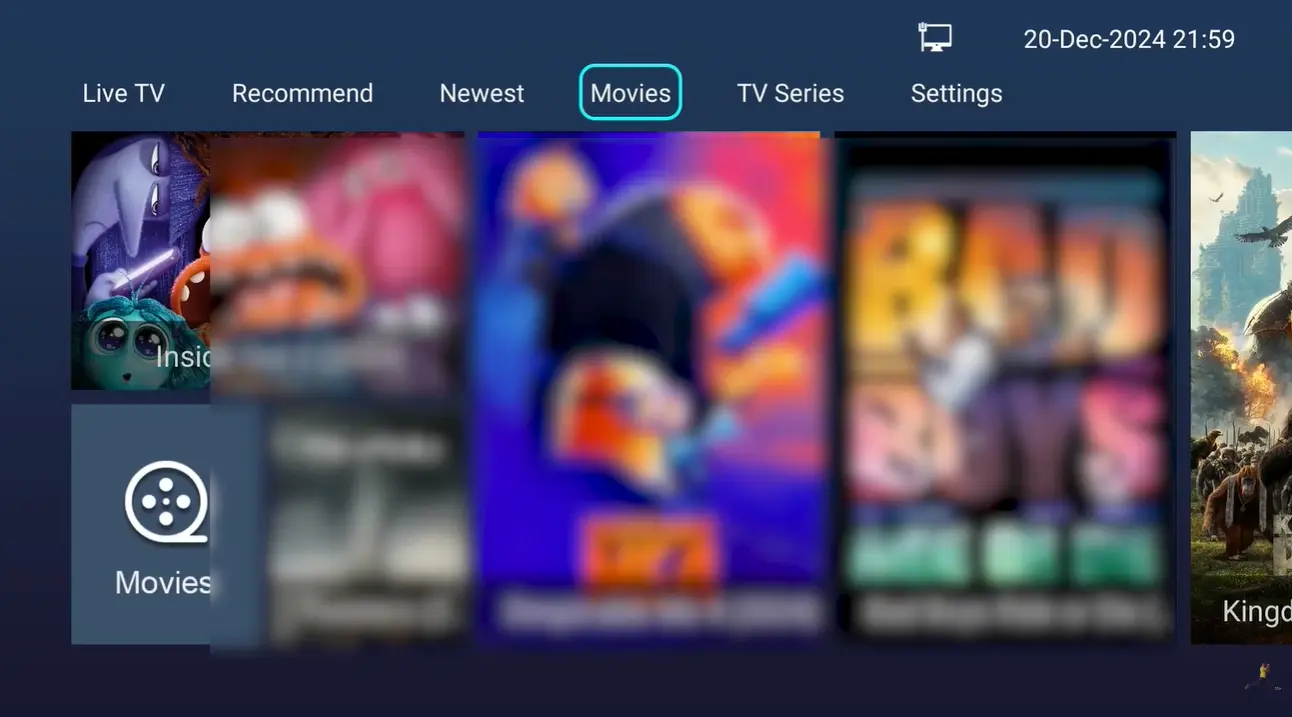
The internet works in a very similar way. When an epic sports final, pay-per-view championship, or breaking news story airs, millions of video requests flood into primary server hubs simultaneously. If one server pathway gets congested, viewers may experience brief buffering or audio hiccups.
Backup TV provides an alternate, empty highway. SuperBox maintains independent secondary server farms in different geographic locations across North America and overseas. When you switch to a backup channel, your box connects to a fresh, uncrowded data pipeline.
You get the exact same television program, the exact same commentators, and crystal-clear high definition, with none of the traffic slowdowns.
Why Having Backup Feeds Is Essential for Sports Fans?
Live television is very different from watching a recorded movie on Netflix. When streaming an on-demand movie, your box can download several minutes ahead of time while you watch, creating a comfortable buffer cushion.
Live sports cannot do that. Every play, kick, pass, and goal is happening right this second in real time. Video packets must travel from stadium cameras across thousands of miles directly to your living room in the blink of an eye.
During championship playoff weekends, college tournament brackets, and international soccer cups, online viewer demand reaches historic peaks. Having secondary backup feeds ensures that even if a primary transmission node undergoes routine maintenance or regional uplink delays, you never miss a pivotal game-winning play.
For dedicated sports enthusiasts, this redundancy provides the same rock-solid peace of mind traditionally associated with high-end satellite dishes, completely contract-free.
Comparing Primary Blue TV Channels with Backup TV Feeds
| Channel Feature | Primary Blue TV Channels | Dedicated Backup TV Feeds |
|---|---|---|
| Daily Purpose | Your everyday hub for daily channel surfing | Emergency express lane during high traffic |
| Server Network | Primary high-speed delivery clusters | Geographically separated mirror servers |
| Picture Quality | Pristine 1080p Full HD and select 4K UHD | Clean, reliable 1080p and high-bitrate 720p |
| Program Guide Info | Full 7-day interactive schedule and logos | Streamlined guide focused on live broadcast |
| Switching Time | Instant sub-second channel tuning | Rapid 1 to 2 second server handoff |
| Additional Fees | $0.00 / month (Included with hardware) | $0.00 / month (100% free with box) |
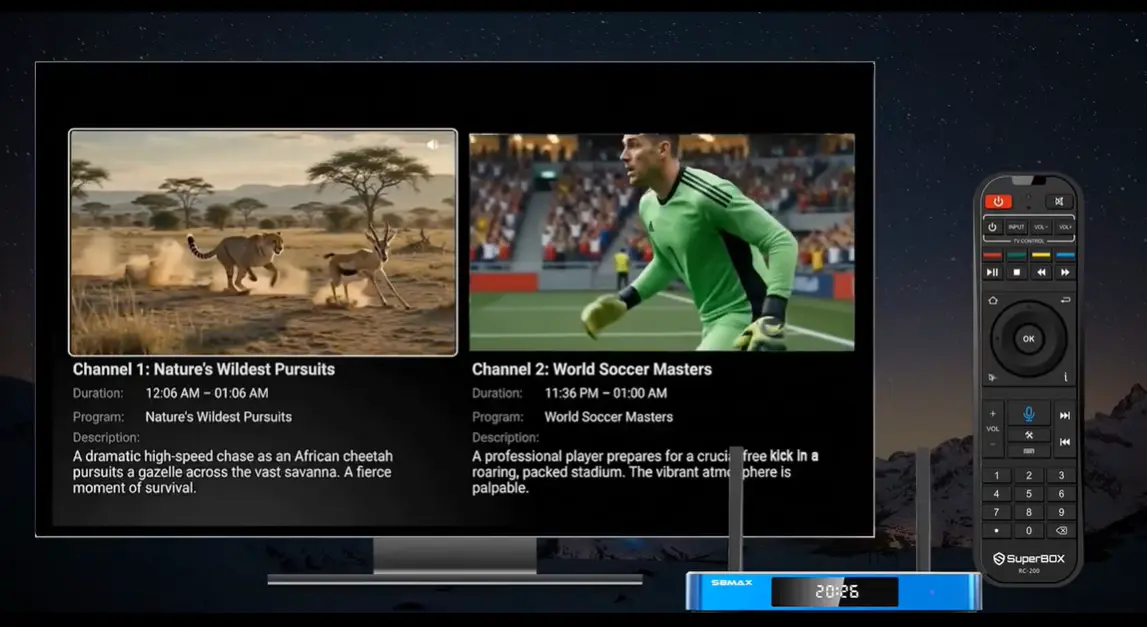
While primary channels deliver maximum resolution and full schedule guides for everyday viewing, backup channels prioritize continuous, uninterrupted playback above everything else.
Step by Step Guide to Switching to Backup TV Streams
Step 1: Notice Buffering or Server Refresh on Your Main Channel
If you are watching a major live event and notice a brief loading wheel or slight stutter, do not panic and do not start pulling power cords from the wall.
Recognize that thousands of other viewers may have just tuned into that exact same network, causing momentary server congestion at the primary hub.
Step 2: Open the Channel Guide on Your Remote Control
Press the central OK button on your SuperBox remote control to display the on-screen channel list.
On most models, backup channels appear right beside the primary station with a small numeral tag (such as Channel 1 and Channel 2), or are grouped under a dedicated Backup TV tab on the left category menu.
Step 3: Select the Backup Feed and Confirm Playback
Use your directional arrows to highlight the backup channel for that sports network or broadcast station, then press OK.
Your media box will instantly connect to the alternate mirror server, and within two seconds, smooth video and audio playback will resume on your screen.
Step 4: Bookmark Both Channels to Your Favorites Folder
To make switching effortless during future game days, highlight both the primary channel and the backup channel, and press the Yellow button or Star key on your remote.
This puts both streams side-by-side in your Favorites folder, allowing you to flip between them in a fraction of a second if you ever need to.
Everyday Habits That Keep Your TV Streams Smooth and Clear
While SuperBox takes care of server redundancy on the broadcast side, keeping your home Wi-Fi healthy ensures the video data travels smoothly across your living room.
For the best possible performance, connect your SuperBox directly to your home router with an Ethernet cable. A wired cable eliminates wireless interference from nearby kitchen microwaves, baby monitors, and neighbors’ Wi-Fi networks.
If you are connecting over wireless Wi-Fi, always connect to your router’s 5GHz network band rather than the older, slower 2.4GHz band. 5GHz provides much higher data speeds and significantly lower latency.
Restarting your home internet gateway router once a month clears out internal router cache and refreshes your network connection, keeping all home devices running at peak speed.
If you experience buffering across multiple channels, check our easy guide on fixing SuperBox buffering issues for quick home fixes.
When to Use Backup TV During High Traffic Live Sports Events?
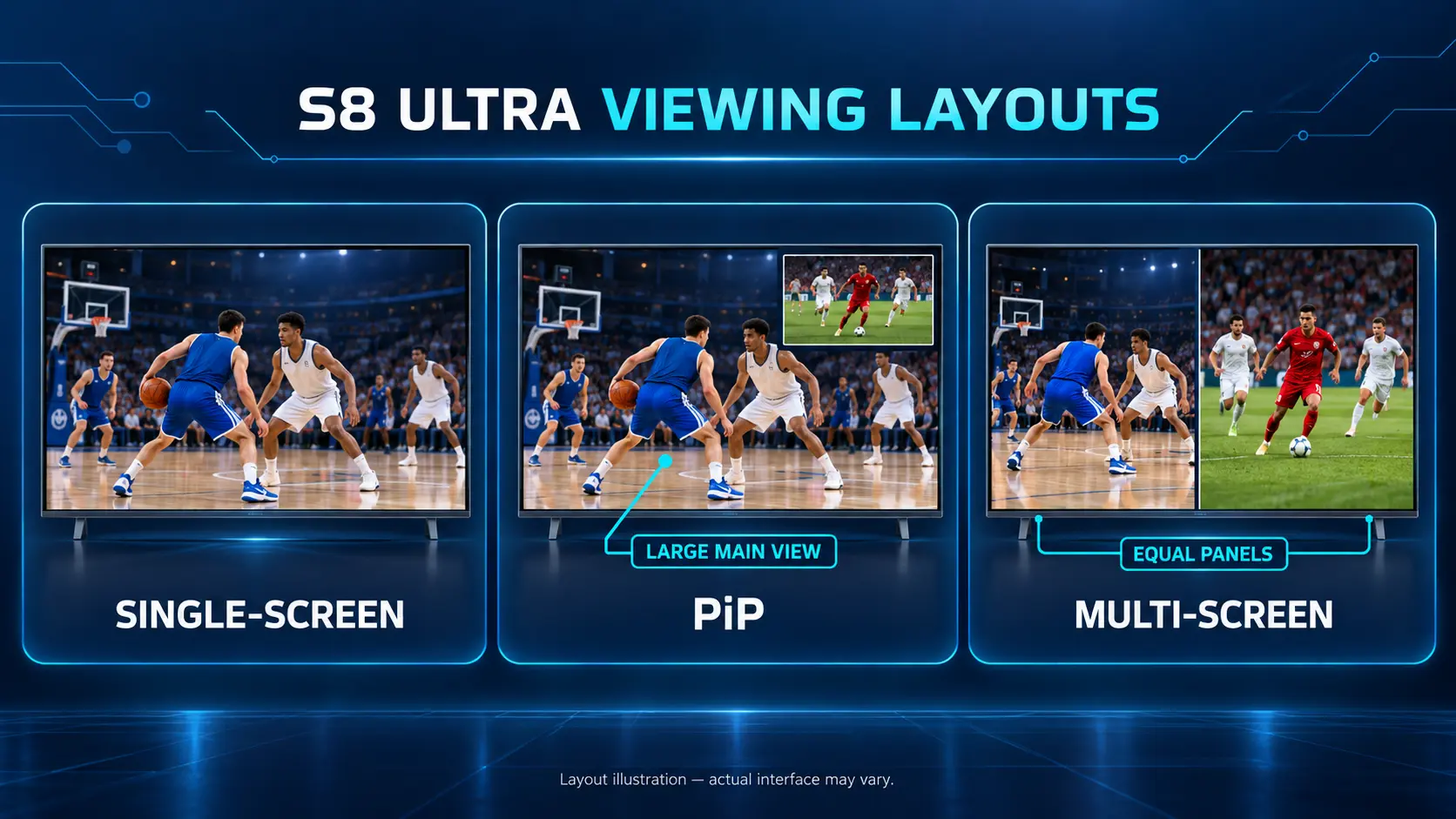
Major sporting events like championship football games, combat sports pay-per-views, or late-season basketball tournaments bring millions of viewers to their television screens all at the same moment.
During these peak traffic spikes, standard streaming feeds across the internet can experience unexpected micro-pauses or delays. This is where having Backup TV ready becomes your biggest entertainment advantage.
Because Backup TV operates on an independent network line, switching over takes only a couple of seconds with your remote control. While other viewers struggle with frozen screens or slow loading bars, your household continues watching every touchdown, goal, or knockout without missing a single beat.
Many smart sports fans create a custom favorites list inside Backup TV containing their top five sports networks. If the primary channel ever slows down, flipping to the backup feed is as fast as changing channels on a traditional TV.
How Backup TV Helps Families Traveling with Portable Setups
One of the best benefits of a compact TV box like SuperBox is that you can take it anywhere you travel. Families frequently bring their boxes on vacation to recreational vehicles, camping cabins, or hotel rooms.
However, mobile Wi-Fi hotspots and hotel wireless networks are often far less predictable than your home high-speed internet. When wireless speeds fluctuate, high-bitrate primary streams may stutter.
Backup TV features optimized data-compression pathways that require less bandwidth to maintain a stable broadcast feed. This makes it an ideal option when you are streaming from a mobile hotspot or a shared campground Wi-Fi network.
Whether you are relaxing in an RV park or unwinding in a weekend cabin, Backup TV ensures your family stays connected to the evening news and favorite shows wherever your adventures take you.
Frequently Asked Questions About Backup TV
What is the difference between Blue TV and Backup TV?
Blue TV is your primary daily viewing app with full 7-day program guides and extensive channel lineups. Backup TV is an alternative fail-safe server network designed to give you buffer-free mirror feeds if primary servers become congested.
When should I switch over to a Backup TV channel?
You only need to switch to Backup TV if your primary channel experiences temporary buffering, audio desync, or a brief server maintenance screen during high-demand live events.
Do backup channels cost extra money to unlock?
No extra fees or subscriptions are required. Backup TV channels are completely included with your original SuperBox hardware purchase and operate 100% free for the life of the box.
Is the picture quality on backup channels lower than main channels?
Backup channels stream in crisp 1080p Full HD resolution. They are optimized with adaptive bitrates to ensure that video keeps playing smoothly without freezing, even when millions of people are watching.
Why are there sometimes two or three backup channels for one network?
Each backup channel connects to a separate physical data center in different parts of the country. Having multiple mirror feeds guarantees that if one regional internet provider has an outage, the other feeds keep broadcasting.
Can I add backup channels to my Favorites list?
Yes, you can add any backup channel to your personal Favorites folder by highlighting the channel in the guide and pressing the Star or Yellow button on your remote control.
What should I do if both primary and backup channels are buffering?
If multiple different servers are buffering simultaneously, the issue is almost always in your local home network. Try restarting your home internet router, or plug an Ethernet network cable into your box.
Does Backup TV work on Wi-Fi or does it require an Ethernet cable?
Backup TV works perfectly over both Wi-Fi and Ethernet. While an Ethernet cable gives the lowest latency, a solid 5GHz Wi-Fi signal provides plenty of speed for uninterrupted streaming.
Are local news channels included on Backup TV?
Backup TV primarily focuses on major national sports channels, national broadcast affiliates, and marquee cable news stations where viewer traffic spikes are most common.
How do I switch back to the primary channel when traffic calms down?
You can return to your primary feed at any time by opening the channel guide with the OK button, navigating back to your main channel list, and selecting the primary station.
Final Thoughts
There is nothing quite like the excitement of gathering with friends for big game days, championship title fights, or historic breaking news broadcasts. Having a set-top box that anticipates heavy internet traffic and provides instant backup solutions ensures your entertainment never skips a beat.
With Backup TV built directly into the SuperBox ecosystem, you enjoy the reliability of professional broadcast equipment without paying monthly cable rental fees or signing restrictive annual contracts.
If you ever run into technical questions or want help fine-tuning your home network for match day, our friendly support team is always ready to assist through our official Contact Us page.
The article was updated on:
