
Knowledge SuperBox
Is SuperBox Safe to Use? A Practical Security Guide for SuperBox S8 Owners





Is SuperBox safe to use?
SuperBox is safe to use everyday. A security headline does not mean your SuperBox is infected. There are public reports involving SuperBox devices and applications, so the useful response is to check the software and configuration involved rather than assume every box has the same problem. You can approach these questions calmly: identify your model, review installed apps and investigate any specific security warning.
If your ISP or security software identifies suspicious traffic from your box, disconnect it from the internet while you investigate. Do not dismiss the warning because the television still works normally.
Questions such as “Is SuperBox safe?” deserve clear answers that help you use your device with greater confidence. Separate the checks for genuine hardware, trustworthy apps, available security protections and account access. Knowing what each check establishes makes the decision easier than relying on a blanket claim about an entire brand.
This guide explains the security findings available as of October 2026 and gives you a practical way to decide what to do next. If you are unfamiliar with the product, start with what a SuperBox TV box is for the basic hardware explanation.
Use your SuperBox with confidence
A few simple habits can help you use your SuperBox safely: choose apps from sources you can check, follow verified update instructions and take actual security warnings seriously. Avoid unfamiliar download links or requests to ignore a warning just to make an app work. You do not need technical expertise to make these sensible checks.
For everyday viewing, stay focused on the functions you actually use instead of adding extra downloaders, cleaners or bandwidth-sharing tools you do not need. A shorter app list is easier to review and explain if you ever need help.
Buying from an identifiable retailer also gives you a clear contact for purchase questions. SuperBox TV Box Store’s authorization can be verified, and our setup guides explain the S8 interface. That support can make ownership easier, while the checks below help you assess software concerns on their own merits.
What to know about the security reports
Reports concern specific software and device setups
In May 2026, security researchers at Plume reported that a version of CyberFlix TV, available through the SuperBox app store they examined, could let other people send internet traffic through a household’s connection without the owner knowing. Their investigation also described weaknesses in the device setup they tested.
These findings deserve attention, but they are not a diagnosis of every SuperBox. You can read Plume’s research announcement for the original explanation.
Plume’s follow-up research also discussed AppLinked and how unwanted software could reach affected devices. Its paper includes an AppLinked screenshot labeled SuperBox S6MAX. The follow-up overview and technical paper explain the tested software.
The practical point is to check installed app version and device setup a report covers. You should not assume your S8 has the same issue simply because both products carry the SuperBox name.
Keep online warnings in perspective
The FBI’s connected-device advisory explains that problems can come from software already on a device or from later downloads. It also makes clear that a single warning sign is not proof of a crime or infection. This is useful context for many connected products, not a finding about your individual S8.
What this means for SuperBox S8 owners
These reports do not show that every SuperBox S8 is infected. They also do not independently confirm every S8 setup is free of problems. If you are concerned, identify your model and apps, then ask the responsible support team what information applies to your unit.
You do not have to interpret technical reports alone. Ask the responsible seller or manufacturer which software versions apply to your unit and whether a documented update addresses the concern. Specific answers give you a firmer basis for confidence than the model’s release date.
What malware means in everyday language
Malware means unwanted software that does something harmful. One concern in the reports is software allowing other people to use your internet connection without your permission. You do not need to understand the technical terms to know why that should be investigated.
At the same time, a slow channel or an app that takes a moment to open does not prove malware is present. Start with what you actually see on your own television rather than treating every small playback problem as a security incident.
The most useful information is simple: Which app is involved? What does the warning say? When did it happen? Save those details if you need help.
Three checks that help you feel more confident
| What to check | How it helps | Keep in mind |
|---|---|---|
| Your device | Confirm the model and follow the brand’s authenticity check | Authenticity does not test every installed app |
| Your seller | Verify authorization and save your purchase record | Seller verification and software safety are separate questions |
| Your apps and any warnings | Review unfamiliar downloads and specific alerts | A headline alone does not diagnose your unit |
For an authenticity question, use our SuperBox device verification guide. For a purchase question, follow how to identify your SuperBox seller.
These checks give you a clearer picture of what you own and who can help. Your retailer handles purchase questions; the relevant technical team can help investigate device or app concerns.
Easy checks for your SuperBox
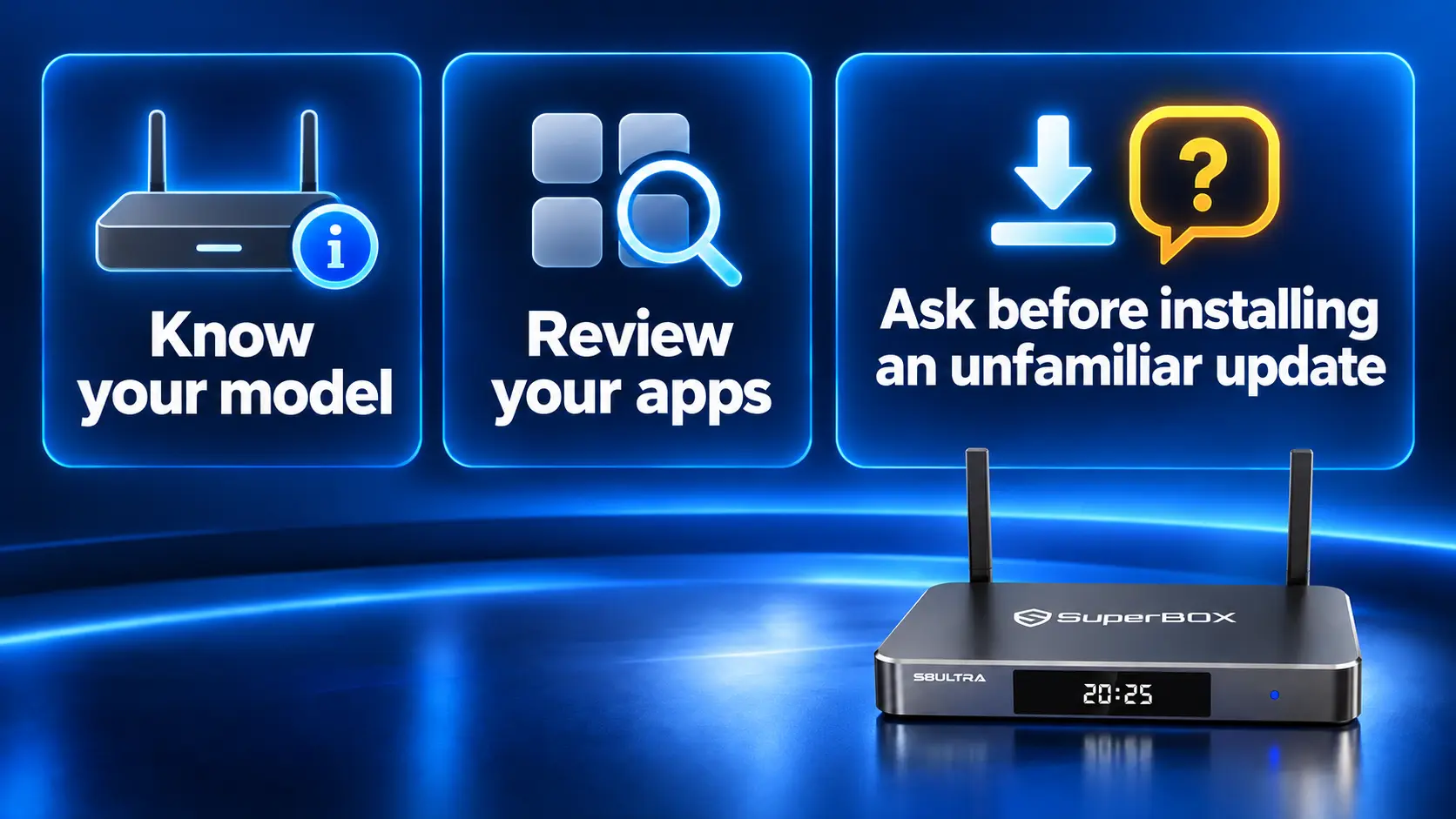
1. Find your model and take a photo
Look at the model name printed on the unit. If support asks for software information, open the device information screen in Settings and photograph it. You do not have to interpret the numbers yourself; a clear photo helps the team identify the version.
Photograph the relevant details and note when the issue started. Did it begin after installing an app, accepting an update or receiving an ISP notification? A short timeline helps distinguish a longstanding configuration from a recent change.
If you need help finding your way around the interface, follow the S8 Max setup guide or S8 Ultra setup guide.
2. Review applications without installing anything new
Open the installed-app list and compare it with what you remember adding. Record unfamiliar app names and available version information. Pay particular attention to CyberFlix TV or AppLinked if present, because the research above discusses versions of those applications.
Avoid opening an unfamiliar app just to find out what it does. If a warning names an app, take a photo and ask for advice. Do not download a replacement from a random comment, message group or advertisement promising an instant fix.
Our S8 app installation guide explains the interface for installing Blue TV, Blue VOD and Playback. Understanding the normal setup helps you recognize unfamiliar additions; it does not guarantee the safety of every app or update.
3. Use verified instructions for updates
If you receive an update prompt or need help updating, check the instructions with the responsible support team. Make sure they apply to your model before you proceed.
A message calling itself an update is not enough. Avoid installing files sent by an unfamiliar account, and do not switch off an available security protection just because someone says it will make installation easier.
4. Check an actual internet-provider warning
If your internet provider or router app sends a warning, ask whether it relates to your SuperBox or another device in the house. Device names can be unclear, so let the provider help identify the source.
Save the message and the time it appeared. Ask what activity caused the warning. A total showing how much internet data was used does not, by itself, explain the cause.
If an alert identifies the box as suspicious, disconnect its Ethernet cable and disable its Wi-Fi connection. For ordinary connection troubleshooting after a security concern is resolved, our S8 Wi-Fi and Ethernet guide explains the network controls.
Buffering or malware? Choose the right next step
| What you notice | How to interpret it | Next action |
|---|---|---|
| One channel buffers while others work | A playback symptom without a security diagnosis | Follow the buffering troubleshooting guide |
| An app crashes or runs out of space | A maintenance issue unless additional evidence points elsewhere | Review storage and ordinary app troubleshooting |
| A harmful-app warning names a package | A specific finding that needs attention | Save it, stop using the app and follow the security tool’s instructions |
| ISP or router flags unusual activity from the box | A network concern requiring investigation | Disconnect the box and contact the provider |
| An unfamiliar app appears without your approval | A software change you need explained | Record the name and version before requesting help |
| “Device Forbidden” or “Devices Abnormal” appears | A product/app error, not an antivirus verdict | Use the relevant support guide |
The important distinction is the evidence behind the symptom. Clearing a cache may help a playback problem; it cannot establish that hidden proxy code has disappeared. Our S8 cache and customer service guide covers that maintenance task.
Likewise, Device Forbidden and Devices Abnormal require their own diagnosis. Keep the exact message rather than describing every error as a virus.
What to do if you receive a specific security warning
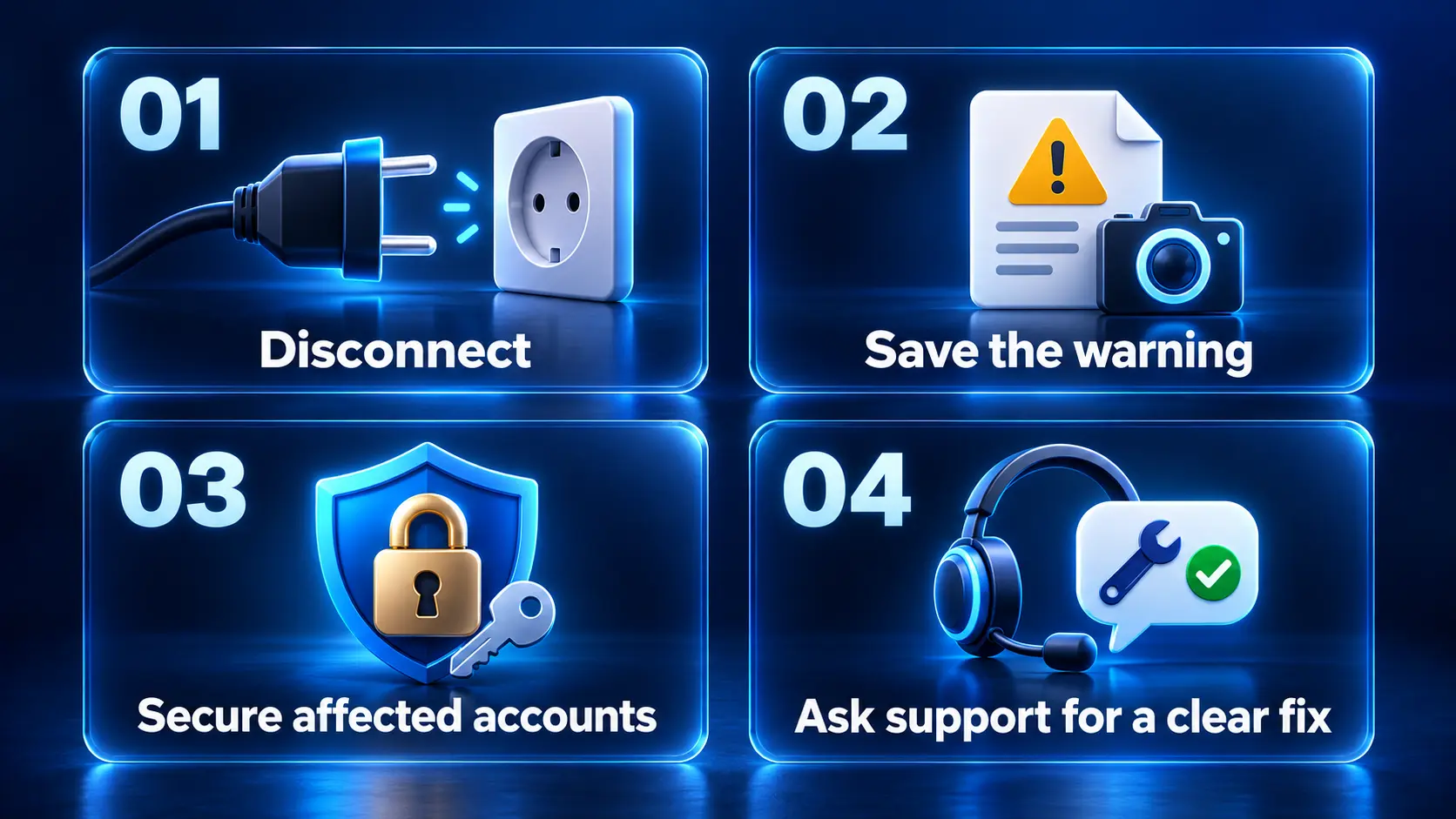
Disconnect first and preserve the evidence
Stop the connection before spending time on repeated playback tests. Save photographs of the warning and relevant settings locally. Preserve router alerts or ISP messages that may be harder to retrieve later.
Share the warning privately with a verified support channel. Avoid posting full network records or account information in a public comment.
Secure accounts using another trusted device
If you entered credentials on the box and suspect account access, review those accounts from a trusted phone or computer. Check unfamiliar sign-ins, change affected passwords and remove sessions you do not recognize. Use two-step verification or another strong sign-in method supported by the service.
Check account alerts through the service’s own website or app on your trusted phone or computer. Avoid signing in through links in unexpected messages.
Ask support for clear next steps
Tell support your model, the app involved and the exact warning. Ask what you should remove or update, and how to confirm the problem is resolved. You can request plain-language instructions rather than trying to work through unfamiliar settings yourself.
Removing an app named in a warning may be one step, but follow up if the warning continues. Keep the box disconnected while a specific security concern remains unresolved.
Check before resetting your box
A reset may remove your settings and apps, but it is not a guarantee that a security issue has been fixed. Ask support whether a reset addresses the particular problem before doing it.
Save the warning first. If there is no clear fix, discuss the options with the retailer that sold your unit, including any return or warranty terms that apply.
Will a VPN or guest network solve the problem?
A VPN does not remove unwanted software. You do not need to rush into buying one because you saw a worrying headline. Our SuperBox VPN guide explains VPN choices separately.
Keeping entertainment devices separate from work computers can help limit contact between them. The NSA’s home-network guidance recommends separate networks for different uses. If you want to do this, ask your router provider how its guest or device-isolation setting works.
That separation does not remove an unsafe app or stop every unwanted internet connection. If your box has a specific threat warning, keep it offline until you have received appropriate advice.
Questions to ask before buying a SuperBox S8
Choose the S8 model that suits your viewing habits and ask any setup questions before checkout. Our S8 Pro, Plus, Max and Ultra comparison explains storage, remote and supported features. Software safety is a separate question from those hardware differences.
Before checkout, ask:
- Which model and software build will I receive?
- How can I check an unfamiliar app or download before installing it?
- How will I receive updates and setup support?
- Who investigates a harmful-app or network alert?
- What return or warranty terms cover my order?
Compare S8 Max and S8 Ultra for the features you want. Then ask the store any remaining questions so you understand the product and purchase terms before deciding.
Buy from a retailer you can identify and contact
SuperBox TV Box Store is an authorized retailer serving customers in the US and Canada. Our authorization code is SP20250414002, which you can check at the SuperBox authorization website.
When buying from SuperBox TV Box Store, you have an identifiable retailer to contact about the unit being sold, your purchase and the applicable policies. You can ask us questions before checkout and read our return terms first. That clarity helps you make a confident purchase while keeping software-security questions separate from seller authorization.
Our customer email is customer@superboxtvboxstore.com. Save your order confirmation so purchase questions reach the right team. Our authorization verifies our retailer status; questions about a particular app or security warning still need their own answer.
Frequently asked questions
Is every SuperBox infected with malware?
No. The reports discussed here do not establish that every SuperBox is infected. They identify findings involving particular software and configurations. A headline alone is not a reason to assume your own box has malware; use the checks above and take specific alerts seriously.
Is SuperBox S8 automatically safer than older models?
A new generation does not establish that a reported issue has been fixed. Ask for the exact build, update details and security assessment relevant to your S8.
Does a genuine SuperBox mean its apps are safe?
Authenticity and software security are different questions. Device verification does not audit every application or future update installed on the unit.
What if an app asks me to ignore a security warning?
Pause the installation and ask for advice through a verified support channel. Save the app name and warning. You do not need to try unfamiliar settings on your own.
Does normal playback prove the box is safe?
No. A working picture is a playback result. It does not describe background processes or explain a network-security alert.
Can clearing the cache remove malware?
Clearing cache is a maintenance action, not a malware-removal assessment. Follow the instructions relevant to the identified threat instead of repeatedly clearing temporary files.
Can I use a VPN instead of investigating an alert?
No. A VPN is not a substitute for identifying and removing unwanted software or resolving a compromised device configuration.
What should I send customer support?
Send the model, build, app name and version, exact warning, time observed and steps already taken. For an order from our store, include the order number and checkout email privately. Never send account passwords, one-time codes or full payment-card details.
How long have people been using SuperBox?
Many customers have been using SuperBox for five years or more without any security incidents.
Get clear answers and support for your SuperBox
You do not need to assume the worst about your SuperBox simply because you read a security headline. Check the facts that apply to your own unit, choose apps carefully and use verified support channels. If a specific threat alert appears, keep the box disconnected until it has been investigated.
If you are considering a SuperBox S8 from our store, contact SuperBox TV Box Store before buying with questions about the model, setup or purchase terms. If you already ordered from us, provide your order details and describe any concern so we can direct the request appropriately. Our aim is to help you understand your purchase and the next steps clearly, without leaving you to make sense of conflicting online claims alone.
The article was updated on:
