
Knowledge SuperBox
What Is TV Rewind Feature? Guide to Scrubbing & 7-Day Playback





The rewind feature refers to a digital playback capability that allows television viewers to reverse the playback timeline of live broadcast channels, recorded programs, or video-on-demand content to rewatch a missed moment, review a controversial sports play, catch overlooked dialogue, or return to the start of a telecast.
Here is what you need to know about the rewind feature at a glance:
- It empowers viewers to jump backward in 10-second increments, 30-second intervals, or smooth multi-minute scrub streams during live television broadcasts.
- It operates via an automated temporary buffer cache that continuously captures live transport stream data in hardware memory and cloud edge servers.
- On SuperBox hardware, rewinding expands into a 7-day retrospective playback archive across major national sports, news, and entertainment networks.
- It requires no physical hard drives, manual recording schedules, or monthly equipment rental fees.
- It works seamlessly across live channels in Blue TV as well as on-demand movies and series in Blue VOD and Prime VOD.
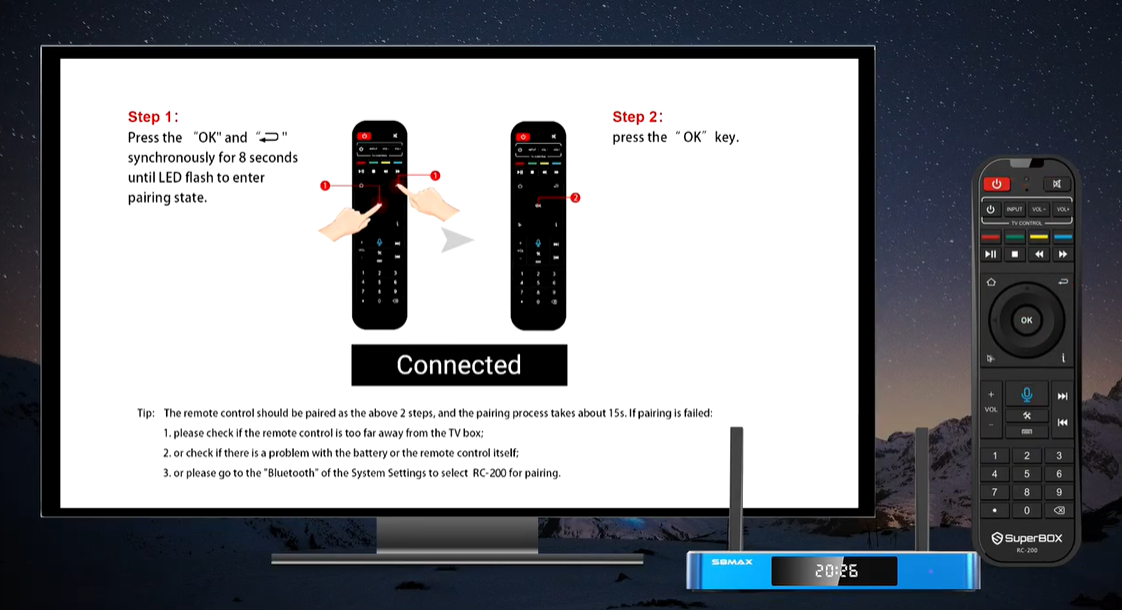
Defining the Rewind Feature: How Live and On-Demand Scrubbing Functions
In traditional broadcasting, television was strictly a linear medium. If you sneezed during a dramatic mystery reveal, walked into the kitchen during a game-winning touchdown, or arrived home twenty minutes after the evening news started, that broadcast content was permanently lost to you.
The rewind feature revolutionized this dynamic by converting linear video into interactive, non-linear media. Historically, rewinding required mechanical tape spools spinning backward inside VCR decks, which subjected magnetic film to physical wear and tear.
In modern internet protocol television (IPTV) and streaming media ecosystems, rewinding is entirely digital. When you press the rewind button or tap the left directional arrow on your remote control, the media player recalculates its internal playback timecode. Instead of reading live packets at the transmission edge, the decoder reads stored video packets from earlier in the timeline, rendering smooth reverse playback without physical degradation.
The Technology Behind Rewind
Behind every instantaneous rewind command lies a sophisticated network and hardware pipeline that coordinates data ingestion, video indexing, and memory allocation. Understanding this architecture clarifies why advanced hardware like the SuperBox S8 series executes rewinds effortlessly while cheap generic streaming sticks often freeze or stutter.
Modern digital video relies on compressed transport streams where only specific frames contain complete photographic images. These complete reference pictures are known as key frames (or I-frames/IDR frames), while intermediate frames only calculate the differences between scenes. When you instruct your device to rewind, the playback engine must locate the nearest preceding keyframe to reconstruct a coherent picture instantly.
Digital rewinding depends on four integrated engineering subsystems:
- Rolling Circular Buffer: The streaming device allocates dedicated system RAM or high-speed solid-state flash memory as a continuous video buffer that caches incoming video segments while playback proceeds.
- Keyframe Indexing Engine: As video chunks arrive, the media player catalogs the exact timestamp and byte position of every keyframe to facilitate lightning-fast seeking.
- Cloud CDN Edge Cache: For extended rewind periods beyond local device memory limits, high-performance content delivery networks maintain multi-day rolling copies of network feeds.
- Dynamic Rate Adaptation: When fast rewinding at 4x, 8x, or 16x speed, the hardware video decoder selectively drops intermediate predictive frames while decoding keyframes to generate fluid visual movement.
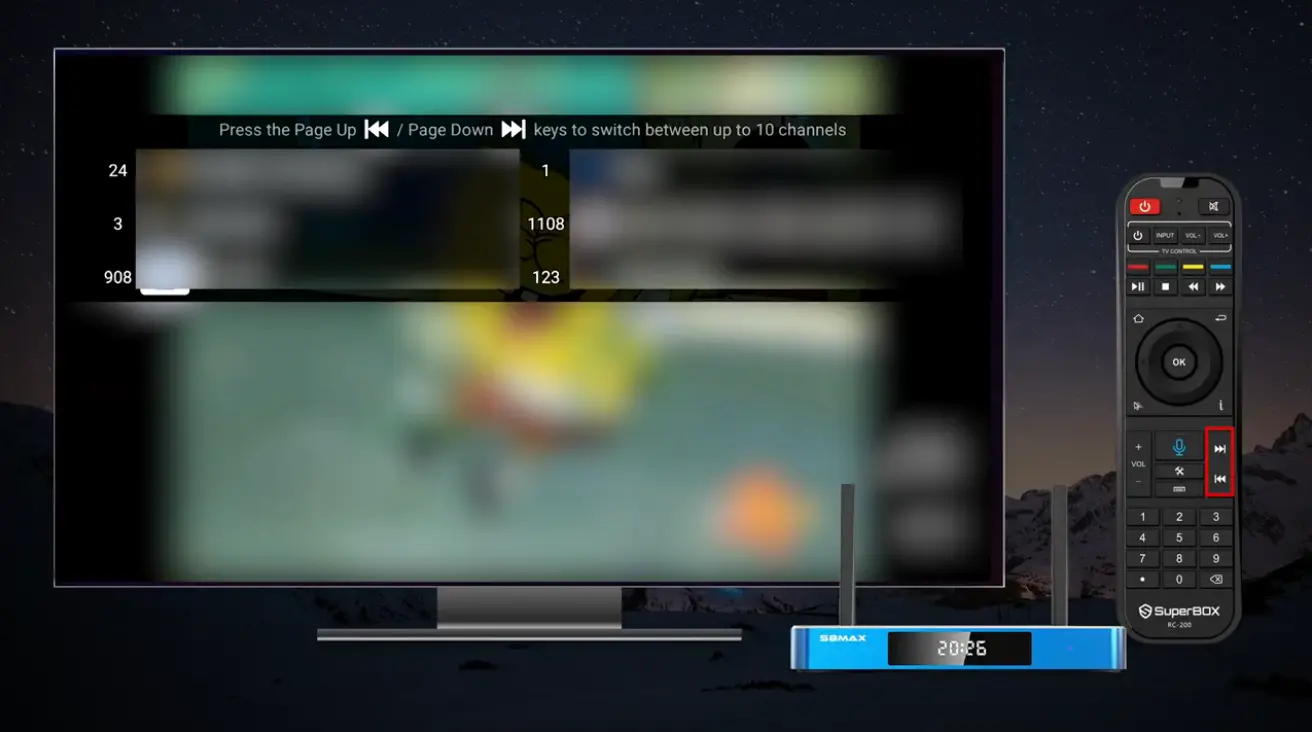
Three Ways to Rewind on SuperBox Hardware
SuperBox consoles deliver three distinct rewind implementations tailored to different viewing habits across live television, weekly broadcast archives, and on-demand cinema. Understanding each mode ensures you extract maximum convenience from your media player.
First, Instant Live Rewind operates directly within the primary Blue TV live streaming application. While tuned to any active channel, pressing the Left arrow on your remote calls up an on-screen scrub bar. Tapping Left jumps backward in 10-second increments, making it effortless to rewatch an incredible pass, a controversial referee call, or a critical news soundbite.
Second, 7-Day Retrospective Rewind expands your viewing window by up to 168 hours across major networks. Available through the dedicated Playback application or by scrolling backward on the Blue TV electronic program guide, this feature allows you to rewind entire days. If you worked late during a primetime broadcast on Tuesday, you can sit down on Friday evening, rewind directly to that program, and watch the entire telecast uninterrupted.
Third, Video on Demand Scrubbing operates inside Blue VOD and Prime VOD. When streaming from an extensive library of over 100,000 films and series, the rewind feature supports multiple acceleration speeds including 2x, 4x, 8x, 16x, and 32x. You can skip backward past scary scenes, rewatch dramatic confrontations, or resume viewing from previous chapters with zero buffering delay.

Step-by-Step Guide: How to Rewind Live TV and Movies on SuperBox
Using the rewind feature on your SuperBox media console is designed to be completely intuitive. Whether you are catching up on live sports or enjoying evening movies, follow these five straightforward steps to control your viewing timeline.
Step 1: Launch Your Preferred Entertainment Application
Power on your SuperBox console and television display. From the home launcher screen, launch Blue TV for live television broadcasts, Playback for historical 7-day archives, or Blue VOD for movies and television series.
Step 2: Open the Interactive Playback Timeline Scrub Bar
While watching any live broadcast or video stream, press the Left arrow button on your Bluetooth voice remote control. This action immediately pauses or summons the translucent on-screen timeline bar, displaying the current timestamp, elapsed time, and total program length.
Step 3: Scrub Backward to Your Desired Scene or Timecode
Tap the Left arrow repeatedly to rewind in precise 10-second jumps, or press and hold the Left directional button to initiate high-speed reverse scrubbing. As you hold the button, the scrub marker slides backward across the timeline, accompanied by updating thumbnail preview frames.
Step 4: Confirm Resumption and Enjoy Uninterrupted Playback
When the progress marker aligns with the exact scene you wish to watch, release the directional arrow and press the OK button on your remote. The media player will synchronize with the stored buffer chunks and immediately resume smooth video playback.
Step 5: Fast Forward or Return to the Live Broadcast Edge
Once you have finished reviewing the replayed play or missed scene, you can skip forward through commercial breaks by tapping the Right arrow button. To return instantly to real-time live television, press and hold the Right arrow until the timeline marker reaches the live broadcast edge, or press the dedicated Exit button.
Remote Control Mastery
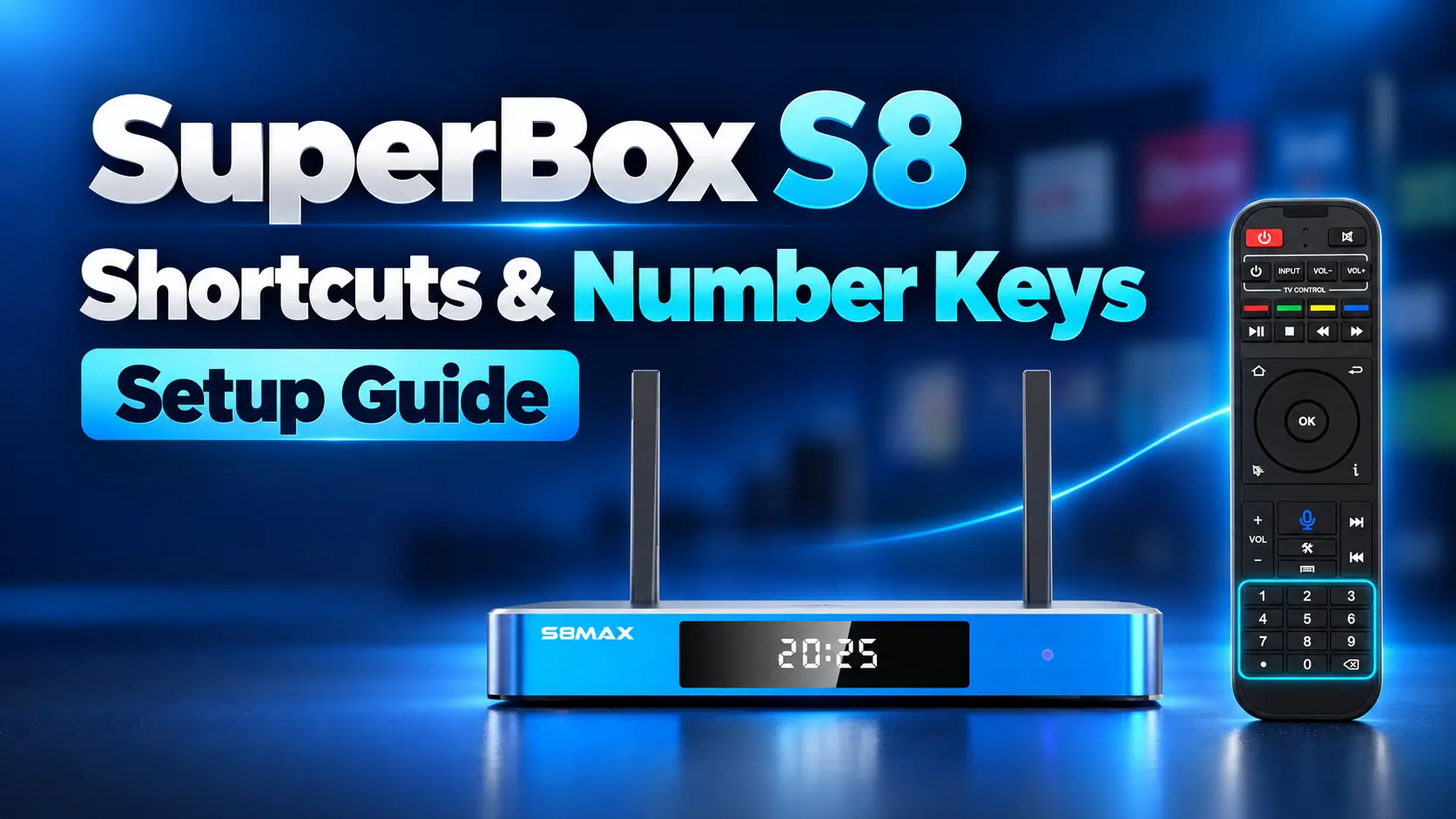
Mastering the physical layout of your SuperBox voice remote control allows you to navigate streams effortlessly in dark home theater rooms. The remote includes multiple dedicated keys that facilitate high-speed navigation.
The central directional D-pad provides primary navigation. The Left arrow handles fine-grained reverse seeking in 10-second intervals, while the Right arrow advances playback. Pressing the central OK button toggles between pause and play.
Dedicated media keys located directly beneath the D-pad provide secondary trick-play control. The Rewind key (double left arrows) activates variable acceleration speeds, while the Play/Pause key freezes live action instantly. On SuperBox S8 series consoles, you can also use the voice command button to issue vocal seeking prompts such as rewind two minutes or start from beginning.
Network and Hardware Factors for Seamless, Zero-Lag Rewinding
While rewinding looks instantaneous to the viewer, the process demands robust hardware decoding throughput and consistent internet delivery. If either component encounters a bottleneck, playback can pause to replenish the local media cache.
When you scrub backward, the video decoder must discard its current frame pipeline and establish a new socket connection to retrieve historical video chunks from cloud CDN servers. To execute this handover without stuttering, your home internet connection must maintain low latency and sufficient download bandwidth.
Connecting your SuperBox console via a hardwired Cat6 Ethernet cable delivers the lowest packet jitter. If Ethernet wiring is inconvenient, connect your console to the 5 GHz Wi-Fi band or the upgraded Wi-Fi 6 wireless network standard supported on flagship SuperBox S8 Ultra and S8 Max hardware.
- Standard Definition Streams (480p / 720p): Requires at least 15 Mbps download bandwidth for steady 3-second chunk retrieval.
- Full High Definition Streams (1080p 60fps): Requires at least 35 Mbps stable bandwidth for instant keyframe seek and audio synchronization.
- Ultra High Definition Streams (4K HDR): Requires 50 to 100 Mbps broadband speed to handle high-bitrate video decoding without frame drops.
- Hardware Processor: Quad-core ARM Cortex processors and Mali-G31 GPU engines handle hardware-accelerated HEVC and AV1 stream decoding with zero CPU throttling.
Troubleshooting Common Rewind Stutters, Audio Lags, and Buffering
If you ever encounter a spinning loading wheel, audio desynchronization, or sudden jumps back to the live edge after rewinding, apply these verified diagnostic steps to restore flawless performance.
Resolving Audio Delay After Rewind: If video resumes smoothly but the dialogue lags behind lip movements by one or two seconds, the hardware audio decoder is re-syncing with the video stream. Press the Pause button for two seconds and then press Play to force the audio and video timestamps to align.
Fixing Endless Buffering Wheels: If seeking backward causes persistent spinning circles, your player likely dropped a transport chunk during server connection handover. Press the Back or Exit button once to return to the live broadcast channel, wait three seconds for the live stream to stabilize, and then rewind again.
Clearing Accumulated Stream Cache: Heavy daily streaming can cause temporary buffer data to accumulate in Android system RAM. Go to device Settings, select Apps, locate Blue TV or Playback, click Clear Cache, and restart your console to flush residual cache files.
Checking Channel Playback Support: While major national networks and live sports channels feature full 7-day retrospective rewind archives, certain low-bandwidth regional broadcast feeds only support short-term live pause buffering. Look for the yellow clock or playback icon next to the channel title in the guide.
Frequently Asked Questions About the Rewind Feature
Can I rewind live television channels on SuperBox without a DVR?
Yes, SuperBox allows you to rewind live television broadcasts directly without requiring an external hard drive, physical DVR box, or monthly cloud storage subscription. The rewind buffer is managed automatically through local hardware memory and high-capacity cloud server clusters.
How far back can I rewind a live TV channel on SuperBox?
On active live channels in Blue TV, you can rewind throughout the current program broadcast timeline. Furthermore, on channels compatible with the 7-day playback system, you can rewind backward across the entire week of programming up to seven full days (168 continuous hours).
What buttons on the remote control do I use to rewind?
You can rewind by pressing the Left directional arrow on your remote control D-pad for 10-second jumps or by pressing and holding the Left arrow for rapid timeline scrubbing. You can also utilize the dedicated Rewind key (double left arrows) located on the lower media keypad.
Can I fast-forward back to live television after rewinding?
Yes, whenever you are viewing a rewound broadcast or time-shifted stream, you have complete trick-play control. You can fast-forward through commercial advertisements or press and hold the Right arrow button until you reach the real-time live broadcast edge.
Why do some channels buffer for two seconds when I press rewind?
When you rewind, the media player must disconnect from the live stream edge and request historical video chunks from cloud server caches. The brief one-to-two-second pause allows the hardware video decoder to buffer the nearest keyframe and establish flawless audio-video synchronization.
Do I need a high-speed internet connection to use the rewind feature?
Yes, we recommend a stable broadband download speed of at least 25 to 35 Mbps for high-definition channels. Because rewinding pulls data chunks from cloud servers, a fast and low-latency network connection prevents buffering loops during rapid scrubbing.
Can I rewind movies and television series in Blue VOD?
Yes, Blue VOD and Prime VOD offer comprehensive rewind capabilities across their catalog of over 100,000 on-demand titles. You can scrub backward in 10-second jumps, use variable rewind speeds up to 32x, or skip backward by entire chapters.
Is there an extra subscription fee for the rewind or playback feature?
No, the rewind and 7-day playback capabilities are completely subscription-free and included with authentic SuperBox hardware consoles. There are never any recurring monthly fees, activation charges, or renewal penalties.
What is the difference between rewinding live TV and using the Playback app?
Rewinding live TV allows you to scrub backward during a broadcast you are currently watching in real time. The Playback app, on the other hand, is an organized archive that lets you browse and launch programs that finished airing hours or days ago from an on-demand schedule grid.
What should I do if the rewind timeline scrubber disappears too quickly?
If the on-screen scrub bar fades before you finish seeking, simply tap the Left arrow or OK button on your remote control to bring the timeline interface back into view. You can also adjust on-screen display timeout durations in the Blue TV settings menu.
The article was updated on:
