
Knowledge SuperBox
What Is Live Playback ? Complete Guide to 7-Day Time Shift TV





Live playback is an automated television feature that allows viewers to pause, rewind, or watch full replays of previously aired programs from the past seven days on supported channels without paying monthly DVR fees or connecting external recording drives. Instead of forcing you to remember to record a football game or evening news broadcast ahead of time, high-speed streaming servers record and store programs automatically.
When you get home late from work or miss the start of a live sports broadcast, you simply select the channel, pick the broadcast date, and start streaming from the opening minute. At SuperBox TV Box Store, our team helps thousands of households across the United States and Canada cut traditional cable costs while retaining complete control over their daily entertainment schedules.
Quick Answer: How Live Playback Works on SuperBox?
Live playback transforms traditional appointment television into a flexible on-demand experience. In traditional broadcasting, if you miss a 7:00 PM broadcast, you must wait for a late rerun or purchase an expensive subscription package. With the live playback system on SuperBox, the entire broadcast window remains accessible for seven consecutive days across more than eighty-five major television networks.
The underlying technology works through server-side caching. Our content distribution networks continuously encode and store designated live television channels in high-definition video blocks. When a viewer selects a past broadcast, the SuperBox hardware pulls the stream directly from cloud servers rather than reading from a noisy internal hard drive inside your living room.
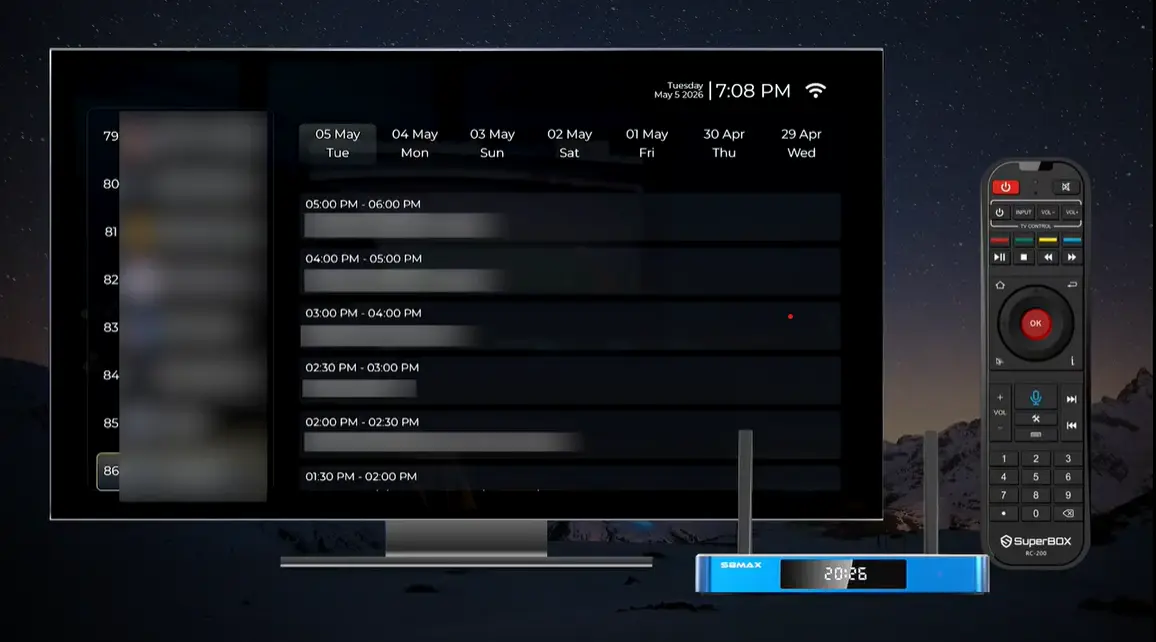
This design delivers several clear benefits for everyday users:
- Zero local hard drive wear because videos stream over your internet connection without filling box memory.
- Zero scheduling headaches because every program on supported channels is archived automatically without setting timers.
- Zero tuner conflicts so multiple television sets in your household can enjoy different replays simultaneously.
- Full playback navigation including pause, instant replay, fast-forwarding, and rapid timeline scrubbing.
Whether you want to catch the fourth quarter of a late-night West Coast basketball game or rewatch breaking morning news, live playback gives you complete freedom from rigid television broadcast schedules.
Live Playback vs Traditional Cable DVR vs Cloud DVR Subscriptions
For decades, television subscribers relied on digital video recorders to manage their viewing schedules. While physical DVR units offered a major upgrade over ancient video cassette tapes, they introduced frustrating hardware rental fees, limited storage capacities, and frequent mechanical failures. Modern paid streaming apps attempted to replace cable boxes with cloud recording subscriptions, but they frequently add ten to twenty dollars in monthly surcharges and erase your recorded games after thirty to ninety days.
The SuperBox live playback feature solves these pain points by combining automated cloud archiving with a one-time hardware purchase model. The comparison table below highlights how traditional cable DVR boxes and paid streaming subscriptions compare directly against the SuperBox seven-day playback experience:
As shown in the comparison, traditional DVR equipment creates ongoing monthly expenses that add up to hundreds of dollars every year. With live playback on SuperBox, households enjoy full access to weekly sports, news, and entertainment broadcasts without ongoing bills or arbitrary storage restrictions.
Two Ways to Use Live Playback on Your SuperBox
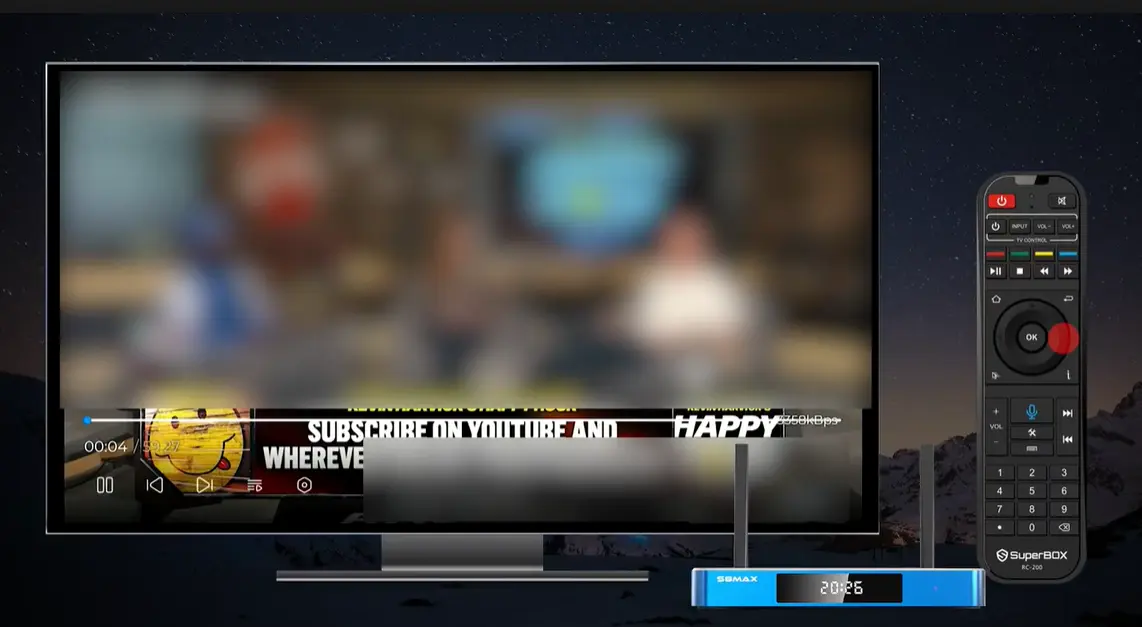
Method 1: Instant Time Shift Inside the Blue TV Application
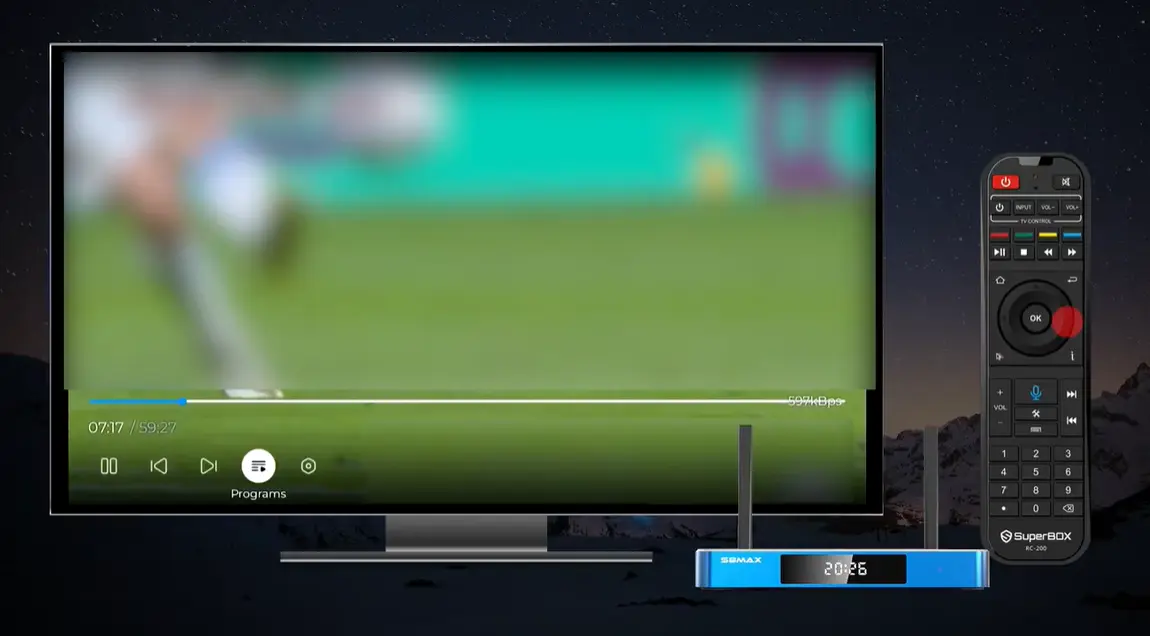
When you are actively watching a live sports match, live debate, or news program inside the Blue TV application, you do not have to leave the stream to catch a missed moment. If the doorbell rings or you step into the kitchen for a snack, you can pause the live broadcast immediately by pressing the OK button on your remote control.
Pressing the Left Arrow key on your SuperBox remote brings up the interactive progress slider bar at the bottom of the screen. On current SuperBox S8 and S7 series consoles, you can rewind the live broadcast backward up to eight hours on designated channels. This allows you to review a controversial referee call, listen to breaking weather alerts again, or restart a movie that started before you turned on your television.
Method 2: Full Seven-Day Catch-Up Inside the Dedicated Playback App
If the event you want to watch aired yesterday or several days ago, the dedicated Playback application is the ideal tool. The Playback app functions as an organized digital library of television broadcasts from the preceding seven days.
Inside this application, channels are neatly organized into clear categories including Sports, News, Movies, and Entertainment. Instead of searching through endless random video files, you see a clean electronic program guide mapped directly to specific broadcast dates.
You can select Tuesday night to watch prime-time sitcoms or jump back to Saturday afternoon to replay regional college football matchups.
Step-by-Step Guide: How to Watch Past Shows Using the Playback App
Step 1: Install the Playback App from the Built-in App Store
SuperBox hardware consoles are delivered clean out of the box without pre-installed third-party streaming applications. This ensures that every customer receives a pristine device with optimal storage performance and fresh software versions.
From your SuperBox home screen, open the App Store or App Installer utility. Scroll down to locate the official Playback application, press OK on your remote control, and select Install. The application downloads in just a few seconds and automatically creates a shortcut on your home screen or Apps menu.
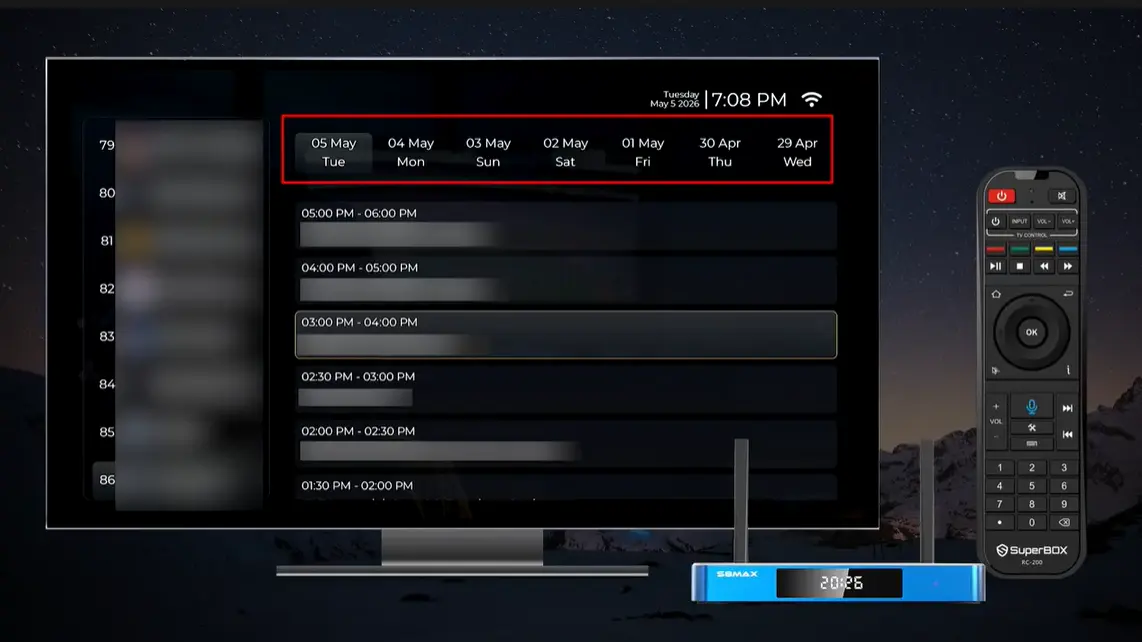
Step 2: Choose Your Channel and Category
Launch the Playback application from your home screen. On the left side of the display, you will see category navigation tabs dividing channels into Sports, News, and General Entertainment. Use the directional arrow keys on your remote control to navigate down the list and highlight the specific network channel that originally broadcast your show.
Step 3: Select the Air Date on the Seven-Day Timeline
Once your desired channel is highlighted, look across the top date selector bar. The app displays a rolling seven-day calendar starting with Today and moving backward through yesterday, day two, day three, and up to seven days prior. Use the Right Arrow key on your remote control to highlight the specific date when your program aired and press OK.
Step 4: Pick the Scheduled Time Block and Start Watching
After confirming the date, the right side of the screen populates with the complete hourly schedule of programs broadcast on that network during that day. Scroll through the schedule list, highlight the title of the game or episode you want to watch, and press the OK button. The stream buffers for one to two seconds and begins playing immediately in full screen.
SuperBox Remote Control Shortcuts for Playback Navigation
Controlling your viewing experience in live playback mode is responsive and intuitive. Every authentic SuperBox remote control comes equipped with dedicated media transport keys and directional pads designed for smooth video navigation.
Furthermore, all current SuperBox S8 series and SuperBox S7 series consoles include premium backlit voice remotes. When you watch television in a darkened bedroom or home theater room, picking up the remote activates soft LED backlighting behind every button, making it effortless to pause, rewind, or skip ahead without fumbling for light switches. The reference table below details the most useful button shortcuts during playback:
Supported Channels and Content Available for Live Playback
A common question among new cord-cutters is whether every single broadcast channel supports live playback. Because storing twenty-four hours of high-definition video across hundreds of channels requires immense server infrastructure and continuous high-bandwidth cloud caching, live playback focuses on the most popular eighty-five major television networks.
These eighty-five supported networks represent the vast majority of daily American and Canadian viewership, covering all essential programming categories:
- Major National Broadcast Networks: Catch primetime dramas, morning talk shows, late-night comedy, and weekend news broadcasts from leading nationwide networks.
- Premier Sports Networks: Never miss live NFL football, college basketball, MLB baseball, soccer tournaments, or hockey games because you got stuck in rush hour traffic.
- Around-the-Clock News Channels: Stay completely informed with full replays of breaking national news updates, financial analysis, and evening commentary programs.
- Popular Entertainment and Family Cable Channels: Access popular reality television shows, home renovation series, cooking competitions, and classic cinema favorites.
If you wish to watch a smaller local station or niche community broadcast that is not included in the eighty-five channel playback roster, you can always watch it live inside the Blue TV application. Additionally, owners of current SuperBox S8 models can use the built-in S8 Recorder app with an external USB flash drive to manually schedule and record any live broadcast channel for permanent keeping.
Troubleshooting Common Live Playback Issues
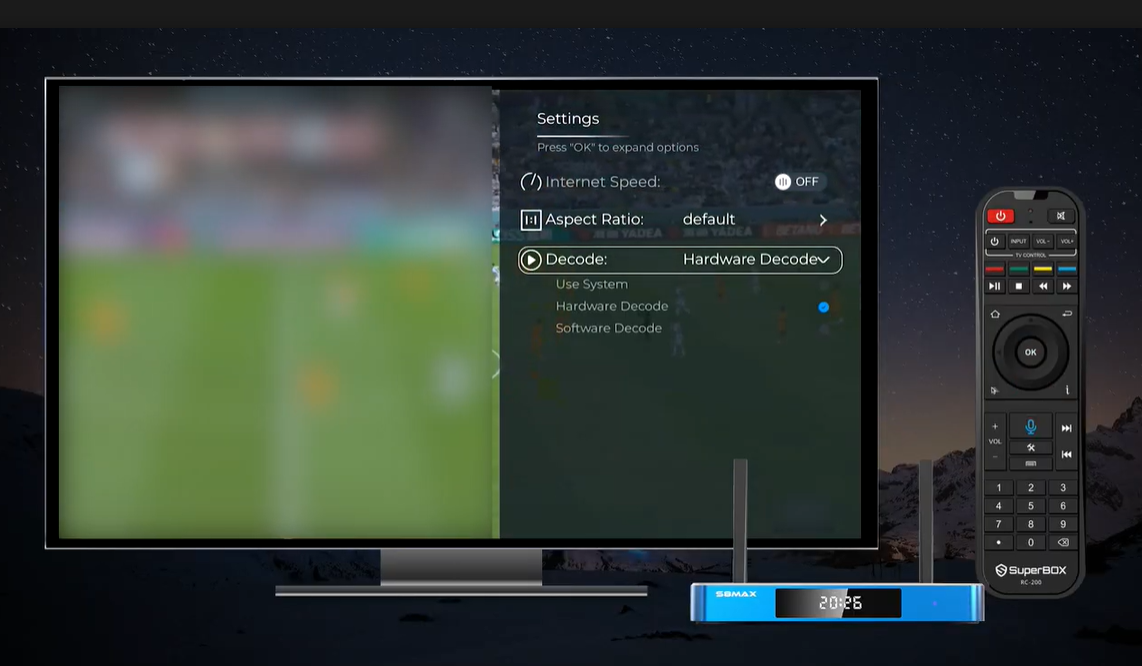
In nine out of ten situations, ensuring your SuperBox has at least fifteen megabits per second of stable internet speed and verifying your local time zone setting in Android preferences will resolve any playback irregularity immediately.
Frequently Asked Questions About Live Playback
What is live playback on SuperBox?
Live playback is an automated streaming feature that allows viewers to replay past television broadcasts from the previous seven days across eighty-five supported major channels with zero monthly subscription fees.
Do I need an external hard drive or USB flash drive for live playback?
No external hard drive is needed for live playback because all past shows stream directly from high-speed cloud servers without taking up local storage space on your SuperBox.
Does live playback cost extra per month?
Live playback does not cost extra because it is included with your authorized SuperBox hardware purchase without ongoing monthly bills or recurring subscription charges.
How many days back can I watch previous TV shows?
You can watch previous television shows up to seven full days after their original broadcast time on all eighty-five supported playback networks.
Are all live channels supported on the Playback app?
The Playback app supports eighty-five of the most popular sports, news, and entertainment networks, while remaining channels can be enjoyed in real time inside the Blue TV application.
What is the difference between Blue TV Time Shift and the Playback app?
Blue TV Time Shift lets you pause and rewind live broadcasts backward up to eight hours while actively watching, whereas the dedicated Playback app provides a full seven-day organized calendar archive.
Why does playback show the wrong time for my favorite game?
Incorrect program times occur when your SuperBox Android system time zone does not match your home location, which you can easily correct inside the device Date and Time preferences.
Can I fast forward through commercials during live playback?
Yes, you can freely fast-forward and rewind through commercial breaks or halftime commentary by using the Left and Right arrow keys on your SuperBox remote control.
Do the SuperBox S8 and S7 remotes have backlit buttons for playback control?
Yes, all authentic SuperBox S8 series and SuperBox S7 series models include full backlit voice remotes that illuminate automatically for easy button navigation in dark viewing rooms.
Does the SuperBox come with the Playback app already preloaded?
SuperBox consoles do not come with preloaded streaming apps out of the box, allowing users to download the official Playback app on demand from the built-in App Store in seconds.
Final Thoughts on SuperBox Live Playback
Live playback represents one of the most practical and liberating conveniences in modern television entertainment. By eliminating the high monthly rental costs of traditional cable DVR boxes and freeing viewers from rigid broadcast schedules, the seven-day catch-up feature ensures you never miss a critical sporting moment, evening news update, or favorite drama series again.
Whether you choose the flagship SuperBox S8 Ultra with its massive one hundred twenty-eight gigabyte storage and lightning-fast Wi-Fi 6 connectivity or the balanced SuperBox S8 Max and S7 models, you gain dependable television viewing on your own schedule. At SuperBox TV Box Store, we take pride in offering authentic hardware, free shipping across the United States and Canada, and expert technical support to keep your entertainment running smoothly every day of the week.
The article was updated on:
