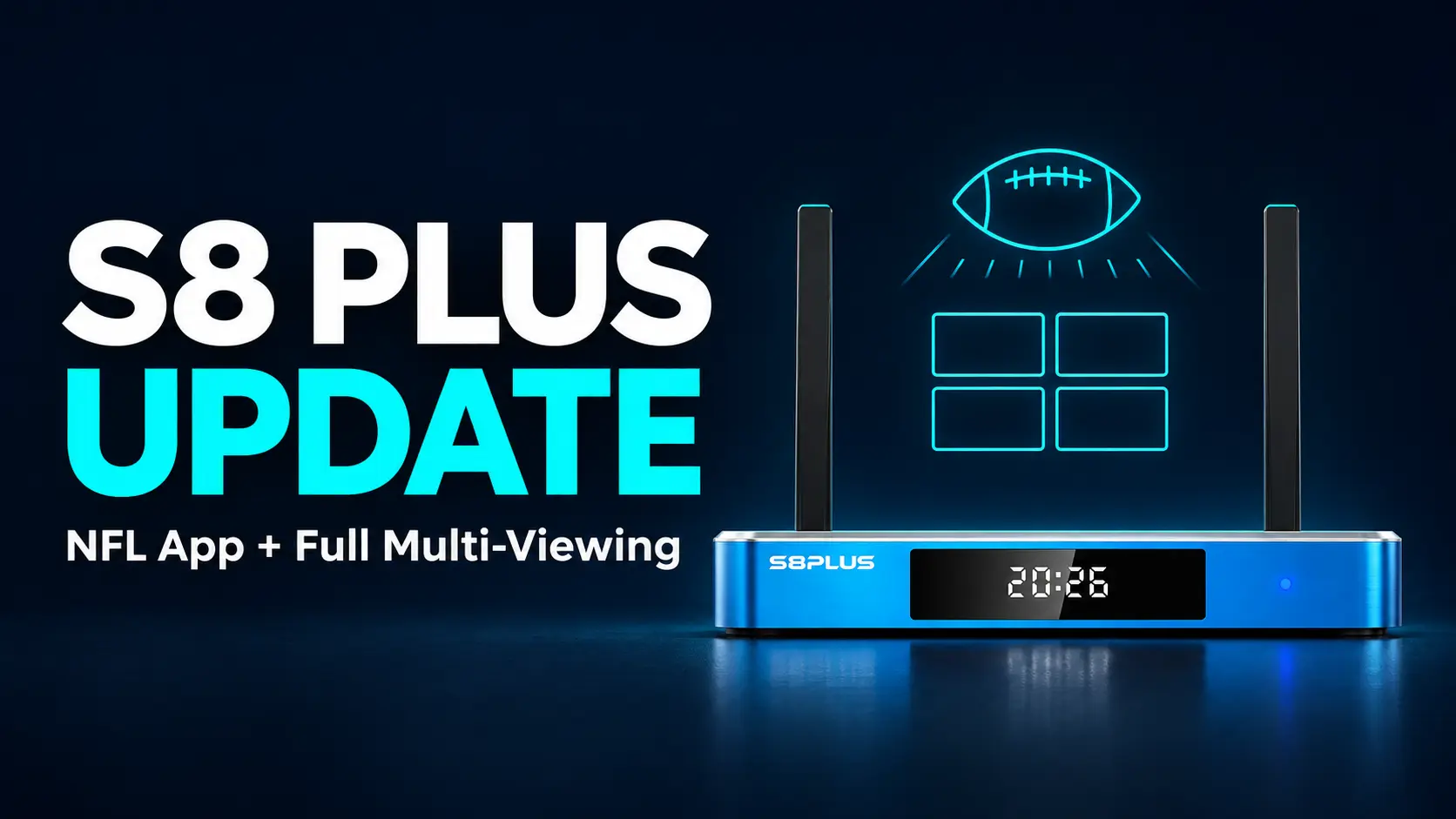
The SuperBox S8 Plus update adds the dedicated NFL app and expands Multi-Viewing.
The SuperBox S8 Plus now includes the dedicated NFL app and Multi-Viewing across the full list of supported channels. The earlier S8 Plus configuration limited Multi-Viewing to supported PPV and ESPN channels. The expanded range lets you pair more of the channels you actually watch. Together, these two changes bring the S8 Plus in line with the S8 Max for sports and split-screen viewing.
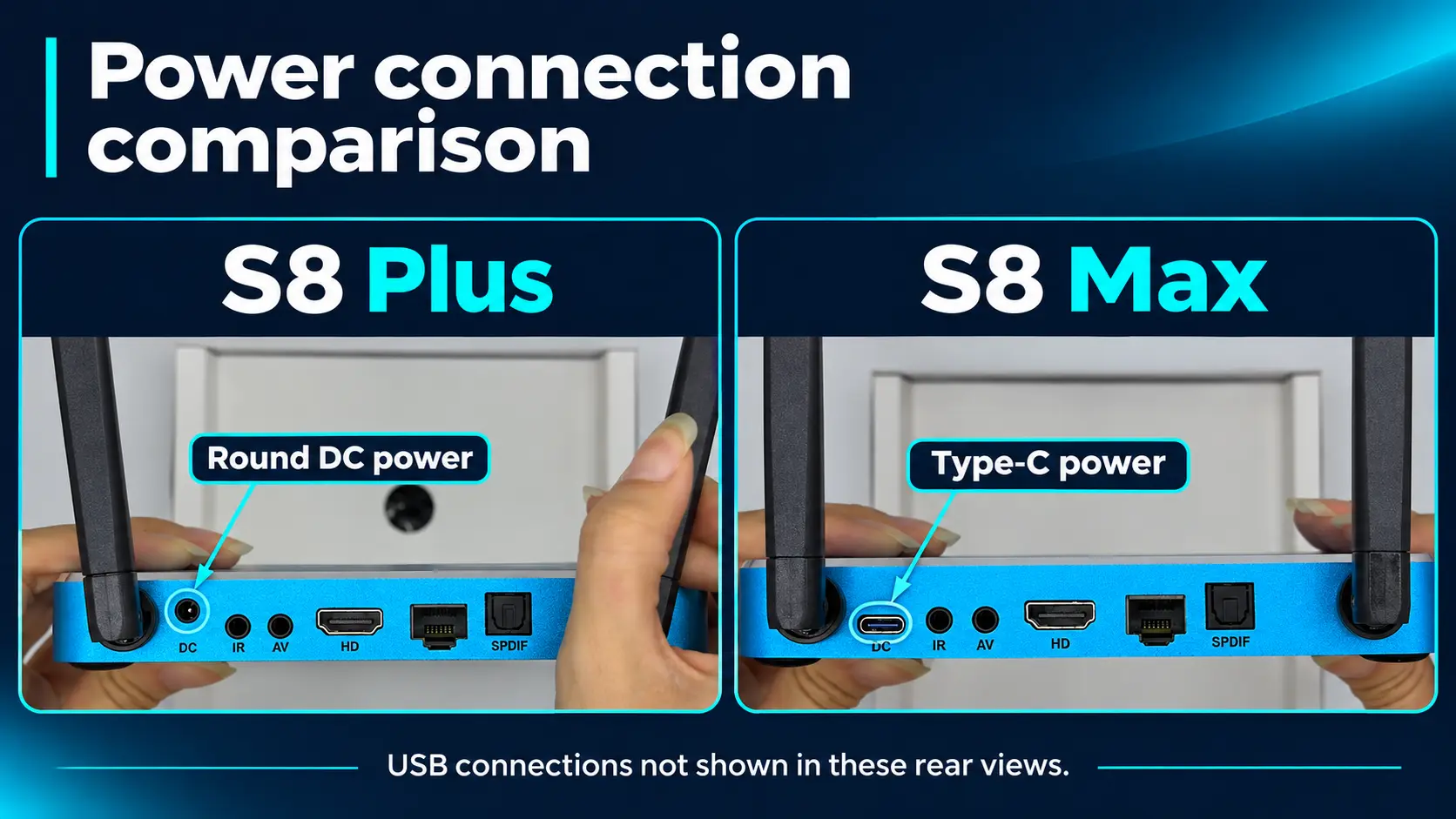
If you already own an S8 Plus, check for the NFL app and try Multi-Viewing with the channels you usually watch. If you’re shopping, the key hardware question is which connectors suit your setup. The SuperBox S8 Plus uses a round DC power plug and has USB 2.0 and USB 3.0 ports. The SuperBox S8 Max uses Type-C power and has USB-C and USB 3.0 ports.
What changed on the SuperBox S8 Plus
The S8 Plus now has the dedicated NFL app
The dedicated NFL app gives football viewers a second place to look for available games alongside Blue TV. For a Sunday game, start with your usual live channel guide if you already know the station. The dedicated app gives you another viewing option on the same box if an available game is listed there. For buyers who were considering the Max mainly to get that app, the Plus now covers that need.
Check the specific game you want before kickoff. What you can watch depends on the event, your location, and which feeds are available. Keep your usual viewing plan for any game that matters to you until you’ve confirmed a working option. NFL+, NFL Sunday Ticket, and any other services you subscribe to separately have their own access and terms. The manufacturer confirms the dedicated app is included in its S8 Plus and S8 Max feature comparison.
Multi-Viewing now covers the full supported channel list
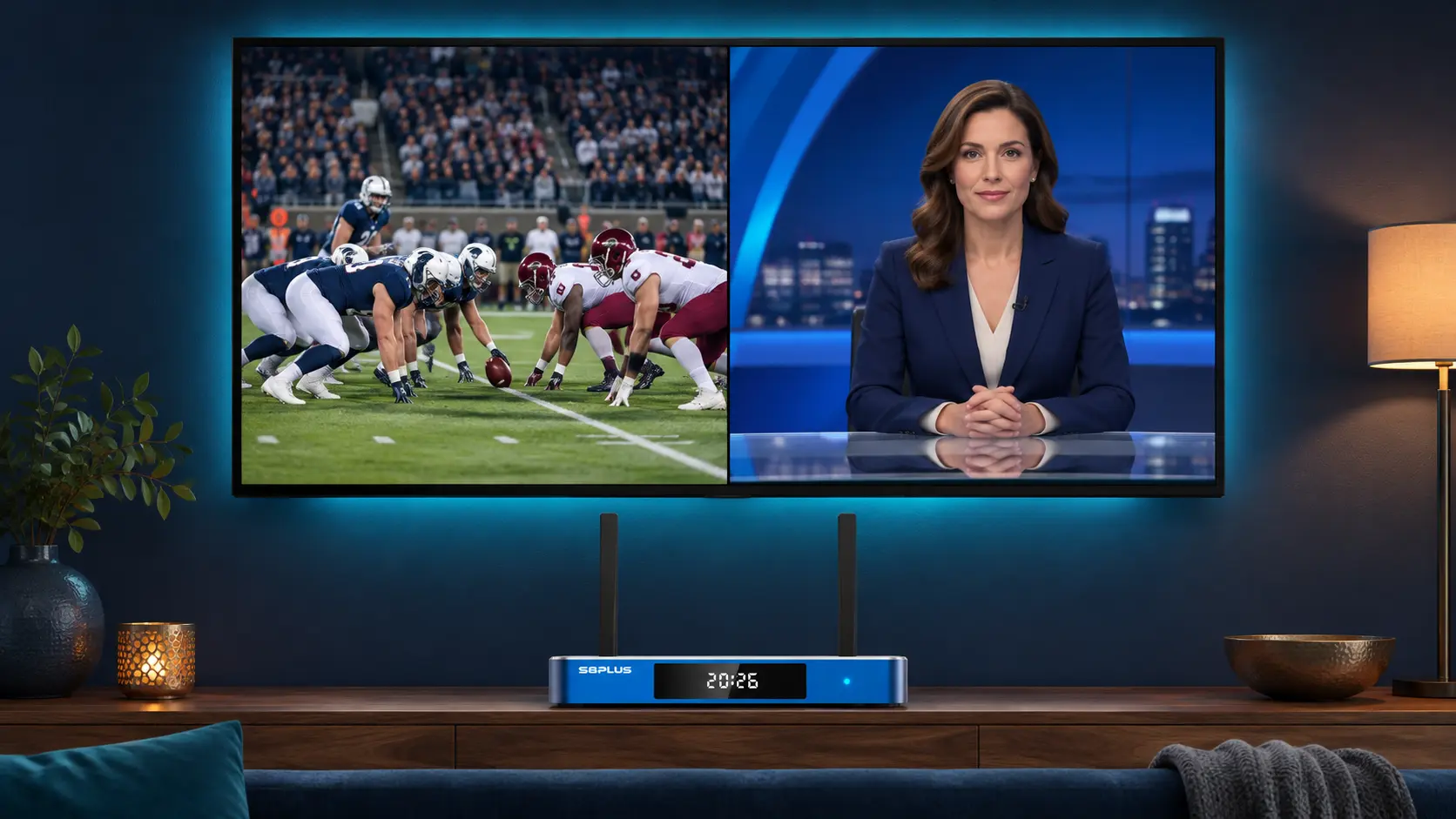
Multi-Viewing lets you put two supported live channels side by side on the same TV. The update expands which channels you can choose from on the S8 Plus. The useful difference shows up when one of the feeds you want is outside the earlier PPV and ESPN selection. Now you can look for it in the expanded list and pair it with another supported channel when both feeds are available.
Imagine a late football game is still going when a second broadcast starts. Open the game first, then add the other supported channel in Multi-Viewing. Both remain visible, which helps if two people watching together care about different broadcasts. The same layout can work with a game and a live news channel. What matters is whether the exact pair appears in Multi-Viewing and plays together on your box.
Picture-in-Picture is a separate layout on the S8 Plus. It’s handy when one show should take up most of the screen and you only want to glance at a second supported feed. Use side-by-side Multi-Viewing when you want a similar amount of space for both. The manufacturer shows how the two layouts work in its S8 setup guide.
Multi-Viewing on the S8 Plus now lets you watch full list supported channels.
How to check the update on your S8 Plus
Look for the NFL app on your device
Start at Home and check your installed apps. If you don’t see the NFL app there, open the SuperBox App Store and look for the listing for your device. Follow the on-screen prompts if it’s available for installation. Once it opens, check for the game you want and give the feed a quick test before you sit down to watch. Use the S8 app installation guide if you need help identifying the SuperBox App Store.
If the app still doesn’t appear, first verify that the model on your device is S8 Plus and confirm it’s online by opening a live channel you usually watch. As a next step, our team can check the configuration for units bought from SuperBox TV Box Store. Include your order number, the model, and what you see in the App Store. A photo of that screen helps us tell whether you’re looking at the app catalog or your installed apps. Contact SuperBox TV Box Store
Try two channels you’d actually watch together
Open an available live channel on the S8 Plus and let it play full screen.
Press Menu on the remote. Look for Multi-screen in the viewing options.
Open Multi-screen and use the on-screen channel picker to choose the second supported feed. Try a channel outside your old PPV and ESPN choices if you want to check the broader selection.
Let both feeds run briefly. Check which pane you’ve selected so the audio matches the program you want to follow.
Choose a familiar pair for that first test. If one channel won’t play in the split layout, try it on its own, then try it with a different supported channel. Those results help narrow down whether the problem affects one feed, one pairing, or Multi-Viewing more broadly. If both channels play normally on their own but struggle together, try wired Ethernet if your TV is close enough to the router. Streaming two feeds places more demand on the connection than streaming one.
Keep your game-day apps easy to reach
Once you’ve found the apps you want, you can put frequently used ones in the row on the S8 Home screen. Select + / ADD on Home and pick the app if it appears in the list. If you prefer to use the remote, open FN on Home, choose an empty slot in Quick Access, and assign an available app to a number. Return to Home and press that number to test it. Set up SuperBox S8 Home and remote shortcuts
For a shared TV, start with Blue TV in an easy-to-find spot, then add the NFL app once you see it in your available shortcut choices. If someone in the household usually opens live channels by pressing a familiar number, keep that assignment and pick a different number for football. The on-screen app row and the remote numbers are set separately, so you can arrange each to match the way your family uses the box.
SuperBox S8 Plus vs S8 Max after the update
Here’s the practical buying comparison. Both models have 4GB of RAM and 64GB of internal storage. They also share the dedicated NFL app and the full supported Multi-Viewing range. With those viewing features in common, compare the power adapter and the accessories you plan to connect.
Feature
SuperBox S8 Plus
SuperBox S8 Max
Dedicated NFL app
Included
Included
Multi-Viewing
Full supported channel range
Full supported channel range
Picture-in-Picture
Supported
Supported
RAM and internal storage
4GB RAM and 64GB storage
4GB RAM and 64GB storage
Power input
Round DC
Type-C
USB accessory ports
USB 2.0 and USB 3.0
USB-C and USB 3.0
The S8 Plus uses round DC power. The S8 Max uses Type-C power.
The power plug and accessory ports matter if you reuse equipment
On the S8 Plus, the round DC plug is the power connection. The two USB ports are for compatible accessories. On the S8 Max, the Type-C power inlet and the listed USB-C accessory port have different roles. When you’re moving a box from one TV to another, take the supplied adapter with it and check the matching inlet before you connect it. If you already have a compatible USB drive that connects to the USB 3.0 port, both boxes offer that port.
If the TV stand already has an accessory you specifically want to connect by USB-C, look at the Max. If you’re setting up a single TV with HDMI, the supplied power adapter, and a USB drive for occasional recording, the Plus can handle that plan. Check the connector on the drive you own, especially if it came with a detachable cable. The two models’ advertised 64GB refers to space inside the device for apps and local files. Recordings made with S8 Recorder are saved to the compatible external USB drive. See the S8 Recorder guide
Choose the Plus for the viewing features or the Max for Type-C
Choose the S8 Plus if your shortlist started with the NFL app and more flexibility for watching two channels. You get both features, 64GB of storage, and the round DC adapter supplied with the box. That combination makes sense for a living-room TV where the box usually stays plugged in and the USB ports you need are already covered.
Choose the S8 Max if you specifically want the Type-C power connection or a USB-C port for compatible accessories. Think about which adapter and peripherals you’ll actually plug in. Both models fit the same plan on game day, so for a second TV or a gift, the connector layout and price can make the choice simpler.
Pick the S8 Plus at the current Black Friday price
During our Black Friday and Cyber Monday promotion, the SuperBox S8 Plus is US$303 and the SuperBox S8 Max is US$319 while supplies last. The sale runs through the end of November 30, 2026, Pacific time. That’s a US$16 difference. If you planned to spend the extra US$16 to get the NFL app or broader Multi-Viewing, the Plus now gives you those features. If the Type-C setup works better with your accessories, you can put that difference toward the Max. See the current SuperBox Black Friday offer
For a purchase that will stay in the living room, start with the way the TV gets used. A household that regularly has two live programs competing for the big screen can get the expanded viewing setup with the Plus. A buyer who already knows they’ll connect a USB-C accessory has a concrete reason to move up. Shop the SuperBox S8 Plus
Frequently asked questions
Why does an older S8 Plus comparison show PPV and ESPN only?
Older material can reflect the previous feature list, when S8 Plus Multi-Viewing was limited to supported PPV and ESPN channels. The updated S8 Plus expands Multi-Viewing across the full supported channel range and adds the dedicated NFL app. If two specific channels are the reason you’re buying, check whether those two feeds are available together in your market.
Do I have to buy an S8 Max to get the NFL app?
The dedicated NFL app is included on the updated S8 Plus as well as the S8 Max. If you’re deciding between those two, the Plus suits buyers who want the football app and wider Multi-Viewing with round DC power. Pick the Max if Type-C power or the USB-C accessory port makes your setup easier.
Does full Multi-Viewing also cover streaming subscriptions?
The expanded range applies to channels available in the SuperBox Multi-Viewing picker. Open a separate streaming subscription in its own app. To verify a particular pair of live channels, use the Multi-screen check above with both channel names.
Can two people use Multi-Viewing on different TVs?
Multi-Viewing puts both supported feeds on the same screen. If one person wants to watch football in the living room and another wants to choose their own channel in the bedroom, each TV needs its own viewing source. For two people sharing the living-room TV, the expanded list on S8 Plus lets them look for more possible channel pairs on that one screen.
What should I do if the new option is missing on my box?
Check the exact model and note which part is missing. If it’s the football app, share what appears in the SuperBox App Store. If it’s Multi-Viewing, include both channel names and whether they play one at a time. For orders from our store, send those details with your order number to customer@superboxtvboxstore.com so we can check your device and help with the next step.
Rate this post
The article was updated on:
Views:24
Alex Vu
Alex Vu is a technology expert and the Founder of SuperBox TV Box Store, the leading retailer of authentic SuperBox S6, S7, and S8 series in the US and Canada. With over a decade of experience in the streaming industry, Alex has established himself as a premier authority on "cord-cutting" and smart home entertainment hardware.
Blending a background in IT with a deep passion for consumer advocacy, Alex employs a rigorous testing methodology to evaluate device performance. He has dedicated over 10,000 hours to stress-testing hardware—analyzing processing stability, thermal management, and firmware integrity—to ensure every product meets his strict standards for authenticity. His proprietary verification protocol serves as a shield for consumers against the rising market of counterfeit electronics.
Driven by the philosophy, "Authenticity in hardware, excellence in entertainment," Alex is committed to providing transparent, data-backed insights. Every guide and recommendation he authors is strictly objective, ensuring that SuperBox users avoid technological risks and invest in genuine, high-performance streaming solutions.
Connect with Alex Vu:Facebook | YouTube | LinkedIn | Instagram | Threads | Pinterest | Twitter