
Knowledge SuperBox
SuperBox Settings: The Complete System, Display & Network Optimization Guide





Connecting a high-performance Android TV media hub to your home theater is only the first step toward premium entertainment. Fresh out of the packaging, factory default configurations are engineered for conservative universal compatibility across legacy 720p and 1080p television panels rather than maximizing the true capabilities of your hardware and display. Without intentional calibration, your SuperBox may output compressed color spaces, introduce micro-stutter during live sporting broadcasts, or experience unnecessary buffering over high-speed broadband.
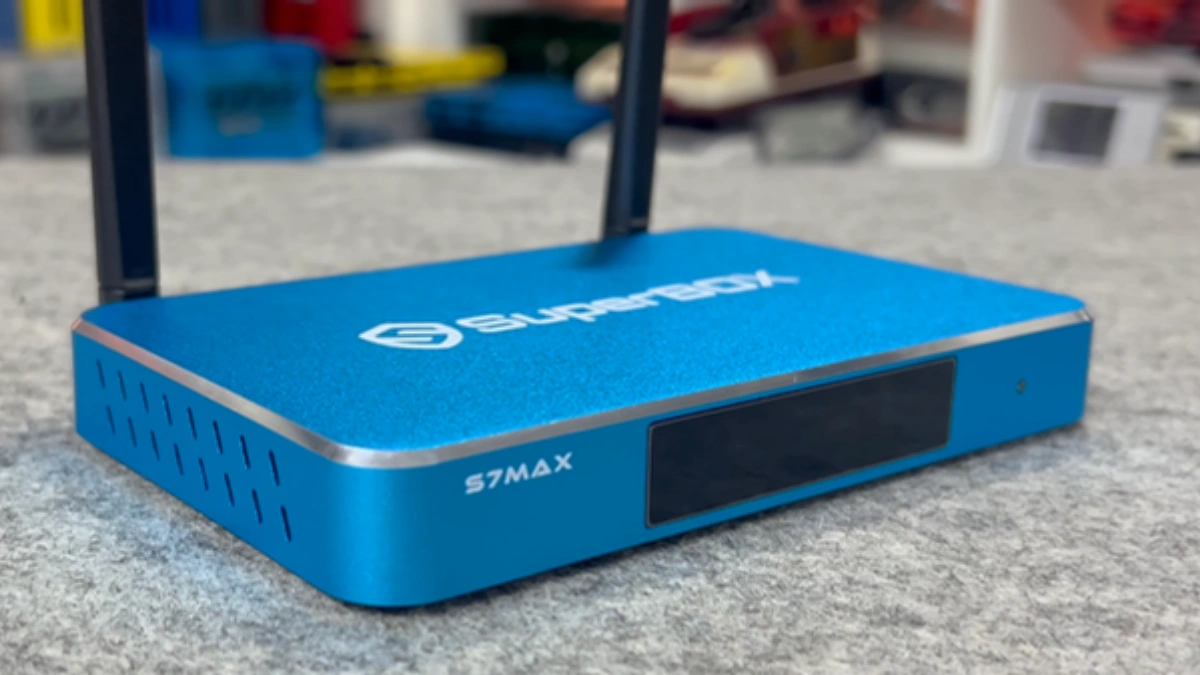
Master Optimization Settings Matrix for SuperBox Android TV
To achieve peak audiovisual fidelity and network efficiency, replace conservative factory default configurations with these verified performance values across system settings:
| Configuration Domain | Factory Default Setting | Recommended Optimized Setting | Hardware Performance Dividend |
|---|---|---|---|
| Screen Resolution | Auto Switch Best Resolution | 4K2K-60Hz (Manual Lock) | Prevents HDMI handshaking resolution drops & flicker |
| Color Space & Depth | RGB 8-bit / YCbCr420 | YCbCr444 10-bit (or 422 10-bit) | Unlocks full HDR10 wide color gamut; eliminates color banding |
| In-App Video Decoder | Software / Default Decoder | Hardware Decoding (GPU Engine) | Offloads CPU cores; delivers buttery-smooth 60fps live sports |
| Stream Buffer Threshold | Low / Automatic (1.5s) | Normal (3s) or High (5s) | Absorbs network micro-jitter; eliminates mid-stream pauses |
| Digital Audio Output | PCM Stereo Downmix | Pass-through (RAW HDMI) | Direct bitstream transfer for Dolby Digital 5.1 & Atmos soundbars |
| System Date & Time | Manual or Unsynced Zone | Network-Provided Time (Local Zone) | Aligns 7-Day Playback cloud EPG schedules with live airings |
| Window Animation Scale | 1.0x Animation Duration | 0.5x Scale (Developer Options) | Cuts UI menu transition latency in half for snappy navigation |
Common Playback Malfunctions & Verified Settings Fixes
When operating streaming hardware, specific visual or auditory glitches can often be resolved immediately by adjusting an underlying setting parameter rather than reinstalling software. Use the troubleshooting matrix below to diagnose and rectify issues:
| Symptom / Playback Glitch | Underlying Root Cause | Settings Navigation Path | Verified Action / Fix |
|---|---|---|---|
| Stuttering Live Sports Stream | Video rendered via CPU software mode | Blue TV > Menu > Settings > Decoder | Switch decoder to Hardware Decoding |
| Audio Out of Sync with Video | PCM downmix latency on high-end TV | Android Settings > Device Preferences > Sound | Set Audio Output to Pass-through or adjust sync slider |
| Dull, Washed-Out Screen Colors | Limited dynamic range RGB 8-bit handshake | Settings > Display & Sound > Color Space | Select YCbCr444 10-bit or toggle HDR to “Always On” |
| Time Shift Guide Shows Wrong Shows | Device time zone mismatch with UTC cloud | Settings > Date & Time > Time Zone | Set to your exact geographical time zone (e.g., EST/PST) |
| Buffering Wheel Every 60 Seconds | Buffer capacity threshold too small | Blue TV / Blue VOD > Settings > Buffer | Increase buffer size from Normal to High (5 Seconds) |
| Wi-Fi Drops After TV Box Wakes Up | Android power-saver shutting off Wi-Fi | Settings > Network > Wi-Fi Advanced | Set “Keep Wi-Fi on during sleep” to Always |
Display Pipeline Calibration: Subsampling, Bit Depth & HDR
Modern 4K HDR displays require meticulous signaling coordination. When sending video signals over HDMI 2.0 or HDMI 2.1 cables, video data is structured into chroma subsampling matrices. Factory settings often default to YCbCr 4:2:0 8-bit, which discards 75% of color information to conserve bandwidth on older cables.
When you manually set your SuperBox to YCbCr 4:4:4 10-bit, every single pixel carries uncompressed color luminance and chrominance information. Color gradients across skies, sports stadium turf, and movie cinematography appear smooth and cinematic with zero “color banding” or blocky pixel artifacts. Furthermore, enabling 10-bit color activates full 1.07-billion color reproduction required for true HDR10 high dynamic range contrast.
Developer Options: Speeding Up the Android 12 Interface
Inside the Android 12 operating system lies a concealed Developer Options console. Modifying animation transition durations can make navigating menus feel significantly faster:
- How to Unlock: Navigate to Settings > Device Preferences > About. Scroll down to Build Number and press the OK button on your remote 7 times rapidly until a banner displays: *”You are now a developer!”*
- Window Animation Scale: Lower from 1.0x to 0.5x.
- Transition Animation Scale: Lower from 1.0x to 0.5x.
- Animator Duration Scale: Lower from 1.0x to 0.5x.
- Result: Application windows open twice as fast, dialog boxes dismiss instantaneously, and channel carousel navigation responds with zero interface lag.
Thermal Management & Hardware Energy Profile Calibration
Modern 4K 60fps video processing places continuous load on the system-on-chip (SoC). Over extended viewing sessions, heat accumulation can trigger internal thermal throttling—an automated safety mechanism where the processor cuts clock speeds by 30% to prevent silicon damage, resulting in sudden frame stutter. How your device handles thermal overhead correlates directly with chassis design and power settings.
On models with polymer housings like the SuperBox S6 Series ($299.00) and S7 Pro ($305.00), proper physical placement is essential: never stack secondary devices on top of the chassis, and maintain at least 3 inches of open clearance around ventilation slots. On premium models like the S7 Max ($339.00), S7 Ultra ($381.00), and flagship S8 Series ($359.00 – $449.00), the aircraft-grade aluminum alloy body functions as a passive heat radiator. Under Settings > Power, configure “Energy Saver Mode” to trigger after 2 hours of inactivity to allow the thermal mass to normalize between intensive streaming sessions.
Storage Allocation & RAM Throttling Prevention: 2GB vs. 4GB Tuning
Memory pressure affects system responsiveness more than raw processor clock speeds. On 2GB RAM models (such as the S6 Pro and S7 Pro), Android 12’s Low-Memory-Killer (LMK) driver aggressively terminates background services to keep the foreground video player active. To optimize 2GB units, avoid installing background sync utilities, weather daemons, or unverified app launchers.
On 4GB RAM models (S6 Max, S6 Ultra, S7 Max, S7 Ultra, and S8 Series), you have over 2.6GB of free addressable memory. You can safely increase the in-app streaming buffer to High (5 Seconds) without risking out-of-memory crashes. This generous buffer pool allows the device to preload dozens of future video chunks, completely insulating your playback from transient Wi-Fi drops or momentary broadband hiccups.
Step-by-Step Guide: How to Fully Optimize Your SuperBox Settings
Follow these sequential, verified technical steps to calibrate your display, configure audio passthrough, and optimize network throughput across your SuperBox hardware.
Step 1: Calibrate 4K Display Resolution, Refresh Rate and HDR Color Depth
Power on your television and SuperBox. Navigate to Settings (Gear Icon) > Device Preferences > Display & Sound > Screen Resolution. Toggle off “Auto switch to best resolution.” Under Display Mode, manually select 4K2K-60Hz. Scroll to Color Space & Depth and select YCbCr444 10-bit (if your TV supports full 10-bit HDR) or YCbCr422 10-bit. Ensure HDR policy is set to “Follow Sink” or “Always HDR” depending on panel specifications.
Step 2: Optimize In-App Hardware Decoding and Stream Buffer Lengths
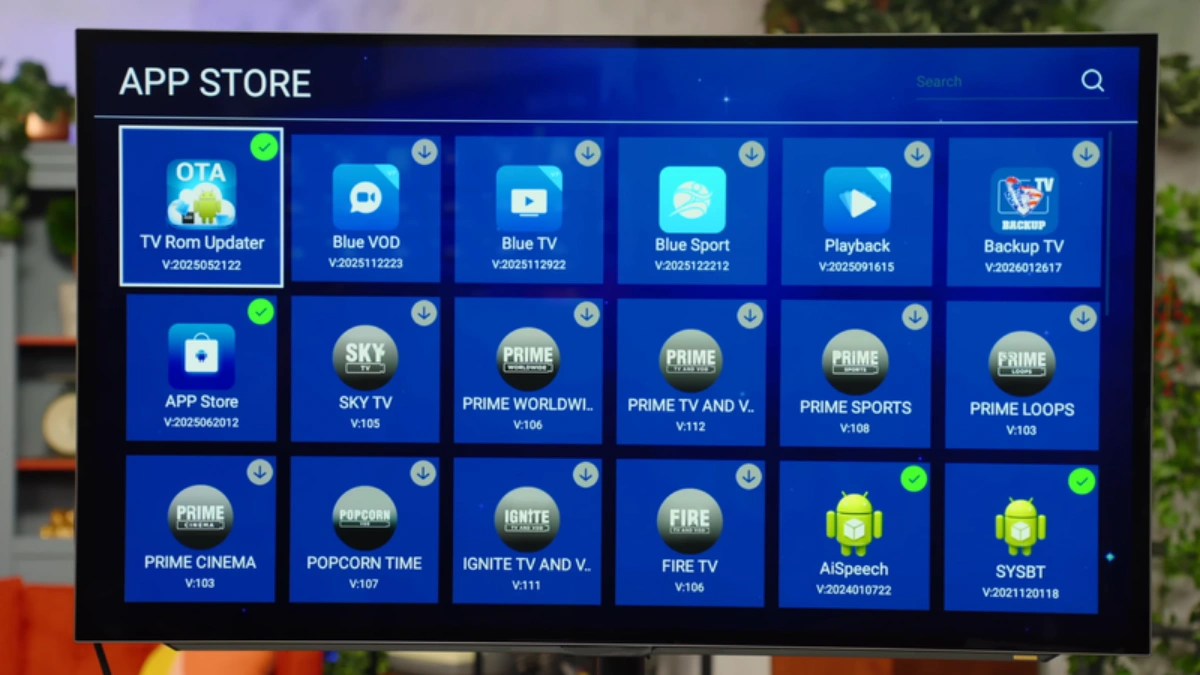
Launch Blue TV. Press the Menu key on your remote or navigate to the settings gear icon. Under Decoder Engine, verify that Hardware Decoding is selected. Under Buffer Size, select Normal (3 Seconds) for standard 50+ Mbps fiber/cable connections, or High (5 Seconds) if streaming over Wi-Fi in rooms distant from your router. Repeat this calibration inside the Blue VOD and Playback applications.
Step 3: Fine-Tune Network Interface (Wi-Fi 5GHz vs. Gigabit Ethernet)
Navigate to Settings > Network & Internet. For maximum stability, connect via a Cat6 Ethernet cable to leverage the 1000M Gigabit port on S7 and S8 models. If connecting wirelessly, select your router’s dedicated 5GHz or 6GHz Wi-Fi band (avoid 2.4GHz). Under IP settings, switch from DHCP to Static IP to assign custom high-performance DNS servers: set Primary DNS to 1.1.1.1 (Cloudflare) and Secondary DNS to 8.8.8.8 (Google) for faster CDN domain resolution.
Step 4: Configure Cloud EPG Time Zone and Network Time Synchronization
Navigate to Settings > Device Preferences > Date & Time. Confirm that Automatic Date & Time is set to “Use network-provided time.” Scroll down to Select Time Zone and ensure your exact physical time zone is selected. Accurate time synchronization is required for the 7-Day Playback cloud EPG to align television schedules with real-time broadcasts.
Step 5: Adjust Digital Audio Output and HDMI Passthrough Modes
Navigate to Settings > Device Preferences > Display & Sound > Audio Output. If connecting directly to basic TV speakers, select PCM Stereo. If routing through a modern Dolby Atmos soundbar, AV surround sound receiver, or eARC audio system, select Pass-through (RAW). This passes uncompressed 5.1 surround sound audio bitstreams directly to your audio hardware without software downmixing delay.
Step 6: Adjust Developer Animation Scales and Background Process Limits
Enter the unlocked Developer Options menu within Device Preferences. Scroll to the “Drawing” category. Adjust Window animation scale, Transition animation scale, and Animator duration scale to 0.5x. Under “Apps,” verify that Background process limit is set to “Standard Limit” to allow smooth multitasking on 4GB models (S7 Max $339.00, S7 Ultra $381.00, S8 Series).
Step 7: Schedule Periodic Cache Cleansing and Power Management
Under Settings > Device Preferences > Storage, periodically inspect application cache volumes. Clear cached data on high-traffic apps once every few weeks to purge temporary thumbnails. In Power Options, set the sleep timer to 3 hours of inactivity to prevent thermal buildup while preserving instant-on wake capabilities.
Frequently Asked Questions
1. Why does my SuperBox default to 1080p when connected to a 4K Ultra HD television?
When the “Auto switch best resolution” feature is active, minor timing handshakes during television bootup can cause the SuperBox to fall back to a conservative 1080p 60Hz mode. You can permanently resolve this by turning off auto-switching in Settings > Display & Sound > Screen Resolution and manually locking the resolution to 4K2K-60Hz.
2. Should I set the in-app streaming buffer to Normal or High?
For most broadband connections above 50 Mbps connected via Ethernet or 5GHz Wi-Fi, the Normal (3 Seconds) buffer provides the ideal balance between instant channel switching and stable playback. If you are connected over 2.4GHz Wi-Fi or share your home internet with multiple heavy downloaders, select High (5 Seconds) to absorb wireless traffic fluctuations.
3. What is the best color depth setting for modern OLED and QLED televisions?
The optimal color setting for modern 4K OLED, QLED, and Mini-LED displays is YCbCr444 10-bit. This mode delivers full 4:4:4 chroma resolution without color compression and leverages the panel’s 10-bit panel hardware to render over one billion individual color shades for vivid HDR10 high dynamic range contrast.
4. How do I enable Developer Options on SuperBox to speed up UI animations?
Go to Settings > Device Preferences > About. Scroll to the very bottom to highlight Build Number. Press the center OK button on your remote control 7 times consecutively. A message will appear on screen stating *”You are now a developer.”* Back out one level to find the new Developer Options menu.
5. What audio setting should I use if there is an audio-video sync delay?
If audio is slightly behind or ahead of video, navigate to Settings > Display & Sound > Audio Output. If connected directly to television speakers, switch the audio format to PCM. If using a soundbar or receiver, select Pass-through (RAW). Within Blue TV, you can also press Menu during a stream and adjust the dedicated “Audio Delay” slider in 50ms increments to achieve frame-perfect lip sync.
6. Does turning on HDMI-CEC cause issues with power cycling?
On most modern TVs, HDMI-CEC operates smoothly, allowing your television to power on or off in sync with your SuperBox. However, if your TV switches inputs unexpectedly or refuses to stay asleep, navigate to Settings > Display & Sound > HDMI-CEC and disable “One-Key Play” or “One-Key Power Off” to prevent false wake signals.
7. How do I prevent my SuperBox from disconnecting from Wi-Fi when put in sleep mode?
Navigate to Settings > Network & Internet > Advanced Wi-Fi Settings. Ensure the option for Keep Wi-Fi on during sleep is set to Always. This prevents the operating system from shutting down the wireless chip during standby, allowing instant video resumption the moment you turn on the screen.
8. What are the best DNS server settings for eliminating live streaming buffering?
Many residential ISP DNS servers update slowly and route content delivery network requests through congested transit nodes. Configuring your SuperBox network settings with custom public DNS servers—specifically 1.1.1.1 (Cloudflare Primary) and 8.8.8.8 (Google Secondary)—delivers significantly faster domain lookups and optimal routing to SuperBox streaming servers.
9. Does changing display and buffer settings void my SuperBox warranty?
No. Adjusting system resolution, color spaces, audio passthrough, or buffer settings within the official Android settings and app menus is completely safe and fully supported by the manufacturer. These user-configurable options are designed specifically to customize hardware performance to your specific home theater equipment.
10. How often should I clear cache or restart my SuperBox to maintain peak speed?
Under daily streaming use, performing a complete system restart once every two weeks clears temporary RAM allocations and resets network socket pools. You should clear individual app caches in Settings > Apps once a month to prevent movie poster thumbnails from occupying unnecessary internal flash storage.
The article was updated on:
