
Knowledge SuperBox
How to Use SuperBox Time Shift Feature: Rewinding and 7-Day Playback





One of the most revolutionary advantages of switching from conventional cable television to a modern SuperBox media system is liberating your schedule from fixed broadcast timetables. Traditional broadcast television requires viewers to be glued to their living room couch at exact broadcast times or pay steep monthly rental fees for proprietary digital video recorders (DVRs). The SuperBox Time Shift and 7-Day Playback ecosystem fundamentally transforms this dynamic, granting full control over live television with instantaneous pause, rewind, fast-forward, and comprehensive catch-up across hundreds of major channels.
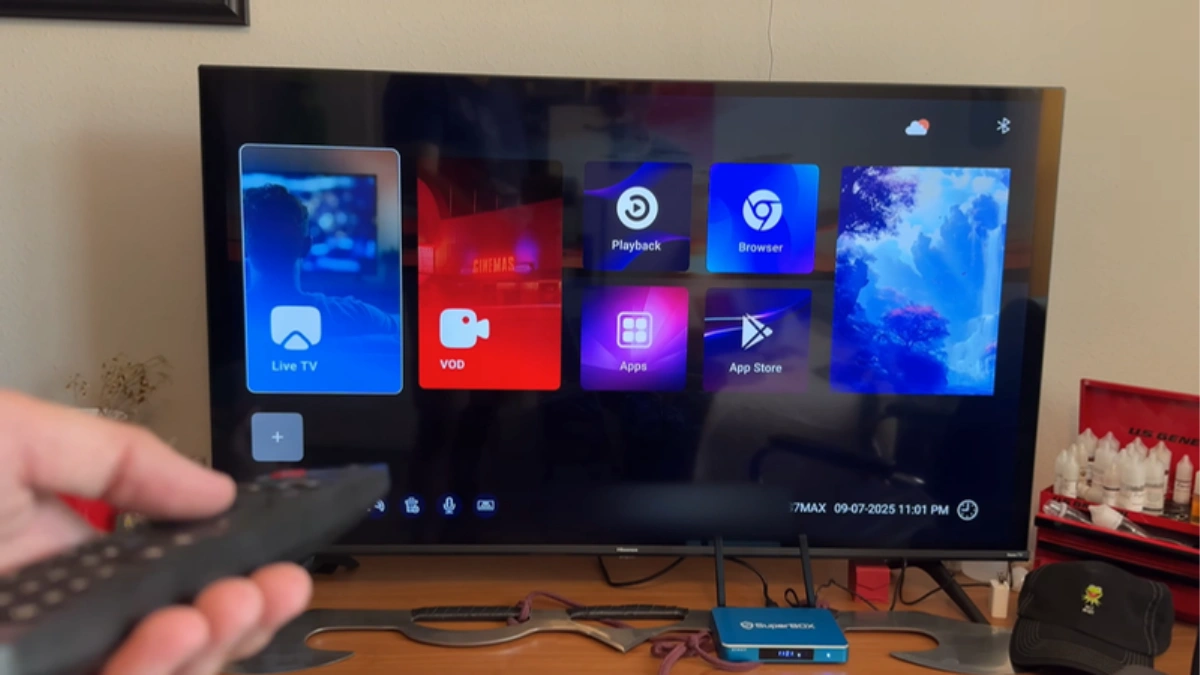
How SuperBox Time Shift Works: Cloud Architecture vs. Local DVR
To understand the reliability and speed of SuperBox Time Shift, it helps to explore the engineering behind it. Traditional cable DVR boxes utilize mechanical hard disk drives (HDDs) inside your home. These local hard drives generate heat, make acoustic spinning noises, fail mechanically after several years, and can only record a limited number of channels simultaneously based on internal hardware tuner counts.
SuperBox eliminates local hardware constraints by shifting the entire recording, indexing, and storage pipeline into high-availability cloud data centers. Ingest servers continuously capture live satellite and terrestrial broadcast feeds in uncompressed high-definition formats. These streams are segmented into micro-chunks (utilizing adaptive HTTP Live Streaming / HLS and MPEG-DASH protocols), cryptographically indexed against real-time Electronic Program Guide (EPG) metadata tables, and replicated across high-speed Content Delivery Network (CDN) edge nodes.
When you press rewind during a live basketball game or open a news broadcast from three days ago in the Playback app, your SuperBox does not access local flash memory. Instead, it queries the cloud edge server via your broadband connection, requesting the exact time-stamped video chunk. The table below illustrates the stark operational differences between traditional recording solutions and SuperBox Cloud Time Shift:
| Evaluation Criterion | Traditional Cable DVR | Local USB Storage Recording | SuperBox Cloud Time Shift |
|---|---|---|---|
| Local Storage Overhead | Consumes local HDD capacity (500GB–1TB) | Requires dedicated FAT32/NTFS external drive | Zero local storage consumed (100% Cloud) |
| Monthly Service Costs | $15 to $35/month recurring equipment rental | $0 monthly (hardware purchase only) | $0 monthly fees forever |
| Simultaneous Channels | Limited to 2–6 physical tuners | Limited to 1 active channel stream | Unlimited across all supported channels |
| Catch-Up Retention Window | Until disk fills up (manual management) | Until USB drive reaches capacity | Rolling 7 continuous calendar days |
| Hardware Wear & Tear | High; continuous mechanical disk spinning | Moderate; continuous USB NAND write wear | Zero physical write wear on device storage |
| Fast Scrubbing Latency | Instantaneous (local bus) | Fast (USB 2.0 / 3.0 bus) | Near-instant on Gigabit/Wi-Fi 6 (<1.0s) |
Cloud Chunking, Keyframe Intervals & Protocol Engineering
The speed at which the Playback application scrubs through video is directly determined by the technical encoding architecture of the cloud streams. Video streams are encoded using Group of Pictures (GOP) intervals aligned precisely to 2-second keyframes (I-frames). When a user taps the rewind or fast-forward button on the remote, the player does not need to decode intermediary predictive frames (P-frames and B-frames). Instead, it immediately requests the nearest keyframe index from the CDN manifest.
This keyframe alignment ensures that seeking forward or backward produces an instantaneous visual picture rather than a distorted grey artifact screen or buffering pause. Furthermore, the stream manifest dynamically adjusts bitrate resolution based on current network throughput. If your home network experiences a temporary spike in traffic while you scrub through a broadcast, the player seamlessly delivers a slightly lower-resolution preview chunk before instantly stepping back up to pristine 1080p 60fps once continuous playback resumes.
Network Bandwidth & Buffer Calibration Matrix
Because Time Shift fetches historical broadcast video chunks on demand from cloud CDN servers, stable internet throughput is critical for smooth scrubbing and instantaneous playback. The matrix below outlines network recommendations and decoder settings across varying streaming resolutions:
| Broadcast Stream Format | Minimum Bandwidth | Recommended Network Interface | Optimal App Buffer Setting | Average Scrub Latency |
|---|---|---|---|---|
| 720p HD @ 60fps (Sports / News) | 15 Mbps Down | Wi-Fi 5 (5GHz) or 100M Ethernet | Normal (2–3 Seconds) | 0.6 – 0.9 Seconds |
| 1080p FHD @ 60fps (Premium Live) | 25 Mbps Down | Wi-Fi 6 or 1000M Gigabit LAN | Normal (3–4 Seconds) | 0.8 – 1.1 Seconds |
| 4K UHD @ 60fps (Special Events) | 50+ Mbps Down | 1000M Gigabit Ethernet (S7/S8) | High Buffer (5 Seconds) | 1.2 – 1.6 Seconds |
Pro Tip: While users on earlier SuperBox S6 hardware ($299.00) experience steady Time Shift playback over Wi-Fi 5, stepping up to the SuperBox S7 Series (S7 Pro $305.00, S7 Max $339.00, S7 Ultra $381.00) or S8 Series ($359.00 – $449.00) provides 1000M Gigabit Ethernet and Wi-Fi 6. This enhanced network bandwidth cuts scrubbing latency virtually in half, allowing you to skip commercials as quickly as on a local hard drive.
Remote Control Command Guide for Time Shift & Playback
The RC-200L backlit voice remote (included with S7 Pro, S7 Max, S7 Ultra, and compatible across modern SuperBox units) provides dedicated hardware keys engineered specifically for seamless time-shifted television navigation:
- OK / Center Button: Toggles the on-screen playback scrubber bar and displays current broadcast timestamps alongside the episode synopsis.
- Left Arrow (DPAD Left): Rewinds the active stream by 15-second intervals on a single tap. Holding down the key accelerates rewind velocity through 2x, 4x, 8x, and 16x speeds.
- Right Arrow (DPAD Right): Fast-forwards the stream by 15-second jumps, ideal for swiftly bypassing television advertisements.
- Up / Down Arrows: Opens the interactive channel list overlay while remaining inside the Playback environment, enabling instant channel hopping without returning to the main menu.
- Numeric Keypad (0–9): Allows direct numeric channel jumping in the 7-Day EPG.
- Back / Return: Closes the on-screen scrubber bar or exits the Playback session to return to live television.
Step-by-Step Guide: How to Use SuperBox Time Shift & 7-Day Playback
Follow these sequential, verified technical steps to calibrate, navigate, and master the Time Shift and Playback features on your SuperBox.
Step 1: Verify Hardware Time Zone and Network Synchronization
The single most critical prerequisite for flawless 7-Day Playback is accurate system clock synchronization. Because cloud broadcast archives are tagged using UTC timestamps, an incorrect local time zone will cause the EPG guide to display programs out of alignment with actual broadcast airings. On your SuperBox, navigate to Settings > Device Preferences > Date & Time. Ensure Automatic Date & Time is toggled to Use Network-Provided Time. Scroll to Set Time Zone and select your precise regional time zone (e.g., Eastern Time GMT-5, Pacific Time GMT-8). Reboot your device once to lock in the clock synchronization.
Step 2: Access the Dedicated Playback Application or In-Stream Time Shift Mode
SuperBox offers two intuitive pathways to access time-shifted content:
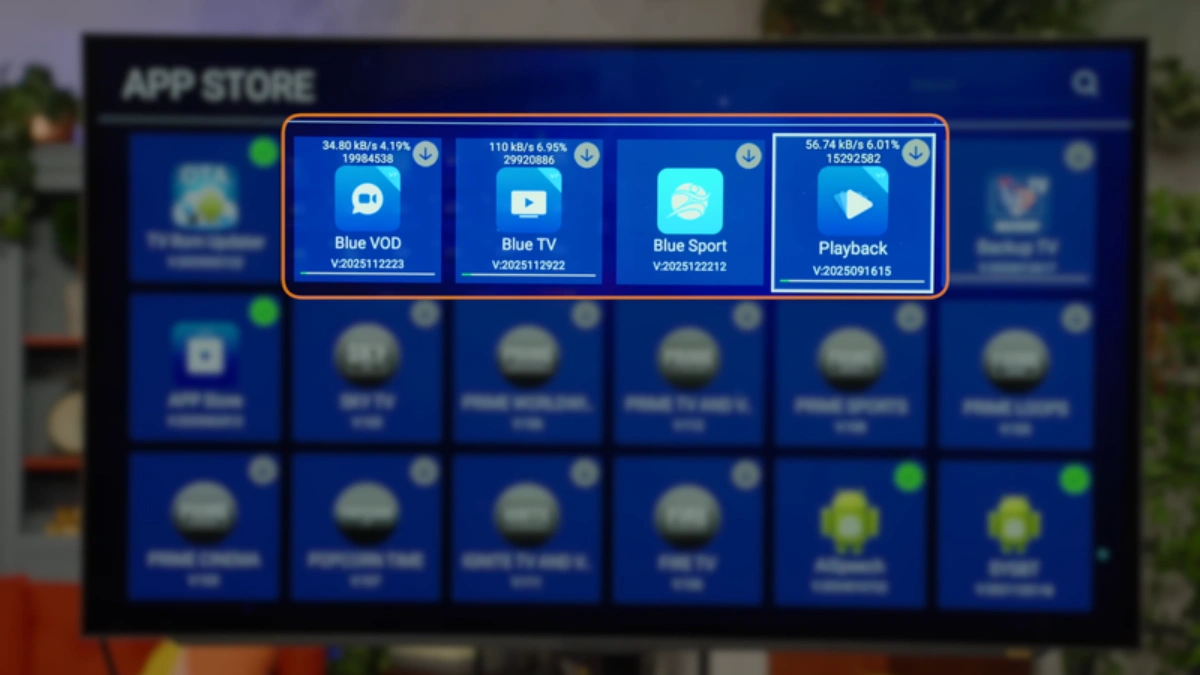
- Direct App Method: From the Android main launcher, click on the dedicated Playback application icon. This launches the dedicated 7-day archive browser.
- In-Stream Method: While watching any live channel in Blue TV, press the OK button on your remote to reveal the channel info banner. If the channel supports cloud archiving, a yellow or blue clock icon labeled Playback will appear. Press the right arrow to select the Playback icon and launch the historical feed for that channel.
Step 3: Browse the 7-Day Electronic Program Guide (EPG) by Date and Channel
Inside the Playback application, the screen is structured into a clean three-column navigation layout:
- Left Column (Categories & Channels): Browse channel categories such as Sports, News, Premium Entertainment, Regional Locals, or Kids. Highlight a channel to view its archive.
- Center Column (Calendar Date Selector): Displays the previous 7 days (e.g., Today, Yesterday, Monday through Sunday). Highlight the specific date your desired show aired.
- Right Column (Program Schedule): Lists every broadcast aired on that date with exact start and end times, show titles, and episode summaries. Scroll down to highlight your program and press OK to start streaming immediately.
Step 4: Execute Live TV Pause, Rewind, and Fast-Forward Operations
Once playback begins, your remote transforms into a full-featured DVR controller. Need to step away from the TV? Press the Play/Pause button on your remote to freeze the broadcast. When you return, press Play again to resume without missing a second. Missed a controversial referee call in a live game? Press the Left Arrow button to jump back in 15-second increments. When commercial breaks occur, press the Right Arrow button four times to skip a 60-second advertisement pod instantly.
Step 5: Jump to Specific Broadcast Timestamps Using the Remote Control
If you are catching up on a long 4-hour sporting event or multi-segment morning talk show and wish to jump straight to the third hour, press OK to bring up the timeline scrubber. Use the directional pad to drag the cursor along the timeline. Alternatively, on supported remote models, you can enter the timestamp directly via number keys or hold down the directional buttons to initiate rapid multi-minute scrubbing across the broadcast timeline.
Step 6: Configure Audio Sync, Video Decoder, and Stream Buffering
If you encounter minor audio-to-video lipsync latency or live buffer stutter, open the Playback in-stream settings menu (press the Menu button or highlight the on-screen gear icon). Under Decoder Engine, ensure Hardware Decoding is selected. Under Buffer Size, select Normal (3s) for standard 25–50 Mbps connections or High (5s) for connections susceptible to wireless interference. If audio appears slightly desynchronized, adjust the Audio Track Delay slider in 50ms increments to achieve perfect lip-sync alignment.
Step 7: Resolve Common Playback Buffering or Timestamp Mismatches
If a selected playback stream stutters or displays a “Buffering” spinning wheel, follow this rapid diagnostic protocol:
- Step 7A (Clear App Cache): Exit to Android Settings > Apps > Playback > Clear Cache. This purges old CDN routing tokens without deleting your settings.
- Step 7B (Toggle Wi-Fi Band): If connected wirelessly, verify your SuperBox is linked to the 5GHz or 6GHz network band rather than the crowded 2.4GHz spectrum.
- Step 7C (Restart Network Hardware): Power cycle your broadband modem/router to clear ISP DNS cache tables and establish fresh routing to SuperBox cloud servers.
Frequently Asked Questions
1. Does using the SuperBox Time Shift feature use up internal storage space on my box?
No, not at all. The SuperBox Time Shift and 7-Day Playback system is 100% cloud-based. Broadcast feeds are recorded, indexed, and maintained on dedicated high-speed cloud edge servers. Your SuperBox only downloads small temporary video chunks into RAM for active playback, leaving all of your internal flash storage (32GB on S7 Pro, 64GB on S7 Max, 128GB on S7 Ultra) completely untouched for your apps and games.
2. Are all live channels supported by the 7-Day Playback feature?
The 7-Day Playback application covers hundreds of the most popular channels across the SuperBox lineup, including major national broadcast networks (ABC, CBS, NBC, FOX), premium sports channels, 24/7 cable news networks, and popular movie channels. However, certain niche international channels or temporary special event pop-up streams may not have 24/7 rolling cloud recording enabled due to server capacity prioritization.
3. Why does the program guide in Playback show the wrong time or mismatch the broadcast?
A time mismatch occurs almost exclusively when the SuperBox system clock does not match your physical geographical time zone. Because cloud servers archive streams according to UTC standards, having your device set to Eastern Time while living in the Pacific time zone shifts the entire guide by three hours. Correct this by navigating to Settings > Device Preferences > Date & Time, enabling Network Time, and choosing your correct regional time zone.
4. Can I fast-forward through commercial breaks during 7-Day Playback?
Yes! One of the greatest conveniences of the 7-Day Playback system is the ability to bypass commercial advertising entirely. By tapping the Right Arrow button on your remote in rapid succession, you can skip forward in 15-second intervals. Skipping a typical 2-minute commercial break requires just eight quick button presses.
5. What internet speed is required for smooth, buffer-free Time Shift streaming?
For consistent 1080p 60fps high-definition playback, a stable broadband download connection of at least 25 Mbps is recommended. If multiple users in your home are streaming 4K video or online gaming simultaneously, a 50+ Mbps or 100 Mbps broadband tier provides optimal stability. For lowest latency, connect your box using a wired Gigabit Ethernet cable.
6. Can I record and permanently save a show from the 7-Day Playback app to a USB drive?
The standard Playback application operates as a rolling 7-day cloud buffer, meaning streams are automatically replaced after 168 hours and cannot be exported directly to an external USB drive. However, on newer SuperBox S8 models (such as the S8 Pro at $359.00 or S8 Plus at $379.00), a dedicated TV Recorder application is available that allows local scheduling and permanent recording directly to attached USB external hard drives.
7. How do I pause a live sports game and resume it 30 minutes later?
While viewing the game in Blue TV, press the Play/Pause button on your remote. You can leave the broadcast paused indefinitely. When ready, press Play to resume where you left off. Alternatively, if you need to turn off the television, you can simply return hours later, open the Playback application, select the sports network, and scrub back to the exact minute of the game you missed.
8. Does the SuperBox S7 have a faster Time Shift buffer response than the S6?
Yes. Because the SuperBox S7 series (S7 Pro $305.00, S7 Max $339.00, S7 Ultra $381.00) features true 1000M Gigabit Ethernet and Wi-Fi 6, it requests and downloads cloud video chunks up to twice as fast as the older S6 series ($299.00), which relied on 100M Fast Ethernet and Wi-Fi 5. On the S7, seeking and scrubbing feel virtually instantaneous.
9. Is there any monthly subscription fee or additional charge to use Time Shift?
No. Cloud Time Shift and 7-Day Playback access are fully included with the purchase of your SuperBox hardware. There are zero recurring monthly bills, zero DVR activation fees, and no contracts whatsoever.
10. What should I do if the Playback app displays a “Stream Unavailable” error message?
If a specific past program displays “Stream Unavailable,” the broadcast feed for that specific channel segment may have experienced a temporary cloud indexing delay. First, exit to the Android home screen and re-open Playback. Next, verify your box’s internet connection. If the issue persists on a single channel, select an alternative national feed of the same network or test other channels to confirm overall cloud server connectivity.
The article was updated on:
