Knowledge SuperBox
How to Get Netflix on SuperBox? Step by Step Setup Guide




There is nothing more relaxing than settling onto the sofa after a long day, picking up your television remote, and putting on a great movie or catching up on your favorite drama series. But having to switch television inputs, change remotes, and bounce between different streaming gadgets just to watch one specific show can be a hassle.
Many SuperBox owners love having thousands of live channels and commercial-free sports on their device, but also want to keep their personal Netflix queue on the exact same screen. In this friendly guide, we will walk you through how to install, set up, and easily navigate Netflix on your SuperBox.
Quick Viewer’s Summary: You can easily enjoy Netflix on your SuperBox by downloading the optimized version directly through the pre-installed SuperBox App Store or Aptoide TV store.
You will sign in using your existing active Netflix username and password. To scroll through movie rows effortlessly, simply tap the Mouse button on your remote control to activate the on-screen cursor.
This simple setup works across all models, including the latest SuperBox S8 series, S7 Max, and previous versions.
Why Having Netflix on Your Media Box Makes Movie Night Simpler
Keeping all your entertainment in one single place is the ultimate dream for modern television lovers. When your live broadcast channels, weekend sports passes, and favorite subscription services live on the same television input, everyone in the family can find what they want in seconds.
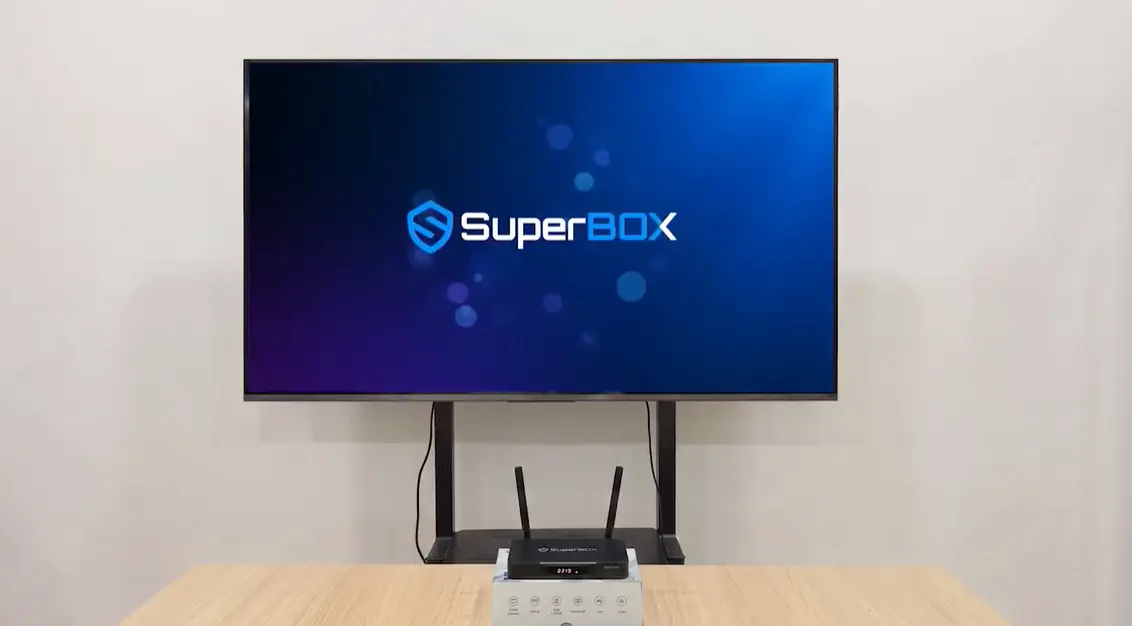
Grandparents and seniors especially appreciate not having to remember which HDMI port connects to which dongle, or juggling three different remote controls with tiny buttons just to watch evening television.
Because SuperBox runs on an open, flexible Android operating system, you are not locked into a closed garden. You have the freedom to install popular streaming applications alongside your live television channels, giving you the best of both worlds.
Whether you want to catch the newest season of a popular fantasy drama or watch a true-crime documentary everyone is talking about, having Netflix ready on your SuperBox makes movie night effortless.
Understanding How Netflix Works on an Open Android Set Top Box
Before installing the app, it helps to know how Netflix manages its software. Netflix creates several different versions of its application: one for touch-screen smartphones, one for certified smart TVs, and optimized builds for open Android media boxes.
If you search for Netflix inside the standard Google Play store on an open media box, Google sometimes displays a message saying the application is not compatible with your device. This happens because Google looks for proprietary device licensing chips rather than standard hardware specs.
To make installation hassle-free for everyday owners, SuperBox curates verified, pre-tested versions inside its own built-in App Store and Aptoide TV marketplace.
These verified builds install cleanly, log in securely, and stream high-definition video smoothly without running into licensing roadblocks.
Step by Step Guide to Downloading and Installing Netflix
Step 1: Open the SuperBox App Store on Your Home Screen
Power up your television and SuperBox. On the main home screen, look for the application titled App Store or Aptoide TV and click OK on your remote.
This store is your central library for pre-approved third-party streaming apps, utility tools, and bonus media players.
Step 2: Search for the Verified Netflix App
Use your remote arrow keys to highlight the search bar at the top, or browse through the Entertainment category.
Locate the familiar red and black Netflix icon. Select the version provided directly within the curated store to ensure maximum compatibility with your remote control.
Step 3: Complete Download and Grant Standard Permissions
Click the Download or Install button. Your device will automatically download the package and unpack the necessary files.
If a small pop-up appears asking to grant storage permissions, select Allow. This lets Netflix save your profile preferences and remember which episode you were watching.
Step 4: Launch the App and Sign In with Your Account
Once installation finishes, click Open, or find the new Netflix icon inside your Apps menu on the home screen.
Select Sign In. Use your remote control to type in your existing Netflix email and password, choose your personal profile avatar, and you are ready to stream.
Easy Remote Control Navigation Using the Mouse Button
Here is the most important tip for enjoying Netflix on your SuperBox: understanding the Mouse button on your remote.
Because this compatible version is designed for easy touch-like navigation, regular directional arrow keys might occasionally not jump between movie tiles on certain menu screens.
Whenever you want to scroll smoothly, look at your SuperBox remote control and find the button with the small Computer Mouse icon. Tap that button once.
An arrow cursor will appear on your television screen, just like on a home computer. You can now use your directional pad to glide the arrow anywhere you want.
To scroll down through rows of movies, hold down the OK button while pressing the Down Arrow key, simulating a finger swipe on a tablet. Tap the Mouse button again whenever you want to return to standard arrow navigation.
If you prefer an even faster experience, you can plug any standard wireless computer mouse or USB mini-keyboard into one of the open USB ports on your SuperBox.
Comparing the Netflix App with Built In Blue VOD Movies
| Entertainment Feature | Third-Party Netflix Subscription | Built-In SuperBox Blue VOD |
|---|---|---|
| Monthly Ongoing Cost | $6.99 to $22.99 / month | $0.00 / month (100% free with hardware) |
| Account Requirements | Requires active login and credit card | Zero login, accounts, or passwords needed |
| Remote Navigation | Requires mouse cursor toggle on some menus | 100% tailored for standard arrow remote keys |
| Content Variety | Strictly Netflix originals & licensed titles | Tens of thousands of movies across all studios |
| Commercial Breaks | Ad-supported on basic cheaper tiers | 100% commercial-free on every title |
| Video Quality | High Definition streaming | Pristine 1080p Full HD and true 4K Ultra HD |
Helpful Troubleshooting Fixes for Everyday Netflix Streaming
If you ever run into a hiccup while watching Netflix, these quick checks will have you back up and running in minutes.
If a screen prompt asks you to update Netflix via Google Play, always click Cancel or Not Now. Updating through Google Play will install the wrong phone build and cause an error. Always stick with the verified build from the SuperBox App Store.
If a video freezes or your sound gets out of sync, go to Settings > Apps > Netflix and click Clear Cache, then restart your media box.
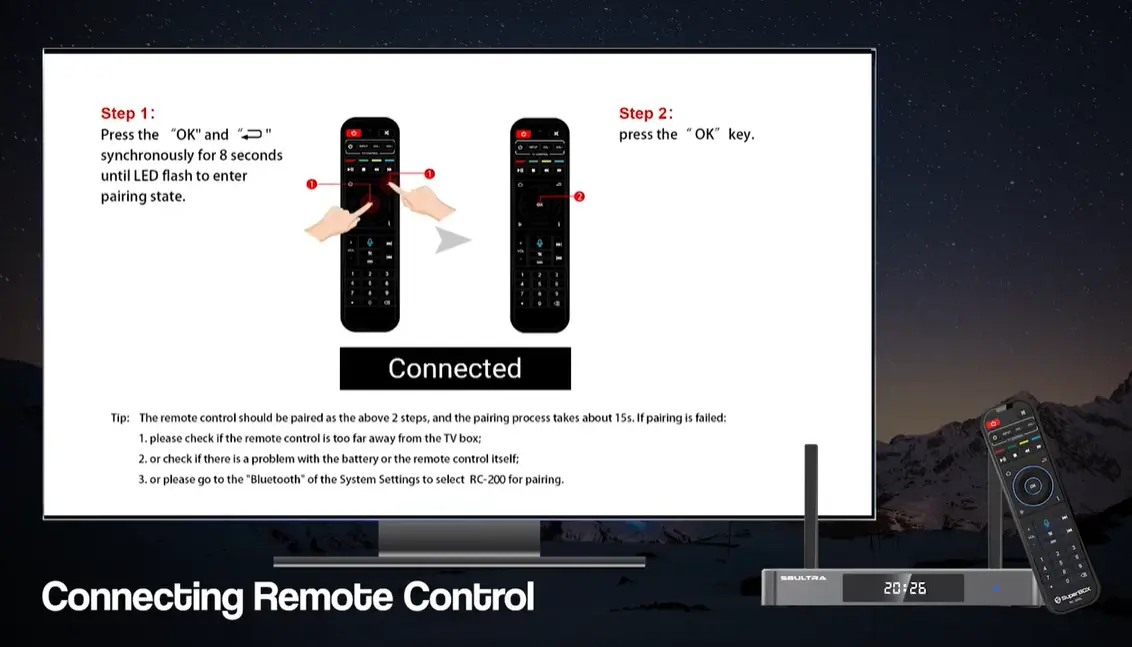
If your remote seems disconnected or unresponsive, take a look at our simple SuperBox remote pairing guide to re-link your remote in a few seconds.
Tips for Optimizing Netflix Video and Audio Quality on Your Box
Once you have Netflix installed and running, taking a minute to tweak a few audio and video settings ensures your television delivers the sharpest possible picture and theater-quality sound.
Inside your Netflix web browser account settings under Playback Settings, make sure data usage per screen is set to High or Auto. This allows the application to pull the highest resolution available based on your current internet speed.
If you connect your SuperBox to a home theater soundbar or audio-video receiver via HDMI, open your box Settings and navigate to Sound or Audio Output. Setting the digital audio format to Auto or Passthrough allows Netflix to send true Dolby digital surround sound directly to your speakers.
For homes with multiple viewers, setting up individual profiles for each family member keeps your watch history organized and ensures personal recommendations stay relevant and uncluttered.
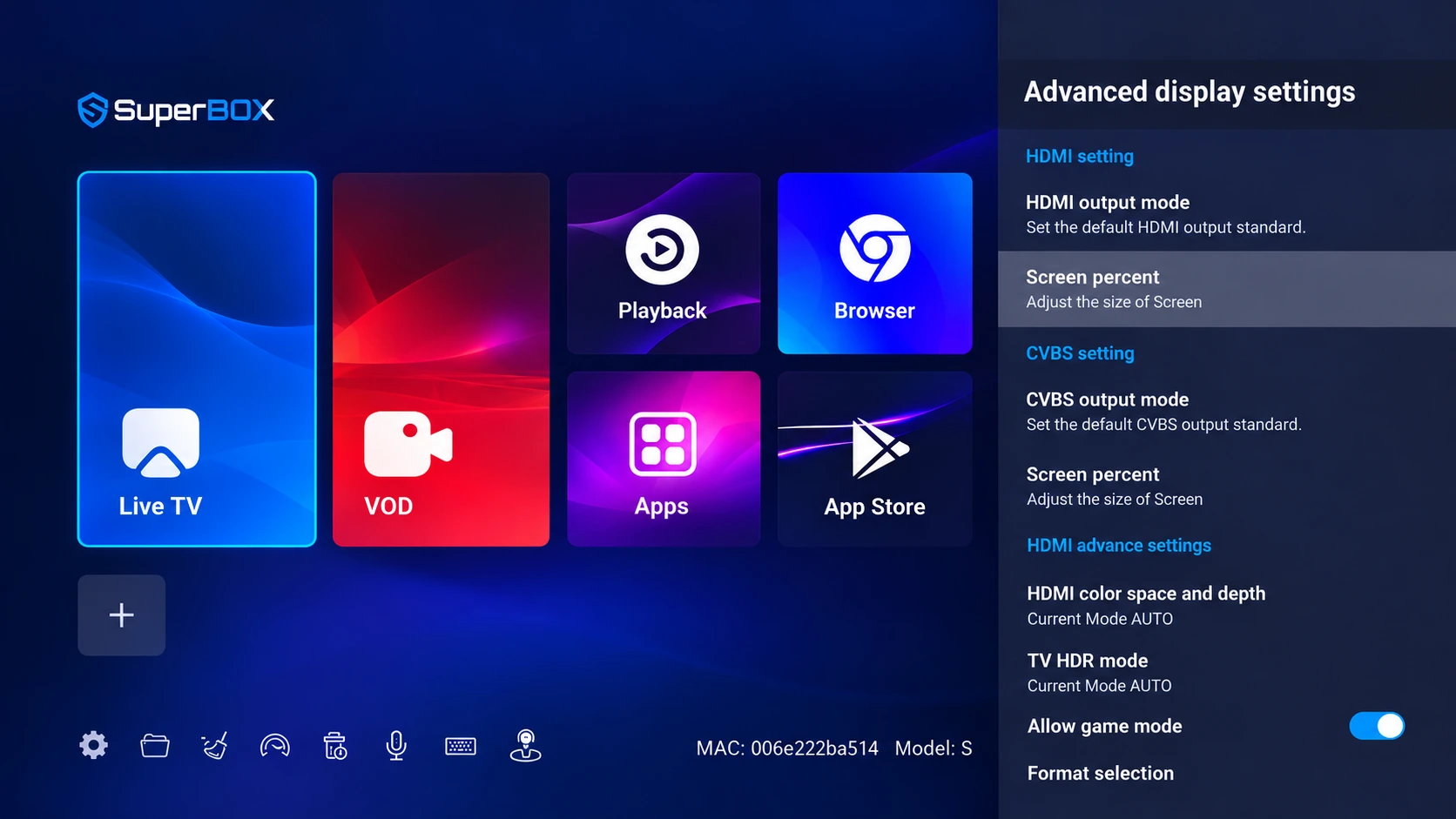
Organizing All Your Streaming Apps in One Living Room Hub
The greatest strength of a modern media box is uniting live television, international broadcasts, and premium streaming subscriptions into one single living room interface.
Instead of constantly switching between different smart TV inputs, gaming consoles, or mobile casting dongles, you can pin your top everyday apps directly to the SuperBox home launcher.
Place Blue TV, Blue VOD, Netflix, and Prime Cinema side by side on your favorites bar. Family members of any age can effortlessly transition from watching a live afternoon baseball game to finishing their favorite Netflix drama series with just two clicks of the remote.
This all-in-one setup eliminates remote control confusion and gives your household complete command over both live television and on-demand entertainment without extra monthly equipment rentals.
Frequently Asked Questions About Running Netflix on SuperBox
Is Netflix free when I buy a SuperBox?
Netflix is a private subscription service that requires its own paid account. SuperBox provides the hardware and app platform, but you will sign in with your own personal Netflix account credentials.
Can I use my existing Netflix account login?
Yes, you can log in with your current username and password just like you would on your smartphone, tablet, or home computer.
Why does the screen say the app is not compatible if I download from Google Play?
The standard Google Play build requires proprietary digital licensing keys. To avoid this error, always download the verified compatible version from the SuperBox App Store or Aptoide TV store.
How do I turn on the mouse cursor with the SuperBox remote?
Tap the button marked with a computer mouse icon on your remote control. An arrow pointer will appear on your television, allowing you to click anywhere on screen.
Can I plug a regular computer mouse into the box to navigate?
Yes, you can plug any wired USB mouse or wireless USB mouse dongle into the side of your SuperBox for effortless point-and-click control.
Does Netflix stream in high definition on SuperBox?
Yes, the compatible build delivers clear High Definition playback. For true native 4K Ultra HD video without subscription limits, be sure to explore the titles inside Blue VOD.
Can I download Netflix shows to watch offline on SuperBox?
Offline downloads are typically designed for mobile tablets and phones. On a home television box connected to home internet, streaming directly online is the recommended method.
How do I update the Netflix app when a new version comes out?
When a new approved build is released, it will appear as an update notification inside the SuperBox App Store or Aptoide TV store. Do not update via standard Google Play.
What should I do if the Netflix screen freezes or goes black?
Unplug the power cord from the back of your SuperBox, wait 30 seconds, and plug it back in. This clears temporary memory and resolves almost all app freezes.
Can I watch similar movies and series on Blue VOD for free?
Yes, Blue VOD includes tens of thousands of movies and popular drama series completely free of charge, with zero monthly subscriptions and zero commercial interruptions.
Final Thoughts
Setting up your television should make relaxing at home easier, not more complicated. By getting Netflix installed on your SuperBox, you create a unified entertainment center where live broadcast television, sports events, and on-demand movies live side-by-side.
With simple remote mouse shortcuts and verified app downloads, you can enjoy all the series you love without constantly switching TV cords or HDMI inputs.
If you ever have questions about setting up applications or pairing remotes, our friendly team is always here to help through our official Contact Us page.
The article was updated on:
