
Knowledge SuperBox
Smart TV and Non Smart TV: Simple Guide and Practical Differences





The main difference between a smart TV and a non-smart TV comes down to internet connectivity and built-in apps. A smart TV connects directly to your home Wi-Fi and has streaming apps like YouTube and Netflix built right into the screen. A non-smart TV, often called a traditional or regular TV, has no internet connection and no built-in apps. It simply acts as a display screen for whatever device you plug into it, such as a cable box, DVD player, or external streaming box.
If you already own a non-smart TV that has a clear picture and working sound, you do not need to replace it. Plugging an external Android TV box into your television HDMI port gives you every streaming app, live channel, and smart feature available today. In fact, separate streaming boxes often run faster, last longer, and give you much more freedom than the built-in software on expensive new smart TVs.
Quick Comparison: What Happens When You Choose Between Them?
When shopping for a television or looking at the screen already sitting in your living room, it helps to understand what each option actually delivers on a daily basis.
A smart TV is an all-in-one package. You plug the power cord into the wall, connect it to your Wi-Fi network, and use the included remote control to pick from the pre-loaded apps on the home screen. There are no extra boxes sitting on your TV stand and fewer cables running behind your furniture.
A non-smart TV keeps things straightforward. It turns on instantly, changes input channels without lag, and never shows pop-up software updates or banner advertisements. However, to watch anything other than basic antenna broadcasts or cable channels, you must connect an external media device using an HDMI cable.
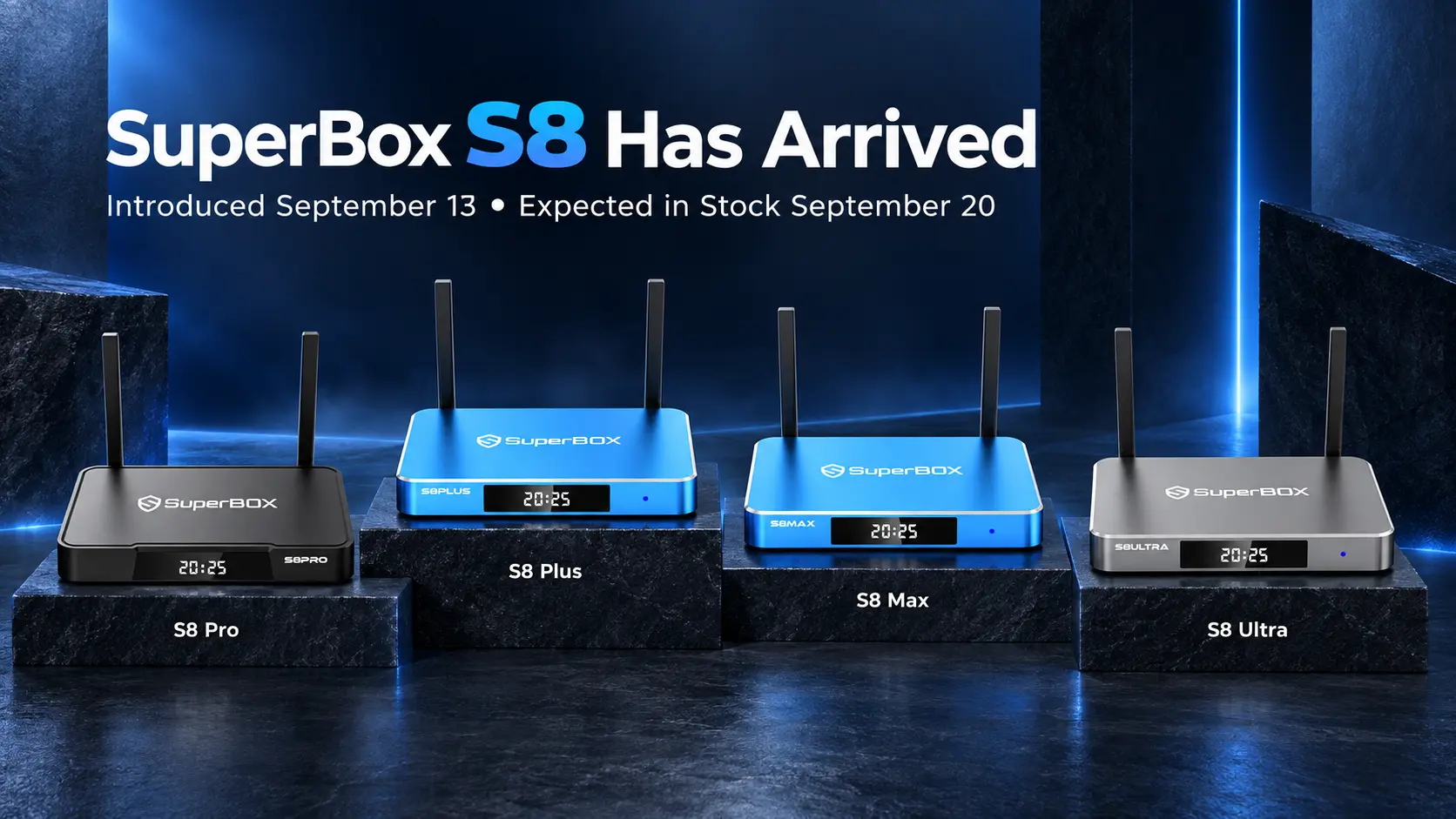
SuperBox streaming box and remote
For most households, the best setup is not necessarily buying the latest smart TV. Many viewers find that pairing a regular TV screen with a dedicated streaming device gives them a much smoother experience with fewer headaches down the road.
Smart TV vs Non Smart TV: Everyday Features Compared
| Feature | Built-In Smart TV | Regular Non-Smart TV | Non-Smart TV with Streaming Box |
|---|---|---|---|
| Internet connection | Built-in Wi-Fi and network port | No internet capability | High-speed Wi-Fi and Ethernet on box |
| Streaming apps | Pre-installed factory app store | None built in | Full access to open Android apps |
| Speed after 2 to 3 years | Often slows down and freezes | Stays just as fast as day one | Fast; upgrade the box whenever you want |
| Home screen ads | Frequent banner ads and promotions | No ads on screen | Clean app screen with no TV ads |
| Ease of setup | All-in-one single power plug | Needs an external player for streaming | One HDMI cable and one power cord |
| Storage for apps | Very limited, often fills up fast | No storage needed | Large storage from 32GB up to 128GB |
| Lifespan of equipment | Apps stop updating in 3 to 5 years | Screen can last 10 years or more | Screen lasts for years; box is easily replaced |
| Cost over time | Must replace entire TV when slow | Low cost, durable screen | Inexpensive way to keep older TVs useful |
Common Frustrations People Experience with Smart TVs
1. Built-in processors slow down over time
Television manufacturers focus most of their manufacturing budget on the display panel itself: the screen brightness, color levels, and glass finish. To keep retail prices attractive, they often put very modest processors and small amounts of memory inside the television.
When you first bring the TV home, opening an app takes only a second. But as streaming services release larger updates and add heavier graphics, the built-in hardware struggles to keep up. After two or three years, opening an app can feel sluggish, video streams may buffer unexpectedly, and the TV may randomly restart while you are watching a movie.
2. Apps stop receiving updates
Unlike smartphones, which receive operating system updates for several years, smart TV platforms often stop updating their software after a new model year arrives. When Netflix, Prime Video, or your favorite sports service updates their security standards, older smart TVs may no longer support the new app version.
This leaves owners in an awkward spot: the physical TV screen looks gorgeous and works perfectly, but the built-in apps refuse to load. Replacing a 65-inch or 75-inch television just because an app stopped working is a frustrating and expensive proposition.
3. Cluttered home screens and banner ads
When you turn on a modern smart TV, the home screen is rarely just a list of your personal apps. Most major television brands now display rows of sponsored movies, commercial banners, and recommended shows across the top and center of the screen.
These advertisements not only take up screen space and slow down menu navigation, but they also track viewing habits in the background. If you prefer a clean television interface that simply lets you click on what you want to watch without commercial clutter, built-in smart TV menus can be tiring.
4. Restricted app stores
Most smart TV brands, such as Samsung with Tizen or LG with webOS, run closed systems. You can only install apps that are officially approved and hosted in their specific brand store. If you want to install custom media players, specialized sports apps, or tools like Kodi, built-in smart TVs will block you from doing so.
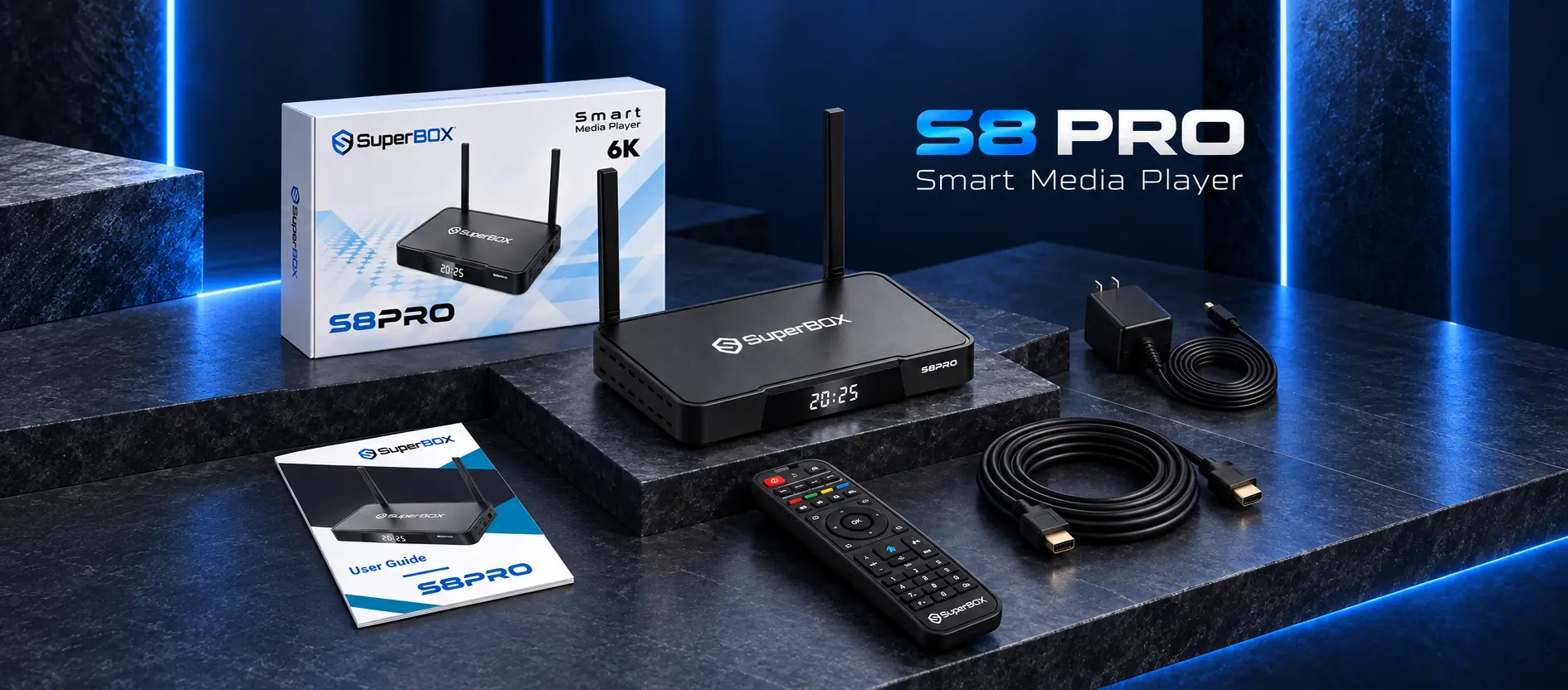
Cables and power supply accessories
Why Adding an External Streaming Box Makes More Sense
Instead of relying on the built-in computer inside a television, separating the screen from the streaming hardware is a much more practical choice for everyday entertainment.
You keep your reliable television screen
A good LCD, LED, or OLED screen can easily last ten years or longer without losing picture quality. When you plug a dedicated streaming device into that screen, the television only has to do one job: show a bright, clear picture. The streaming box does all the heavy computing, app handling, and internet downloading.
If technology advances four years from now and faster Wi-Fi or new video formats arrive, you only need to swap out the small streaming box on your shelf. You do not have to dismount your television, hire help, or spend thousands of dollars on a brand-new screen.
Much faster speeds and bigger storage
Dedicated streaming consoles are built specifically for streaming video. For example, the SuperBox S8 lineup features 4GB of RAM across all models, which gives apps plenty of breathing room so they do not freeze or crash when you switch between live channels and movies.
Storage is also significantly larger than what standard smart TVs provide. While a typical smart TV gives you only 4GB to 8GB of storage (with most of it taken up by the TV system), dedicated boxes offer generous space:
- SuperBox S8 Pro provides 32GB storage with a USB-C power connection at $359.
- SuperBox S8 Plus offers 64GB storage with a round DC plug and extra USB ports at $379.
- SuperBox S8 Max delivers 64GB storage with multi-viewing features at $399.
- SuperBox S8 Ultra provides 128GB storage and a backlit remote control at $449.
Having this much memory means you can install all your favorite streaming services, utility tools, and recorded programs without constantly seeing low-memory warnings on your screen.
Live sports and channels without monthly fees
One of the biggest advantages of dedicated hardware like the SuperBox S8 series is the included access to live sports, news, and entertainment channels. On a regular smart TV, you have to pay separate monthly subscriptions for cable packages, regional sports channels, and on-demand libraries. Over a single year, these recurring subscription charges can easily exceed $1,200.
An external box with lifetime server access gives you live television, pay-per-view events, and thousands of movies right out of the box with zero monthly fees or hidden contracts.
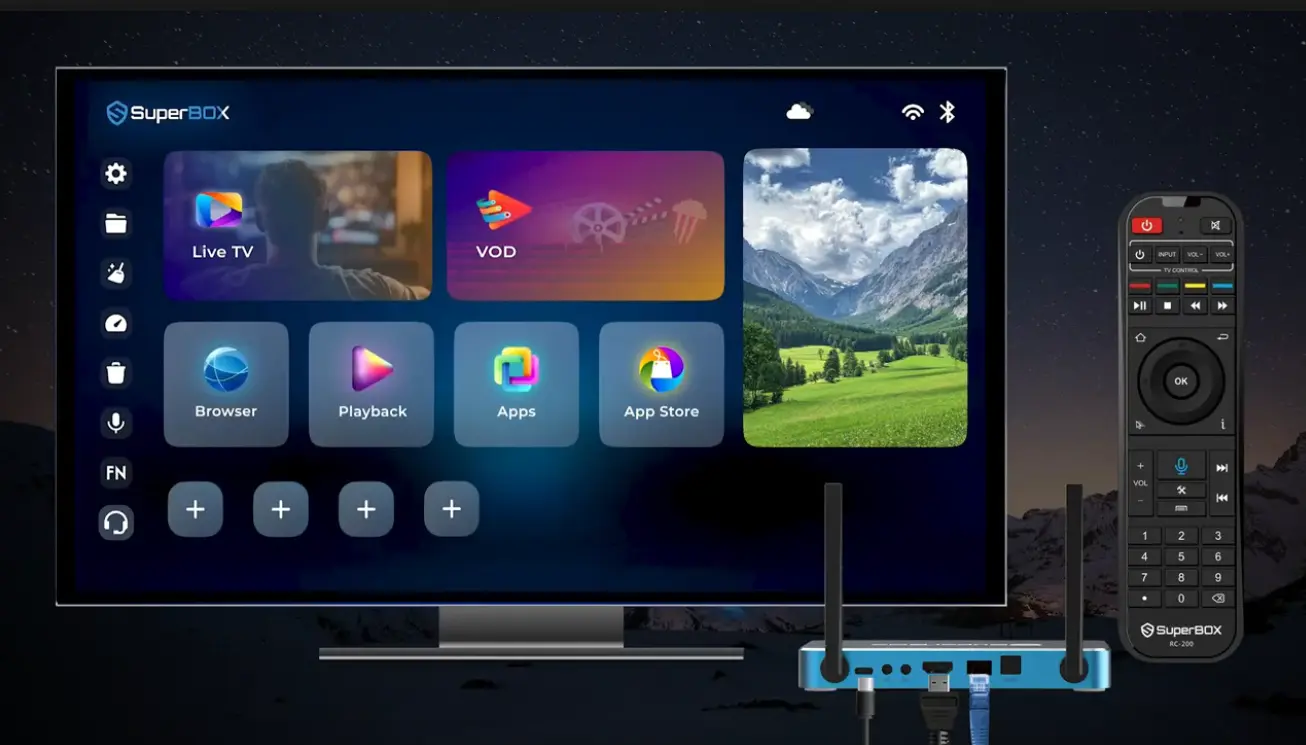
Ethernet cable plugged into box
What You Need to Make a Non-Smart TV Smart
Turning your existing non-smart TV into a modern streaming center takes less than ten minutes. Here is everything you need before you start:
- A television with an open HDMI port: Look at the back or side panel of your TV. As long as you see an HDMI port, your TV is ready. If you have an older TV with only red, white, and yellow ports, an inexpensive RCA-to-HDMI adapter will make it work.
- An HDMI cable: Most streaming boxes include an HDMI cable right in the box.
- A standard electrical wall outlet: Make sure there is an open power plug or surge protector strip near your television.
- Home internet connection: A download speed of at least 25 Mbps works well for standard HD video, while 50 Mbps or higher is best for smooth 4K viewing.
- Both remote controls: You will use your original TV remote once or twice to set the input, and then your streaming box remote for daily watching.
Step by Step: How to Set Up an External Box on Any TV
Step 1: Connect the HDMI cable
Take the HDMI cable and plug one end into the HDMI port on the back of your streaming box. Plug the other end into an open HDMI port on your television. Notice whether the port is labeled HDMI 1, HDMI 2, or HDMI 3 so you know which channel to pick later.
Make sure the cable is pushed in securely on both sides. A loose cable is the most common reason a screen stays dark during initial setup.
Step 2: Plug in the power adapter
Connect the power cord into the back of your streaming box. Plug the wall adapter into your surge protector or wall socket. Most streaming boxes will show a small indicator light on the front panel to let you know they are receiving electricity.
Step 3: Change your TV input to HDMI
Grab your television remote control and press the Input or Source button. Scroll down the list on your screen and select the HDMI port where you plugged in the cable (for example, HDMI 1).
Within a few moments, the TV screen will display the startup logo and load into the main home menu. If you see a blue screen or a No Signal notice, double-check that your TV is set to the correct HDMI number.
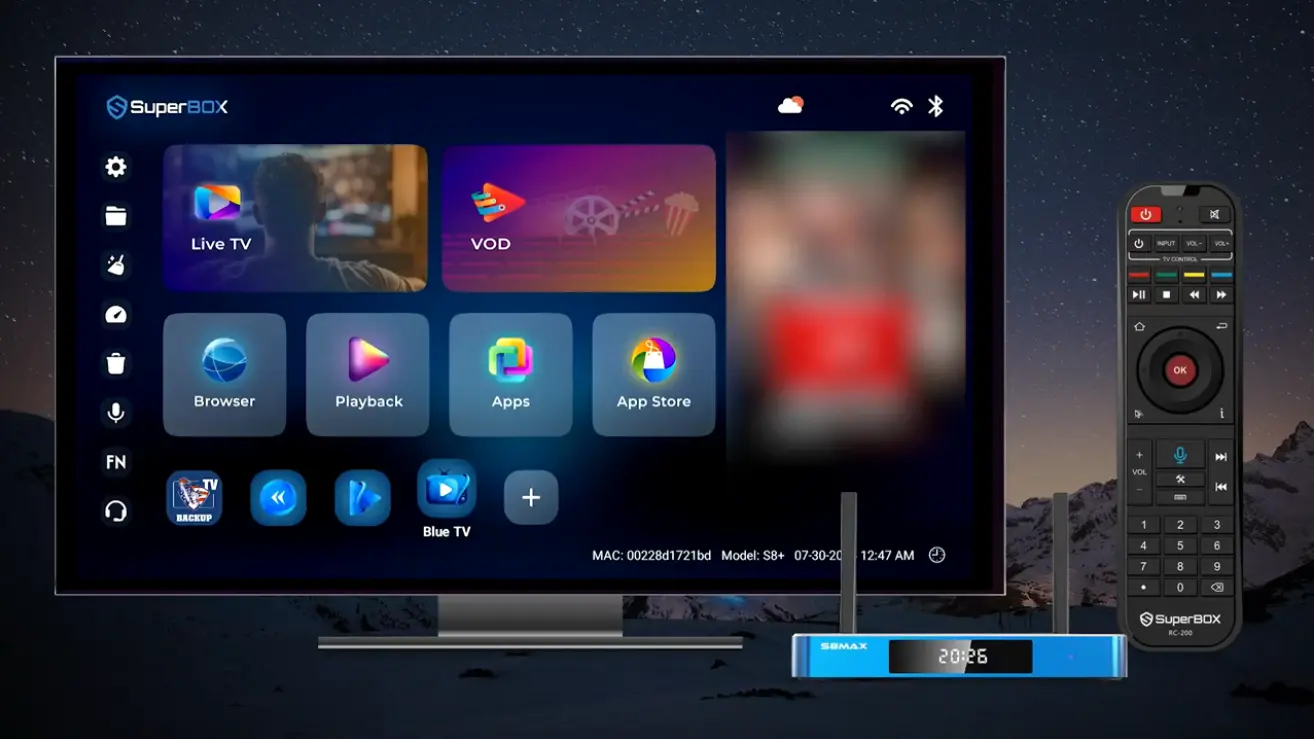
Android TV launcher home screen
Step 4: Connect to your home Wi-Fi or Ethernet cable
To watch shows and live games, your box needs an internet link.
For the most reliable connection, run a network cable from your internet router directly into the Ethernet port on the back of the box. If running a cable across the room is not convenient, open the Settings menu on your screen, click on Network, choose your home Wi-Fi name, and type in your Wi-Fi password. If your router supports both 2.4GHz and 5GHz bands, choose the 5GHz network for smoother streaming.
Step 5: Check your picture size and resolution
Open the Settings menu on your device and select Display. Look for the resolution setting and make sure it matches your television. If you have a 1080p television, set it to 1080p at 60Hz. If you have a 4K television, select 4K (2160p) at 60Hz.
Next, look for Screen Zoom or Screen Percent. If the edges of the picture are cut off and you cannot see the clock or sports scores clearly, adjust the zoom arrows until the white borders touch the edge of your screen.
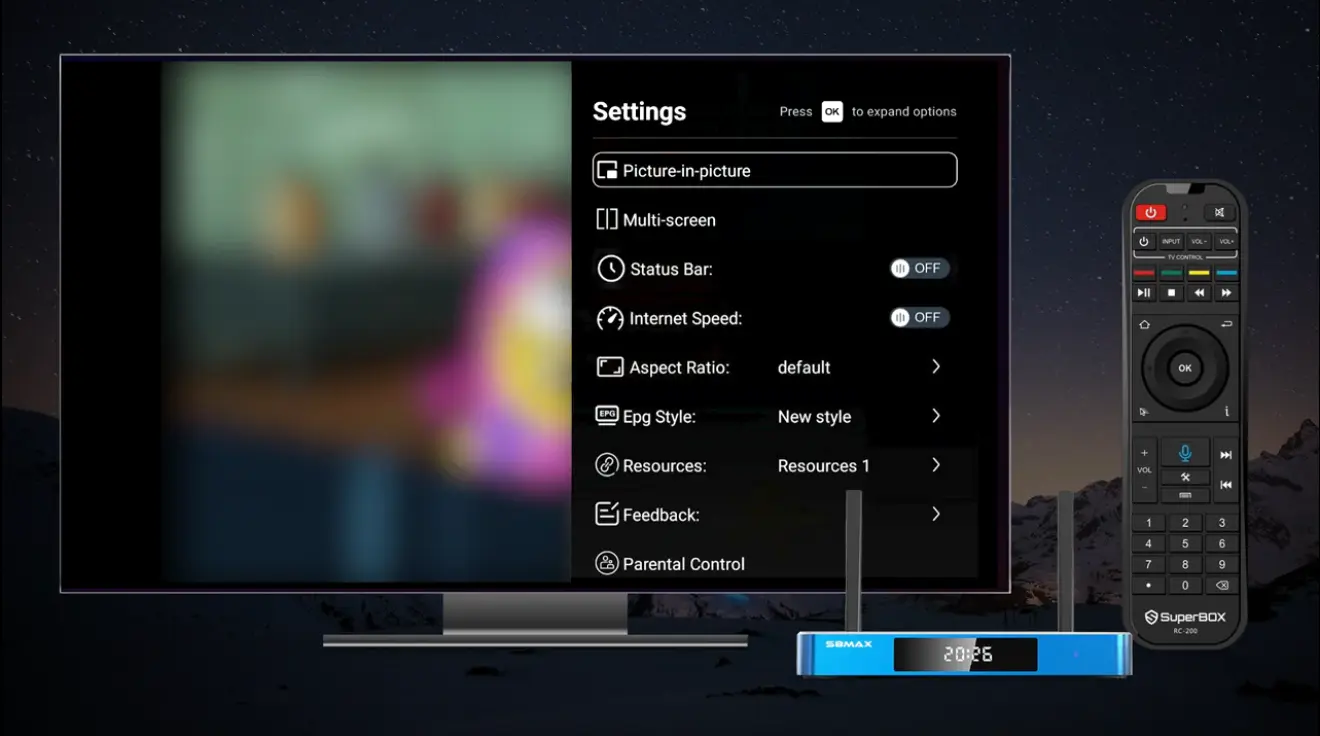
Simple picture and sound settings
Step 6: Set up your remote control
Follow the quick on-screen prompt to pair your Bluetooth remote control so you can control the box without pointing directly at it. Most modern remotes also have TV learning buttons at the very top. You can easily program these buttons to turn your TV on and off and adjust the volume, meaning you only need one remote on your coffee table.
Quick Checks to Ensure the Best Picture and Audio
Once everything is plugged in and running, take one minute to check that your picture and sound are properly aligned:
- Clear text on menus: Look at the channel names and app labels on your home screen. The letters should look crisp and sharp. If text looks blurry or fuzzy, your display resolution setting is set too low for your screen.
- Natural motion on sports: Turn on a live sporting event where the camera pans quickly across a field or rink. The motion should look natural and smooth without jittering or stuttering.
- Clear audio and lip sync: Listen to people speaking on news broadcasts or interviews. Dialogue should match mouth movements without noticeable delay.
- Full screen without cropped edges: Confirm that channel logos and time clocks sit comfortably inside the edges of your television frame.
Clear picture on television screen
Simple Solutions for Common Setup Issues
If you run into an unexpected hitch while setting up your television, these simple troubleshooting steps will usually solve it right away.
TV shows No Signal on the screen
This almost always means the television is looking at the wrong input port or the HDMI cable is loose.
Check which HDMI socket the cable is plugged into on the back of the TV, then press the Source or Input button on your TV remote to match that exact number. Unplug the HDMI cable from both ends and push them firmly back in.
The picture is stretched or cut off at the edges
If menu icons or scores are cut off around the perimeter of the screen, your television has an overscan zoom feature turned on.
Grab your TV remote, open Picture Settings, look for Aspect Ratio or Picture Size, and change it from 16:9 to Just Scan, Screen Fit, or Native. If your TV does not have that option, open the Display menu on your streaming box and adjust the Screen Percent slider down until the picture fits your screen.
The video pauses or buffers while streaming
Buffering usually happens when the Wi-Fi signal between your router and the television is weak or congested by other household devices.
Move any large metal items or electronics away from your TV box. If possible, plug in an Ethernet cable directly from your router to the box. If you must use Wi-Fi, connect to your router 5GHz Wi-Fi band instead of the older 2.4GHz band.
The sound is slightly behind the actors lips
If spoken dialogue lags behind the video, open the Sound Settings menu on your streaming box and change Digital Audio Format from Auto to PCM or Passthrough. You can also check your TV sound menu for an Audio Delay setting to line up the sound perfectly.
The table below summarizes these common symptoms and the quickest fixes:
| Observed Issue | Quick First Check | Simple Solution |
|---|---|---|
| No Signal message on screen | Check HDMI port number on TV | Select matching input on TV remote |
| Picture edges cut off | Check TV picture aspect ratio | Set TV to Just Scan or adjust box zoom slider |
| Video buffers or freezes | Check Wi-Fi signal strength | Switch to 5GHz Wi-Fi or plug in Ethernet cable |
| Sound does not match lips | Check box sound output setting | Set audio output to PCM or Passthrough |
| Remote not responding | Check remote batteries | Re-pair Bluetooth remote in settings |
| Colors look dull or washed out | Check HDR settings on box | Set HDR to Auto and color space to YUV420 |
Frequently Asked Questions
Can I make any older television into a smart TV?
Yes, as long as the television has an HDMI port, plugging in an external streaming device gives it all modern smart TV capabilities.
Do I have to buy a new TV if my smart TV apps stop working?
No, you can simply plug an external streaming box into an open HDMI port on your existing TV and bypass the outdated built-in apps entirely.
Will a streaming box work on a television that is not 4K?
Yes, modern streaming boxes automatically adjust their output to match standard 720p or 1080p high-definition screens with complete stability.
Do non-smart TVs show advertisements on the home screen?
No, regular non-smart TVs do not have internet software or home launchers, so they never display commercial banner ads or promotional pop-ups.
Do I still need an internet connection to use an external TV box?
Yes, you need home internet or Wi-Fi to stream video, download apps, and watch live channels through any streaming device.
Can I control my TV volume with the streaming box remote?
Yes, modern streaming remotes have learning buttons at the top that can copy the power and volume commands from your original TV remote.
How much internet speed do I need for smooth streaming?
A continuous download speed of 25 Mbps is plenty for clear HD video, while 50 Mbps is ideal for buffer-free 4K sports and movies.
Why do smart TVs get slower after a couple of years?
Smart TVs slow down because manufacturers put smaller processors and limited memory inside the TV, which struggle to handle newer, heavier app updates.
Can I install apps that are not in the official TV store?
On a built-in smart TV you usually cannot, but an open Android TV box lets you easily install apps from USB drives, memory cards, or web browsers.
Is it cheaper to buy a smart TV or add a TV box to an existing TV?
Adding a dedicated TV box to your current television is much cheaper than buying a whole new TV and provides significantly faster speeds and more app freedom.
Final Thoughts
Deciding between a smart TV and a non-smart TV does not have to be complicated. While built-in smart TVs seem convenient on the showroom floor, their limited internal hardware, commercial ads, and short software lifespans often leave viewers frustrated after a few years.
If you have a reliable non-smart TV or an older smart TV that has started slowing down, you do not need to spend hundreds of dollars on a brand-new set. Connecting a dedicated Android streaming console like the SuperBox S8 series revives your screen with fast navigation, massive storage, open app freedom, and access to all your favorite live entertainment without monthly bills.
The article was updated on:
