
Knowledge SuperBox
Official SuperBox Support & Warranty Guide





At SuperBox TV Box Store, our team has supported, serviced, and tested Android TV streaming hardware for households across the United States and Canada for over eight years. SuperBox streaming consoles provide long-term entertainment value without monthly subscription fees, but operating high-definition media systems inevitably involves network configuration, firmware maintenance, and occasional hardware questions.
Knowing how to access authentic customer service ensures your device delivers optimal performance every day of the year.
The digital entertainment marketplace contains numerous unverified third-party websites, fraudulent customer service hotlines, and paid subscription scams that target streaming device owners. Legitimate support for authentic SuperBox consoles is always free of charge.
This comprehensive guide details how to reach official SuperBox support, explains warranty claim procedures, outlines preparation steps before contacting technical agents, walks through step by step problem resolution, and provides a symptom-based troubleshooting matrix for your home theater setup.
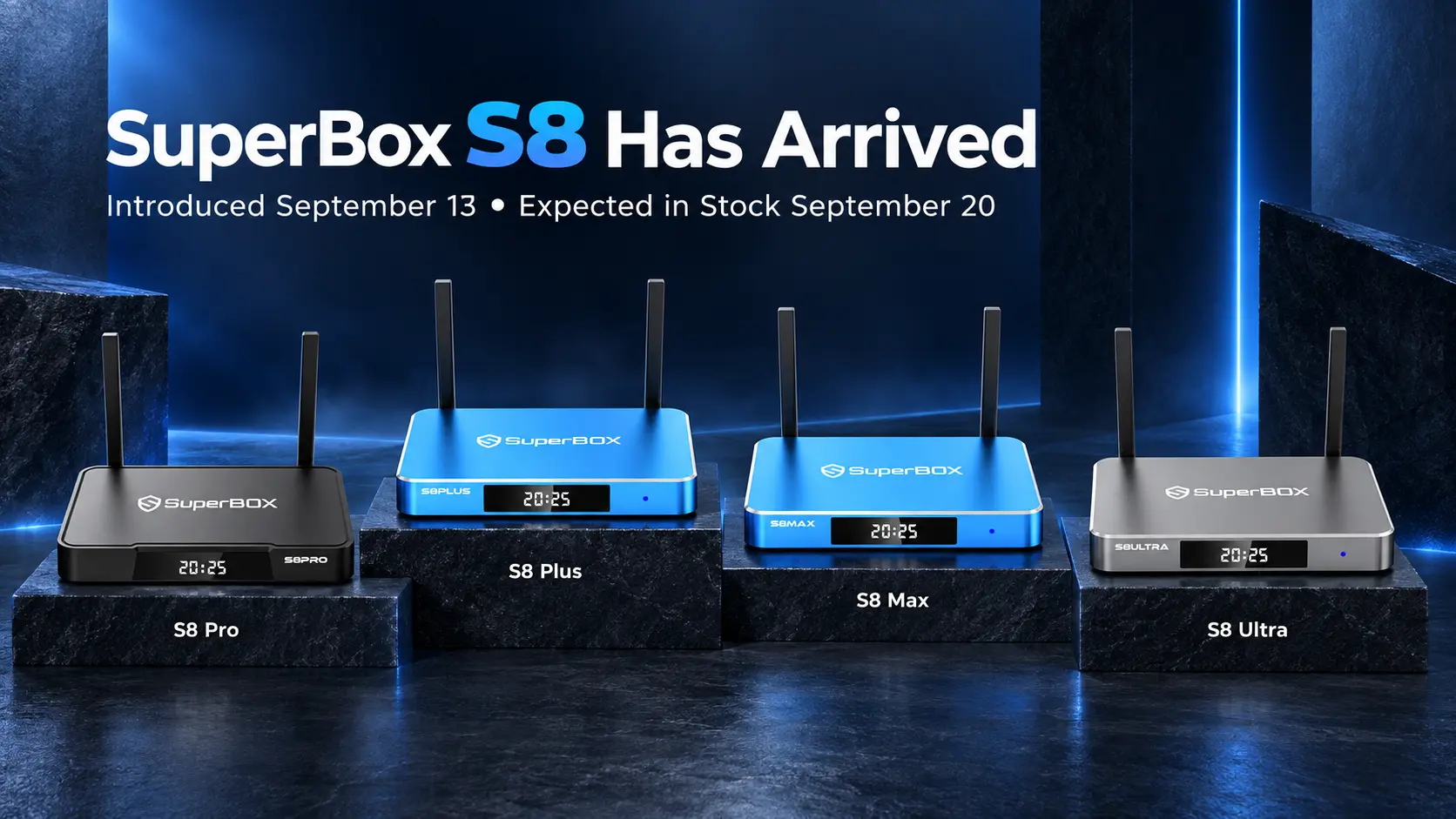
Compatibility note: Official customer support policies and server synchronization procedures apply to authentic SuperBox models, including the S8 Ultra, S8 Max, S8 Plus, S8 Pro, and earlier S7 or S6 series. Support validation requires your device twelve-digit, address and proof of purchase from an authorized distributor. Official representatives will never ask for payment to restore or activate streaming features.
Quick Answer: How Do You Contact Official SuperBox Support?
To contact official SuperBox support, access the 24/7 live chat service on authorized distributor portals such as SuperBox TV Box Store, submit an online technical assistance ticket, or contact the customer support team via official email. Legitimate assistance is completely free, covering one-year hardware warranty validation, system firmware updates, and remote control troubleshooting.
Official SuperBox device and remote
Which Official Channel Should You Choose?
| Support Channel | Operating Schedule | Average Response Time | Best For | Required Information |
|---|---|---|---|---|
| 24/7 Official Live Chat | 24 hours a day, 7 days a week | Under 3 minutes | Immediate setup questions, channel loading delays, remote pairing | SuperBox model name and internet speed |
| Authorized Distributor Email | Business hours (EST and PST) | 1 to 6 hours | Order tracking, invoice requests, hardware warranty claims | Order number and original buyer name |
| Built-In App Store Support | Automated on-device service | Instant delivery | Reinstalling Blue TV, Blue VOD, and official utility apps | Active internet connection on SuperBox |
SuperBox package and hardware accessories
What You Need Before Contacting Support
Gathering your technical details before initiating a support request saves time and helps technicians resolve your issue during the first interaction:
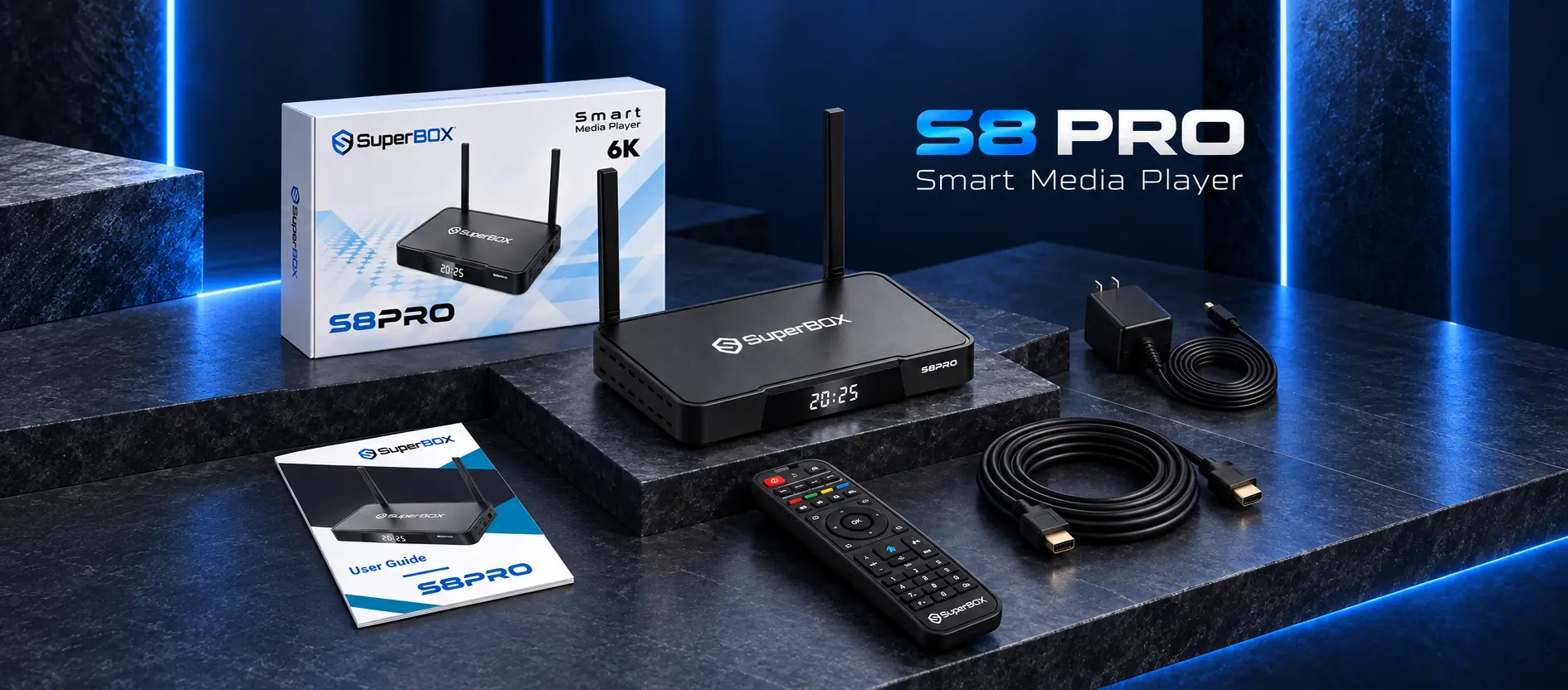
- Hardware model and storage capacity: Confirm whether you own a SuperBox S8 Ultra (128GB ROM), S8 Max (64GB ROM), S8 Plus (64GB ROM with round DC power), S8 Pro (32GB ROM), or an S7/S6 series console.
- Order confirmation or invoice number: Keep your original purchase receipt from an authorized store available to verify active one-year warranty coverage.
- Internet connection metrics: Note your current download speed, ping latency, and whether your console connects through 5GHz Wi-Fi or a wired Gigabit Ethernet cable.
- Exact error message or screen photograph: Take a clear photo of your television screen displaying the specific error message or diagnostic code.
Step by Step Walkthrough: How to Submit a Support Request and Resolve Issues
Step 1: Test your local network and rule out router bottlenecks
Before escalating an issue to customer service, determine whether the problem originates from your local home network or the remote streaming server.
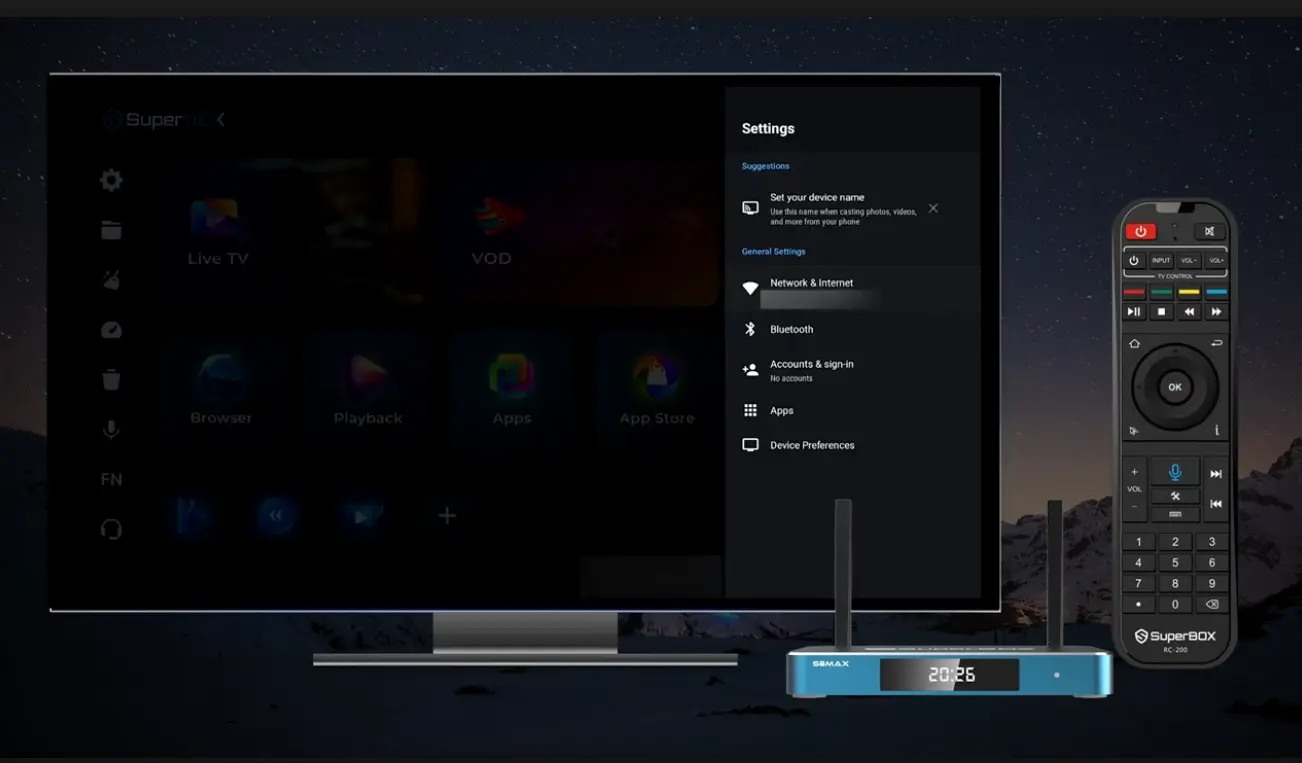
Open the pre-installed web browser or network test utility on your SuperBox. Run a speed test to verify that your connection delivers at least 25 Mbps download bandwidth for high-definition playback or 50 Mbps for 4K video. If your download speed is low or your ping exceeds 50 milliseconds, restart your modem and router by disconnecting power for sixty seconds before contacting support.
Network status in device settings
Step 2: Access official support through verified distributor portals
To protect yourself against deceptive call centers, always access live chat or email support directly through verified authorized retailer websites such as SuperBox TV Box Store.
Look for the official customer service widget positioned in the bottom corner of the web page. Click the icon to launch real-time chat. If you are experiencing an issue outside standard business hours, select the technical support queue to connect with a 24/7 live specialist.
Step 3: State your hardware model and describe the symptom clearly
When the technician joins the chat session, state your exact hardware model, operating system version, and the specific behavior you are observing.
Provide a factual summary such as: “I am using a SuperBox S8 Ultra connected via Gigabit Ethernet. When launching Blue TV, the application displays a Device Prohibited notification.
Step 4: Clear application cache and verify streaming functionality
Once the technician confirms that your account or hardware token has been refreshed, clear local temporary files to force a clean server handshake:
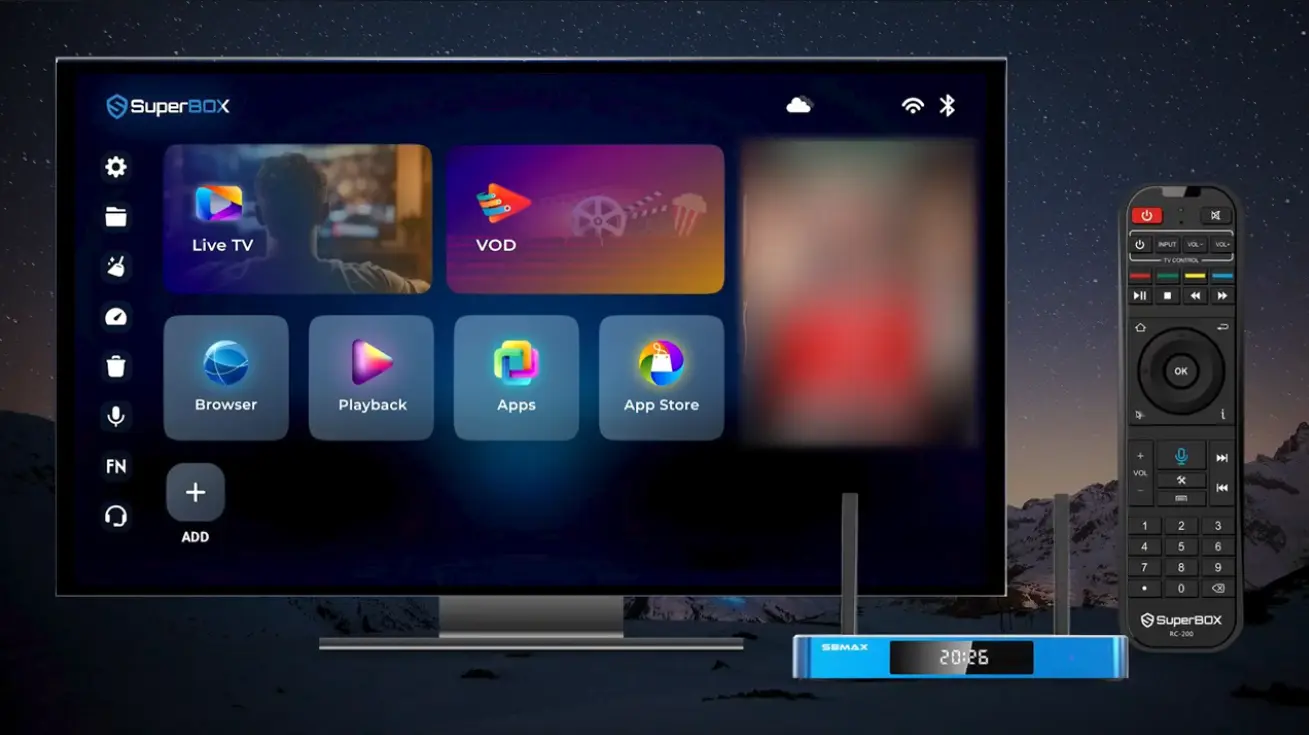
Navigate to Settings on your SuperBox, select Apps, locate Blue TV or Blue VOD, choose Clear Cache, and restart the application. Verify that your channel guide populates and live video playback begins smoothly.
Clearing cache using system tool
Step 5: Initiate a formal warranty claim if hardware replacement is required
If remote software diagnostics reveal an internal hardware defect (such as a malfunctioning Wi-Fi module, defective HDMI port, or failed internal power circuit), request an RMA (Return Merchandise Authorization) number.
The support specialist will verify your purchase date against the one-year manufacturer warranty terms, issue a return authorization code, and provide detailed packaging instructions for shipping the unit to the regional service facility.
How to Verify Authentic SuperBox Support and Avoid Third-Party Scams
The growing popularity of subscription-free Android TV boxes has led to fraudulent entities attempting to exploit consumers seeking technical help. Practicing vigilant consumer awareness protects your personal information and finances.
Follow these strict rules to verify you are interacting with genuine SuperBox representatives:
- Zero service or activation fees: Authentic SuperBox customer service is 100 percent free. If a representative requests payment, credit card information, gift cards, or cryptocurrency to activate your box or renew channel access, terminate communication immediately.
- Beware of sponsored search engine phone numbers: Fraudulent operations frequently purchase sponsored advertisements on major search engines displaying toll-free numbers. SuperBox does not operate unverified third-party toll-free call centers. Always initiate contact through authorized website portals.
- No remote desktop software installation: Legitimate technicians will never ask you to install unverified remote control software (such as AnyDesk or TeamViewer) on your personal computer to fix a television box..
- Official firmware delivery: Never download SuperBox firmware packages from public file-sharing forums or unverified cloud drives. Official system updates are distributed exclusively through the built-in Over-The-Air (OTA) update tool or provided via official support direct download links.
Troubleshooting by Symptom: Self-Help Before Escalating
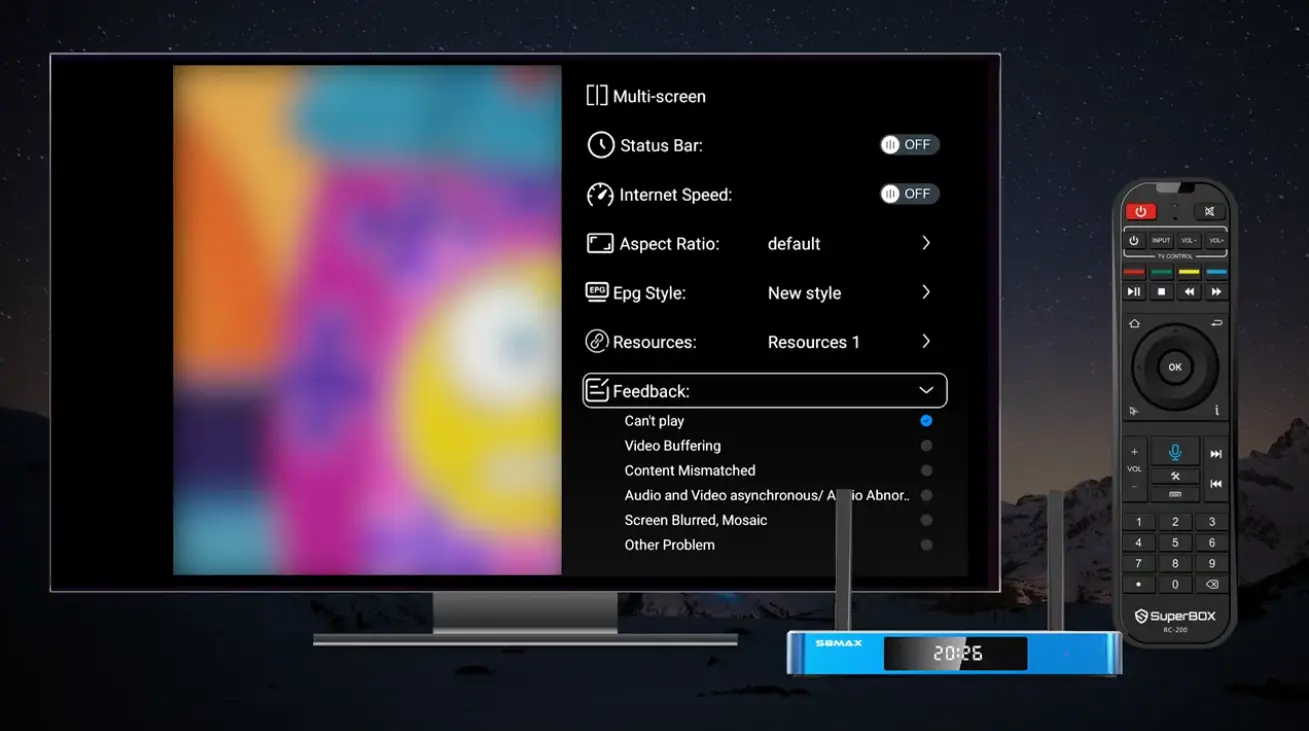
Blue TV feedback and support menu
SuperBox App Store missing after a factory reset
Performing a factory data reset restores the operating system to default settings, which occasionally uninstalls custom storefront applications.
Do not attempt to download replacement media apps from generic internet sites. Connect your SuperBox to the internet, open the built-in web browser, navigate to the official store restoration portal provided by customer support, and download the authentic SuperBox App Store APK. Once installed, launch the store to reinstall Blue TV, Blue VOD, and Playback with a single click.
Bluetooth voice remote fails to pair or register audio commands
Remote control connectivity issues typically stem from depleted batteries or lost Bluetooth pairing.
Insert a fresh pair of alkaline AAA batteries. Press and hold the Voice button and OK button simultaneously on your remote for five seconds until the indicator light flashes rapidly. This places the remote into pairing mode. On your SuperBox, open Settings, select Remotes and Accessories, and click Add Accessory to complete pairing. Note that while all S8 remotes support voice commands, only the flagship SuperBox S8 Ultra includes backlit keypad buttons.
Endless boot loop or black screen on startup
If your SuperBox freezes on the boot logo or powers on to a black screen, the system may have encountered an interrupted software update or power surge.
Disconnect the power cable from the back of the box and wait ninety seconds to allow the internal capacitors to drain completely. Verify that you are using the original 5V/2A power adapter (note that the S8 Plus utilizes a round DC plug, whereas S8 Ultra, S8 Max, and S8 Pro utilize USB Type-C power connectors). Reconnect the power cable firmly. If the console remains stuck, contact support to receive emergency recovery firmware for a USB flash drive restore.
Intermittent live stream buffering or server timeout
Frequent buffering during live broadcasts usually indicates network latency or aggressive internet provider bandwidth throttling.
Switch your connection from 2.4GHz Wi-Fi to a direct wired Gigabit Ethernet cable. If Ethernet is unavailable, connect to your router’s 5GHz wireless band to reduce interference. Inside Android network settings, change your DNS provider from default automatic to static Google DNS (8.8.8.8 and 8.8.4.4) or Cloudflare DNS (1.1.1.1).
The triage table below summarizes quick resolutions for frequent operational symptoms:
| Symptom | First Check | Next Step |
|---|---|---|
| Remote voice commands fail | Check AAA batteries and red LED | Hold Voice and OK buttons together to re-pair Bluetooth accessory |
| Channels freeze or buffer | Run speed test (target >25 Mbps) | Switch to wired Gigabit Ethernet and configure DNS to 8.8.8.8 |
| App Store disappeared | Verify internet connectivity | Download official App Store installer from authorized support link |
| Box stuck on startup logo | Disconnect power for 90 seconds | Request USB emergency recovery firmware from technical support |
| Audio out of sync with video | Check HDMI cable connection | Adjust Display Resolution settings to match television native refresh rate |
Frequently Asked Questions
How much does official SuperBox customer support cost?
Official SuperBox customer support is 100 percent free of charge for all authentic device owners, including troubleshooting, remote pairing help, and server authorization.
What is the fastest way to get help with a SuperBox issue?
The fastest method is using the 24/7 live chat feature on authorized retailer websites like SuperBox TV Box Store, which connects you to a technician in under three minutes.
Does my SuperBox include a manufacturer hardware warranty?
Yes, every authentic SuperBox purchased through authorized distributors includes a comprehensive one-year manufacturer hardware warranty covering internal component defects.
Are there any subscription fees required to keep SuperBox channels working?
No, authentic SuperBox hardware requires zero monthly or annual subscription fees to maintain access to the core Blue TV and Blue VOD entertainment applications.
Can official support help me fix live sports buffering?
Yes, technical agents can guide you through optimizing local network DNS settings, clearing media cache partitions, and switching server routes to eliminate buffering.
How do I update the firmware on my SuperBox?
Navigate to Settings on your device, scroll to Device Preferences, select About, and click System Update to download and apply official Over-The-Air firmware patches.
How can I tell if a SuperBox customer support website is fake?
Any service claiming to represent SuperBox that demands payment, requires credit card numbers, or asks for recurring subscription fees to activate channels is fraudulent.
Final Thoughts
Reliable technical support is an essential component of a premium home entertainment experience. While SuperBox Android TV boxes are engineered for straightforward plug-and-play operation, unexpected network disruptions, router conflicts, and application questions can arise.
By utilizing authorized customer service pathways, keeping your device readily available, and following structured troubleshooting practices, you can resolve operational issues quickly without stress. Remember that genuine SuperBox support is always complimentary, designed to help you enjoy continuous, high-definition entertainment across your favorite sports, movies, and live broadcasts.
The article was updated on:
