
Knowledge SuperBox, Knowledge SuperBox S8
How to Set Up an Internet Connection on SuperBox S8 Series





A reliable internet connection is the foundation of the SuperBox S8 experience. Online apps, updates, live viewing features, and on-demand services all depend on the box being properly connected to your home network. The good news is that every model in the S8 family: SuperBox S8 Pro, S8 Plus, S8 Max, and S8 Ultra – gives you two straightforward ways to get online: wireless WiFi or a wired Ethernet connection.
The redesigned S8 interface makes both choices easy to reach. During initial setup, the network wizard places Wi-Fi and Ethernet next to each other so you can select the method that fits your room. After setup, the main Settings panel provides a Network & Internet menu where you can review or change the connection.
This is a complete setup guide, not a scene-by-scene recap. It explains how to choose between WiFi and Ethernet, connect through the S8 network wizard, verify the result, and resolve the most common setup problems without resetting the entire device.
Compatibility note: Screens and menu positions may change with software updates or device configuration. Follow the labels shown on your S8 if its layout differs slightly. Streaming performance also depends on your internet plan, router, network traffic, and the service or app being used.
Quick Answer: How Do You Connect SuperBox S8 to the Internet?
During the S8 setup process, open Step 2: Set your network and choose Wi-Fi or Ethernet.
- For WiFi, refresh the access-point list, select your network, enter its password with the on-screen keyboard, choose Connect, wait for the Wi-Fi connected confirmation, and select Next.
- For Ethernet, connect a network cable from your router or network equipment to the Ethernet port on the back of the S8. Select Ethernet if the setup wizard asks which connection to use.
- To review the connection later, open Settings > Network & Internet from the S8 home screen.
WiFi or Ethernet: Which Connection Should You Use?
The S8 Series supports dual-band WiFi 6 and Gigabit Ethernet according to the current model specifications published by SuperBox TV Box Store. Both can support online viewing, but they solve different placement and reliability needs.
| Factor | WiFi | Ethernet |
|---|---|---|
| Cable required | No | Yes, from router/network device to S8 |
| Placement flexibility | Higher | Limited by cable route |
| Setup method | Select a network and enter its password | Connect a cable and select Ethernet if prompted |
| Potential interference | Can be affected by distance, walls, and other wireless activity | Avoids wireless interference on the box-to-router link |
| Best fit | Rooms where a cable is impractical | Fixed home-theater installations near a wired connection |
| S8 capability | Dual-band WiFi 6 | Up to Gigabit link capability |
Choose WiFi when flexibility matters and the box receives a dependable wireless signal. Choose Ethernet when a cable can conveniently reach the S8 and you want to remove the wireless hop between the box and router.
Neither option can make an internet plan faster than the service delivered to your home. “WiFi 6” describes the wireless technology supported by the box, while “Gigabit Ethernet” describes the wired interface capability. Actual internet-test results will vary and should not be confused with a guaranteed streaming speed.
What You Need Before Starting
Prepare the connection details before opening the network screen:
- A powered-on router or access point with working internet service.
- The exact WiFi network name if using wireless.
- The WiFi password, including correct capitalization and symbols.
- An Ethernet cable long enough to reach the S8 if using a wired connection.
- The SuperBox remote so you can navigate the setup wizard and on-screen keyboard.
If other devices cannot use the same network, the problem may be upstream of the SuperBox. Restore the home connection first, then continue with the S8 setup.
How to Connect SuperBox S8 to WiFi
Step 1: Open “Set your network”
During initial device setup, continue until the screen reaches Step 2: Set your network. The wizard displays radio-button choices for Wi-Fi and Ethernet, along with Previous and Next controls.
Choose Wi-Fi. The left portion of the screen begins refreshing the available access-point list, while the right side is reserved for the selected network and password controls.
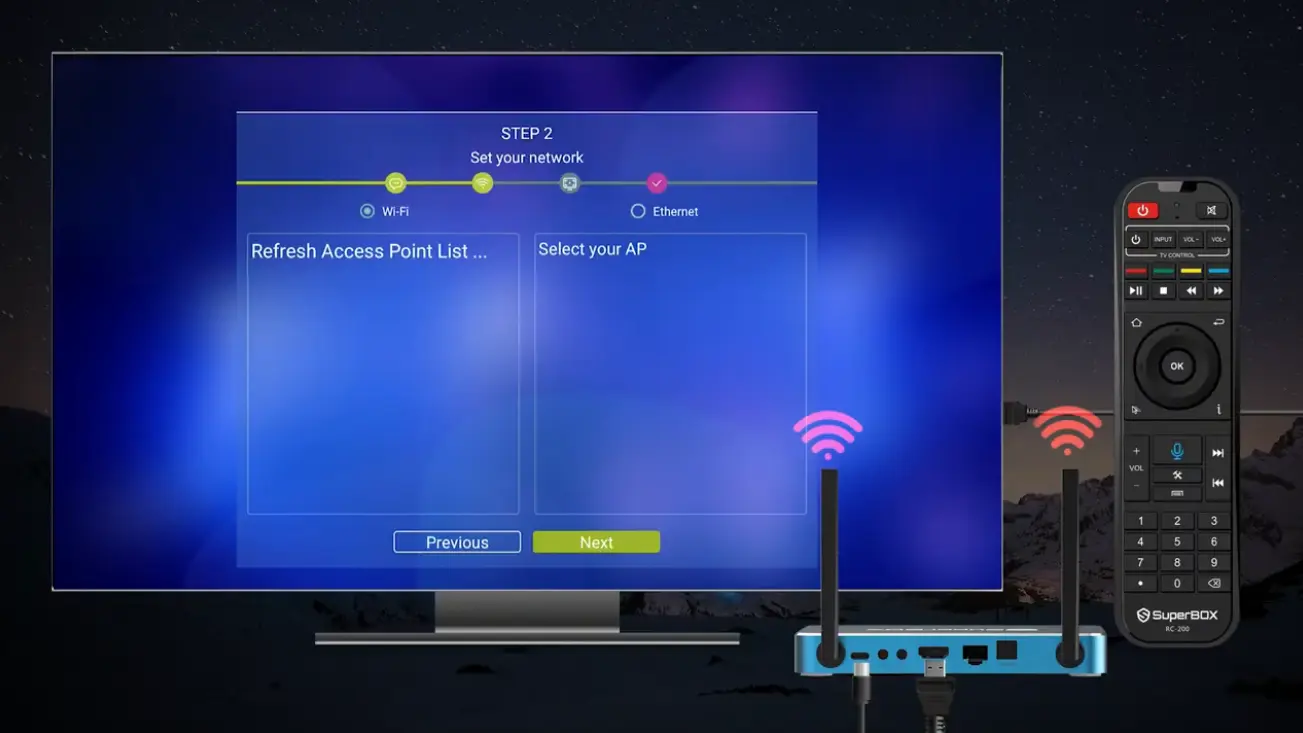
Step 2: Refresh the access-point list
Allow the S8 to scan for wireless networks. Available access points appear in the list on the left. Each row can show a lock symbol for a secured network and a wireless indicator representing the detected signal.
If the correct network does not appear immediately, use Refresh Access Point List and wait for the scan to complete. Do not select a similar-looking neighbor network simply because it appears first.
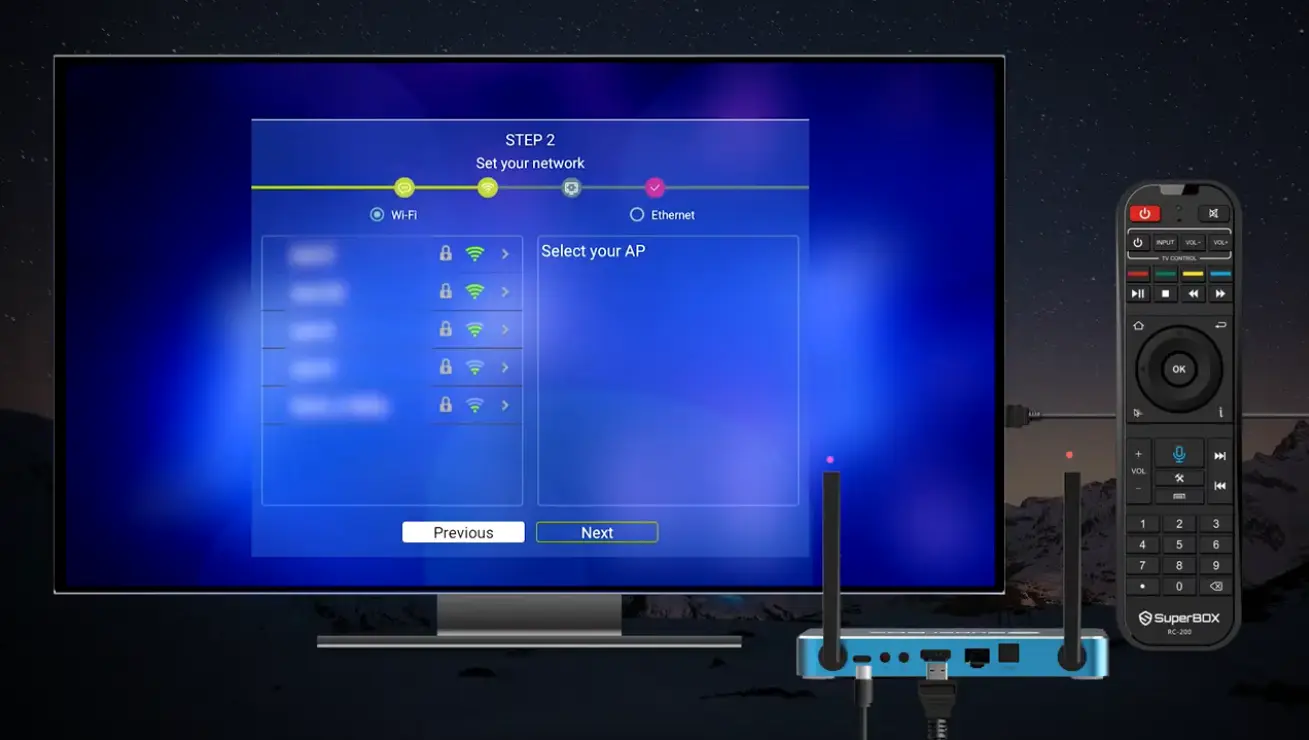
Step 3: Select your home WiFi network
Use the remote’s directional pad to highlight the correct network and press OK. The selected access point moves into the connection area on the right, where the Password field and Connect button appear.
Double-check the network name before typing. Many homes have similar names for different bands, extenders, or guest networks. Select the one you intentionally use for streaming devices.
Step 4: Enter the WiFi password
Move to the Password field and press OK to open the on-screen keyboard. Enter the password exactly as configured on the router.
Pay attention to:
- Uppercase and lowercase letters.
- Numbers that resemble letters.
- Spaces at the beginning or end.
- Punctuation and special characters.
The setup screen includes a Show/Hide control. Use it to inspect the password before connecting when appropriate, but hide it again if another person can see the television. Never use an unredacted password screen as a blog screenshot or send it in a public support comment.
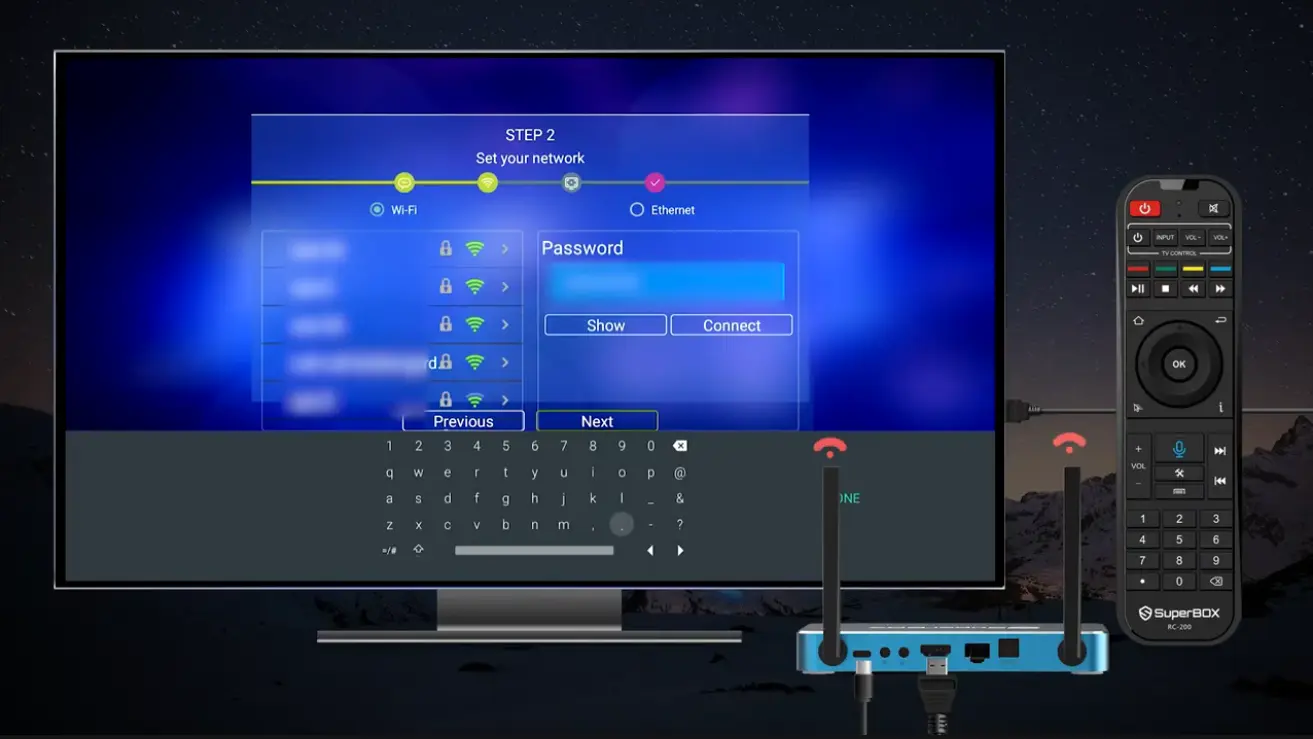
Step 5: Select Connect
Close the on-screen keyboard if necessary, highlight Connect, and press OK. The status changes while the S8 attempts to authenticate with the selected network.
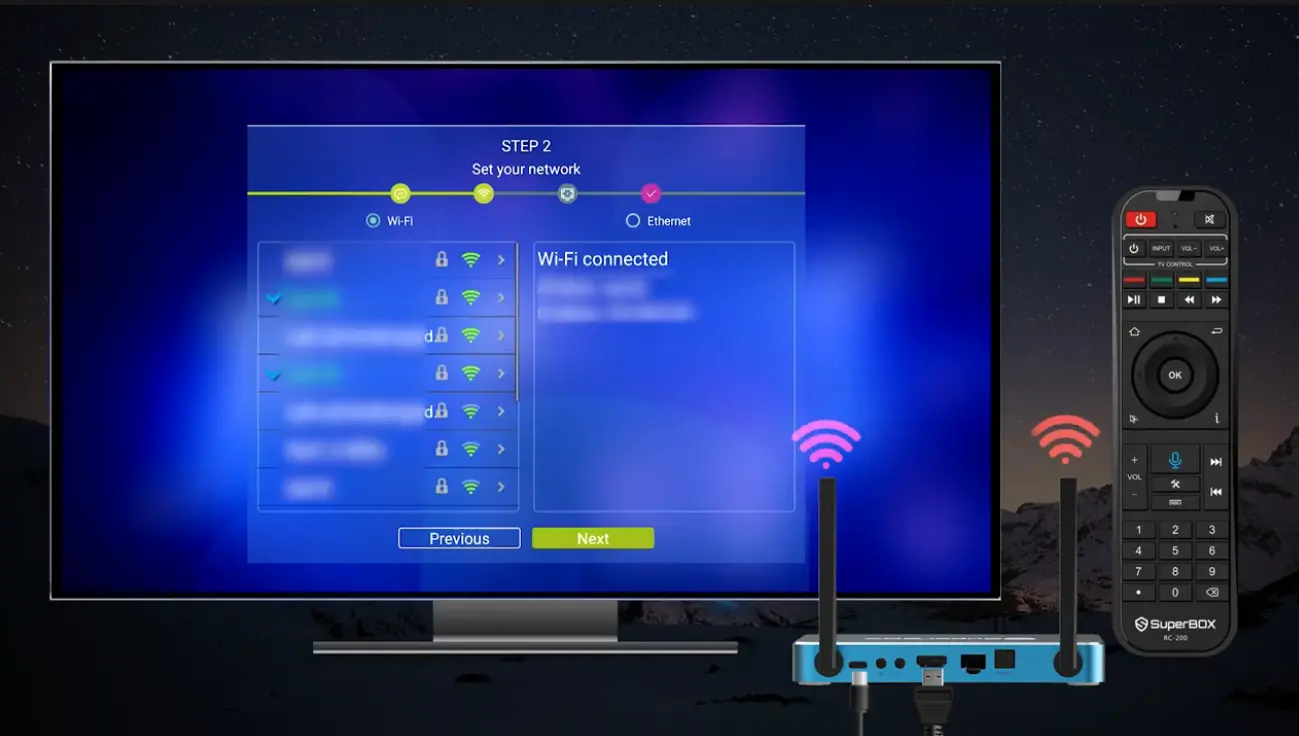
Wait for the result instead of pressing Connect repeatedly. If the credentials are accepted and the network is available, the screen displays Wi-Fi connected.
Step 6: Confirm “Wi-Fi connected” and continue
Do not leave the wizard merely because the password panel closes. Look for the explicit Wi-Fi connected confirmation. Once it appears, select Next to continue setup.
The WiFi symbol at the upper-right area of the home screen provides another quick visual status check after the wizard closes.
How to Connect SuperBox S8 with Ethernet
Ethernet is the simpler option when the S8 sits near your router or an active wired network connection.
- Locate the Ethernet port on the back of the SuperBox S8.
- Insert one end of the Ethernet cable into the S8.
- Connect the other end to an active LAN port on the router or appropriate network device.
- If the setup wizard is open, select Ethernet under Set your network.
- Wait for the box and network equipment to establish the connection.
- Continue setup and verify the connection in Network & Internet if needed.
The demonstration clearly shows the cable entering the rear network port. Make sure the connector is fully seated. A cable resting loosely in the port may look connected from a distance without maintaining a dependable link.
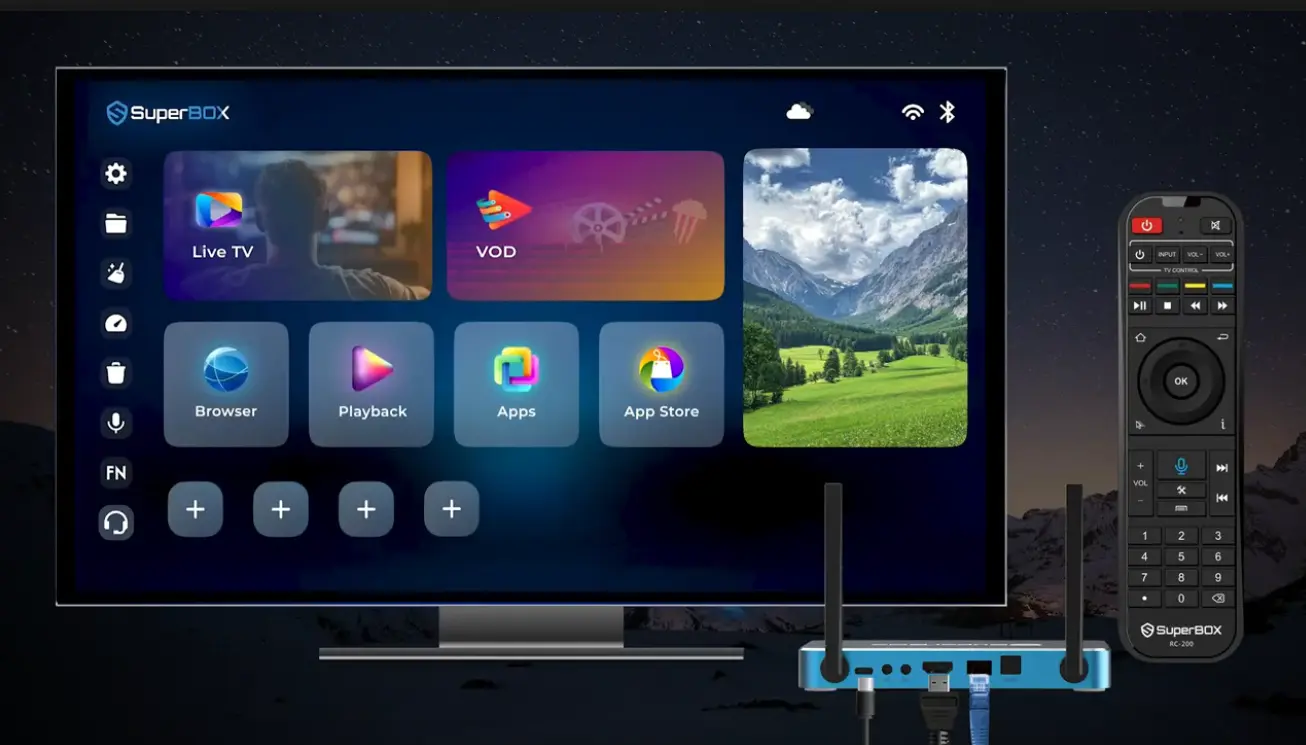
Understanding Gigabit Ethernet on S8
The current S8 specifications list a 1000 Mbps Gigabit Ethernet interface. That figure describes the maximum class of the wired network link supported by the port; it does not promise that every speed test will return 1000 Mbps.
The measured result can be lower because it is influenced by the internet plan, router and switch ports, cable, network traffic, test server, and other conditions. For setup purposes, the important outcome is that the S8 establishes a valid network connection—not that it reproduces a promotional maximum in every home.
How to Check or Change the Connection Later
The initial wizard is not the only route to network controls. From the new S8 home interface:
- Move to the gear icon in the left sidebar.
- Press OK to open Settings.
- Highlight Network & Internet under General Settings.
- Review the active connection or choose another available network option.
This is the appropriate place to return when the router name or password changes, you move the box to another home, or you want to switch between WiFi and Ethernet.
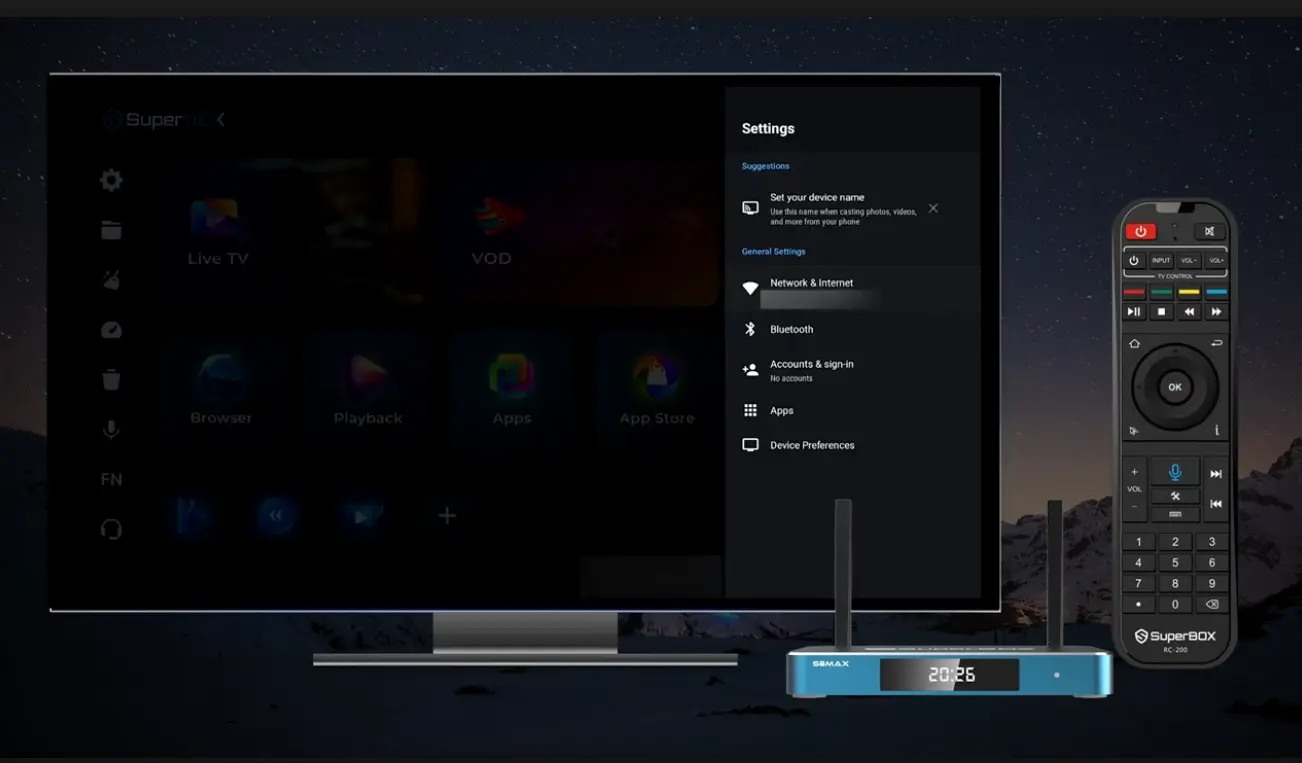
How to Verify That SuperBox S8 Is Online
Use more than one visual clue when checking the result:
- The setup wizard displays Wi-Fi connected after a successful wireless connection.
- The S8 home screen displays a network-status icon in the upper-right area.
- Network & Internet lets you review the connection after setup.
- An online function can be opened to confirm that the device is actually reaching the internet, subject to that app or service being available.
A WiFi icon shows that a wireless relationship exists, but it does not by itself guarantee that an outside service is working. If the network menu says connected while one app does not load, distinguish a device-wide connection problem from an app-specific problem before changing the network.
SuperBox S8 Internet Setup Troubleshooting
Your WiFi network does not appear
Use Refresh Access Point List and allow the scan to finish. Confirm that you are looking for the exact network name and that the router or access point is powered on. If no household device can see the network, address the router side before repeating S8 setup.
The password is rejected
Re-enter it carefully and use Show temporarily to check capitalization, digits, spaces, and symbols. Confirm that you selected the intended network rather than another access point with a similar name.
The screen remains on “connecting”
Give the authentication attempt time to complete. If it does not produce “Wi-Fi connected,” return to the network list, reselect the correct access point, and enter the credentials again. Avoid assuming the connection succeeded without the confirmation.
WiFi connects but the experience is inconsistent
Compare the connection choices already supported by S8. If the box can be wired conveniently, connect Ethernet to remove wireless distance and interference from the box-to-router link. If WiFi is required, the signal indicator in the access-point list can help you compare the networks detected at the box’s location.
Ethernet does not connect
Confirm that the connector is fully inserted into the S8 Ethernet port and the correct LAN port on the network equipment. In the setup wizard, make sure Ethernet—not Wi-Fi—is selected. If the same cable and router port do not provide a link to another compatible device, investigate that wired path before changing S8 settings.
The box says connected but one app still fails
Open Network & Internet and confirm the device connection. Then determine whether other online functions work. If they do, the issue may be limited to the affected app or service rather than the S8 network setup. Do not erase the whole device merely because one destination is unavailable.
| Symptom | First check | Next step |
|---|---|---|
| Network missing | Access-point list has finished refreshing | Verify the network name and router availability |
| Password rejected | Correct access point selected | Re-enter password using Show to inspect it privately |
| Stuck connecting | No “Wi-Fi connected” message | Reselect the network and retry credentials |
| Weak or variable wireless experience | Signal indicator at S8 location | Use Ethernet when a practical wired route exists |
| Ethernet unavailable | Cable seated in Ethernet/LAN ports | Confirm Ethernet is selected in the wizard |
| One app fails while others work | Device remains connected | Treat it as an app/service-specific issue |
Frequently Asked Questions
How do I connect SuperBox S8 to WiFi?
Open Set your network, select Wi-Fi, refresh the access-point list, choose your network, enter its password, select Connect, and wait for “Wi-Fi connected” before continuing.
Where are the SuperBox S8 network settings?
From the S8 home screen, open the gear icon in the left sidebar and select Network & Internet under General Settings.
Can SuperBox S8 use Ethernet instead of WiFi?
Yes. Connect a cable from an active router or network port to the Ethernet port on the back of the S8, then select Ethernet in the setup wizard if prompted.
Does every S8 model support WiFi 6?
The current specifications for S8 Pro, S8 Plus, S8 Max, and S8 Ultra list dual-band WiFi 6 connectivity. Verify the current product page before purchase in case specifications are revised.
Does SuperBox S8 have Gigabit Ethernet?
The current S8 model specifications list a 1000 Mbps Gigabit Ethernet interface. Actual internet speeds depend on the full network and are not guaranteed to reach the port’s maximum rating.
Why can’t my SuperBox S8 find my WiFi?
Refresh the access-point list, confirm the router is available, and verify the exact network name. If other devices also cannot find it, troubleshoot the router or access point first.
Why won’t SuperBox S8 accept my WiFi password?
The most common setup check is accuracy. Confirm the selected network, capitalization, numbers, spaces, and symbols. Use Show temporarily to inspect the entry where privacy permits.
How do I know when S8 is connected?
The setup wizard displays “Wi-Fi connected.” You can also check the network icon on the home screen and review Network & Internet in Settings.
Should I use WiFi or Ethernet for streaming?
Use WiFi when placement flexibility matters and the signal is dependable. Use Ethernet when the S8 is near a wired connection and you want to avoid wireless interference on the link to the router.
Will Gigabit Ethernet give me 1000 Mbps internet?
Not automatically. Gigabit describes the interface capability. Your service plan, router, cable, network load, and test conditions determine the measured result.
Do I need to factory reset S8 to change WiFi?
No. Open Settings > Network & Internet to review or change the connection. A factory reset is not part of the network-change process demonstrated here.
Can SuperBox S8 stream without internet?
Online streaming features require an internet connection. Local media playback is a different use case and depends on the files, connected storage, and compatible playback app.
Final Thoughts
Setting up internet on the SuperBox S8 Series is a short process, but choosing the right connection makes a meaningful difference to everyday use. WiFi 6 offers clean, flexible placement without a network cable. Gigabit Ethernet gives fixed installations a direct wired link to the router or network equipment.
Whichever method you choose, verify the result instead of guessing: look for the “Wi-Fi connected” message, check the status icon, and know where to reopen Settings > Network & Internet. If setup fails, work from the visible symptom, missing network, rejected password, incomplete connection, or inactive cable rather than resetting unrelated parts of the device.
The same approach applies across S8 Pro, S8 Plus, S8 Max, and S8 Ultra. Compare the four models based on their complete hardware and feature sets, then connect the selected S8 in the way that best fits your television room and home network.
The article was updated on:
