
Knowledge SuperBox, Knowledge SuperBox S8
How to Clear Cache on SuperBox S8 and Contact Customer Service





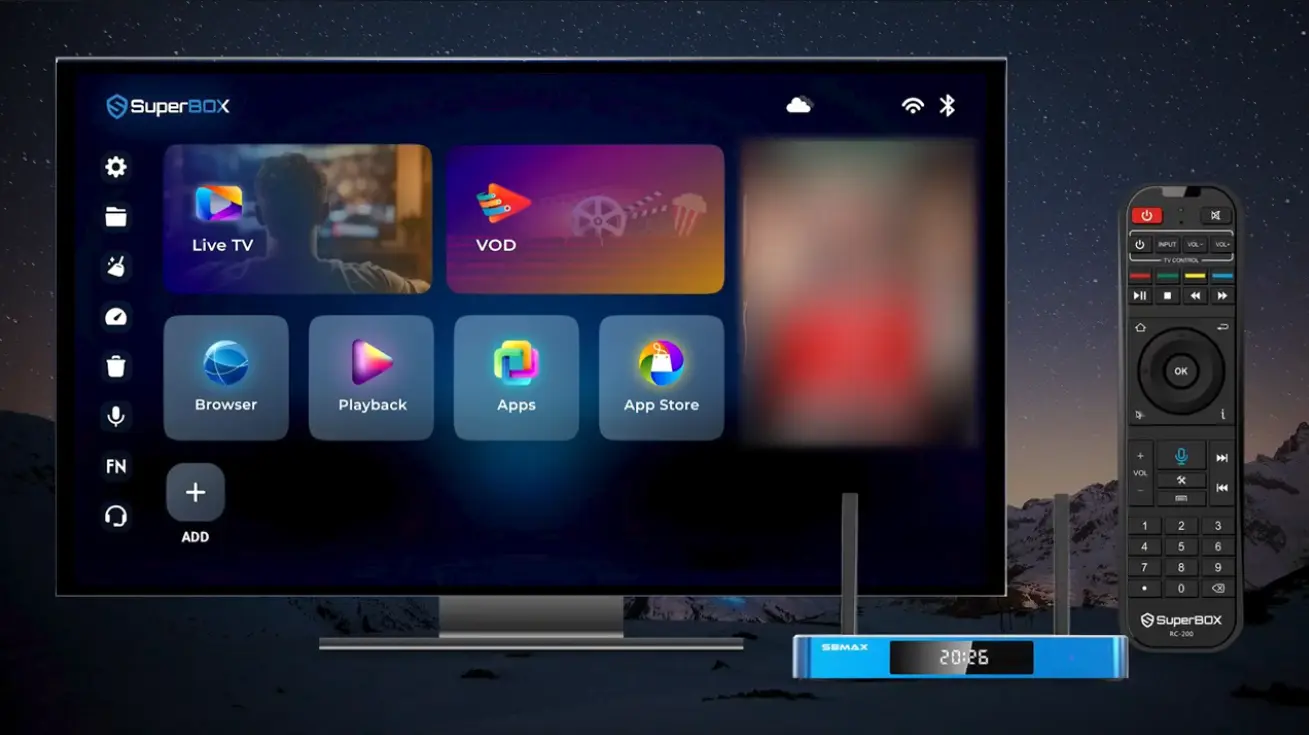
The SuperBox S8 Series introduces a refreshed home-screen experience for the current generation. Alongside the larger Live TV, VOD, Browser, Playback, Apps, and App Store tiles, the left sidebar keeps two practical utilities within easy reach: Clean Up and Customer Service Online. Clean Up checks system memory and installation-package residue, while Customer Service Online displays the support methods available through the interface.
Both tools are easy to overlook because they appear as small icons rather than large content tiles. This S8-focused guide explains how to find them, what the Clean Up screen actually displays, and how to choose the right customer-service option afterward. It applies to the current S8 family: S8 Pro, S8 Plus, S8 Max, and S8 Ultra – when the demonstrated launcher layout is installed.
Interface note: This article focuses on the newer S8-style home interface. Shortcut position and appearance can still change with a launcher update, configuration, or model. Follow the labels and icons displayed on your own screen if they differ from the examples below.
What Is New About the SuperBox S8 Interface?
On the S8 Series interface demonstrated here, everyday actions are organized around two areas:
- Large tiles in the main area open viewing and app features.
- A compact vertical sidebar provides system and utility shortcuts.
This means you do not need to open the general Settings tile just to run the home-screen cleanup shown in this guide. The broom icon launches Clean Up directly, and the headset icon opens Customer Service Online from the same sidebar.
| S8 home-screen area | Examples visible in the interface | Purpose |
|---|---|---|
| Main tiles | Live TV, VOD, Browser, Playback, Apps, App Store | Opens entertainment and application features |
| Left utility sidebar | Settings, files, Clean Up, status tools, delete, voice, FN, Customer Service | Provides faster access to device utilities |
| Top-right status area | Weather, Wi-Fi, Bluetooth | Shows connection and system indicators |
Quick Answer
To clean temporary files on SuperBox S8, return to the new home interface, move to the left sidebar, select the broom icon, and press OK. The Clean Up panel checks System memory and Installation package residue. After the process finishes, press Back to return home.
To contact customer service, select the headset icon near the bottom of the same toolbar. The Customer Service Online panel displays the available Online Support, WhatsApp, and Email methods. Customers of SuperBox TV Box Store should use the support details supplied by the store or shown on its official support page.
What Does the SuperBox S8 Clean Up Tool Do?
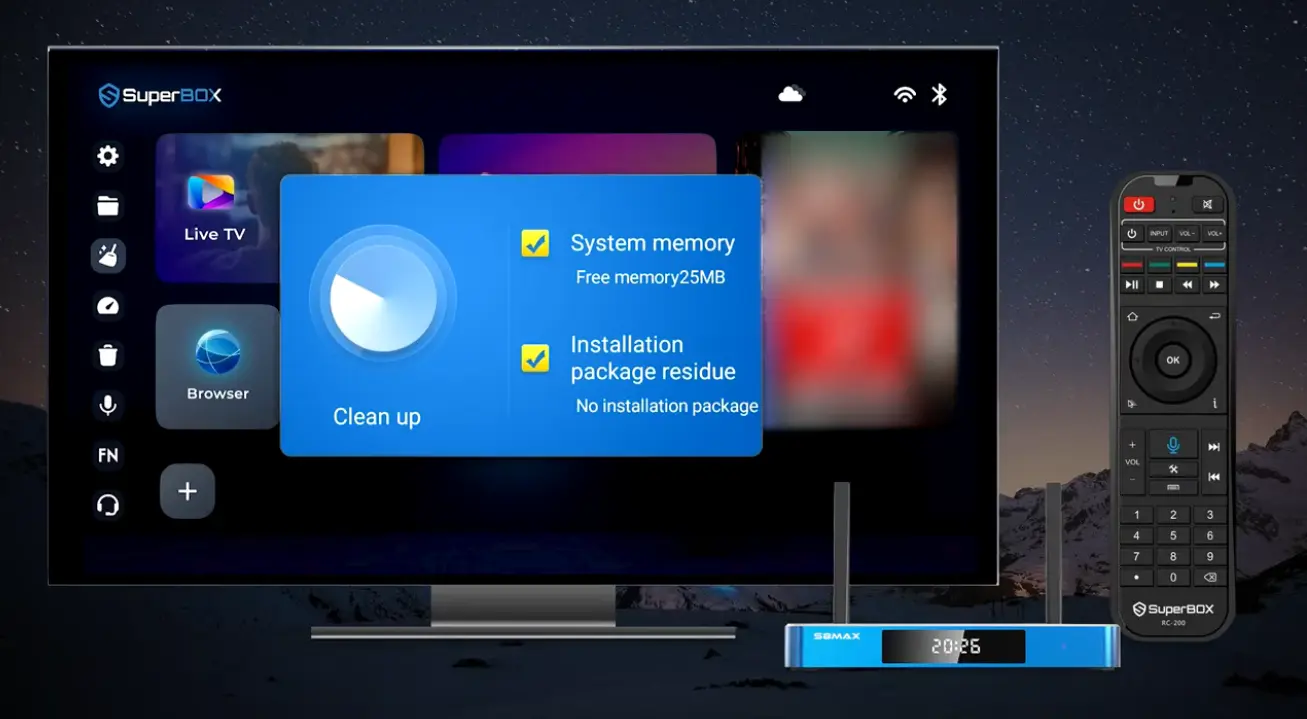
The demonstrated Clean Up panel contains two selected items:
- System memory, accompanied by an amount of memory that can be freed.
- Installation package residue, accompanied by a status indicating whether an installation package is present.
The values on this screen are not fixed. The video displays a different amount of freeable memory as the check progresses, so the number on your device will depend on its current state. Focus on the categories and the final result rather than expecting to see the same number as someone else.
The wording is also important. This home-screen function is a general Clean Up tool. The interface shown in the video does not ask you to choose an individual app, erase an account, or perform a factory reset. Do not confuse this shortcut with other maintenance actions that may appear elsewhere on the device.
| Clean Up item | What the screen reports | What to look for |
|---|---|---|
| System memory | An amount of memory that can be freed | The value displayed after the scan |
| Installation package residue | Whether leftover installation packages are detected | A package amount or a “No installation package” result |
How to Clear Cache on SuperBox S8 Using Clean Up
Step 1: Return to the SuperBox home screen
Press the Home button on the remote if an app is currently open. The correct S8-style screen displays the main content tiles in the center, connection indicators at the upper right, and a narrow utility sidebar on the left.
Do not open Live TV, VOD, Apps, or the App Store for this procedure. The required maintenance shortcut is already built into the home-screen toolbar.
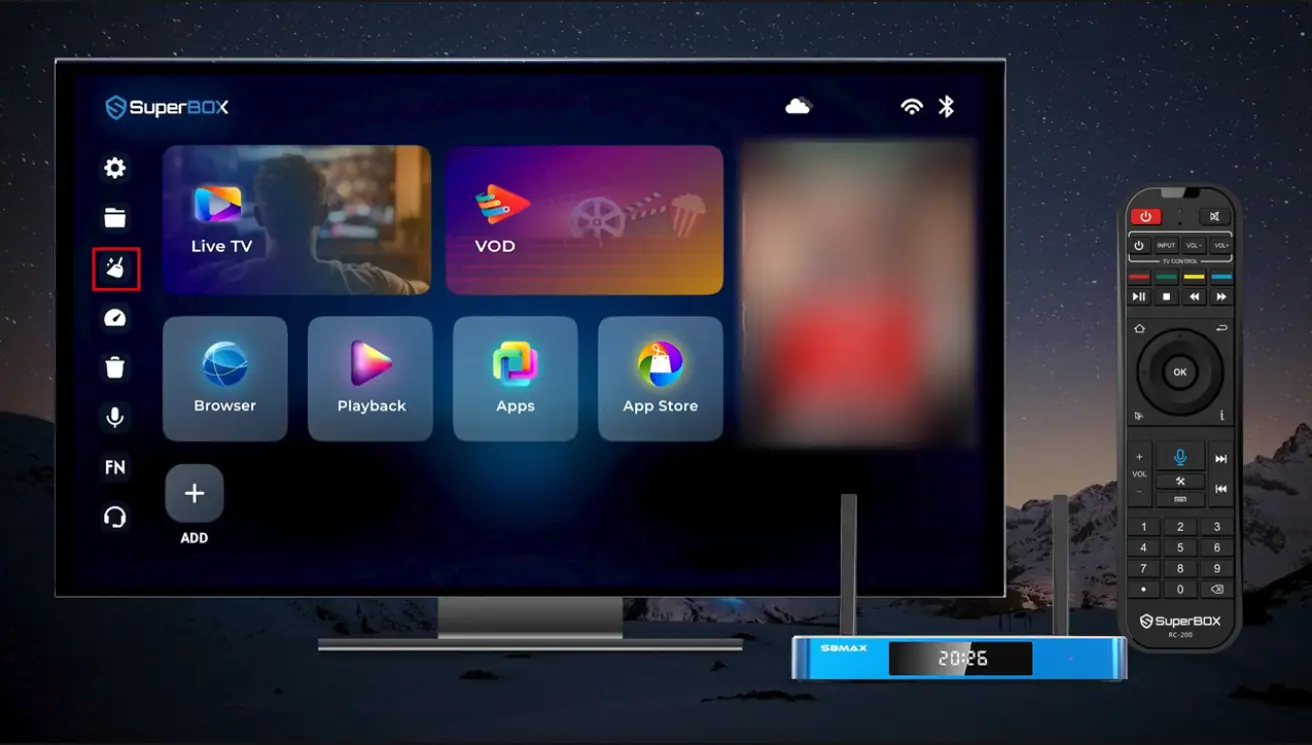
Step 2: Move to the broom icon
Use the directional ring on the SuperBox remote to move the selection to the left toolbar. Continue downward until the broom-shaped Clean Up icon is highlighted.
Because the toolbar contains several small icons, confirm the shape before pressing OK. The demonstration places Clean Up below the folder icon and above the gauge-like icon, although launcher updates may change the exact position.
Step 3: Press OK to begin the cleanup
Press OK while the broom icon is selected. A blue Clean Up panel appears over the home screen. In the demonstrated interface, both System memory and Installation package residue are checked.
The circular graphic on the left changes while the tool processes the selected categories. Allow the screen to finish rather than repeatedly pressing buttons or closing it immediately.
Step 4: Read the cleanup result
When the check completes, review the text below each category. The System memory row displays the amount identified by the tool. The installation-package row reports whether any package residue was found; the demonstration ends with “No installation package.”
Your result may be different. A smaller number does not mean the tool failed, and “No installation package” simply means that the panel did not report one at that time.
Step 5: Return to the home screen
After reviewing the result, use the Back button to close the panel and return to the home screen. The cleaning process is complete; there is no additional confirmation screen in the demonstrated sequence.
When Should S8 Owners Use Clean Up?
Use the shortcut when you specifically want the SuperBox home-screen tool to check the two categories it displays: system memory and installation-package residue. It is a sensible first maintenance step because it is easy to access and does not take you through a device reset workflow.
However, its role should remain clear. Clean Up is not shown as a universal repair for every SuperBox problem. If you use it and still need assistance, the home screen provides a direct path to customer service.
| Situation | Appropriate next action |
|---|---|
| You want to check temporary system memory | Open Clean Up |
| You want to check installation-package residue | Open Clean Up |
| The panel reports no installation package | Return home; no package is reported |
| You do not understand the result | Open Customer Service Online |
| Your issue remains after cleaning | Contact the seller or official support channel responsible for your order |
How to Contact Customer Service from the SuperBox S8 Interface
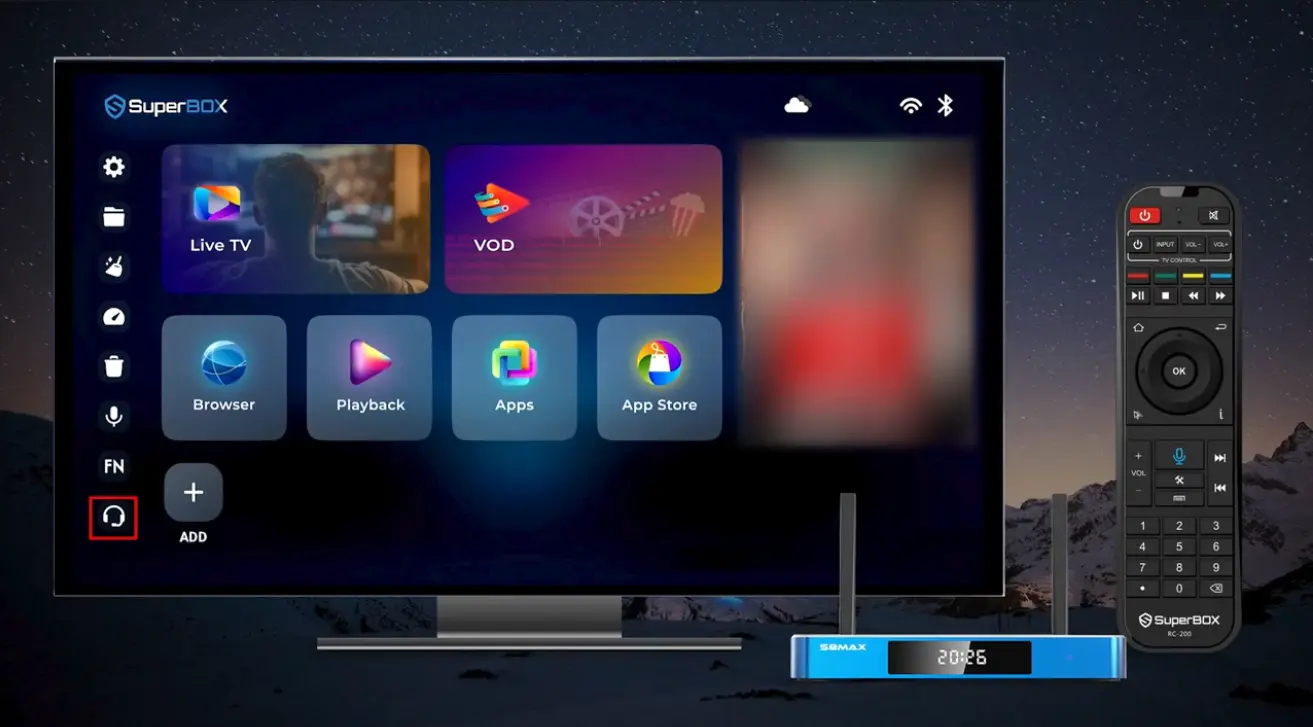
The same left toolbar includes a headset icon that opens Customer Service Online. In the demonstrated layout, the headset appears near the bottom of the toolbar, below the FN shortcut.
Step 1: Select the headset icon
Return to the home screen, move the focus to the left navigation bar, and highlight the headset symbol. Press OK on the remote.
Step 2: Choose a support method
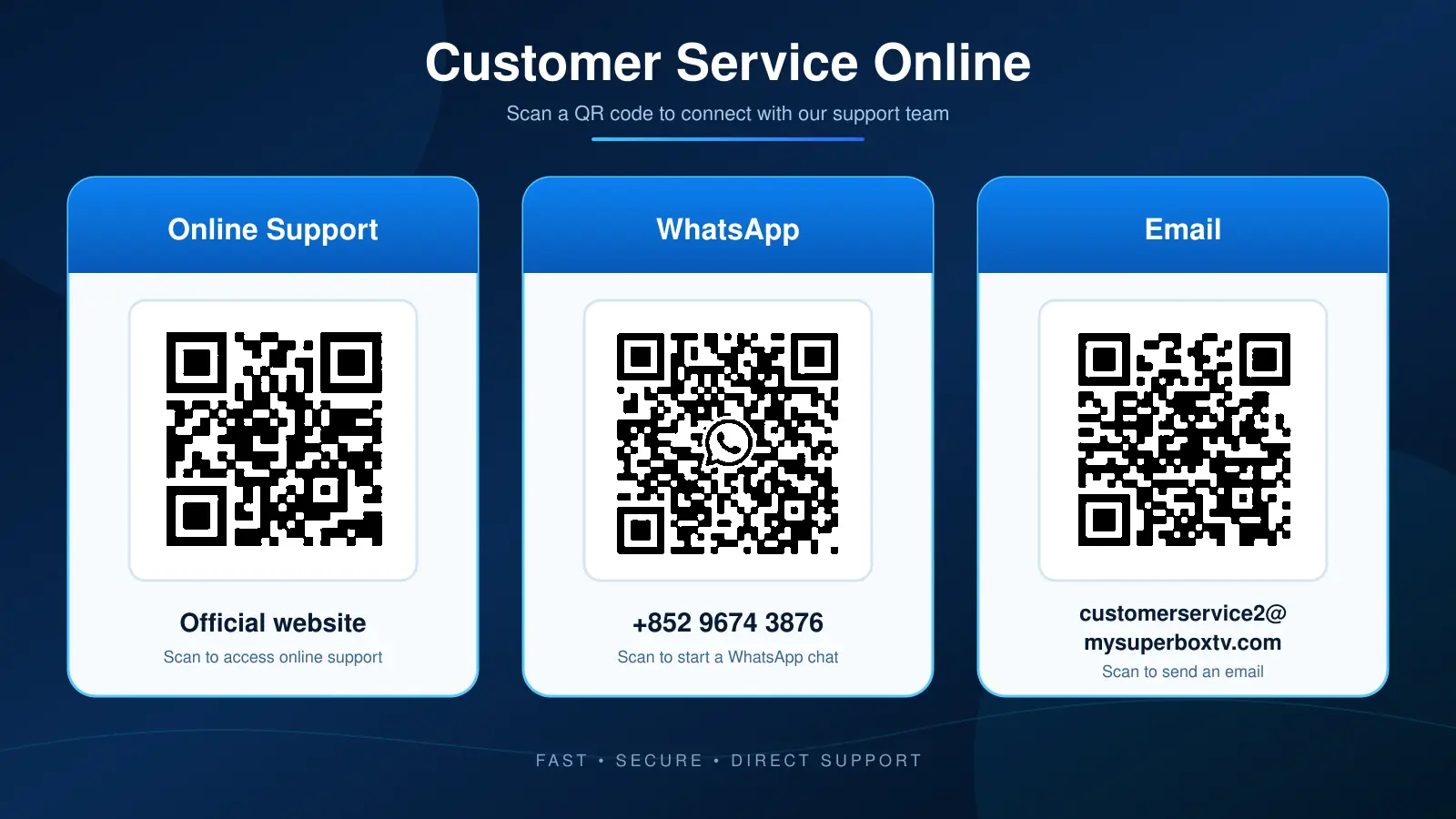
The Customer Service Online window displays three columns:
- Online Support, represented by a QR code leading to the listed official website.
- WhatsApp, represented by a QR code and a telephone number.
- Email, represented by a QR code and an email address.
The exact contact details displayed on a device may be associated with its seller, distributor, region, or support configuration. If the box was purchased from SuperBox TV Box Store, use the contact information provided with that order or the store’s current Technical Support page. This helps your request reach the team responsible for the purchase instead of an unrelated seller.
Do not copy a phone number or email from an old screenshot without confirming that it applies to your order. Contact details can change, and a tutorial image may remain online after its information has been updated.
Which Customer-Service Option Should You Choose?
Each option reaches support in a different format. Choose the one that makes it easiest to explain the issue clearly and retain the response.
| Support option | Best for | Before contacting support |
|---|---|---|
| Online Support | Opening the current support destination in a phone browser | Confirm that the displayed website belongs to the seller responsible for your box |
| A direct mobile conversation where that channel is offered | Verify the displayed account before sending device or order information | |
| A written request that may need organized details | Use the current address supplied by your seller or order confirmation |
Clean Up vs. Customer Service: Which Comes First?
For an issue related to temporary system memory or installation-package residue, run Clean Up first and note the result. If the issue remains or the panel does not explain what you are seeing, open Customer Service Online and contact the appropriate seller.
For an order, activation, account, warranty, or seller-specific question, cleaning memory is not presented as the solution in the video. Go directly to the verified support channel responsible for the purchase.
The safe workflow is therefore simple:
- Identify whether the question is about cleanup or seller support.
- Use Clean Up only for the categories displayed in that panel.
- Read and remember the result.
- Open Customer Service Online if assistance is still required.
- Confirm that the selected contact method belongs to your seller.
Frequently Asked Questions
Where is the Clean Up tool on SuperBox S8?
It appears as a broom icon in the vertical toolbar on the left side of the demonstrated SuperBox home screen. Highlight the icon and press OK.
What does SuperBox Clean Up check?
The panel shown in the video checks System memory and Installation package residue. It then reports an amount of memory and whether an installation package is present.
Will my cleanup number match the number in the tutorial?
Not necessarily. The displayed memory value reflects the condition of the device at that moment and can differ between boxes and cleanup sessions.
What does “No installation package” mean?
It is the status displayed when the Clean Up panel does not report installation-package residue. It is a result, not an error message.
Is Clean Up the same as a factory reset?
No factory-reset process appears in this tutorial. Clean Up is opened from the home toolbar and reports only the displayed memory and package-residue categories.
Does the video show how to clear data for an individual app?
No. The demonstrated process uses the general home-screen Clean Up shortcut; it does not open an individual app-information page or a Clear Data command.
Where is Customer Service Online on SuperBox S8?
Select the headset icon near the bottom of the left home-screen toolbar and press OK.
What contact methods appear in Customer Service Online?
The demonstrated panel includes Online Support, WhatsApp, and Email, each with a QR code and corresponding contact information.
Should I use the contact information shown in a tutorial screenshot?
First confirm that it belongs to the seller responsible for your purchase. SuperBox TV Box Store customers should use the store’s current Contact page or the contact details supplied with their order.
What if my SuperBox screen looks different?
Launcher layouts can vary. Look for equivalent broom and headset symbols on your home screen, and use the labels displayed by the current interface.
Does this guide apply to every SuperBox S8 model?
It is written for the S8 Series home interface used across S8 Pro, S8 Plus, S8 Max, and S8 Ultra. The layout can still vary with software version or configuration, so use the labels displayed on the box if an icon has moved.
Final Thoughts
The refreshed SuperBox S8 interface places basic maintenance and customer support within reach of the home screen. Across S8 Pro, S8 Plus, S8 Max, and S8 Ultra, the broom icon opens a focused Clean Up panel for system memory and installation-package residue, while the headset icon opens the available online, WhatsApp, and email support routes when this launcher configuration is present.
The most important distinction is knowing what each shortcut is designed to do. Use Clean Up for the categories it actually displays. Use Customer Service Online when you need human assistance, and always confirm that the contact channel belongs to the seller responsible for your device. For purchases made through SuperBox TV Box Store, contact the store through its current Technical Support page or the information attached to your order.
The article was updated on:
