
Knowledge SuperBox
Best Resolution for Android TV Box: Complete 2026 Picture Settings Guide





Choosing the highest number in the display menu does not automatically produce the best picture. The ideal Android TV box resolution must work across the entire video chain: the source content, streaming app, TV box, HDMI cable, HDMI input and television panel.
If one part of that chain is limited or configured incorrectly, selecting an ambitious output mode can cause a black screen, flickering, washed-out colors, cropped menus or unstable playback. In many cases, a correctly configured 1080p signal will look better than a poorly matched “4K” output.
This guide explains how resolution, refresh rate, frame rate, HDR and screen scaling work together. It also provides a practical setup process for Android TV boxes and SuperBox models, plus targeted fixes for the most common display problems.
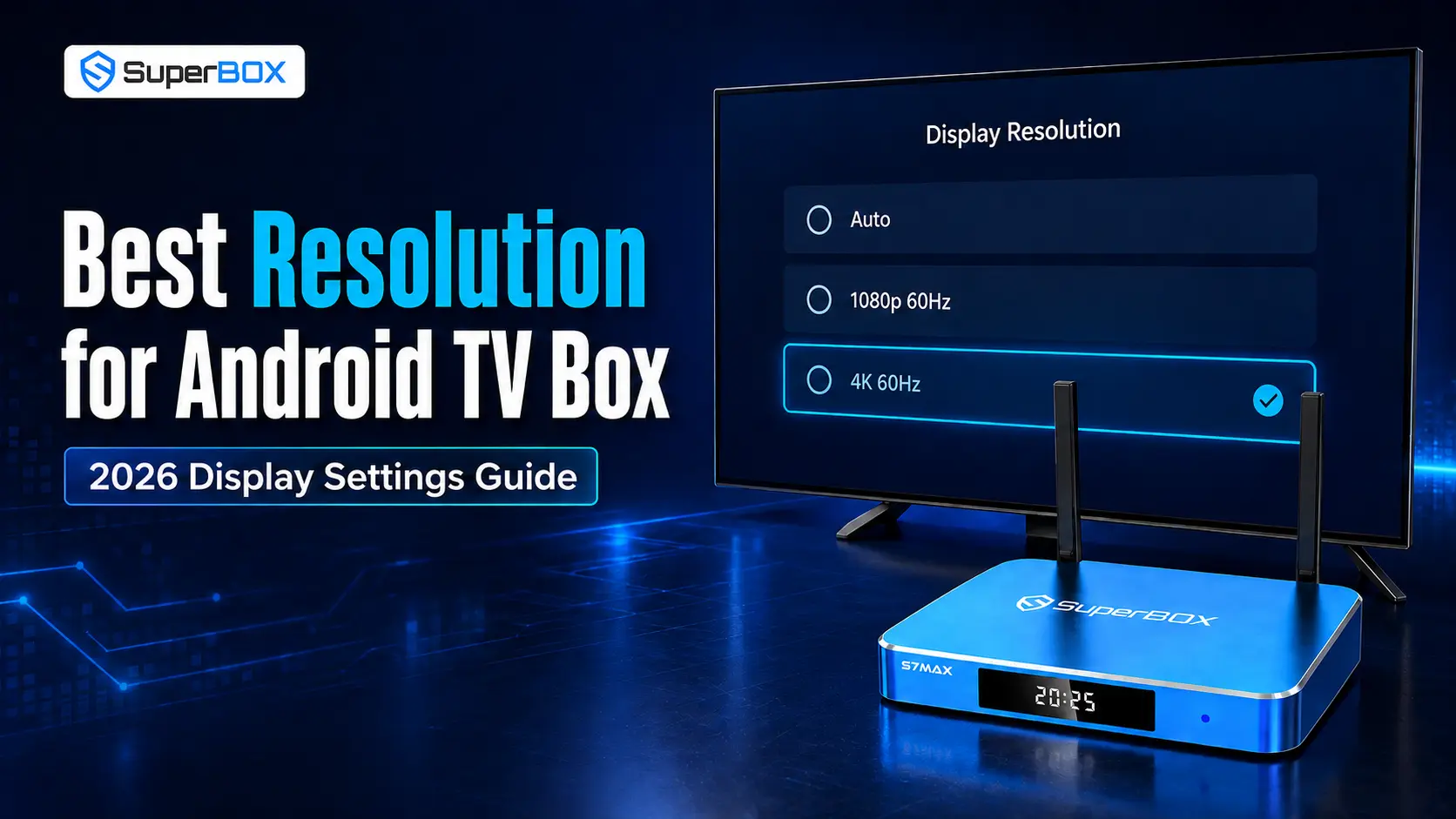
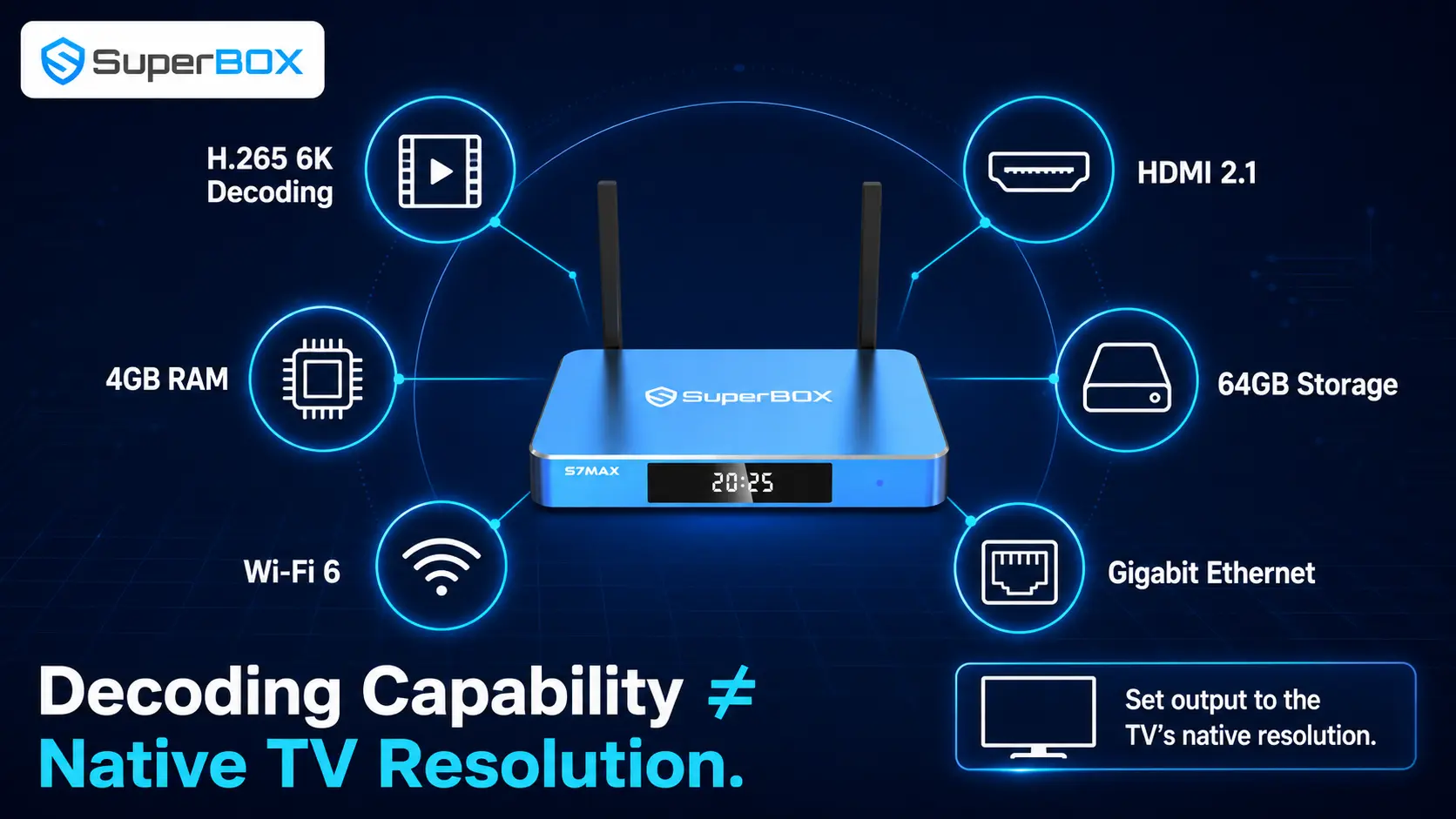
Quick answer: Leave the resolution on Auto if your Android TV box correctly detects the television. If manual selection is required, choose the TV’s native resolution: 1920 × 1080 at 60Hz for a Full HD TV or 3840 × 2160 at 60Hz for a compatible 4K TV. Use 30Hz only when the TV, HDMI port, receiver or cable cannot maintain 4K at 60Hz. Do not select 6K or 8K simply because the box advertises high-resolution decoding; decoding capability and actual HDMI display output are not the same thing.
What Does Android TV Box Resolution Mean?
Resolution describes the number of pixels used to form an image. A resolution of 1920 × 1080 contains 1,920 pixels across and 1,080 pixels vertically. A 3840 × 2160 image contains four times as many pixels as 1080p, allowing compatible content to show more fine detail on a 4K television.
The “p” in 1080p refers to progressive scanning, where each frame contains the full image. Modern TV boxes and flat-panel televisions primarily use progressive video modes.
| Common name | Pixel dimensions | Best use | Practical note |
|---|---|---|---|
| 720p HD | 1280 × 720 | Older or smaller HD televisions | Uses less bandwidth but looks soft on large 4K screens |
| 1080p Full HD | 1920 × 1080 | Full HD TVs and bandwidth-conscious streaming | Still sharp for many living rooms and widely supported |
| 4K UHD | 3840 × 2160 | Modern 4K televisions | Best mainstream choice when the full signal chain supports it |
| 6K | No single universal consumer-TV standard | Production workflows and certain decoding specifications | Rare as a native household TV panel or streaming delivery format |
| 8K UHD | 7680 × 4320 | Compatible 8K televisions and limited native content | Requires compatible source, output, cable, port and display |
Resolution support is not the same as visible picture quality
A product page may say that a media processor can decode a high-resolution H.265 video file. That statement describes one stage of playback. It does not guarantee that every app delivers video at that resolution, that the HDMI output uses the same resolution or that the connected television can display it natively.
To see true 4K detail, all of the following must support the experience:
- The video must be available in 4K.
- The app and account tier must permit 4K playback.
- The Android TV box must decode the format and output a compatible signal.
- The HDMI cable, port and any AV receiver or soundbar in the path must pass that signal.
- The television must have a 4K panel and accept the selected mode.
- The internet connection must sustain the bitrate required by the service.
If the content is 720p, setting the interface to 4K does not create missing detail. The box or television can upscale the image to fill the panel, but upscaling cannot turn a low-resolution source into genuine native 4K.
Resolution, Refresh Rate, Frame Rate and HDR: What Is the Difference?
These terms are related, but they solve different parts of the picture-quality equation.
Resolution controls image detail
Resolution determines how many pixels make up the output image. A higher native resolution can reveal finer textures, cleaner text and sharper edges when the source and display support it.
Refresh rate controls how often the TV receives a new image
Refresh rate is measured in hertz. A 60Hz output refreshes up to 60 times each second; a 30Hz output refreshes up to 30 times. For menu navigation, sports and general responsiveness, 60Hz normally feels smoother than 30Hz.
Frame rate belongs to the content
Movies, television programs, live broadcasts and games can be produced at different frame rates. The box converts or matches that content to an output refresh rate. A 60Hz menu does not transform a 24-frame-per-second film into true 60fps footage.
HDR controls brightness and color range – not pixel count
HDR can preserve a wider range between dark and bright areas and can carry a wider color gamut when the content, box and television agree on a compatible HDR format. A 4K image can be SDR or HDR; similarly, HDR does not automatically mean the image is 4K.
Avoid manually forcing a wide color mode because it sounds superior. If SDR material is treated incorrectly as HDR, skin tones can look unnatural and the entire picture may appear gray, dim or oversaturated. Auto or Match Content is usually safer when the device provides it and the TV handles the negotiation correctly.
| Setting | What it changes | Common symptom when mismatched |
|---|---|---|
| Resolution | Pixel dimensions | Soft text, missing signal or unsupported-mode warning |
| Refresh rate | Output updates per second | Choppy menus, flicker or intermittent blank screens |
| Frame rate | Motion cadence of the content | Judder during pans or uneven motion |
| HDR/color mode | Brightness and color metadata | Washed-out blacks, dull image or exaggerated colors |
| Screen scale | Size of the interface within the visible panel | Cropped edges or black border around the menu |
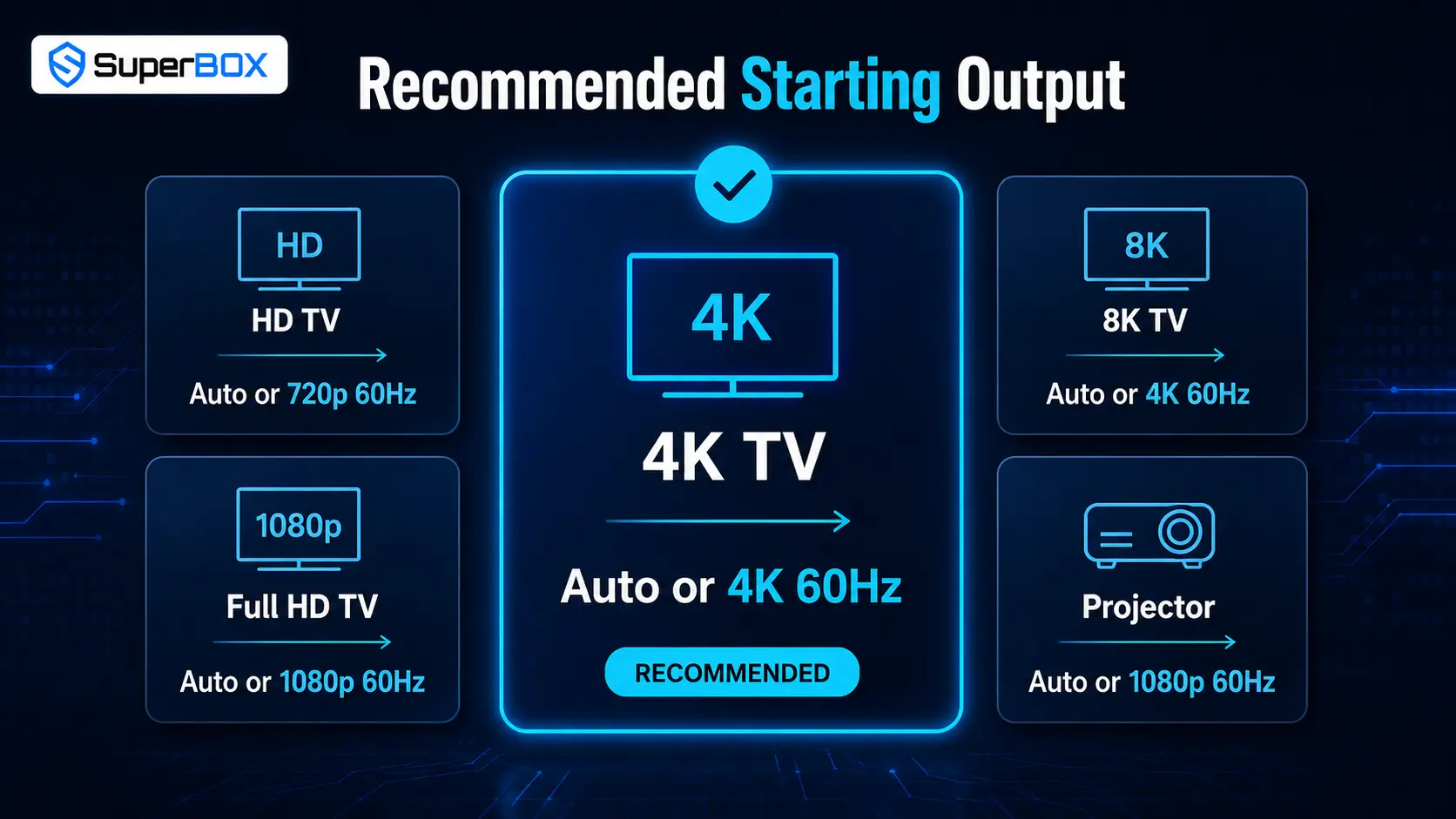
What Is the Best Resolution for Your TV?
The best setting is normally the television’s native resolution at the highest stable refresh rate supported by the complete HDMI path.
For a 720p television
Select 720p at 60Hz when available. A 1080p output may be accepted by some HD televisions and then downscaled, but it adds no native detail and may create compatibility issues on older sets.
For a 1080p Full HD television
Choose 1080p at 60Hz. Selecting 4K on a Full HD panel cannot make it display 4K. At best, the box or TV will scale the signal; at worst, the screen will report that the mode is unsupported.
For a 4K television
Start with Auto. If the detected result is wrong, use 3840 × 2160 at 60Hz. This provides a sharp interface and smoother navigation. If 4K 60Hz creates flicker or signal dropouts, test another compatible HDMI input and cable before falling back to 4K 30Hz.
For an 8K television
Do not assume an Android TV box should be set to 8K. If its HDMI output tops out at 4K, send a stable 4K signal and let the 8K television upscale it. This is often the most reliable option for everyday streaming, where native 8K content remains limited.
For a projector
Use the projector’s native panel resolution rather than the highest signal it claims to accept. A projector may accept a 4K input while internally displaying a lower native resolution. Check the projector manual and any AV receiver in the path.
Recommended starting settings
| Display | Recommended starting output | When to lower it |
|---|---|---|
| HD TV | 720p 60Hz | If the TV accepts only a different listed HD mode |
| Full HD TV | 1080p 60Hz | If an older HDMI input is unstable |
| 4K TV | Auto or 4K 60Hz | Try 4K 30Hz or 1080p 60Hz during HDMI troubleshooting |
| 8K TV | Auto or stable 4K 60Hz from the box | Use the highest mode explicitly supported by both devices |
| Projector | Native panel resolution | Reduce if the receiver, extender or long cable loses signal |
4K 60Hz vs 4K 30Hz: Which Should You Choose?
For most modern 4K televisions, 4K 60Hz is the better everyday setting. The interface feels more responsive, scrolling is smoother and fast movement is reproduced with more temporal updates.
However, 4K 30Hz can be useful as a compatibility fallback. A cable, older HDMI port, AV receiver, switch, splitter or capture device may pass 4K at 30Hz but fail at 60Hz. If 4K 60Hz causes sparkles, flickering or periodic black screens, simplify the setup:
- Connect the TV box directly to the television.
- Test the HDMI cable supplied with the box or another certified cable rated for the required mode.
- Try a TV input documented for enhanced or high-bandwidth video.
- Enable the television’s enhanced HDMI input mode if the manual requires it.
- Retest 4K 60Hz.
- If instability continues, use 4K 30Hz or 1080p 60Hz while diagnosing the limiting component.
An HDMI label alone does not guarantee that every feature is implemented. HDMI 2.1 as a specification can support high-bandwidth modes including 4K120 and 8K60, but an individual product supports only the features and bandwidth implemented by its manufacturer. For conventional video streaming, 4K 60Hz remains a sensible target.
How to Set the Resolution on an Android TV Box
Menu wording varies by brand and software version. The setting is commonly found under a path similar to:
Settings → Device Preferences or Display & Sound → Display → Screen Resolution
Use this process rather than jumping between random modes:
- Turn on the television and select the correct HDMI input.
- Open the TV box Settings menu.
- Find Display, Screen Resolution or HDMI Output.
- Note the current working mode before changing anything.
- Choose Auto if it detects the television correctly.
- If Auto is wrong, choose the native resolution of the television.
- Prefer 60Hz for a compatible modern TV.
- Confirm the setting only after the picture appears stable.
- Check all four edges of the home screen.
- Open familiar video content and inspect motion, skin tones, subtitles and shadow detail.
Many devices briefly test a new mode and automatically revert if you do not confirm it. Do not press buttons blindly when the screen is black; wait for the test period to expire first.
How to Adjust Screen Size on SuperBox
During SuperBox S7 setup, the screen-calibration stage allows you to adjust the visible area until the corner indicators line up with the television edges. Many televisions display the full interface near 100%, while some combinations require a slightly smaller value.
Do not copy another user’s percentage without checking your own screen. The correct value is the largest size that keeps every corner marker, menu label and navigation element fully visible.
If the edges remain cropped even after adjusting the box, inspect the TV picture-size setting. Manufacturer names differ, but common choices include Just Scan, Screen Fit, Full Pixel, 1:1, Original or Fit to Screen. Avoid Zoom or Stretch for the TV box input unless you intentionally want to crop the image.
Black bars are not always an error. Older 4:3 programs naturally produce vertical bars on a 16:9 television when shown without distortion. Wide cinematic films may produce horizontal bars. Stretching the image to remove every bar can distort faces or remove part of the frame.
How Internet Speed Affects Resolution
The resolution selected in the system menu controls HDMI output; it does not guarantee the streaming app will deliver video at that quality. Most services use adaptive streaming and reduce quality when available bandwidth falls.
Current official guidance varies by service. Netflix recommends at least 3 Mbps for 720p, 5 Mbps for 1080p and 15 Mbps for 4K. YouTube lists approximate sustained speeds of 2.5 Mbps for 720p, 5 Mbps for 1080p and 20 Mbps for 4K.
| Streaming resolution | Practical connection target | Why extra headroom helps |
|---|---|---|
| 720p | 3–5 Mbps per stream | Allows for normal network variation |
| 1080p | 5–10 Mbps per stream | Reduces quality drops during busy periods |
| 4K | 20–25 Mbps or more per stream | Leaves headroom above major service recommendations |
These are not guarantees. Wi-Fi interference, network congestion, simultaneous downloads, server conditions and the bitrate of the specific content can still affect playback. A speed test near the TV box is more useful than the maximum speed advertised by the internet plan.
For high-resolution streaming, Ethernet is often the simplest way to eliminate wireless variability. The SuperBox S7 Max includes Gigabit Ethernet as well as dual-band Wi-Fi 6, giving users both wired and wireless connection options.
HDMI Cable and Port Requirements
Digital HDMI signals usually work correctly or show obvious instability; an expensive cable does not add extra pixels to a stable image. The goal is a cable certified for the required bandwidth, in good condition and no longer than necessary.
Check the complete path:
- Connect the box securely at both ends.
- Test a different HDMI input on the television.
- Check whether the TV requires an enhanced-format setting for that input.
- Temporarily remove receivers, splitters, adapters and HDMI extenders.
- Replace a damaged or unverified cable if 4K 60Hz flickers.
- If a soundbar or receiver is involved, confirm its video pass-through capability.
The ARC or eARC label does not make a TV HDMI input unsuitable for video. ARC/eARC adds an audio-return function; the input can still accept video. What matters is the specific television’s bandwidth and configuration. Follow the TV manual rather than automatically avoiding the ARC port.
Best TV Picture Settings for an Android TV Box
After the TV box output is correct, use the television settings to refine the picture. A sensible baseline is more effective than copying extreme calibration numbers from a different TV model.
Use a neutral picture mode
Cinema, Movie or Filmmaker-style modes often provide a more accurate starting point for films than Vivid or Dynamic. For daytime sports, Standard may be brighter and more practical. Names and behavior vary by television.
Turn off overscan
Use the mode that displays the full HDMI image pixel for pixel. This prevents cropped menus and soft scaling.
Be careful with sharpness
Excessive sharpness adds artificial halos around text and objects. It cannot restore detail missing from a low-resolution stream.
Adjust motion processing to taste
Strong motion interpolation can make films look unusually smooth. Many viewers reduce or disable it for movies but prefer a modest setting for sports. This is a preference, not a resolution requirement.
Let HDR switch only when appropriate
Use Auto or content matching where available. If HDR content looks dim or washed out, confirm that the TV’s enhanced HDMI mode is enabled and that both devices support the chosen HDR format.
Do not use noise reduction universally
Noise reduction can help low-quality or heavily compressed video, but strong settings can smear fine textures. Leave it low or off for clean high-resolution sources.
SuperBox Resolution and Picture Quality: What to Expect
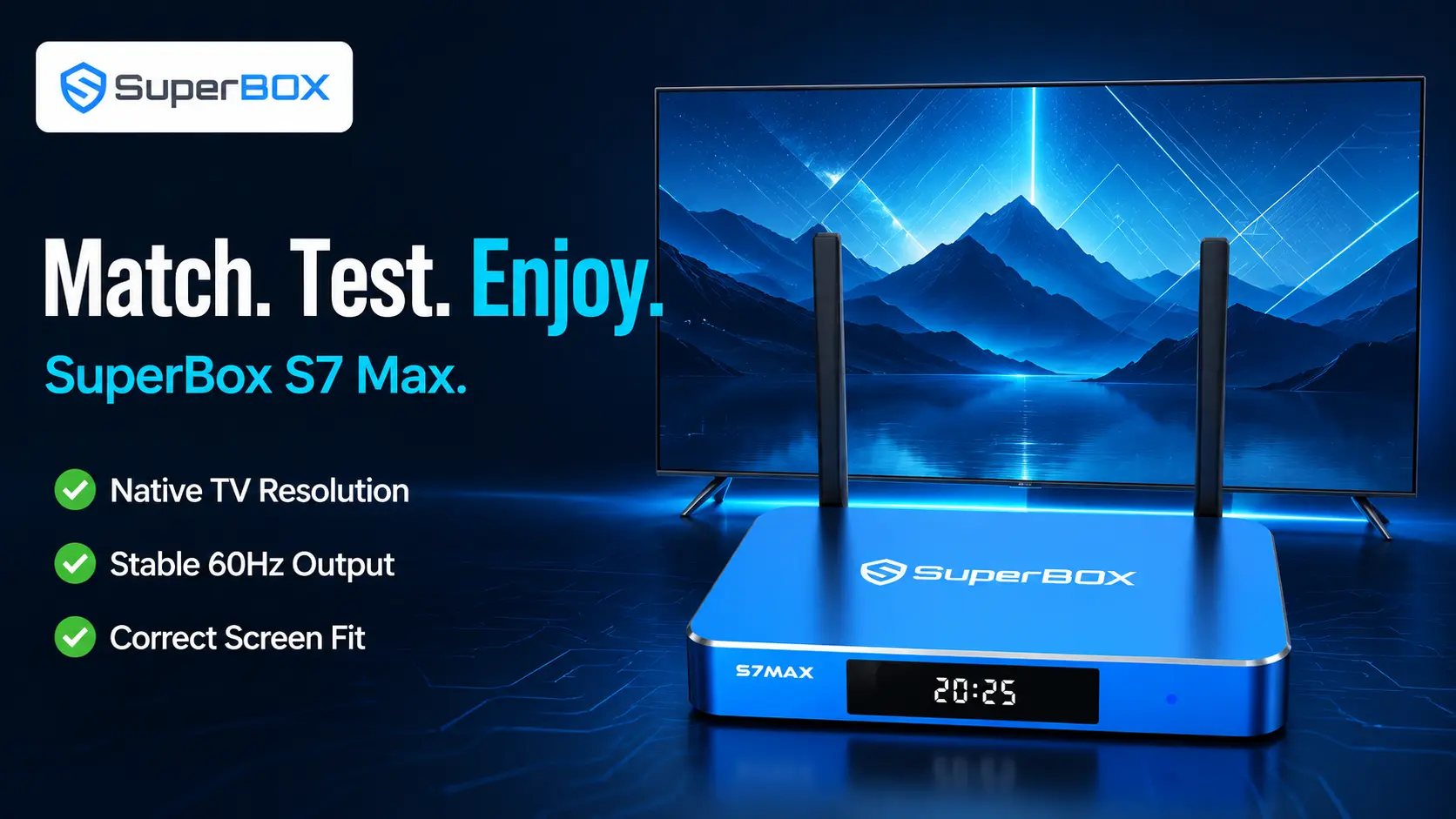
The SuperBox S7 Max is published with H.265 6K@60fps decoding capability and an HDMI 2.1 connection. It also includes 4GB RAM, 64GB eMMC storage, Wi-Fi 6 and Gigabit Ethernet.
For a typical 4K television, the goal is still a stable 4K UHD output that matches the TV, not forcing a 6K label. The television panel, app and source video determine what detail can actually be displayed. This distinction makes the published decoding specification useful without misrepresenting it as universal native 6K streaming.
SuperBox is also designed to work with older HDMI televisions. On a 1080p TV, choose a stable 1080p output. Buying a capable TV box can improve interface performance, connectivity and application flexibility, but it cannot change a Full HD panel into a 4K panel.
For new owners, the complete SuperBox S7 setup guide covers hardware connection, screen calibration, network setup and remote pairing.
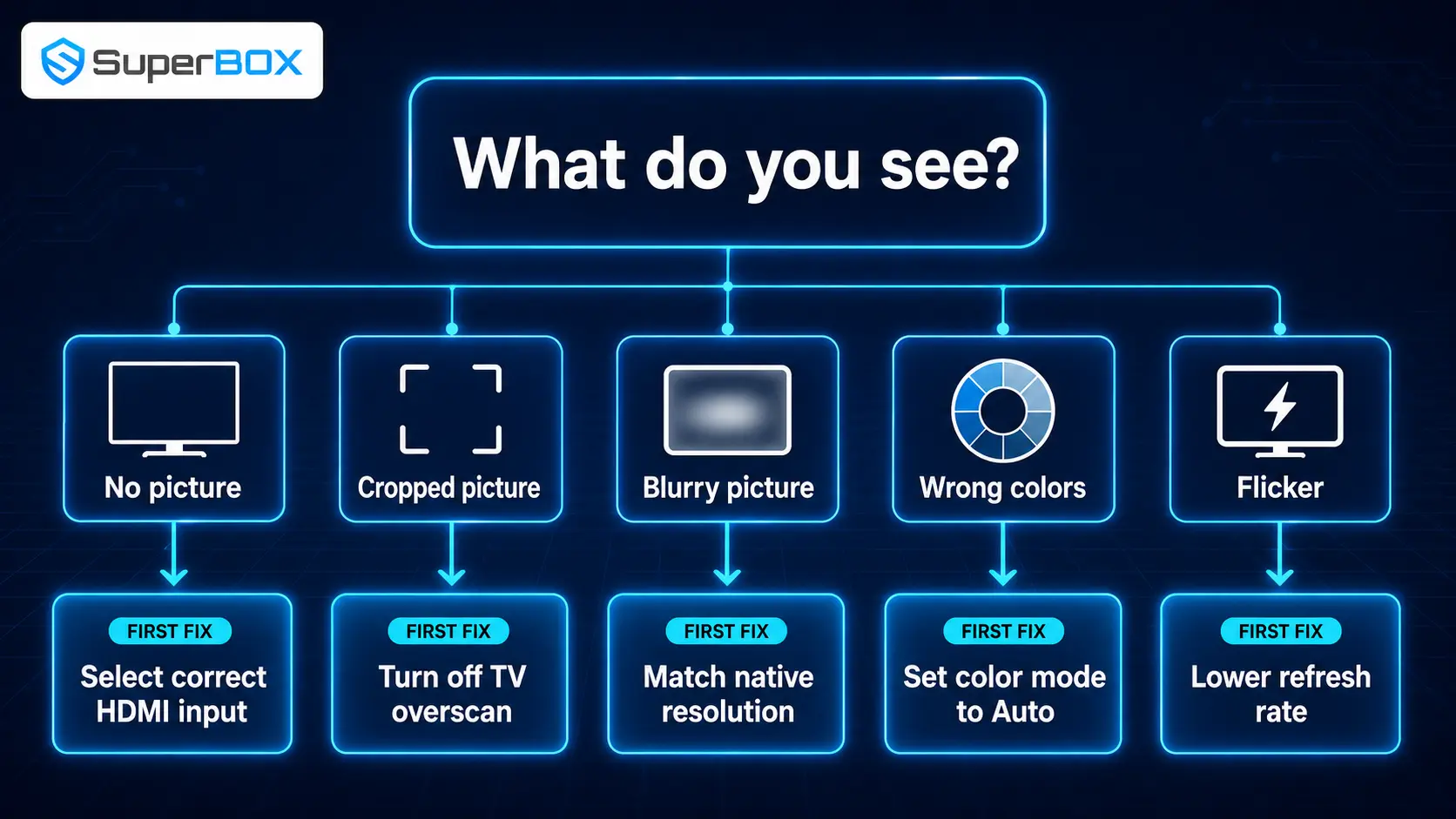
Android TV Box Resolution Problems: Causes and Fixes
| Problem | Most likely cause | Best first action |
|---|---|---|
| Black screen after resolution change | TV or HDMI path cannot accept the selected mode | Wait for automatic rollback, then return to Auto or the last working mode |
| “No signal” at startup | Wrong TV input, loose cable or failed HDMI handshake | Confirm input, reseat HDMI and power-cycle the box and TV |
| Screen flickers at 4K 60Hz | Cable, port or intermediate device cannot sustain the mode | Connect directly to TV and test another suitable cable/input |
| Only 1080p appears in the menu | TV, port, receiver or EDID negotiation reports a 1080p limit | Try the TV’s enhanced HDMI input and bypass intermediate equipment |
| Home-screen edges are cut off | Overscan, Zoom mode or incorrect screen scale | Use Screen Fit/Just Scan and recalibrate display size |
| Black border surrounds the interface | Screen scale is too small or TV underscan is active | Increase box scale carefully and use the TV’s full-pixel mode |
| Picture looks soft despite 4K output | Source or app is delivering lower-resolution video | Check the title quality, app plan and network performance |
| Colors look gray or washed out | HDR/color-range mismatch | Return HDR and color output to Auto; verify enhanced HDMI mode |
| Motion looks choppy | 30Hz output, frame-rate mismatch or network issue | Test 60Hz and compare local/menu motion with streamed motion |
| Video buffers after selecting 4K | Stream bitrate exceeds stable connection capacity | Test speed near the box or use Ethernet/lower app quality |
Fix a black screen after changing resolution
First, wait. If the device is testing a new video mode, it may revert automatically. If it does not, power off the TV box, reconnect it directly to the TV with a known working cable and restart both devices. Once the picture returns, select Auto or the last stable resolution.
Fix a SuperBox screen that does not fit the TV
Check both ends of the problem. On SuperBox, recalibrate the display scale so all corner markers remain visible. On the television, use a full-image mode such as Screen Fit, Just Scan or Full Pixel. Disable Zoom and overscan for that HDMI input.
Fix blurry video on a 4K television
Confirm whether the interface is sharp. If menu text is sharp but the program is blurry, the HDMI resolution is probably working and the limitation is more likely the source stream, app quality selection or network. If both menus and video are soft, verify that the box is actually outputting 3840 × 2160 and that the TV input is not applying overscan.
Fix washed-out HDR
Set HDR/color output back to Auto. Confirm that the television supports the format and that its enhanced HDMI mode is enabled for the selected port. Compare the same content in SDR. Do not compensate for a signaling mismatch by pushing brightness and saturation to extreme values.
Fix 4K 60Hz flicker
Bypass the receiver or splitter, test directly at the TV and change one component at a time. If 4K 30Hz works but 4K 60Hz fails, the issue strongly suggests a bandwidth or compatibility limit somewhere in the HDMI path.
A Five-Minute Resolution Optimization Checklist
Use this checklist whenever you connect an Android TV box to a new television:
- Confirm the TV’s native resolution.
- Connect the box directly to a compatible HDMI input.
- Start with Auto resolution.
- On a 4K TV, verify that the detected output is 4K and preferably 60Hz.
- Enable the TV’s enhanced HDMI mode if required.
- Set the TV to Screen Fit, Just Scan, Full Pixel or its equivalent.
- Adjust SuperBox screen scale until all corners remain visible.
- Keep HDR/color output on Auto unless there is a verified reason to change it.
- Test a sharp menu, a familiar video and fast motion.
- Run a network test near the box if stream quality drops.
- Use Ethernet when Wi-Fi is inconsistent.
- Change only one setting at a time so you know what solved the problem.
Frequently Asked Questions
What is the best resolution for an Android TV box?
Use Auto when detection works correctly. Otherwise match the television’s native panel: 1080p 60Hz for a Full HD TV or 4K 60Hz for a compatible 4K TV.
Should I set my Android TV box to 4K or 1080p?
Use 4K on a 4K television when the box, HDMI path and app support it. Use 1080p on a Full HD television or as a troubleshooting fallback when 4K is unstable.
Is 4K 60Hz better than 4K 30Hz?
Yes for normal navigation and fast motion, provided the signal is stable. Use 30Hz only when a component in the HDMI path cannot reliably pass 4K 60Hz.
Does setting the box to 4K make every video 4K?
No. It makes the box output a 4K-sized signal. The source must contain native 4K detail; lower-resolution content is only upscaled.
Why does my 4K Android box show only 1080p?
The television, selected HDMI port, cable, receiver or HDMI negotiation may be reporting a 1080p limit. Connect directly to a compatible 4K input and enable the TV’s enhanced HDMI mode if required.
Why does my TV go black when I select 4K?
The selected resolution or refresh rate may not be supported by the complete HDMI path. Wait for rollback, then use Auto, 4K 30Hz or 1080p while testing the cable and port.
Why are the edges of my SuperBox screen cut off?
The TV may be applying overscan or Zoom, or the SuperBox scale may be too large. Use a full-image TV mode and recalibrate the box until all four corners are visible.
Does HDMI 2.1 automatically mean 4K at 120Hz?
No. HDMI 2.1 defines a set of possible capabilities. Each product implements specific features and bandwidth. Check the device specifications instead of relying on the version number alone.
Should HDR always be enabled?
Use Auto or Match Content when available. Forcing HDR on SDR material can produce inaccurate brightness or color.
How fast should my internet be for 4K?
Official recommendations differ by platform. Netflix currently recommends 15 Mbps for 4K, while YouTube lists approximately 20 Mbps. A stable 20–25 Mbps or more per 4K stream provides useful headroom.
Can SuperBox make a 1080p TV display 4K?
No. A 1080p panel cannot display native 4K pixels. Set SuperBox to a stable 1080p mode for that television.
Does SuperBox support high-resolution video?
The SuperBox S7 Max is published with H.265 6K@60fps decoding and HDMI 2.1. Final visible resolution still depends on the app, source, configured output and connected television.
Final Verdict: The Perfect Resolution Is the Best Match, Not the Biggest Number
For most users in 2026, the best Android TV box setting is straightforward: Auto, or 4K 60Hz on a compatible 4K television. Full HD televisions should normally use 1080p 60Hz. If the signal becomes unstable, reduce the mode temporarily and identify whether the cable, HDMI port, receiver or television setting is limiting the connection.
Picture quality is a system, not a single specification. Native content, sufficient bandwidth, correct HDMI output, accurate screen scaling and sensible TV settings matter more than forcing a 6K or 8K label.
If you want a capable home-entertainment box with high-resolution decoding, HDMI 2.1, Wi-Fi 6 and Gigabit Ethernet, explore the SuperBox S7 Max. Match its display output to your television, complete the screen calibration and let the full setup – not one number – deliver the best picture.
The article was updated on:
