
Knowledge SuperBox
How to Clean Cache and Contact Customer Service on SuperBox





A SuperBox that feels slower than usual does not automatically need a factory reset. In many cases, the problem is far less serious: temporary files have accumulated, an app has stopped responding correctly, or the device simply needs a quick memory cleanup.
SuperBox makes that first maintenance step remarkably easy. From the home screen, the Broom icon clears temporary memory with one selection. If the problem affects only one app, Android settings also let you clear that app’s cache without disturbing everything else.
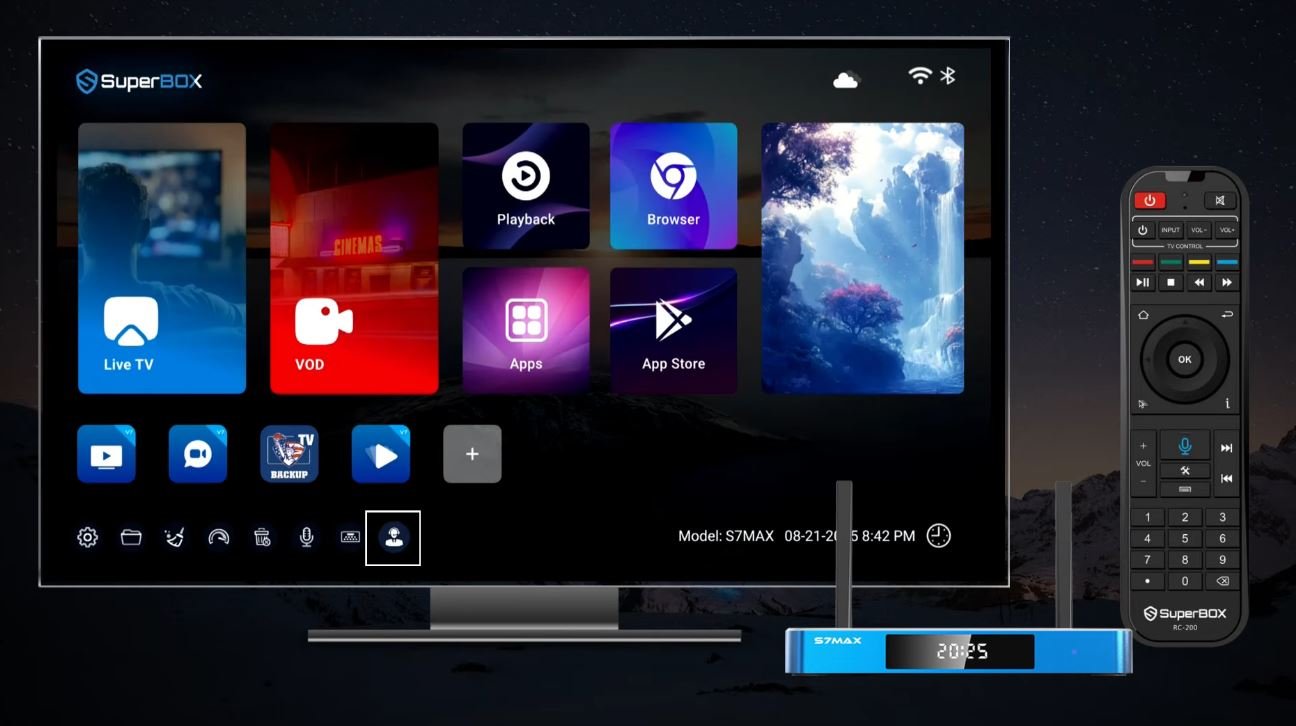
And when a quick cleanup is not enough, you do not need to search through random forums or download questionable repair files. The Customer Service icon on the SuperBox home screen displays verified support options, including a QR code for WhatsApp or online chat.
This guide explains both processes step by step. It also covers the Speed Test shortcut, Easy Control mode, safe app removal, what information to prepare for technical support, and the important difference between Clear Cache, Clear Data, and Factory Reset.
Quick answer: Return to the SuperBox home screen and select the Broom icon at the bottom to clear temporary memory. For help, select the Customer Service icon, scan the displayed QR code with your phone, and choose an available support channel. Customers of SuperBox TV Box Store can also contact Technical Support on WhatsApp
When Should You Clean the Cache?
Cache is temporary information stored so that apps and menus can load more efficiently. It is normal and useful. Over time, however, cached files can become outdated, corrupted, or unnecessarily large.
Consider cleaning the cache when you notice one or more of these symptoms:
- The home screen responds more slowly than usual.
- An app takes a long time to open.
- An app freezes, closes unexpectedly, or repeatedly reloads.
- Menus display outdated information.
- Playback starts normally but becomes unstable after extended use.
- The remote responds, but movement around the interface feels delayed.
- A minor app error returns after closing and reopening the app.
Cache cleaning is a sensible early troubleshooting step because it is less disruptive than deleting app data or resetting the device. It should not remove your installed applications or reset the entire SuperBox.
That said, cache is not the cause of every problem. If all apps buffer, the issue may be your internet connection. If only one channel or title is unavailable, clearing cache may not change its availability. If the device does not power on, cache cleaning is not relevant because you must first restore power or remote operation.
Three Actions That Are Often Confused
Before selecting anything in Android settings, understand the difference:
| Action | What It Does | Typical Risk Level |
|---|---|---|
| Broom / Memory Cleanup | Quickly clears temporary memory from the SuperBox home screen | Low |
| Clear Cache | Removes temporary files belonging to one selected app | Low |
| Clear Data / Clear Storage | Resets an app’s locally stored settings and information | Medium |
| Uninstall | Removes the selected app from the device | Medium |
| Factory Reset | Erases device-level settings, installed apps, accounts, and local data | High |
For routine maintenance, start with the Broom icon. If one app remains problematic, clear only that app’s cache. Use Clear Data, uninstall, or factory reset only when you understand the consequences and have a verified way to restore what you need.
Clean Temporary Memory with the Broom Icon
The video demonstration uses the built-in Broom shortcut. This is the fastest option when the overall interface feels sluggish or you want to perform a simple maintenance cleanup.
Step 1: Return to the Main Home Screen
Press the Home button on the SuperBox remote. If an application is frozen, press Home once and wait several seconds. Avoid repeatedly pressing buttons while the system is trying to respond.
Confirm that you are on the SuperBox launcher rather than inside Blue TV, Blue VOD, a browser, or another application.
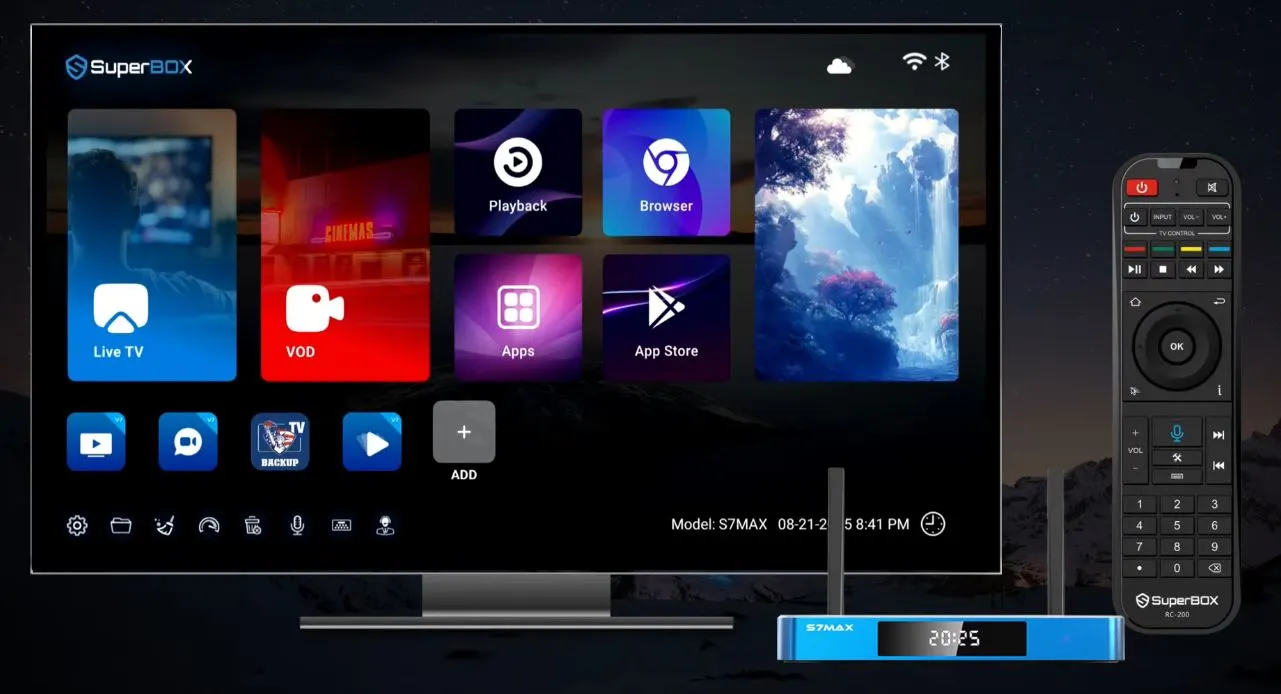
Step 2: Select the Broom Icon
Use the directional buttons to highlight the Broom icon, then press OK. According to the video, the device clears temporary memory immediately.
The cleanup may complete quickly, so do not assume it failed simply because there was no long progress screen. Give the launcher a few seconds to settle before opening another app.
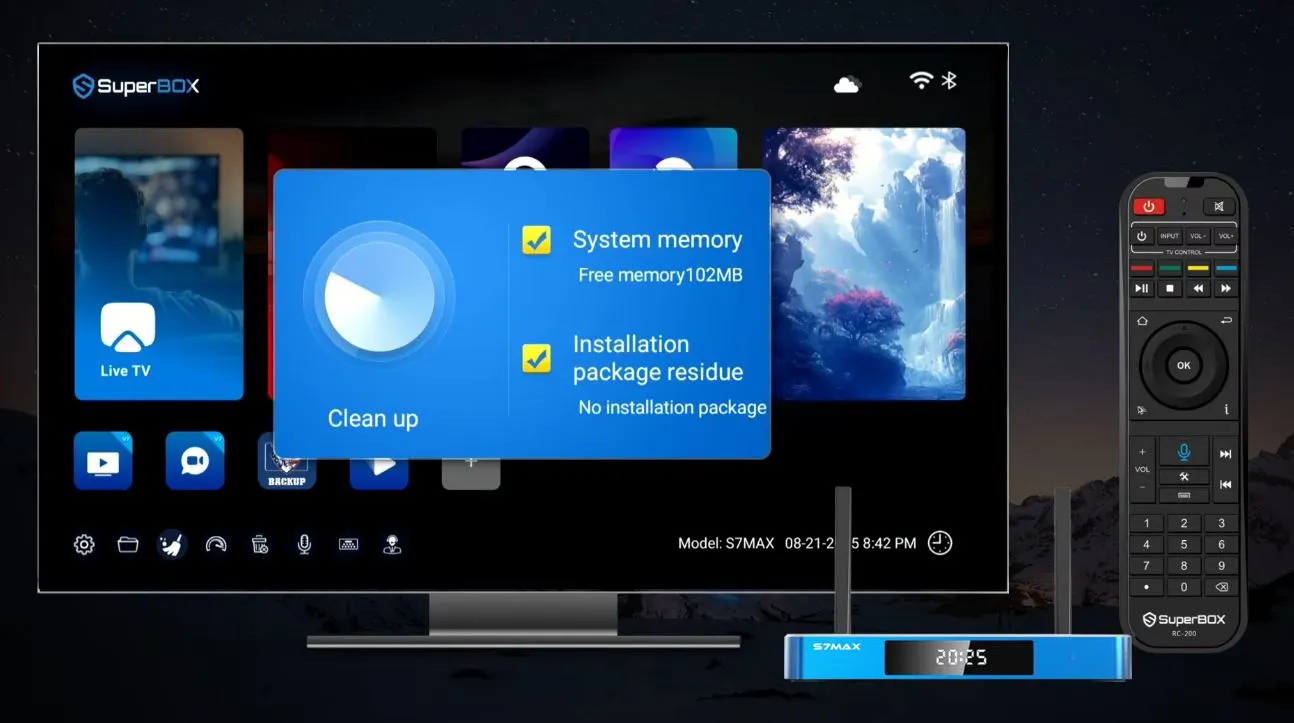
Step 3: Reopen and Test the Affected App
Open the app that was slow or unresponsive and repeat the exact action that caused the issue. Testing the same app and same content is the only reliable way to know whether the cleanup helped.
If the problem disappears, no further action is necessary. If it remains limited to one app, use the app-specific method below.
Should You Clean Cache Every Day?
No. Clearing cache constantly can be counterproductive because apps use temporary files to load faster. A practical schedule is to use the Broom shortcut when the box begins to feel sluggish or after extended use – not compulsively after every viewing session.
For most households, occasional maintenance is enough. Focus on symptoms rather than a rigid calendar:
- Use the Broom shortcut when the overall system feels slow.
- Clear an individual app’s cache when only that app is affected.
- Restart the SuperBox after a cleanup if performance does not improve immediately.
- Investigate the network when buffering affects several apps.
- Contact support when the same error repeatedly returns.
Bonus Tool: Check Your Internet Speed
The source video also demonstrates the Dashboard icon on the SuperBox home screen. Selecting it opens a speed check so you can see whether the internet connection may be contributing to buffering or slow loading.
This distinction is useful. Cache cleanup addresses temporary device or app files; a speed test evaluates the network connection. One cannot replace the other.
When reviewing a speed result, do not focus only on the largest number displayed. Connection stability matters too. A fast test followed by repeated playback interruptions can still indicate Wi-Fi interference, congestion, or inconsistent routing.
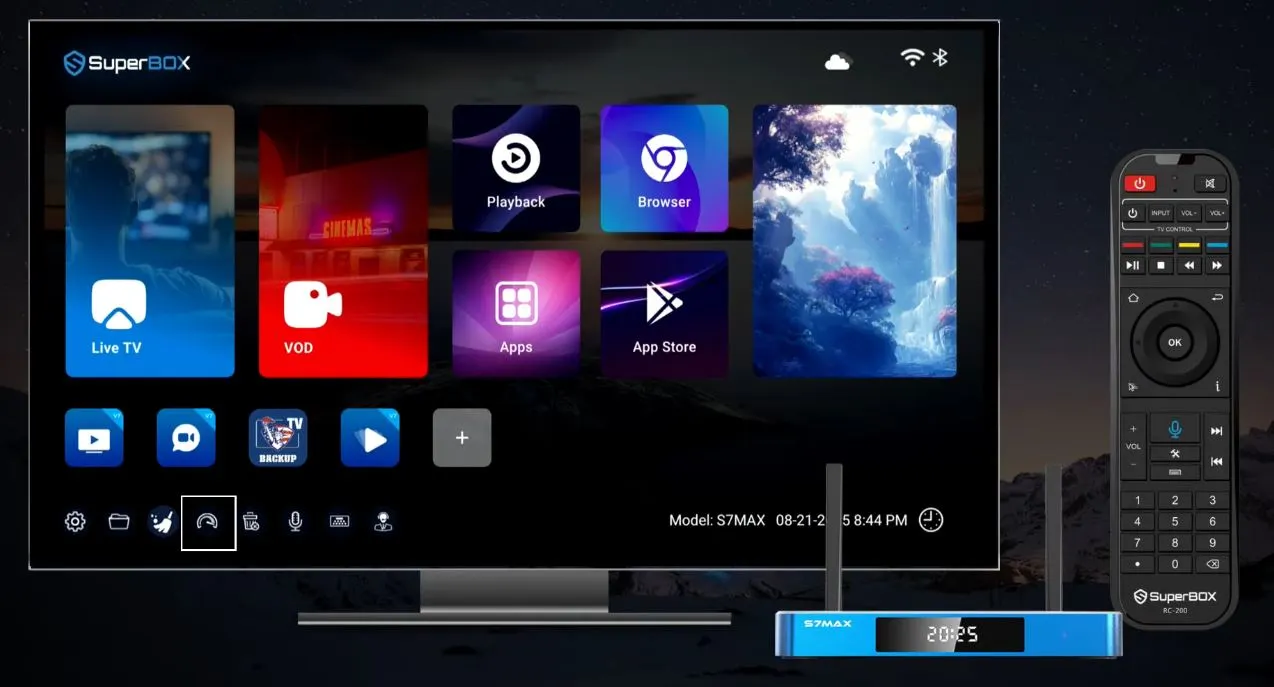
If the Speed Test Is Unstable
- Restart the router and wait for the connection to return fully.
- Move the SuperBox closer to the Wi-Fi router.
- Test a suitable 5 GHz Wi-Fi network if available.
- Use Ethernet for a more consistent connection.
- Pause large downloads or other high-bandwidth activity on the same network.
- Test another app to determine whether the issue is device-wide or app-specific.
Do not perform a factory reset just because one speed test looks lower than expected. First compare the connection over Wi-Fi and Ethernet, and test another device on the same network.
Bonus Tool: Uninstall an App Safely
At approximately 00:42, the video shows the Trash Bin icon used for uninstalling applications. This icon is not the same as the Broom:
- Broom: clears temporary memory.
- Trash Bin: removes a selected application.
Select the Trash Bin only when you intend to uninstall something. Choose the app carefully and confirm with OK only after verifying its name.
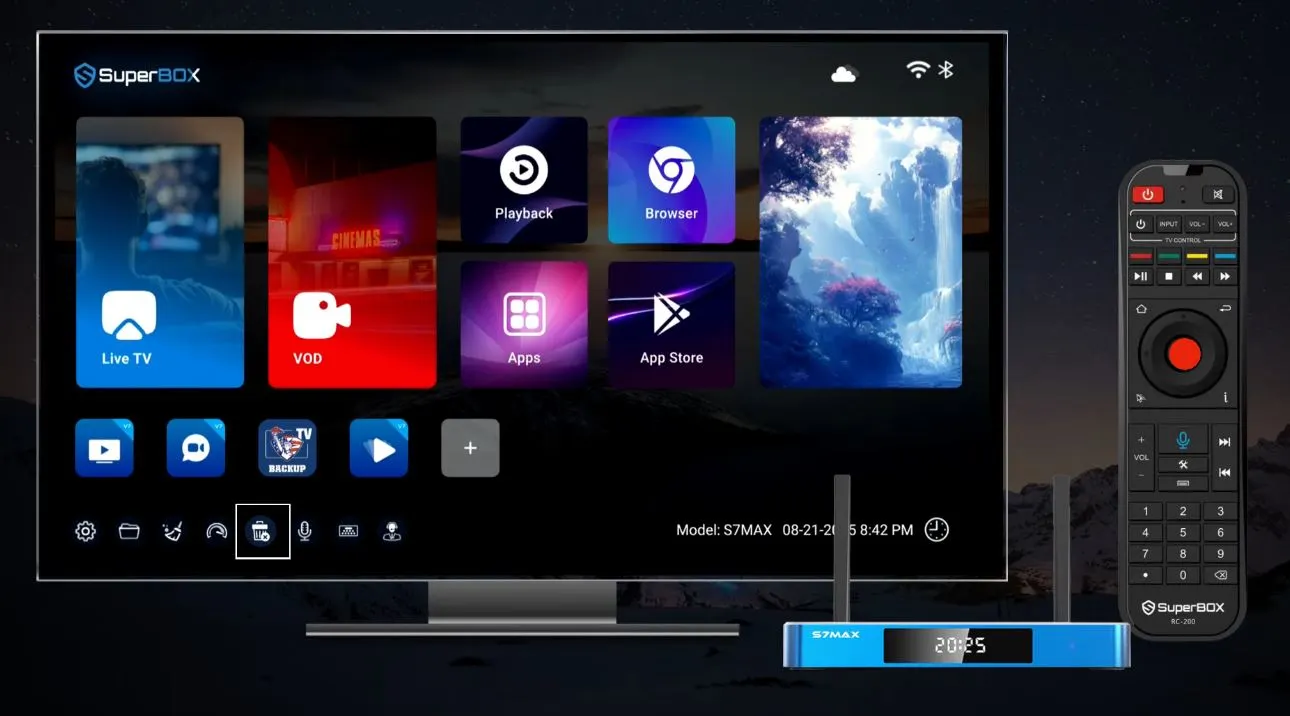
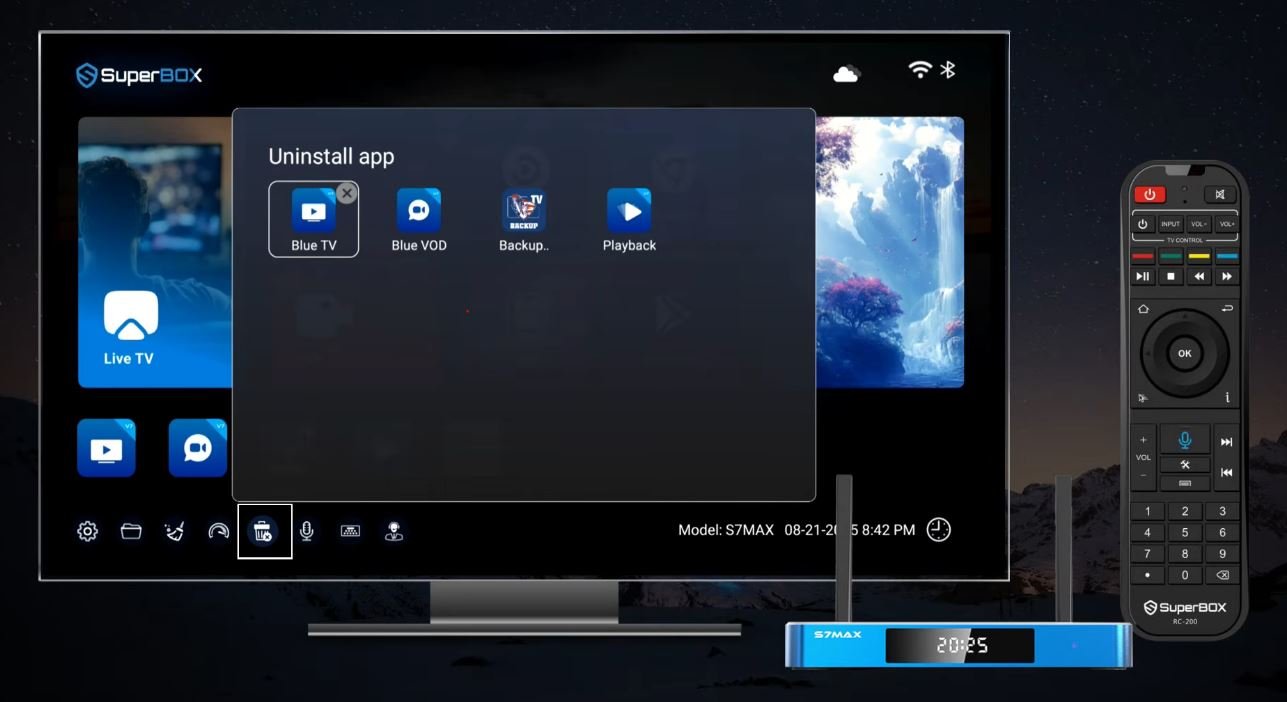
Do not remove system components, app stores, launchers, update tools, or unfamiliar packages simply to free space. If you cannot identify an app, leave it installed and ask technical support first.
How to Contact Customer Service from SuperBox
If the issue remains after basic troubleshooting, the SuperBox home screen provides a direct route to assistance.
Step 1: Select the Customer Service Icon
Return to the main screen and locate the Customer Service icon. Highlight it with the remote and press OK.
Step 2: Scan the QR Code
The support screen displays a QR code. Open the camera on your phone, point it at the code, and tap the recognized link. The video explains that the code can connect users with customer service through WhatsApp or online chat, depending on the options currently displayed.
Before continuing, check the destination shown on your phone. A QR code is convenient, but you should still confirm that it opens a recognized support account or official page.
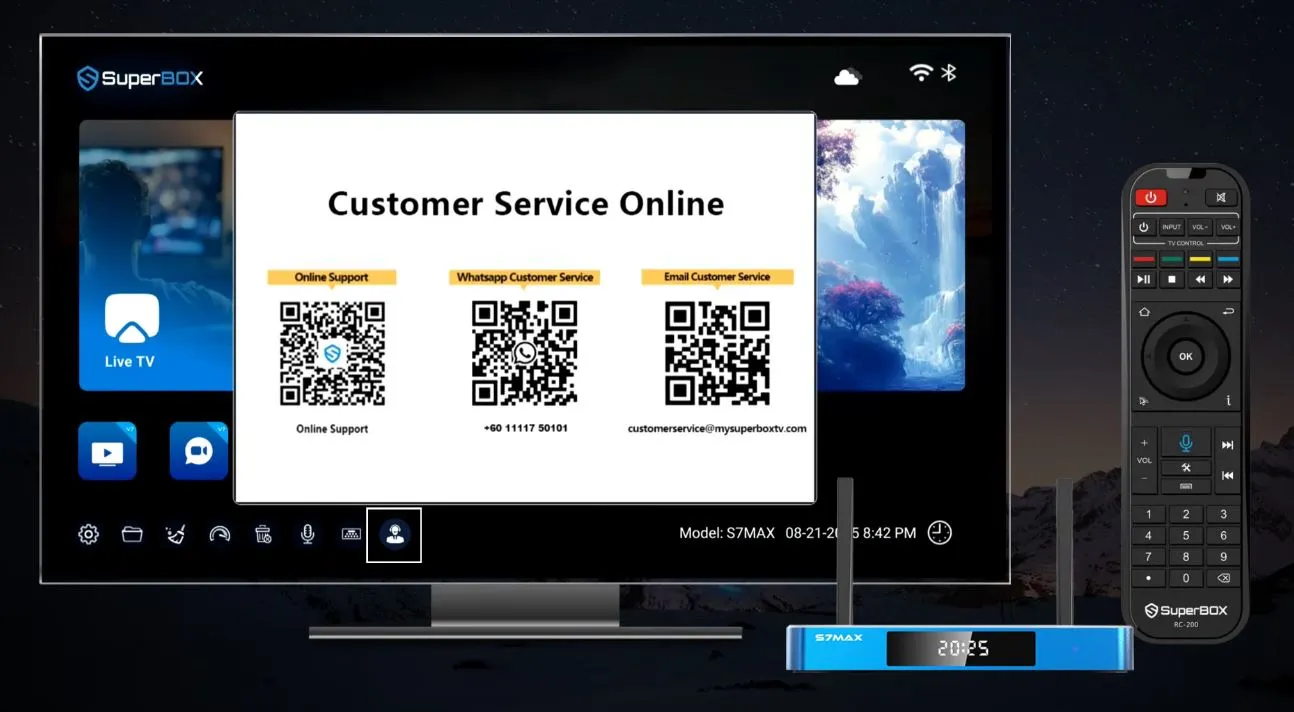
Step 3: Use Verified Alternative Channels
The video also points users toward the SuperBox Facebook page and YouTube channel for additional assistance and tutorials. Social channels can be helpful for general information, but account-specific, warranty, order, or technical matters should be handled through the seller or verified support contact associated with your purchase.
For purchases from SuperBox TV Box Store:
- Technical Support WhatsApp: +852 9674 3876
- Orders and Product Inquiries WhatsApp: +1 (604) 239-6845
- Website: superboxtvboxstore.com
Support details can change, so use the contact page or your order confirmation to verify the destination before sending purchase information.
What to Prepare Before Contacting Support
A message that says only “My box does not work” forces support to begin with basic questions. A concise diagnostic summary helps the team identify the right solution faster.
Prepare:
- Order number and purchase email when contacting the original seller.
- The exact error message shown on screen.
- The name of the affected app.
- Whether the problem affects one app or the entire device.
- Whether you are connected by Wi-Fi or Ethernet.
- What you have already tried, including Broom cleanup, restart, cache clearing, or network test.
- A clear photo or short video of the problem when useful.
Example support message:
Hello, I have a SuperBox S7 Max purchased from SuperBox TV Box Store. Blue TV opens, but the app returns to the home screen after loading. I used the Broom cleanup, restarted the box and router, and cleared the app cache, but the issue remains. The box is connected by Ethernet. My order number is [ORDER NUMBER]. Please advise on the next verified step.
Never send your Wi-Fi password, Google password, payment-card number, one-time authentication code, or unrelated personal documents through chat. A legitimate troubleshooting process should not require those secrets.
Which Support Team Should You Contact?
| Issue | Best Contact |
| Device setup or technical fault | Technical support for the seller that supplied the box |
| Shipping, tracking, or order change | The store where the order was placed |
| Warranty request | Original seller with order number and proof of purchase |
| Third-party app login or subscription | That app or service provider |
| Internet outage | Your internet service provider |
| TV input, HDMI, or television settings | TV manufacturer support if SuperBox tests normally elsewhere |
Contacting the original seller matters because warranty records, order verification, and model-specific recovery instructions may not be accessible to another retailer.
Troubleshooting: Performance Does Not Improve
Cache cleanup cannot resolve every source of slow performance. Continue in this order:
- Restart the SuperBox.
- Restart the router.
- Use the Dashboard speed test.
- Test another app.
- Try Ethernet or a different stable network.
- Check for app and system updates.
- Confirm that internal storage is not nearly full.
- Contact support before attempting a factory reset.
This sequence isolates the problem without immediately deleting settings or apps.
Troubleshooting: Customer Service QR Code Will Not Scan
- Increase the television brightness temporarily.
- Move the phone closer or farther away until the full code is in focus.
- Clean the phone’s camera lens.
- Make sure the QR code is not cut off by incorrect screen-size calibration.
- Try the phone’s built-in camera instead of an unfamiliar QR-scanner app.
- Use the verified WhatsApp number or website contact page instead.
If screen edges are cropped, adjust the SuperBox display or screen-position setting before trying again.
Troubleshooting: WhatsApp or Chat Does Not Open
Confirm that the phone has internet access and the relevant app is installed. If a QR link opens an unexpected account or unrelated website, close it without sending information. Use the verified contact details from your original seller’s website or order confirmation.
Customer-service availability and response times can vary. Avoid sending the same request through several channels within a few minutes because duplicate tickets can slow down diagnosis.
Frequently Asked Questions
Will the Broom Icon Delete My Apps?
The Broom is demonstrated as a quick temporary-memory cleanup. The separate Trash Bin icon is used to uninstall applications. Always verify which icon is highlighted before pressing OK.
Is Cleaning Cache the Same as Restarting?
No. Cache cleaning removes temporary information; restarting closes processes and reloads the operating environment. When a problem persists, performing both can be useful.
Will Clear Cache Remove My Passwords?
Clearing only an app’s cache normally preserves app data and settings. Clear Data or Clear Storage is different and may remove locally stored preferences or sign-in state.
Should I Factory-Reset the SuperBox If It Is Slow?
Not as the first step. Try the Broom, restart the box and router, clear the affected app’s cache, test the network, and check updates first. A factory reset can remove apps, accounts, and settings.
Can Cleaning Cache Fix Buffering?
It can help when temporary app files are involved, but buffering can also come from Wi-Fi interference, internet instability, routing, app-side issues, or content availability. Use the Dashboard test and compare another app or network.
Why Is My Customer Service Screen Different?
The layout and available contact channels may vary by SuperBox model, launcher version, region, and software update. Follow the verified information currently displayed on your device and the contact details provided by your original seller.
Can Customer Support Fix a Third-Party App Account?
Not always. SuperBox hardware support can help diagnose the device, but third-party app accounts, subscriptions, and content availability are controlled by their respective providers.
Final Checklist
Before escalating a performance problem, confirm that you have:
- Returned to the SuperBox home screen.
- Selected the Broom icon once.
- Reopened and tested the affected app.
- Restarted the SuperBox if necessary.
- Used the Dashboard to check the connection.
- Cleared only the affected app’s cache when appropriate.
- Avoided Clear Data and Factory Reset unless specifically required.
- Recorded the model, error message, connection type, and troubleshooting steps.
- Used the Customer Service icon or verified seller support details.
Final Thoughts
Good troubleshooting begins with the least disruptive action. On SuperBox, that means returning to the home screen and using the Broom icon before deleting apps or resetting the device. It takes only a moment and can resolve minor slowdowns caused by temporary memory.
If the issue continues, move from general cleanup to a targeted app-cache reset, check the internet connection, and document the symptoms. Then use the Customer Service icon to reach help through the currently displayed QR-code options – or contact the verified support team associated with your purchase.
For SuperBox TV Box Store customers, Technical Support is available on WhatsApp at +852 9674 3876. Include the exact model and a concise summary of what you tested so the team can respond with the correct model-specific procedure.
Important: SuperBox TV Box Store sells open-platform Android media-player hardware. We do not host, stream, transmit, pre-install, or maintain third-party television channels, sports networks, video-on-demand libraries, or other media content. Application features and availability can vary by developer, provider, region, software version, and time. Customers are responsible for using their devices and third-party services in accordance with applicable laws and service terms.
For a visual demonstration:
Reference:
This guide was developed from the workflow demonstrated in: How to Clean Cache and Contact Customer Service.
The article was updated on:
