
Knowledge SuperBox, Knowledge SuperBox S7
SuperBox S7 Series Playback App Tutorial: How to Watch Past Programs





Missing the beginning of a news report or sports program does not always mean waiting for a replay. The Playback app demonstrated on the SuperBox S7 series is designed to help viewers browse past programming from supported channels and open an earlier broadcast from an available timeline.
The concept is simple: choose a supported channel, select the available date and program time, and begin watching. Once playback starts, the interface provides familiar controls for rewinding, fast-forwarding, checking connection activity, adjusting the picture, and changing video decoding.
This guide expands the short official demonstration into a clear, step-by-step tutorial for everyday users.
Quick start: Open Playback, select a supported channel, choose an available date and timeline, highlight the program you want, and press OK. During playback, use the progress bar to move backward or forward. Select Programs to return to the schedule and choose another timeline.
Important: Playback availability is determined by the app and its service data. The SuperBox does not need to record these programs locally. Supported channels, dates, programs, and retention periods can change by app version, model, region, provider status, and content rights.
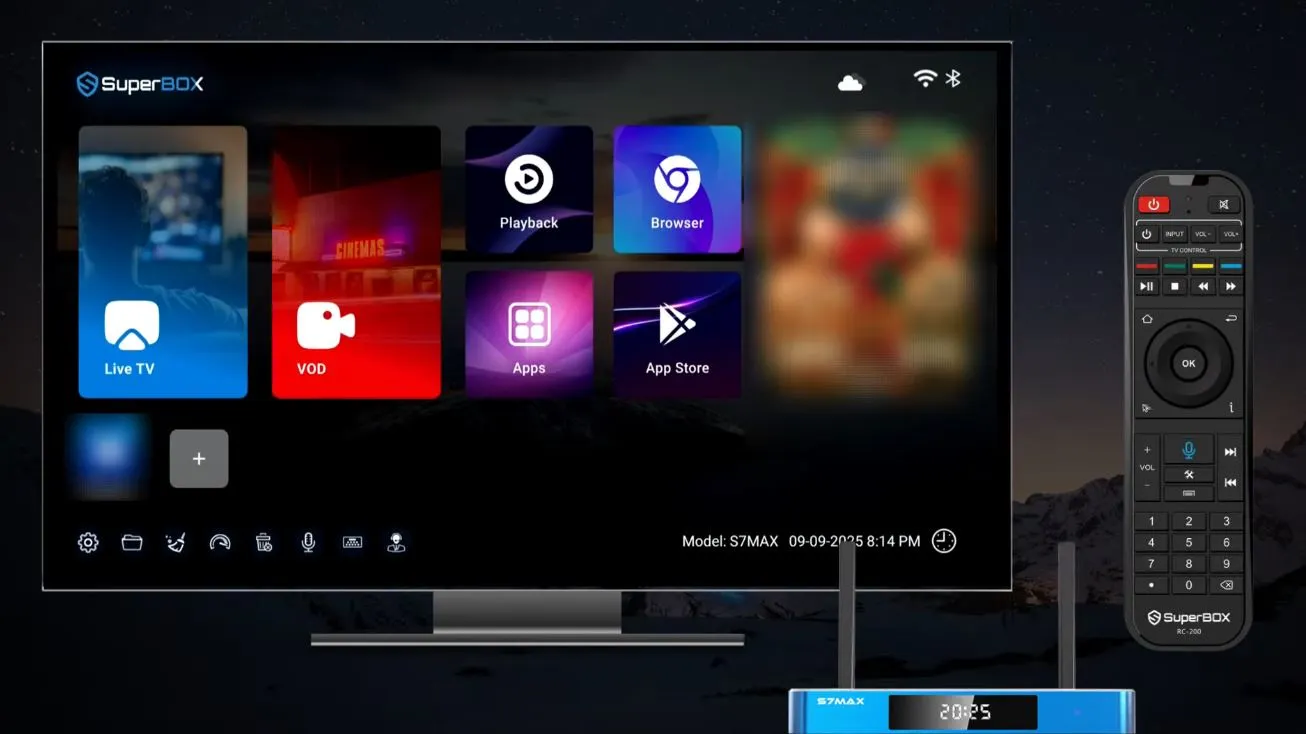
What Is the SuperBox Playback App?
Playback is a catch-up-style interface for programs that have already aired on supported channels. Instead of creating a personal recording before the broadcast, the viewer selects from past programming made available inside the app.
In the source demonstration, the interface presents news and sports-oriented options and describes access extending as far as seven days for supported content. Treat those details as a demonstration of that app version, not a permanent channel or availability guarantee.
Playback is useful when you want to:
- revisit a recently aired program;
- start an available broadcast from the beginning;
- browse earlier programming by channel and date;
- move backward or forward within an available recording; or
- switch between different program timelines without returning to live TV.
Playback does not mean local recording
Using Playback does not necessarily create or store a recording on the internal storage of the SuperBox. The app retrieves whatever past programming is currently offered by its service. Deleting files from the box will not extend the available timeline, and adding storage will not automatically make more days available.
Before You Begin
For the most reliable experience, confirm the following:
- the SuperBox is connected to stable Wi-Fi or Ethernet;
- the date, time, and time zone are correct;
- the device and Playback app are up to date;
- the remote is responding normally; and
- the desired channel appears in Playback.
If normal websites and other online apps do not load, resolve the network connection first. Playback requires internet access to load the channel list, program data, and video.
How to Use the Playback App on SuperBox S7
Step 1: Open Playback
From the SuperBox home screen or Apps section, highlight Playback and press OK.
Allow a few moments for the channel and timeline information to load. If the page appears empty immediately after opening, wait briefly before exiting. A slow network may delay the schedule data.
The source video describes Playback for the S7 Pro and S7 Max while referring to the broader S7 series. If the app is not visible on your device, do not install an unrelated app with the same name from a random website. Check the current App Store and software updates or contact support for model-specific guidance.
Step 2: Choose a supported channel
Use the directional buttons to move through the available channel list. The highlighted row, border, or color indicates the current selection.
The demonstration references a selection of 86 channels in that particular version. Because listings can change, the number shown on your device may be different. The reliable source is the current list visible inside your Playback app.
Press OK after highlighting the channel you want to explore.
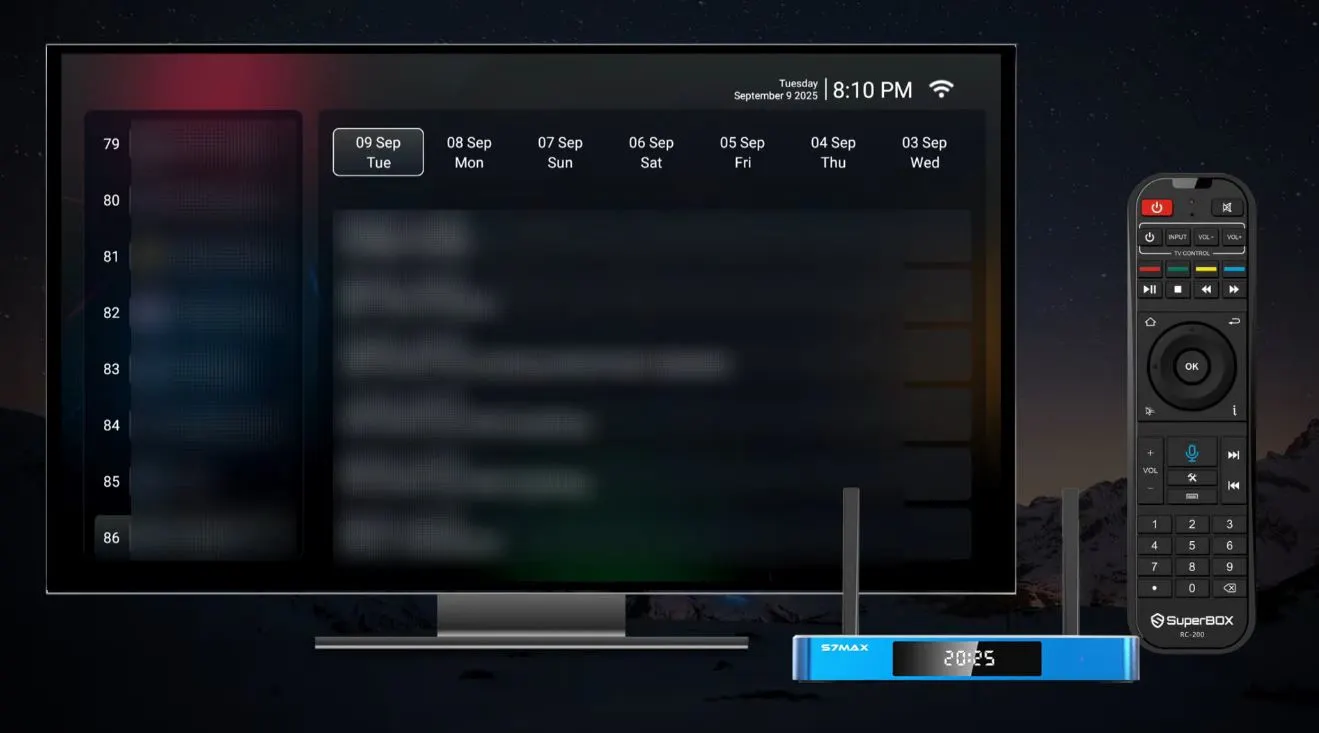
Step 3: Select the date and timeline
Move to the date or timeline area and choose the period you want to review. Depending on the current version, the interface may display dates, program blocks, or a schedule arranged by time.
Look for three pieces of information:
- the selected channel;
- the selected date; and
- the program start time or timeline position.
The phrase up to seven days describes the maximum demonstrated range, not a promise that every channel has a complete seven-day archive. A program may be missing because the channel is unsupported, the recording has expired, the schedule data is incomplete, or the program is unavailable for other service reasons.
Step 4: Start the past program
Highlight the desired program or timeline entry and press OK. Wait for the player to open and buffer.
If the wrong program starts, return to Programs and verify the date and time. Schedule boundaries can differ from the exact moment a broadcast begins, so a small adjustment on the progress bar may be necessary.
Rewind and Fast-Forward with the Progress Bar
The player includes a progress bar similar to the one used by video-on-demand apps.
To move within the program:
- press OK or the appropriate remote button to display the player controls;
- move the focus to the progress bar;
- press or hold Left to rewind;
- press or hold Right to fast-forward; and
- release or press OK at the desired point.
Use short presses for precise movement. Holding a direction for too long can skip farther than expected.
The progress bar can move only within the portion supplied to the player. It cannot restore a missing beginning or extend past the end of the available program.
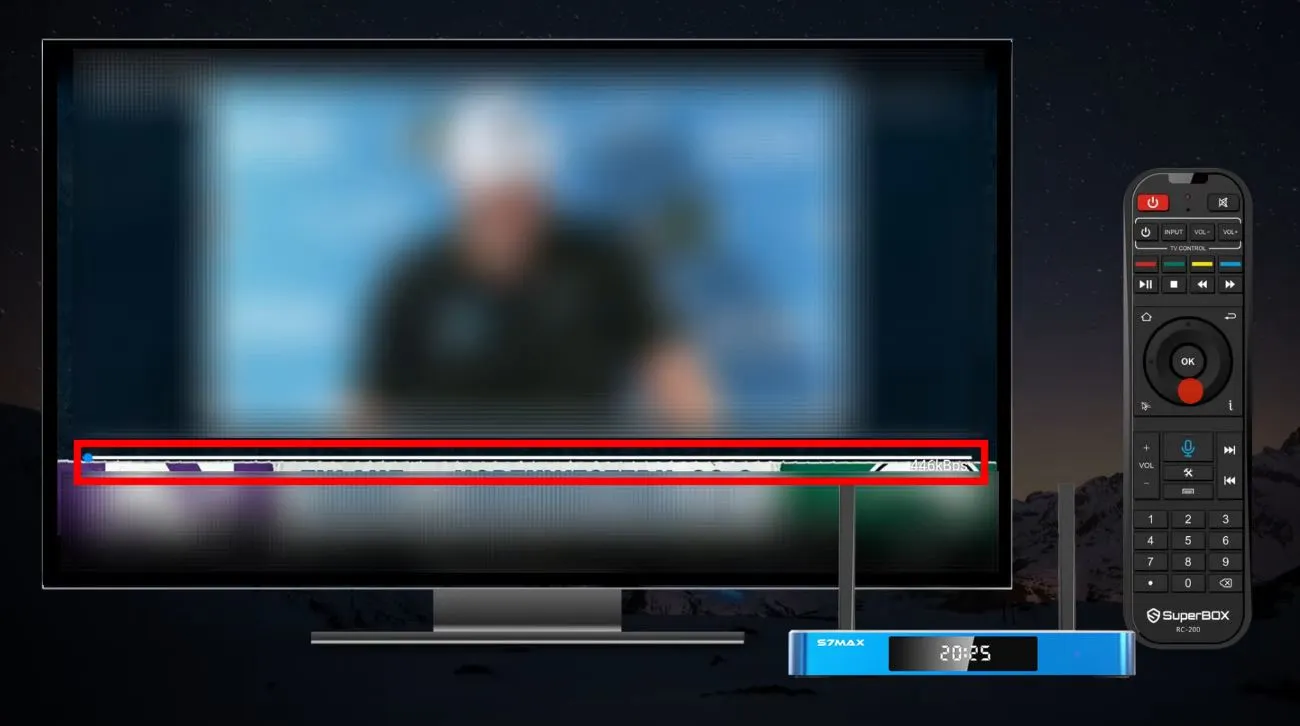
Switch to Another Program or Timeline
Select the Programs button to return to the available schedule. From there, choose another date, program, or timeline entry.
This is the key difference between navigating Playback and seeking within one video:
- use the progress bar to move inside the current program;
- use Programs to choose a different program or timeline.
The official demonstration highlights this as a quick way to move among different past broadcasts without closing the app completely.
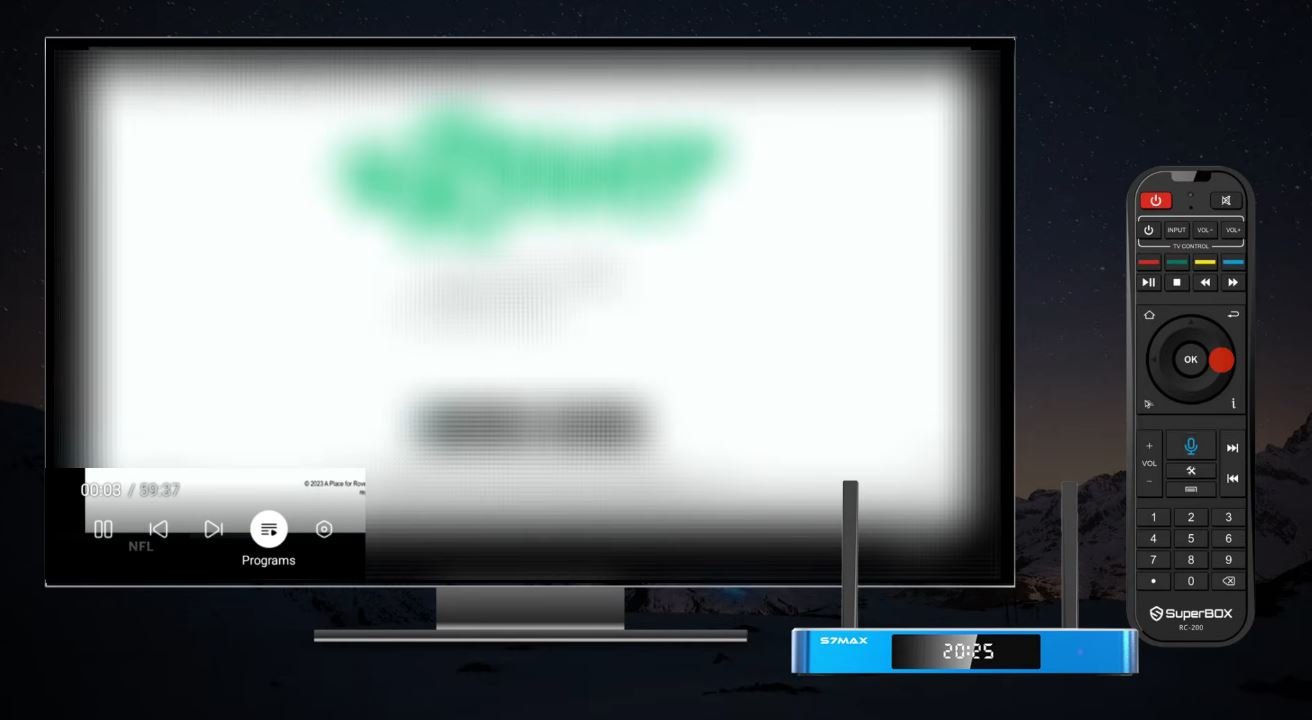
Configure Playback Settings
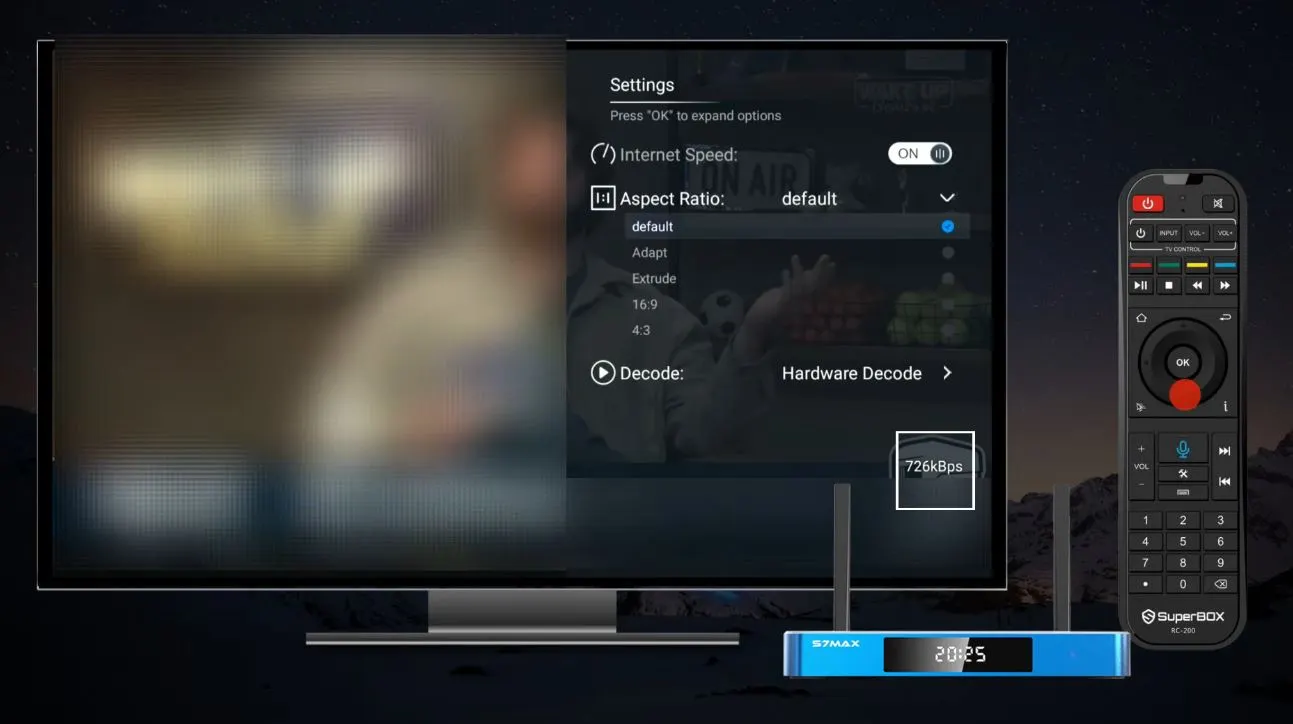
Open the Settings menu while using the app. The demonstration shows three core options.
Internet speed status
Turn on the internet-speed indicator to monitor connection activity during playback. This is helpful when diagnosing sudden buffering, but it is not a full speed test and does not represent the maximum speed of your internet plan.
If the displayed value repeatedly drops when the video pauses:
- restart the router and SuperBox;
- move closer to the router if using Wi-Fi;
- test a 5 GHz network where coverage is strong;
- connect through Ethernet if practical; and
- compare playback with another online app.
Aspect ratio
Change the aspect ratio if the picture looks stretched, compressed, or cropped. Select the option that preserves natural proportions and fits your television correctly.
Black bars can be normal when the original broadcast and television use different shapes. Zooming simply to remove them may cut off part of the picture.
Decode settings
Decode settings control how the video is processed. If playback is already stable, keep the default selection.
When troubleshooting a specific video issue, note the original setting, change only one option, and test again. Changing several options at once makes it difficult to identify the cause of improvement or failure.
SuperBox Playback App Quick Reference
| Goal | Action |
| Open past-program browsing | Launch Playback from the available Apps section |
| Choose content | Select a supported channel, date, and timeline |
| Start playback | Highlight the program and press OK |
| Rewind or fast-forward | Display the progress bar and use Left or Right |
| Change program or date | Select Programs and choose another timeline |
| View connection activity | Enable internet speed status in Settings |
| Correct a stretched picture | Change the aspect ratio |
| Test video processing | Review decode settings one option at a time |
Troubleshooting the Playback App
| Problem | What it usually means | What to try |
| Playback opens but shows no channels | Data did not load, the network is offline, or the service is temporarily unavailable | Test another online app, restart Playback, and reboot the router and box. |
| A channel is not listed | It is not currently supported in Playback | Check Blue TV for live availability; the Playback list is the authoritative list for past-program access. |
| Fewer than seven days appear | Retention differs by channel, program, region, or app version | Check other dates and channels. Updating or adding storage will not create unavailable archive data. |
| A program is missing from the schedule | Incomplete schedule data, expired availability, or program-level restriction | Refresh the app, check nearby timeline entries, and try again later. |
| Wrong program starts | Schedule time and actual broadcast boundary do not align | Return to Programs, verify the date/time, then seek slightly forward or backward. |
| Video buffers repeatedly | Unstable network or temporary source issue | Run a network comparison, restart equipment, test Ethernet, and review the speed indicator. |
| Video plays but looks stretched | Incorrect aspect ratio | Choose the ratio that preserves natural proportions. |
| Black screen or no video | Decode compatibility, connection, or program-specific issue | Try another program, restart the app, then test one alternate decode setting. |
| Seeking does not move farther | The requested segment is outside the available recording | Return to Programs and choose another entry; the progress bar cannot create missing footage. |
| Playback app is missing | Model/software/app availability differs | Check approved updates and the current App Store, or contact support. Do not install a random similarly named app. |
Frequently Asked Questions
Does the SuperBox record seven days of television onto the device?
Not necessarily. The demonstrated Playback app retrieves available past-program data from its service. It is not presented as a personal DVR recording seven days onto the box’s internal storage.
Is every channel available for seven days?
No guarantee should be assumed. The video demonstrates access extending up to seven days for supported content, but retention can vary by channel, program, app version, region, and service status.
The video mentions 86 channels. Will my app show the same number?
It may not. That figure reflects the demonstrated version. Use the current in-app list as the source of truth because channel availability can change.
Can I use Playback for regional programming?
Only if the specific channel and past program appear in the Playback app. Live availability in another app does not automatically mean the same channel has Playback support.
Can I save a Playback program permanently?
The video does not demonstrate permanent downloading or DVR storage. Do not assume that an available past program can be saved beyond the app’s retention window.
Why does the date I want not appear?
The date may be outside the available retention period, or that channel may provide a shorter archive. Confirm the device date and time, then check the dates offered by the app.
Does Playback work on every S7 model?
The source description specifically mentions the S7 Pro and S7 Max while calling it an S7-series demonstration. Availability on another S7 model should be verified against its current software build and app list.
What internet connection should I use?
Stable Wi-Fi or Ethernet can work. Ethernet is useful when Wi-Fi is weak or inconsistent. Actual performance depends on the router, signal quality, internet service, app servers, and current network traffic.
Availability and Responsible Use
SuperBox devices are open Android-based hardware platforms. Applications, channel lists, past-program windows, and individual features can change without notice according to the model, region, app version, provider status, and content rights.
This tutorial explains the interface shown in the source demonstration. It does not guarantee permanent access to a particular channel, program, sports event, archive length, or service. Customers are responsible for using applications and content in accordance with applicable laws, licensing requirements, and provider terms.
Final Thoughts
The Playback app is easiest to understand as a schedule for supported programs that have already aired. Choose the channel, choose the available date and timeline, and press OK. Use the progress bar inside the current program and the Programs button when you want a different broadcast.
The best first steps are also the simplest: keep the box updated, use a stable connection, verify the device time, and leave decode settings at their default unless a specific playback problem appears.
If Playback is missing, the timeline does not load, or your screen differs from the demonstration, contact SuperBox TV Box Store Technical Support on WhatsApp. Send your model, software version, a photo of the screen, and the exact channel/date you are trying to access.
For a visual demonstration:
Reference: SuperBox S7 Series Playback App Tutorial
The article was updated on:
