
Knowledge SuperBox
How to Factory Reset SuperBox Pro, Max and Ultra – Easy and Fast





When a SuperBox begins to lag, freeze, lose network stability, or behave unpredictably after an update, a factory reset can restore the software environment to a clean state. A factory reset can also resolve issues that occur before the device has been set up, such as the App Store not appearing or the device being unable to detect or connect to Wi-Fi.
However, a factory reset is not routine maintenance. It is a complete system wipe. The process removes downloaded applications, saved accounts, network information, files, and personalized settings. Used at the right time, it is one of the most effective ways to resolve persistent software issues. Used too early, it can create unnecessary setup work.
This guide explains how to factory reset the SuperBox Pro, Max, and Ultra using two methods:
- The built-in Settings menu, which is the recommended method.
- The remote-control shortcut, which may help when the Settings menu cannot be reached.
It also explains what to prepare before the reset, what to expect while it is running, and how to restore the device afterward.
Important: A factory reset permanently removes the data stored on the device. Read the preparation section before continuing, and never disconnect the power while the reset is in progress.
The menu shown in this guide is based on the SuperBox S6 Pro, S6 Max, and S6 Ultra. Menu names and layouts may appear slightly different on S7 or S8 models, or on devices running different firmware versions, but the basic steps are essentially the same.
Method 1: Factory Reset SuperBox Through the Settings Menu
This is the safest and most reliable method when the SuperBox interface is accessible.
Step 1: Open Settings
Return to the SuperBox home screen. Use the remote to move to the Settings icon, then press OK.
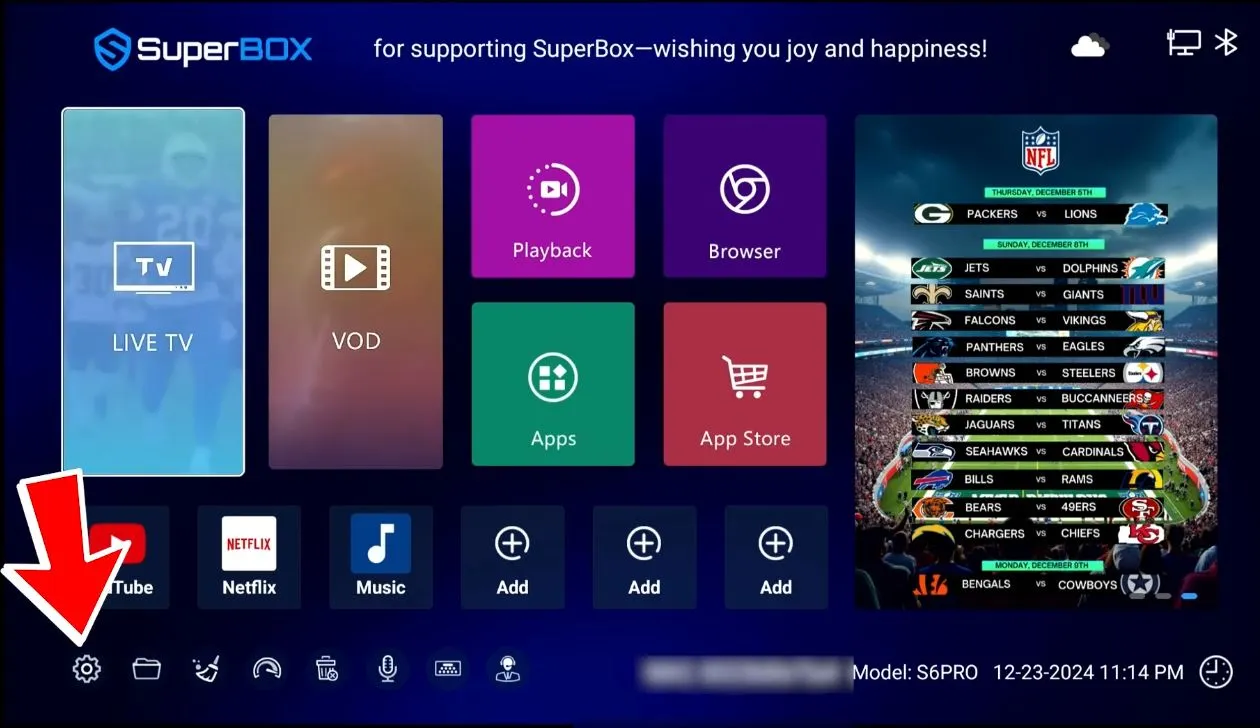
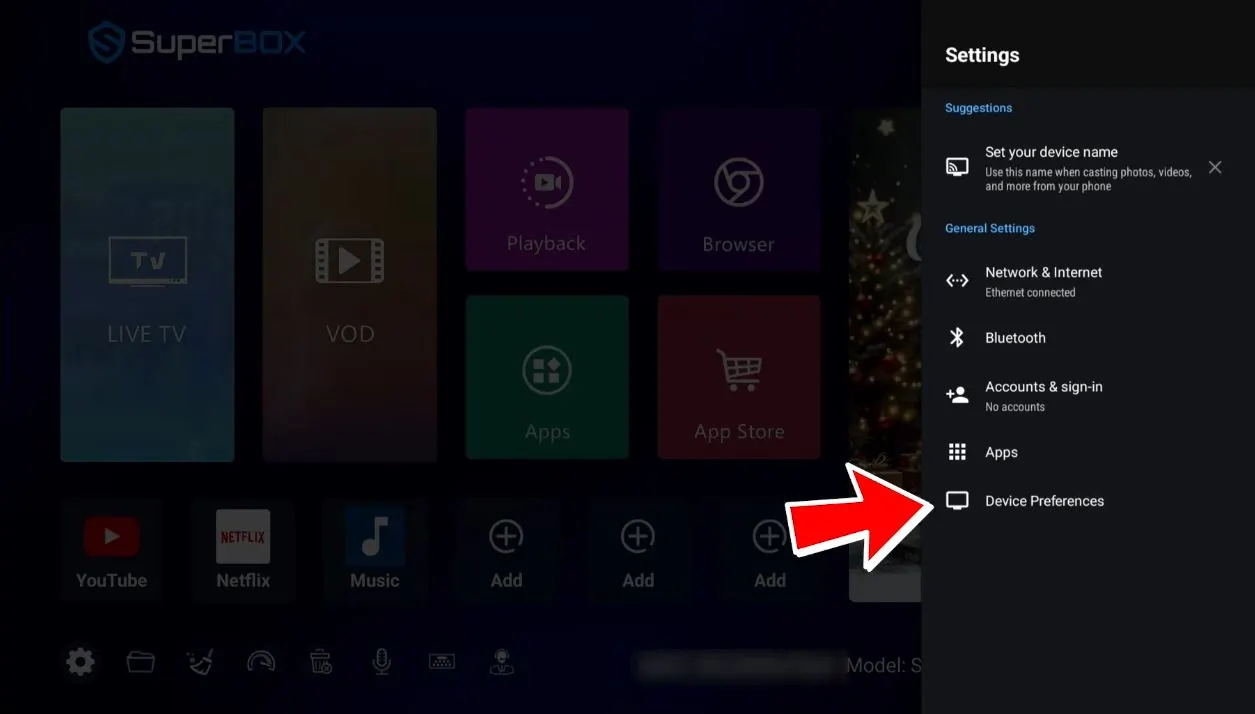
Step 2: Select Device Preferences
Inside the Settings menu, locate and select Device Preferences.
This section contains the system-level controls for the SuperBox, including device information, display settings, date and time, and reset options.
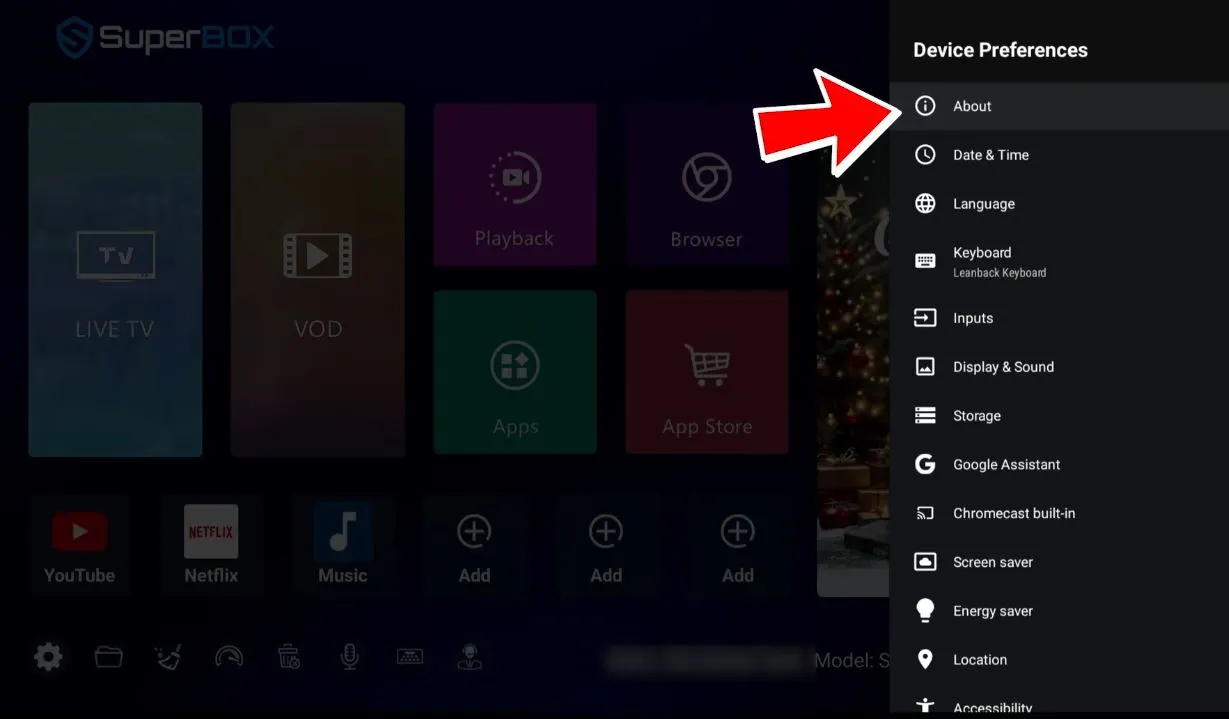
Step 3: Open About
From Device Preferences, select About.
The About screen contains the device’s software information and the factory-reset command.
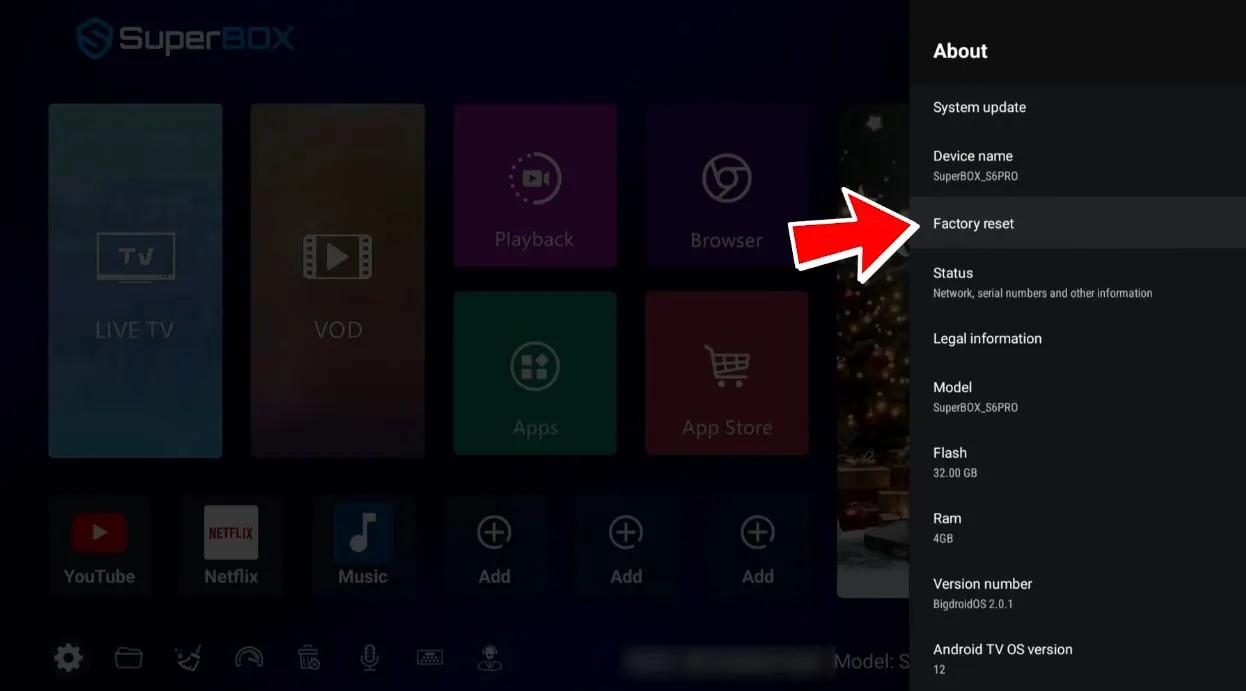
Step 4: Select Factory Reset
Scroll through the About menu until Factory Reset appears, then press OK.
At this point, the device has not yet erased anything. The next screen will explain what the reset will remove and ask you to confirm.
Step 5: Review the Data-Erasure Warning
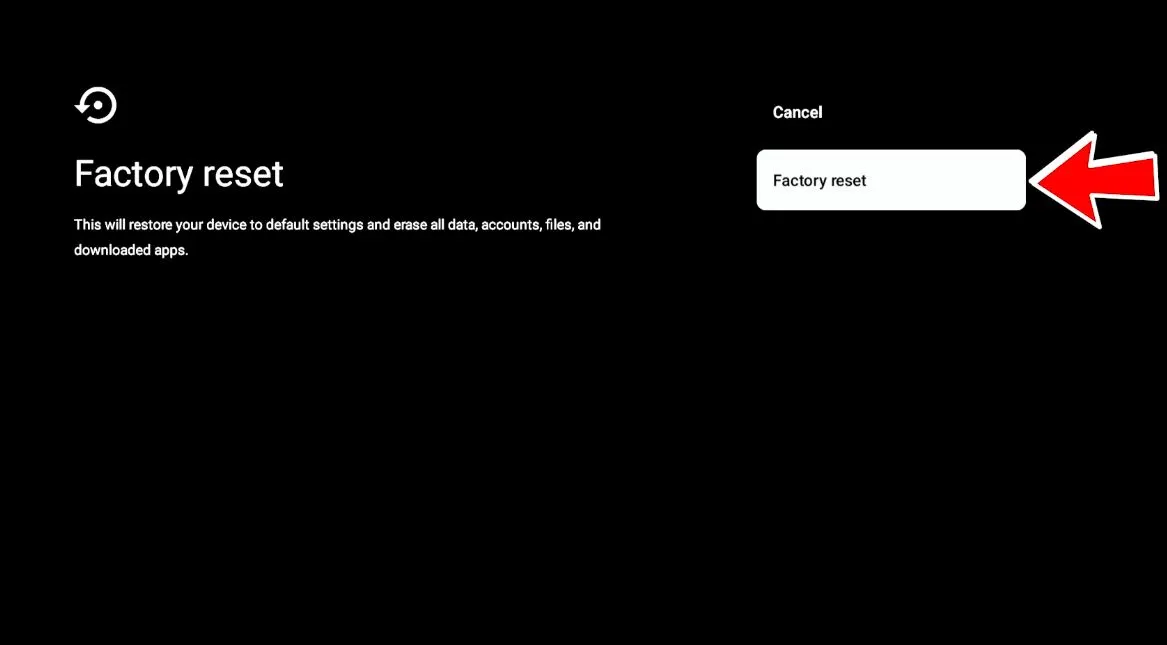
The SuperBox will display a warning that the device will be restored to its default settings and that stored accounts, files, and downloaded applications will be erased.
Read this message carefully. If you have saved everything you need, select Factory Reset again to continue.
Step 6: Confirm “Erase Everything”
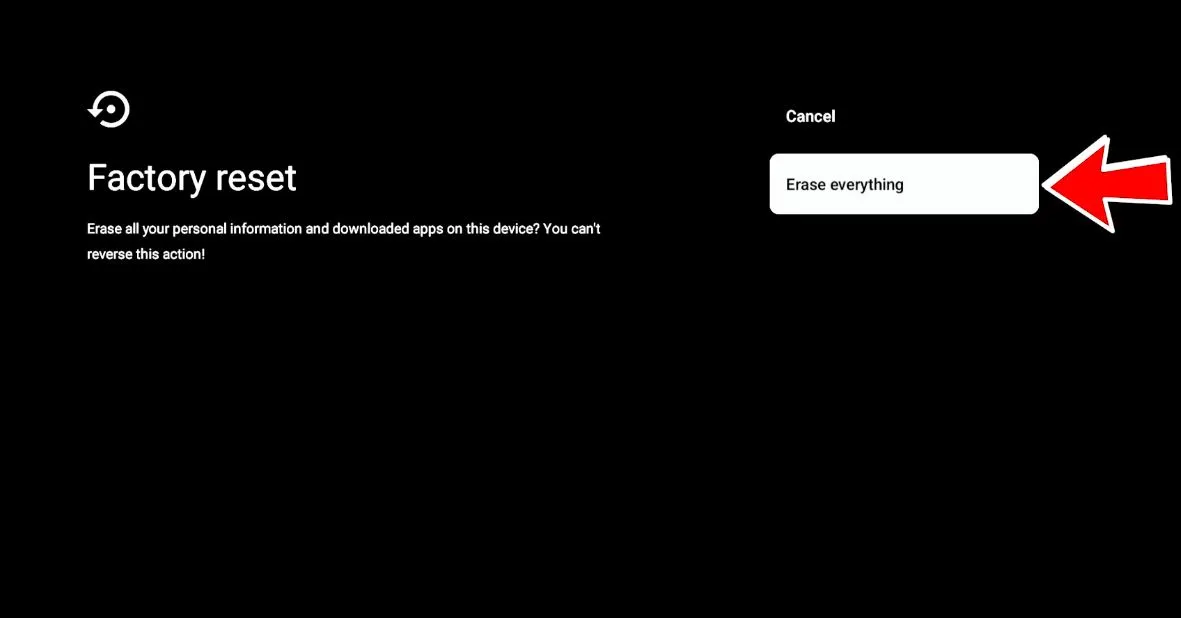
The final confirmation screen will display Erase Everything.
Selecting this option begins the reset. Once confirmed, allow the SuperBox to complete the process without pressing buttons, disconnecting cables, or removing power.
Step 7: Wait for the Device to Restart
The screen may go dark, display a boot logo, or restart more than once while the system is being restored. This is normal.
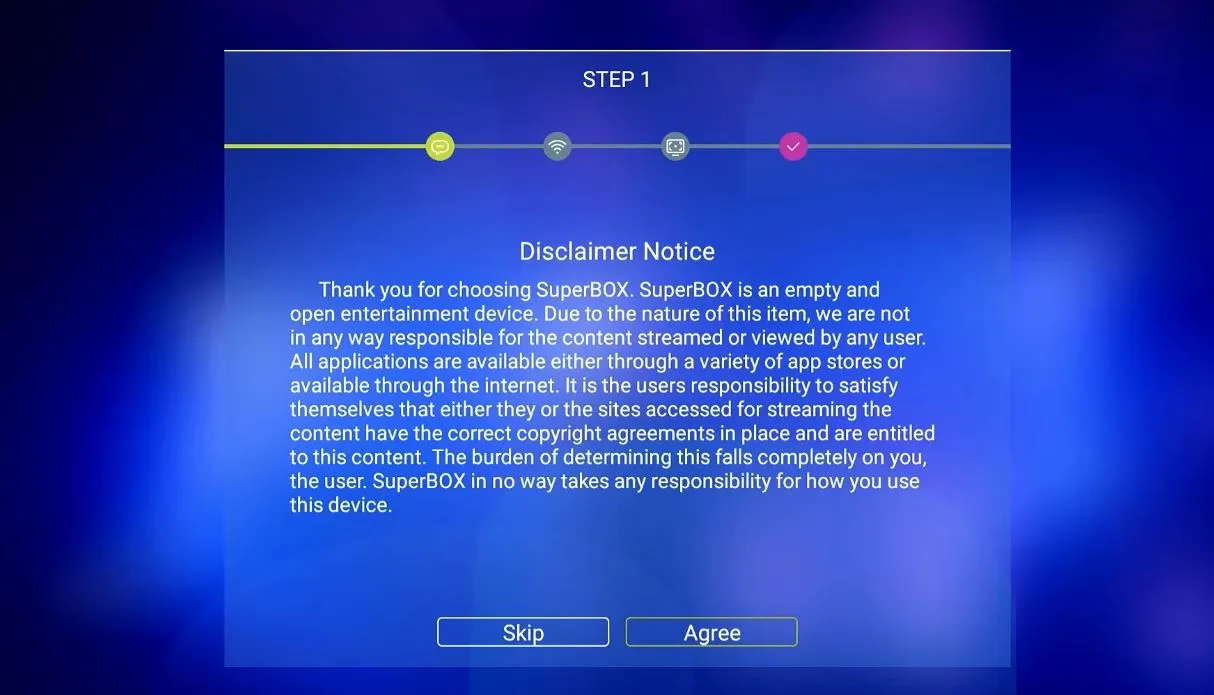
Do not unplug the SuperBox. Wait until the initial setup screen appears. When the language, network, or first-time configuration screen is displayed, the factory reset has been completed successfully.
How to Set Up the SuperBox After the Reset
After restarting, the SuperBox behaves like a newly initialized device. Complete the setup in the following order:
- Select your preferred language.
- Connect to Wi-Fi or attach an Ethernet cable.
- Confirm the correct time zone and display settings.
- Pair the remote again if voice control is not responding.
- Check for available system updates.
- Restore the device’s App Store if it is no longer visible.
- Reinstall the applications you are authorized to use.
- Add your preferred apps back to the home screen.
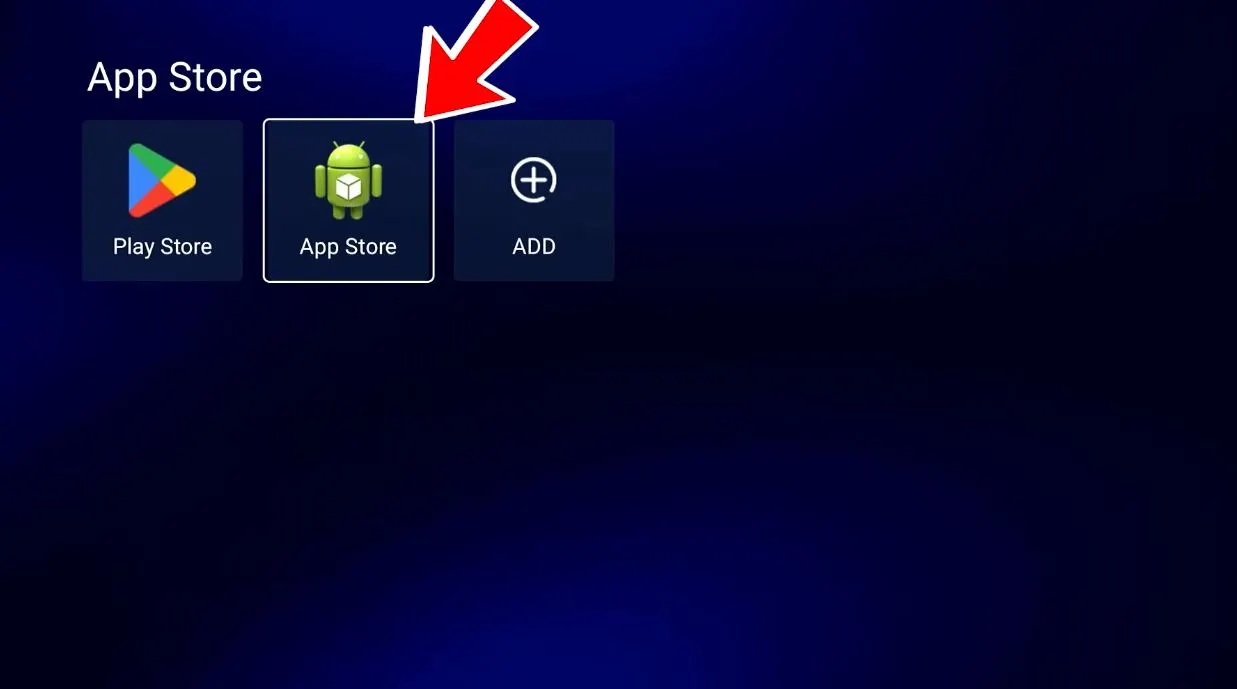
On supported SuperBox models, the recovery process may begin with the Green App Store, represented by the green Android-style icon. Open it and follow the on-screen instructions. Once the appropriate app marketplace is available, reinstall the applications required for your setup.
If the App Store does not appear or cannot be restored, do not repeatedly factory reset the device. Contact Technical Support for the recovery method appropriate to your model and software version.
Method 2: Factory Reset SuperBox With the Remote Shortcut
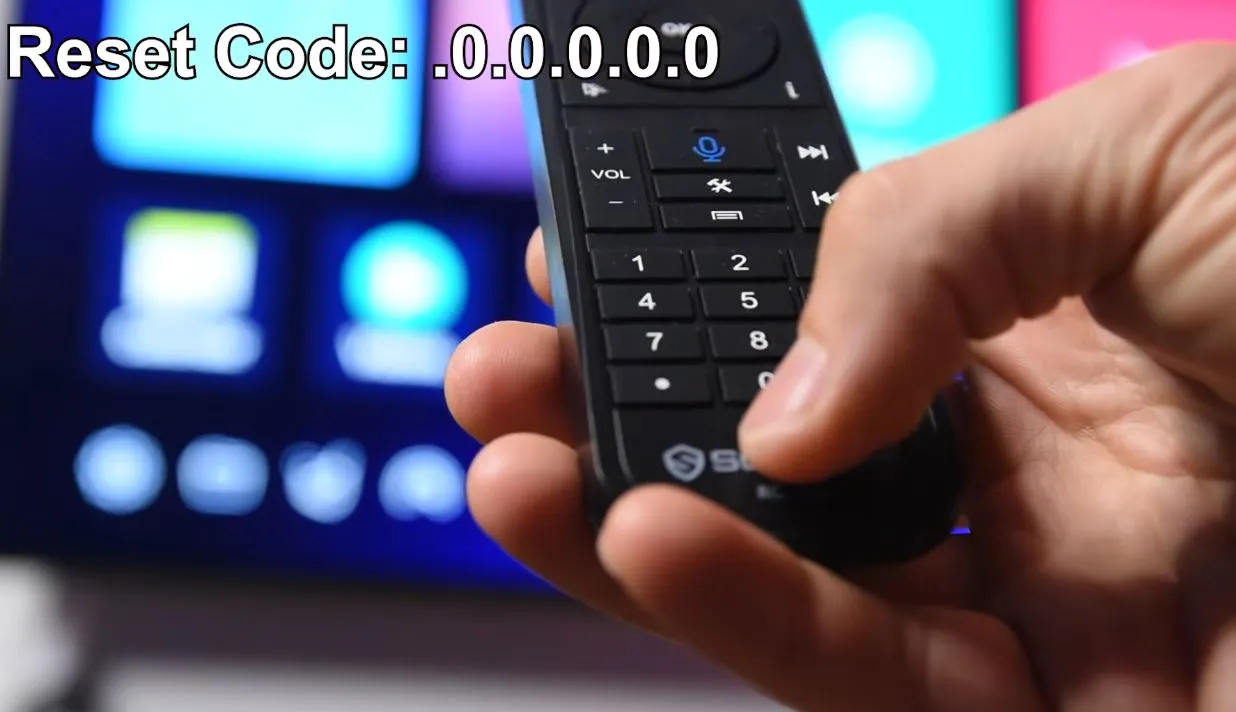
If the SuperBox is lagging, partially frozen, or unable to open the Settings menu, the remote shortcut shown in the video may provide an alternative.
How to Enter the Reset Code
- Return to the SuperBox home screen if possible.
- Press the Dot (.) button on the remote.
- Immediately press 0.
- Repeat the same Dot-and-Zero sequence five times:
.0.0.0.0.0
Enter the sequence continuously and in the correct order. If the shortcut is accepted, the SuperBox should begin the factory-reset process automatically.
Caution: This shortcut may not display the same confirmation screens as the Settings method. Only enter it when you are ready to erase the device.
Remote shortcuts can vary between models and firmware versions. If this sequence does not work, avoid repeatedly entering random button combinations. Use the Settings method when available or contact Technical Support.
What About the Physical Reset Button?
Some Android media players use a hidden reset pinhole to launch recovery mode. However, the physical reset button tested in the referenced SuperBox S6 video did not successfully initiate a factory reset, whether it was pressed briefly or held down.
For that reason, this guide does not recommend the physical button as a dependable reset method for the SuperBox S6 Pro, S6 Max, or S6 Ultra.
If the device cannot open Settings and does not respond to the remote shortcut, contact Technical Support before attempting further recovery procedures. Instructions intended for a different Android box may not be appropriate for a SuperBox.
When Is a Factory Reset the Right Solution?
A factory reset may be appropriate when:
- The interface remains slow after restarting and clearing temporary data.
- Applications continue to freeze, crash, or fail to open.
- Network settings appear corrupted and basic router troubleshooting has not helped.
- A software update has left the device unstable.
- The SuperBox repeatedly returns to an unusable configuration.
- You are selling or giving the device to another person and want to remove your information.
- Technical Support has recommended a complete reset.
Problems a Factory Reset May Not Solve
A factory reset can resolve many software-related problems, but it cannot repair every issue.
It is unlikely to fix:
- A damaged power adapter, HDMI cable, remote, or internal component.
- A television input or HDMI-port problem.
- An internet outage or router failure.
- A device-authorization or Device Forbidden message.
- A service-side outage affecting an application.
- Problems caused by installing incompatible software.
If the problem is external to the operating system, erasing the SuperBox will not address the underlying cause.
Quick Summary: The Recommended Reset Path
If your SuperBox still responds normally to the remote, follow this path:
Settings → Device Preferences → About → Factory Reset → Factory Reset → Erase Everything
The SuperBox will erase its local data, restart automatically, and return to the initial setup screen.
If the interface is too slow or unresponsive to reach Settings, return to the home screen and enter the remote shortcut:
.0.0.0.0.0
The shortcut consists of pressing Dot, followed by 0, five times in sequence.What Does a Factory Reset Remove?
A factory reset restores the SuperBox software to its default state. It removes the information that has accumulated since the device was first configured, including:
| Removed during the reset | What this means afterward |
|---|---|
| Downloaded applications | Apps may need to be installed again |
| User accounts and login information | You may need to sign back into compatible services |
| Saved Wi-Fi information | Your network password must be entered again |
| Favorites and app preferences | Personalized lists and settings must be recreated |
| Voice-control configuration | The remote or voice function may need to be paired again |
| Locally stored files and temporary data | Files saved only on the device will no longer be available |
The reset does not automatically restore the device to the exact way you previously used it. Once the process is complete, the SuperBox must be configured again as a newly initialized device.
Frequently Asked Questions
Will a factory reset delete my apps and favorites?
Yes. Downloaded applications, saved accounts, favorites, local files, and personalized settings will be removed. Take photos or notes before resetting if you want to recreate your previous setup.
Will I need to enter my Wi-Fi password again?
Yes. Saved network information is erased, so you will need to reconnect to Wi-Fi or use an Ethernet connection during the initial setup.
How long does a SuperBox factory reset take?
The exact time depends on the model, software version, and amount of stored data. Allow the device several minutes to erase its data and restart. Do not interrupt the process even if the screen remains dark temporarily.
Does a factory reset reinstall the App Store automatically?
Not always. If the App Store is missing after the reset, follow the restoration method recommended for your model or contact Technical Support. Avoid using unverified download links from unknown sources.
Can a factory reset remove a Device Forbidden message?
No. A Device Forbidden message is generally related to device authorization rather than local settings. Factory resetting the operating system does not change the device’s authorization status.
Does this guide work with SuperBox S7 or S8 models?
This guide is based on the SuperBox S6 Pro, S6 Max, and S6 Ultra. The interface may look slightly different on other models or firmware versions, but the menu structure and basic steps are generally the same.
What should I do if neither reset method works?
Stop attempting random reset combinations and contact the SuperBox TV Technical Support team on WhatsApp here: Contact us. Providing the model name, serial number, and a photo or short video of the problem will help the technician identify the correct next step.
Final Thoughts
A factory reset can give a SuperBox a clean software foundation, but it should be used with care. The Settings method provides the clearest and safest path because it displays each warning before any data is erased. The remote shortcut is best reserved for situations where normal navigation is no longer practical.
Prepare your network information and preferred setup in advance, keep the device connected to stable power, and allow the reset to finish without interruption. Once the initial setup and application recovery are complete, the SuperBox should be ready for a fresh start.
For a visual demonstration
Video Reference
This guide is based on the following video:
SUPERBOX: How to Factory Reset (Fast & Easy) — Liakouras Momentz
The article was updated on:

Really helpful post.