






To connect your SuperBox S7 Max to WiFi 6, navigate to the device settings, select Network & Internet, choose your home WiFi 6 network, and enter your password. The S7 Max will automatically negotiate the fastest and most stable connection supported by your router.
Special Offer: Use coupon code SAVE10 to get 10% OFF your order.
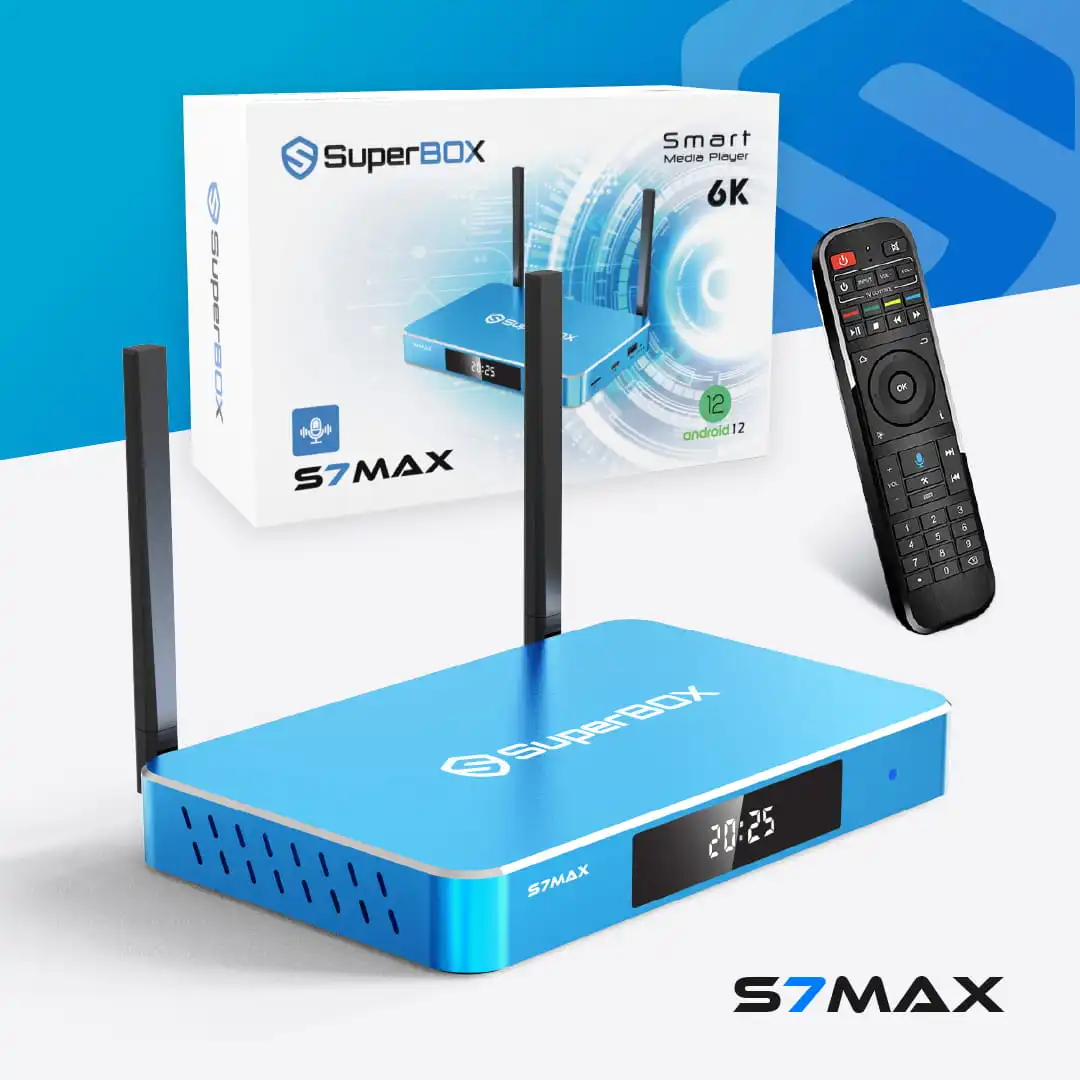
SuperBox S7 Max
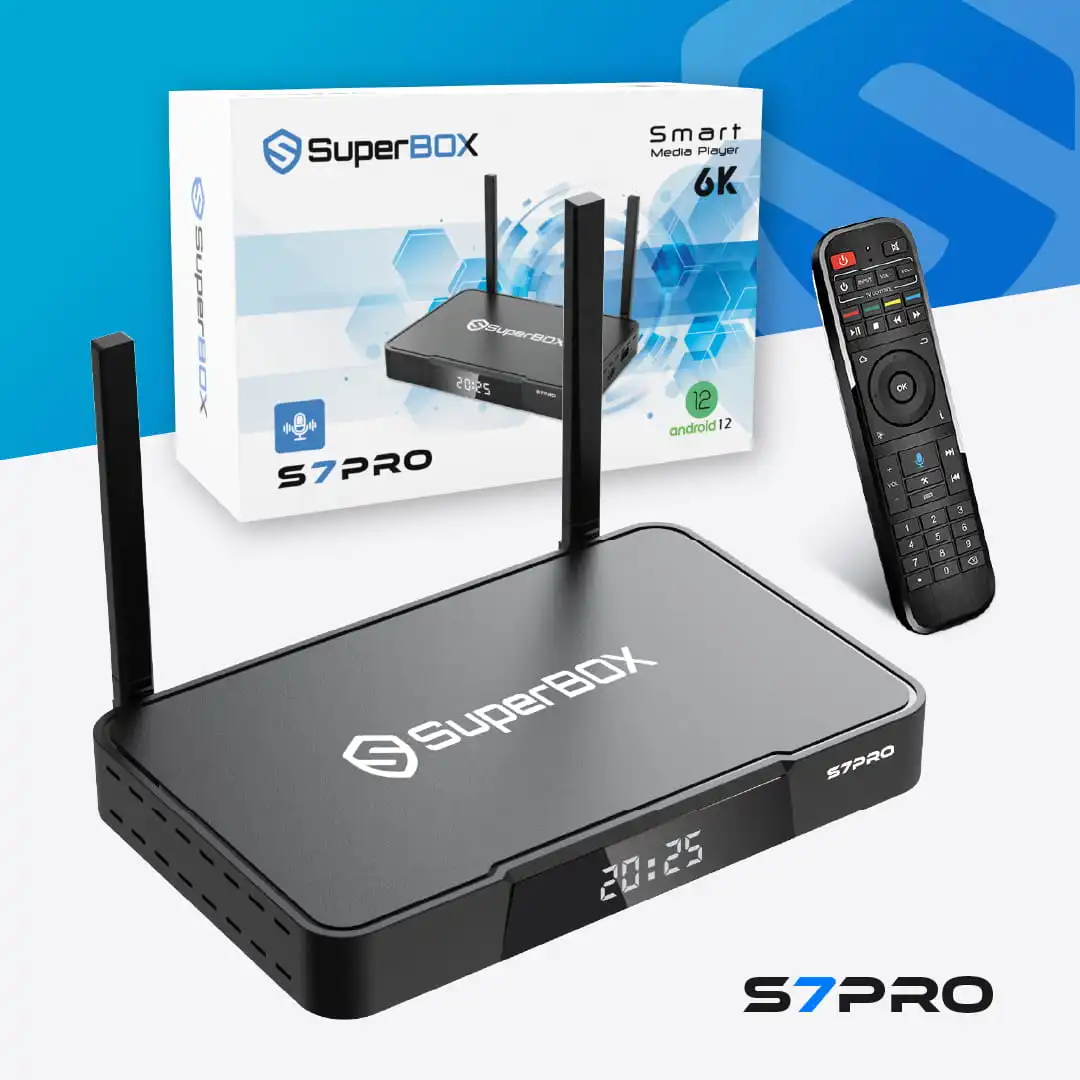
Original price was: 429.00 $.399.00 $Current price is: 399.00 $.SuperBox S7 Pro
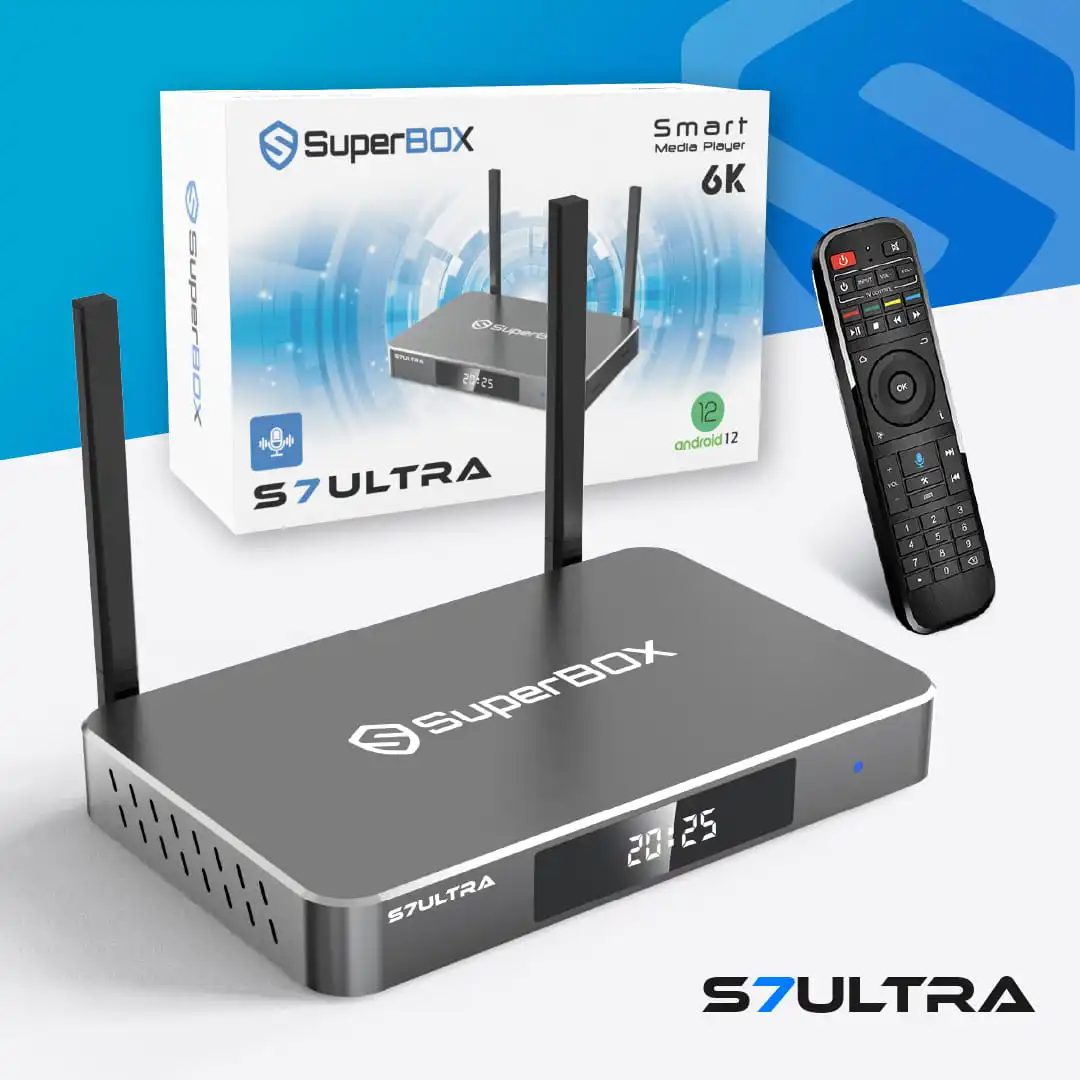
Original price was: 399.00 $.359.00 $Current price is: 359.00 $.SuperBox S7 Ultra
Original price was: 489.00 $.449.00 $Current price is: 449.00 $.
Why Connect Your Superbox S7 Max to WiFi 6?
Upgrading your Superbox S7 Max to a WiFi 6 connection isn’t just about faster numbers; it’s about transforming your entire streaming experience. WiFi 6 (802.11ax) is designed to handle the demands of modern smart homes and high-resolution streaming, offering several key advantages for your Android TV box.
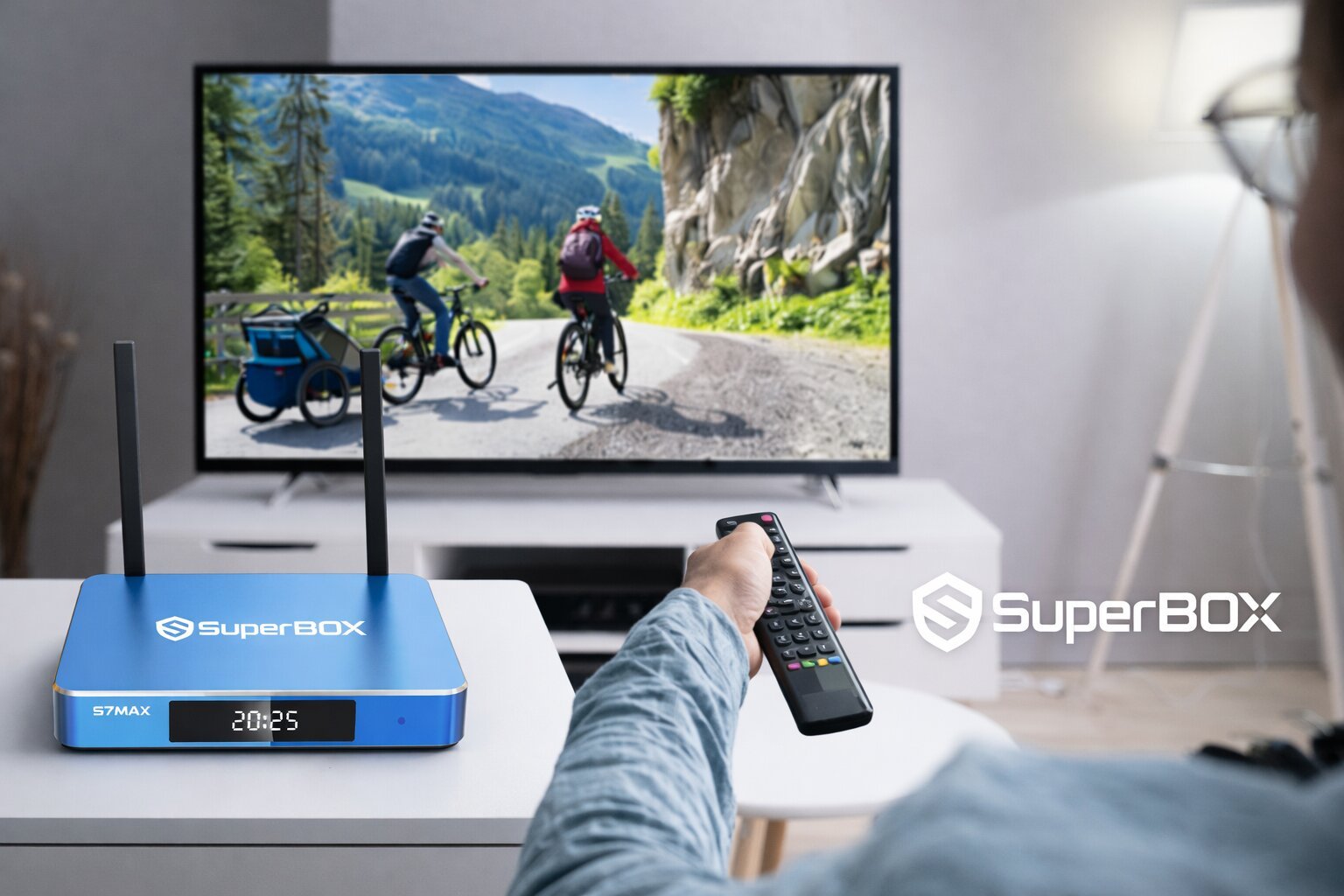
- Faster Speeds and Reduced Buffering: WiFi 6 delivers higher theoretical speeds and more efficient data transfer. This means quicker app loading times, faster downloads, and a smoother, buffer-free experience, even with high-bitrate 6K video. You will notice a significant improvement in your 6K streaming WiFi 6 performance.
- Improved Performance in Congested Environments: In homes with numerous connected devices, older WiFi standards can struggle. WiFi 6, with technologies like OFDMA WiFi 6 technology, efficiently manages multiple devices simultaneously. This ensures your Superbox S7 Max maintains a consistent, high-quality signal.
- Lower Latency: WiFi 6 significantly reduces lag, making gaming, video calls, and live streaming buttery smooth. This is crucial for a responsive streaming device.
- Enhanced Network Stability: The advanced features of WiFi 6 contribute to a more stable and reliable wireless connection. This is crucial for uninterrupted 4K/6K streaming and overall network stability Superbox S7 Max.
- WPA3 Security: WiFi 6 often incorporates WPA3, the latest and most robust WiFi security protocol. This offers stronger encryption and better protection against cyber threats, enhancing your WPA3 security for WiFi 6.
What You Need Before You Start: Essential Prerequisites
Before you begin connecting your Superbox S7 Max to WiFi 6, ensure you have the following:
- A Superbox S7 Max Device: The Superbox S7 Max explicitly supports Dual Band WiFi 6 (802.11ax), confirming its compatibility.
- A WiFi 6 (802.11ax) Compatible Router: This is essential to create the WiFi 6 network. You need a new WiFi 6 router to fully utilize the benefits.
- An Active Internet Connection.
- Your WiFi Network Name (SSID) and Password. These are vital for your Superbox S7 Max WiFi 6 setup guide.
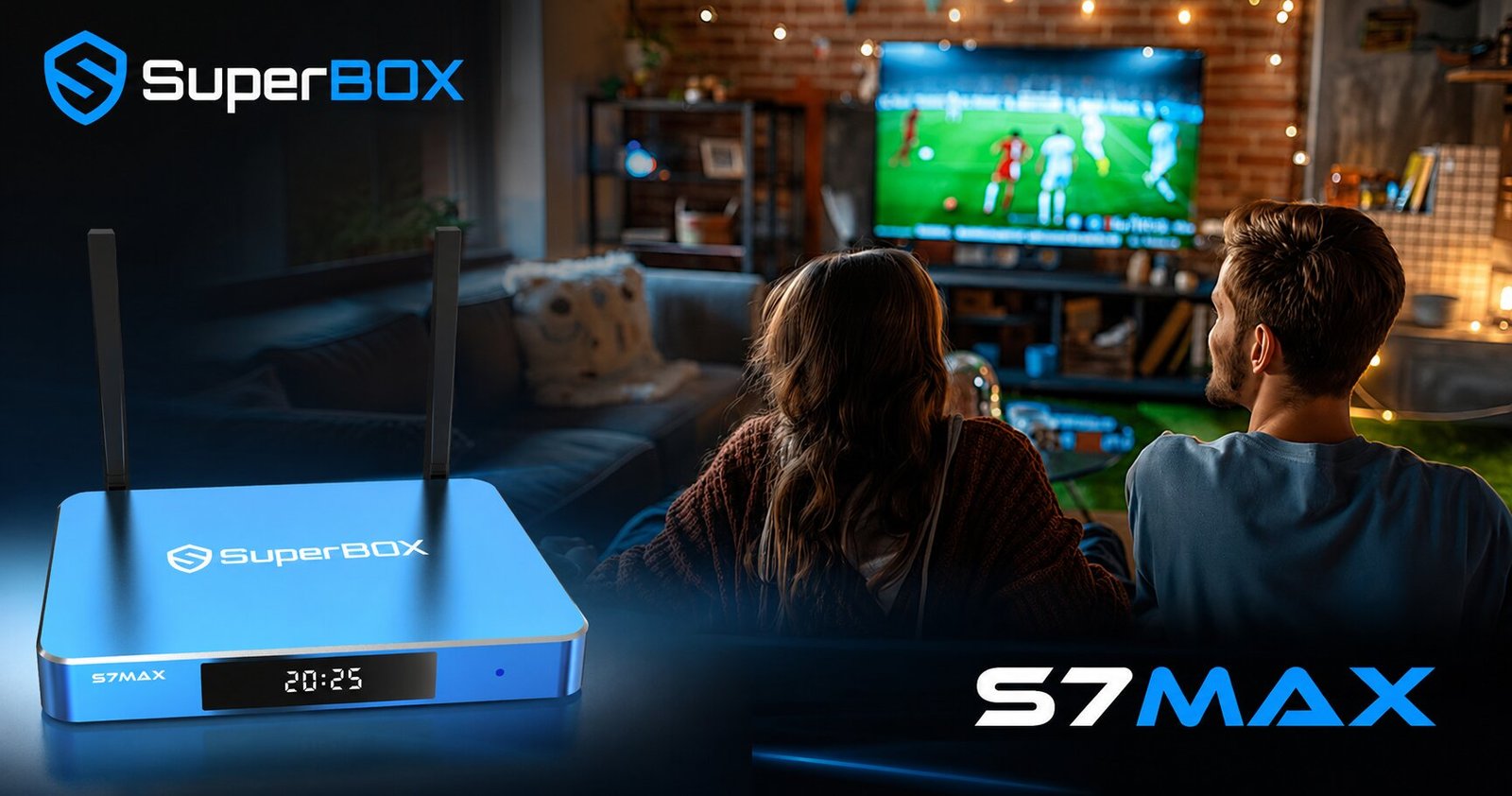
Step-by-Step Guide: How to Connect Your Superbox S7 Max to WiFi 6
Step 1: Power On Your Superbox S7 Max and TV
Ensure your Superbox S7 Max is connected to your TV via an HDMI cable and powered on. Turn on your TV and select the correct HDMI input. This is the first of your Superbox S7 Max internet connection steps.
Step 2: Access Network Settings
On your Superbox S7 Max home screen, navigate to the “Settings” menu. This is usually represented by a gear icon. From the Settings menu, select “Network & Internet” or a similar option to access your Superbox S7 Max WiFi 6 network settings.
Step 3: Enable Wi-Fi and Select Your Network
Within the “Network & Internet” section, ensure Wi-Fi is turned “On.” A list of available Wi-Fi networks will appear. Locate and select your WiFi 6 network from the list. Your WiFi 6 network might have a distinct name or indicate its capability, especially if you are connecting Superbox S7 Max to 5GHz WiFi 6 network.
Step 4: Enter Your WiFi 6 Password
Using the on-screen keyboard, carefully enter your Wi-Fi network password (WPA/WPA2/WPA3 key). Remember that passwords are case-sensitive. This is a crucial part of how to set up Superbox S7 Max with WiFi 6 router.
Step 5: Confirm Connection and Verify
After entering the password, confirm the connection. Your Superbox S7 Max should now connect to your WiFi 6 network. You can verify the connection by checking the Wi-Fi symbol on the home screen or by attempting to stream content. This completes the Superbox S7 Max WiFi 6 setup guide.
Optimizing Your Superbox S7 Max WiFi 6 Connection
Router Placement for Best Signal
Position your WiFi 6 router centrally in your home. Ideally, place it within line of sight of your Superbox S7 Max to minimize signal obstruction from walls or other electronics. This helps in improving WiFi signal Superbox S7 Max.
Choosing Between 2.4GHz and 5GHz Bands
WiFi 6 operates on both 2.4GHz and 5GHz frequencies. Understanding 2.4 GHz vs 5 GHz WiFi for Superbox S7 Max is important.
- 2.4GHz: Offers wider coverage and better penetration through walls but is generally slower and more prone to interference.
- 5GHz: Provides faster speeds and lower latency but has a shorter range and is more easily obstructed.
For 4K/6K streaming, the 5GHz band is generally recommended due to its higher bandwidth and lower latency. Your WiFi 6 router might use “band steering” to automatically direct devices to the optimal band, facilitating a Superbox S7 Max dual-band WiFi 6 connection.
Router Configuration Tips (Firmware, WPA3)
Ensure your router’s firmware is up to date. Verify that WiFi 6 (802.11ax) is enabled in your router’s wireless settings. Consider enabling WPA3 security if both your router and Superbox S7 Max support it for enhanced security. This involves proper WiFi 6 router configuration for Superbox S7 Max.
Minimizing Interference
Other electronic devices like microwaves or cordless phones can interfere with WiFi signals. Try to minimize these sources near your Superbox S7 Max and router to avoid wireless connection issues Android TV box.
Troubleshooting Common Superbox S7 Max WiFi 6 Connection Issues
Network Not Appearing
Ensure your WiFi 6 router is powered on and broadcasting. Check if the Superbox S7 Max is within range of your router. Restart both your router and the Superbox S7 Max. Verify your router’s SSID (network name) is not hidden. If your Superbox S7 Max not connecting to WiFi 6, these steps are a good starting point.
Incorrect Password or Authentication Problems
Double-check the Wi-Fi password; it is case-sensitive. Restart both devices. “Forget” the network on the Superbox S7 Max and try reconnecting. Go to Settings > Network & Internet, select your Wi-Fi network, and choose “Forget network.” Then re-select and enter the password. Check your router’s security settings (e.g., WPA2/WPA3) as part of Superbox S7 Max WiFi 6 troubleshooting.
Slow Speeds or Buffering
Check your internet service provider (ISP) speed to ensure it meets the requirements for 4K/6K streaming. Move the Superbox S7 Max closer to the router. Ensure other devices aren’t heavily saturating the network. Try switching between 2.4GHz and 5GHz bands if your router broadcasts separate SSIDs for them. For the most stable and highest-bandwidth connection, consider using a wired Gigabit Ethernet connection, which the Superbox S7 Max supports. This helps address internet speed for 4K/6K streaming.
Firmware Updates for Superbox S7 Max and Router
Ensure both your Superbox S7 Max and your router have the latest firmware installed. Updates often include performance and connectivity improvements, which can resolve Superbox S7 Max WiFi 6 compatibility issues.
Buying the $399 SuperBox S7 Max, 10% OFF at SuperBox TV Box Store
SuperBox TV Box Store is the most trusted retailer of authentic SuperBox TV Box S6, S7, and S8 series in the US and Canada. We provide genuine products, secure payment, fast delivery, and reliable customer support.
The SuperBox S7 Max is now available for $399.00 instead of $429.00, with tax included and free shipping. It comes with 4GB DDR3 memory, 64GB eMMC storage, a backlit voice remote, HDMI 2.1 cable, Type-C power cable, and user guide.
The S7 Max also includes pre-loaded entertainment apps such as Blue TV, Blue VOD, Playback App, 7-Day Playback, Rewind Feature, international viewing options, and 7 Bonus Prime Apps. Apps are ready to use after setup.
Each order also includes an exclusive gift bundle: Mini Keyboard, 64GB Micro SD Card, and 6-in-1 Adapter Hub.

Special Offer: Use coupon code SAVE10 to get 10% OFF your order.
To help customers shop with confidence, SuperBox TV Box Store provides:
- Free shipping in the USA & Canada: 1 business day processing, USA delivery in 2–5 business days, Canada delivery in 3–5 business days.
- Secure payment: Stripe and PayPal checkout with PCI-DSS compliance and AES-256 encryption.
- 30-day returns: unused items can be returned within 30 days, with no restocking fee.
- Refund protection: cancellations before shipment receive a 100% refund within 24 hours; approved refunds take 5–10 business days.
- Warranty support: orders are verified with serial number recording, packaging video, warranty seal, and service response within 24 business hours.
Order the SuperBox S7 Max today from SuperBox TV Box Store for $399.00, with free shipping, exclusive gifts, and dependable after-sales support.
Besides the SuperBox S7 Max, you can also check out other models like the S7 Pro or S7 Ultra.
Special Offer: Use coupon code SAVE10 to get 10% OFF your order.
SuperBox S7 Max
Original price was: 429.00 $.399.00 $Current price is: 399.00 $.SuperBox S7 Pro
Original price was: 399.00 $.359.00 $Current price is: 359.00 $.SuperBox S7 Ultra
Original price was: 489.00 $.449.00 $Current price is: 449.00 $.
=> Browse and shop the SuperBox S7 lineup today!
Frequently Asked Questions (FAQs) About Superbox S7 Max and WiFi 6
Is the Superbox S7 Max compatible with WiFi 6?
Yes, the Superbox S7 Max explicitly supports Dual Band WiFi 6 (802.11ax).
What are the main benefits of WiFi 6 for streaming on my Superbox S7 Max?
WiFi 6 offers faster speeds, reduced buffering, lower latency, and improved performance in congested network environments, all crucial for smooth 4K/6K streaming.
Do I need a new router to use WiFi 6 with my Superbox S7 Max?
Yes, you need a WiFi 6 (802.11ax) compatible router to create a WiFi 6 network.
Which is better for my Superbox S7 Max, 2.4GHz or 5GHz WiFi 6?
For 4K/6K streaming, the 5GHz band is generally recommended due to its higher bandwidth and lower latency.
What should I do if my Superbox S7 Max isn’t connecting to my WiFi 6 network?
Try restarting both your Superbox and router, forgetting and re-adding the network, or checking your router’s settings. A factory reset can also resolve persistent issues.