
Knowledge SuperBox
SuperBox Ethernet Connection Guide for TVs Far From the Router





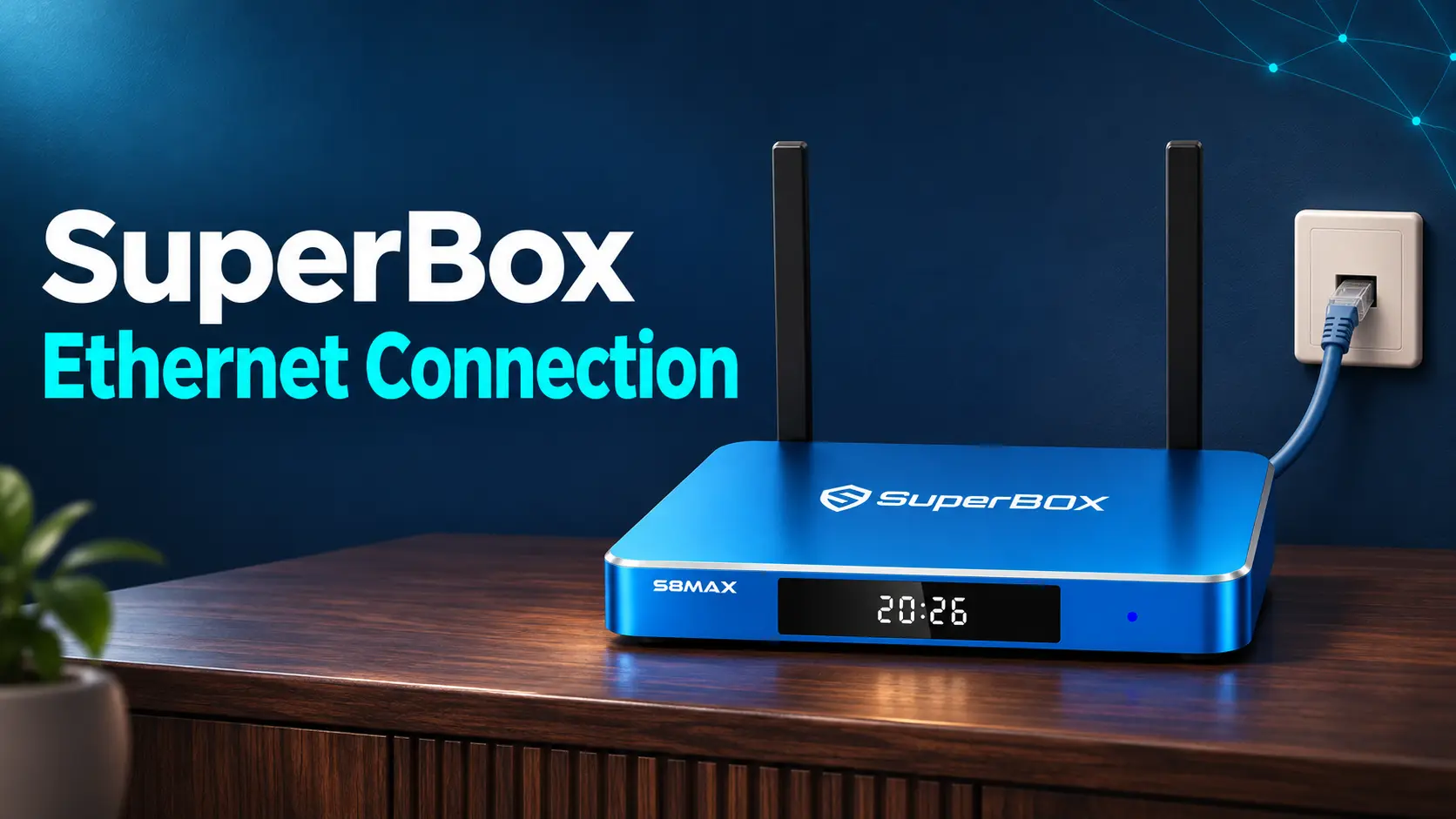
A SuperBox Ethernet connection can work even when your router is in another room. Start by finding out what connects the TV area to your router. An active Ethernet wall jack can carry the connection through the house. A network switch can share that one connection with your SuperBox, TV, and game console. A mesh unit with a usable Ethernet port can also connect the box, though some mesh units still use Wi-Fi to reach the main router.
The practical difference is where the cable ends. If you can follow cables all the way from your SuperBox to the home router, the local path is wired. If a mesh unit or bridge connects upstream wirelessly, part of the path still depends on that wireless link. Knowing which setup you have helps you choose the right equipment before you start moving furniture or buying cables.
Choose the Ethernet route that fits your TV room
| What’s near the TV | Where the SuperBox cable goes | What to verify |
|---|---|---|
| Your main router or internet gateway | A working LAN port | The jack serves home devices. |
| An Ethernet wall jack | The wall jack | The matching cable connects to the router or a switch on your home network. |
| One active wall jack for several devices | A powered Gigabit Ethernet switch | The switch uses the wall jack as its one connection back to the router. |
| A mesh unit | A port that supports wired devices | Check whether the unit’s link back to the main router is wired or wireless. |
Look for the network port on the back of the box. HDMI goes to the TV for the picture and sound. Ethernet goes to your home network for internet access. If your router is already next to the TV, run a short Ethernet cable to a LAN port and follow our SuperBox S8 internet setup guide. That direct connection also makes a useful test before you try a longer route through your home.
Use an Ethernet wall jack when the router is in another room
Find where the room’s cable ends
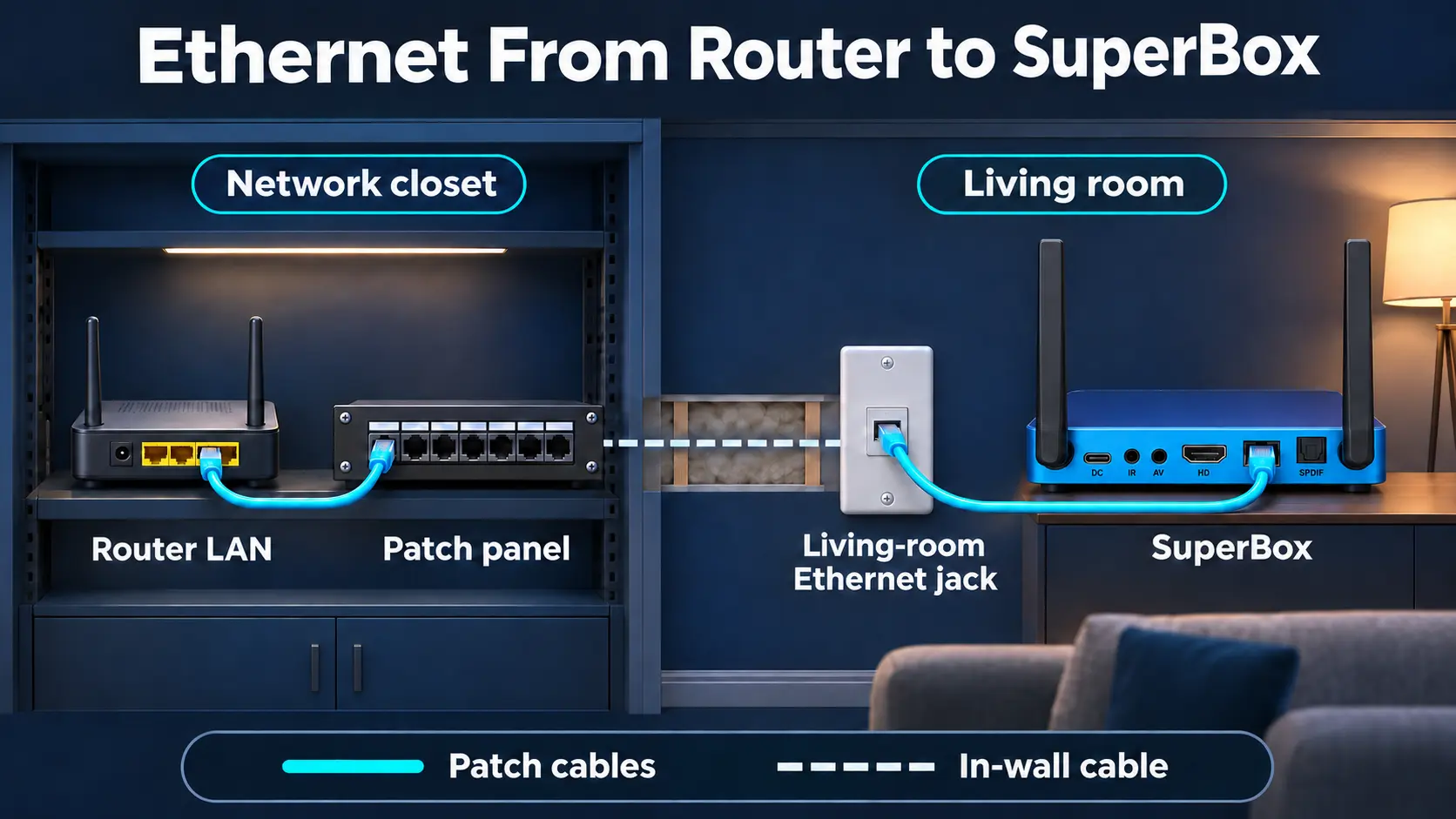
A wall plate near the TV can save you from running a cable across the house. Find the other end of the room’s wiring first. In some homes it ends at another wall jack next to the router. In others, cables from several rooms come together in a communications cabinet. A row of sockets in that cabinet may be a patch panel, which gives you an accessible endpoint for each room cable.
Look for a label such as Living Room, Family Room, or a port number that matches the faceplate. Connect that panel port to a LAN port on your router or to a switch already connected to the router. Use a short Ethernet patch cable for this join. The panel provides a physical connection to the room. The router and switch provide the active network connection. In a rental or building with shared networking, ask whoever manages the wiring to identify the outlet and how it is connected. Leviton’s guide to home data outlets and patch panels
Some older wall plates were fitted for telephone service. A label and a matching endpoint give you better evidence than the shape of the socket alone. If the cabinet has loose wire ends or a telephone distribution module, get the room run identified and terminated for data before relying on it. Start with a different active outlet if that gives you a working path sooner.
Verify the outlet before you install the box
At the TV, plug one end of a short, working Ethernet cable into the wall jack. Connect the other end to a laptop with Ethernet or a compatible Ethernet adapter, if you have one. Temporarily turn off the laptop’s Wi-Fi so you can tell which connection it is using. Open a website to check that the wall outlet reaches the internet over the cable. Then move that same cable to the SuperBox.
This test is useful when you have several nearby wall ports or an installer left the wiring unlabelled. An internet connection on the laptop confirms a usable wired route at that outlet at the time of the test. If it fails there, test the same laptop and cable directly at the router. A working direct test gives you a reference before you look again at the room wiring or its connection in the cabinet. Label both ends once you identify the working run. A simple label helps later if someone moves the router or unplugs a cable to make room for a new device.
Share one active Ethernet connection with a switch
Suppose your TV stand has one working wall jack and three devices you want wired. Place a small unmanaged Gigabit Ethernet switch at the stand. A switch adds network ports. It uses your existing router and internet connection. “Unmanaged” means you can use it as a basic plug-in device for this job, with no network settings to configure on the switch.
- Connect the active wall jack to one port on the switch, or to the uplink port if the switch labels one for that purpose.
- Plug in the switch’s supplied power adapter.
- Run separate Ethernet cables from the switch to the SuperBox and each other device.
- Test the SuperBox first, then connect the rest of the equipment so you know what changed.
A five-port switch leaves four ports for devices once you use one to reach the home network. If your router is beside the TV, a spare router LAN port can feed the switch directly. Keep the switch downstream of the home router. A typical setup uses one Ethernet connection from the switch back to the router. Google’s guide to adding Ethernet ports
There are two useful places for a switch. Put it in the communications cabinet if you want to connect several rooms and the router has too few free LAN ports. Put it by the TV if one room already has a working connection and you want to serve several devices there. If you’re only wiring the SuperBox and its wall jack is active, the cable can go straight to the box. Save the switch purchase for when you need those extra ports.
If your smart TV is already using the room’s only Ethernet cable, you can move that cable to your SuperBox for a quick test. Check the TV’s connection again afterward if you also watch apps built into the TV. If you want both devices wired, feed the switch from the wall jack and run a separate cable from the switch to each device. The SuperBox still connects to an HDMI input on the TV. When you switch from a built-in TV app to a SuperBox app, select that HDMI input as usual.
Image 3 · One jack and three devices · 1600 × 900 · Editorial brief
Description Illustrate an active Ethernet wall jack feeding one powered Gigabit switch. Show separate Ethernet cables branching from the switch to the SuperBox, smart TV, and console. Keep the single wall-jack connection distinct from the outgoing cables.
Caption A network switch shares one active Ethernet outlet with the devices at your TV stand.
Alt text One Ethernet wall jack feeding a switch connected to SuperBox, a smart TV, and a game console.
Check how a mesh unit connects back to the router
A cable to a wireless mesh unit still uses Wi-Fi upstream
Plugging the SuperBox into a mesh unit can be helpful if the unit receives a better wireless signal than the box tucked behind your TV. The cable covers the short distance between the SuperBox and that unit. The mesh unit then sends the traffic wirelessly to the rest of the network if that’s how it connects. If the mesh unit itself has a weak link, moving the box to Ethernet at the unit can leave that weak segment in place.
Check the exact model and its port roles. For instance, the original Google Nest Wifi point has no Ethernet jack, while the Nest Wifi router and Nest Wifi Pro router do. Even within one product family, the device sitting in your bedroom may differ from the main unit in the hall. Your mesh app or manufacturer’s guide can help you find out which unit you have and what connection it’s using. Google’s comparison of Nest and Google Wifi hardware
A wired mesh unit can extend the wired path to the TV
The connection linking the mesh units to one another is called backhaul. With Ethernet backhaul, the satellite near the TV uses a cable to connect back to the main network. If your model supports that setup and has a LAN port available for a device, you can plug the SuperBox into the satellite. Check the mesh app afterward for the satellite’s connection type if it reports one. Follow your own equipment’s wiring guide, since the upstream port used to hardwire a node varies by mesh system. eero’s guide to Ethernet backhaul
Image 4 · Wired and wireless mesh backhaul · 1600 × 900 · Editorial brief
Description Use two stacked routes, each with SuperBox, Mesh unit, and Main router. Show the cable from SuperBox to mesh in both. Use a dashed line plus the label “Wireless backhaul” in the first route and a solid line plus “Ethernet backhaul” in the second.
Caption Check how the mesh unit connects to the router to tell whether the whole local path is wired.
Alt text Two SuperBox mesh routes compared, one with a wireless link to the router and one wired throughout.
If there’s already an active wall jack beside the satellite and you only need Ethernet for the SuperBox, connect the box right to the jack. If you want to hardwire both the satellite and the SuperBox from the same outlet, check your mesh system’s instructions for where a switch belongs. That way, the room’s Wi-Fi coverage and the TV’s wired connection can use the existing cable run in an arrangement your equipment supports.
Check the path before moving the SuperBox back into place
Run a direct test, then add the room wiring
Start with one short, known-good Cat5e or Cat6 cable from the SuperBox to a working router LAN port. If the TV is far away, it can be easier to use a spare screen near the router for this test. On an S8, open Settings and review the connection in Network & Internet. Temporarily turn Wi-Fi off during the comparison if you need to confirm the box is using the cable. Open a familiar app and make sure it loads. See where to find the S8 network settings
Then return the box to the TV room. If you’re using a wall outlet and a switch, test the wall outlet on its own first. Add the powered switch after you know the outlet works. If you’re using mesh, test at the satellite and check its upstream connection. Play the same channel or video over each route when you can. Keep the app and other conditions as similar as possible so the comparison tells you something about the connection you changed.
If it’s easier to move a laptop than a TV box, use the laptop to test the router, then the room jack, then the switch. A successful laptop check confirms that device can use the room’s wired path. Finish by testing on the SuperBox itself. If the box fails even on the direct route while another wired device works with the same cable and port, the store’s wired connection troubleshooting guide covers the next checks.
Read the link speed and internet speed separately
The SuperBox S8 Max lists Gigabit Ethernet, which describes the capacity class of the local network port. The actual link speed is what the two devices at either end of a cable agree to use. The internet speed you see in a test also depends on your plan, the rest of the network path, and the server used for the test.
If the switch or router reports 100 Mbps on a link you expected to run at 1 Gbps, check the port specifications first. Older switches or ports may be rated for 100 Mbps. When both wired ports are Gigabit-capable, swap the short patch cable for a known-good Cat5e or Cat6 cable and check the reported link again. If the box reaches Gigabit directly at the router and drops to 100 Mbps only on the room route, test each added cable or device in turn. TP-Link’s guide to Ethernet link speed
Check the specific segment you’re measuring. The SuperBox can show a Gigabit link to a nearby switch even when the switch’s own connection back to the router is slower. The same idea applies to mesh. A fast link from the SuperBox to the satellite says little about a weak wireless link from that satellite back to the router. If your router or switch shows port speeds, check both sides of the extra equipment.
Use the results to decide what to change
| What you observe | The next place to check |
|---|---|
| The box works at the router but the room’s wall jack fails with a laptop too. | Match the room jack to the correct panel port and check its connection to a live LAN port. |
| The wall jack works until you add a switch. | Check switch power, its network feed, and the cable from switch to box. |
| The box connects to the mesh unit but video is steadier at the main router. | Check the satellite’s upstream connection and placement. |
| Both routes load other apps, but one channel fails on each. | Check that channel or app separately and record the error. |
| The SuperBox and another wired device both fail at the router. | Check whether the router and internet service are online before changing the TV-room wiring. |
A link icon or port light can show that the connected equipment sees an Ethernet link. Open an app to check that the SuperBox can reach the internet. When multiple apps load and one live channel still stalls, note what happens on another channel in the same app. This gives you a clearer report than a speed test by itself. See the separate buffering and freezing guide
When your TV room has no Ethernet outlet
If the room has a compatible mesh unit and it receives a good signal, try one short cable from the SuperBox to that unit. Test it during the hours you actually watch. A remote unit placed somewhere with better reception can be more useful than a long cable across the floor. When it performs the same as the box’s own Wi-Fi, you can keep whichever setup is easier to live with. Improve Wi-Fi near your SuperBox
An existing coax outlet is another possibility. A compatible MoCA setup uses connected coax wiring between rooms and gives you Ethernet at the ends. Check the outlets, equipment, and compatibility with your provider or adapter manufacturer before you buy. A powerline kit uses household electrical wiring instead. Its results depend on the wiring and connected equipment, so compare it with your current setup in the actual room. Both options put an Ethernet plug at the TV while using a different medium between rooms. MoCA setup guidance · TP-Link’s powerline overview
What to send support if the wired connection still fails
For a SuperBox purchased directly from our store, email customer@superboxtvboxstore.com with your order number, model, and what happened in the direct-router test. Describe what’s between the box and the router in the room setup. A short description like “living-room wall jack, five-port switch, S8 Max” is enough to start. Include whether another wired device works there, and the app, channel, time, and error if the issue happens during playback. Contact SuperBox TV Box Store
Start with the simplest route you can keep in place. One working wall jack is enough for one SuperBox. Add a switch when you need to share it, and check the upstream mesh connection when the cable ends at a satellite. A short test at the router gives you a reference for every change you make afterward.
The article was updated on:
