
Knowledge SuperBox
Can You Record on SuperBox? Cloud Time Shift vs. USB Recording Guide





One of the most persistent inquiries from cord-cutters transitioning from traditional satellite or cable providers to an Android TV media hub is whether they can record live television. For decades, consumers have relied on digital video recorders (DVRs) to capture prime-time series, live sporting events, and late-night broadcasts. When upgrading to a SuperBox streaming system, understanding how the hardware handles television recording—and the crucial distinction between 7-Day Cloud Playback and local USB drive recording—ensures you never miss your favorite programming.
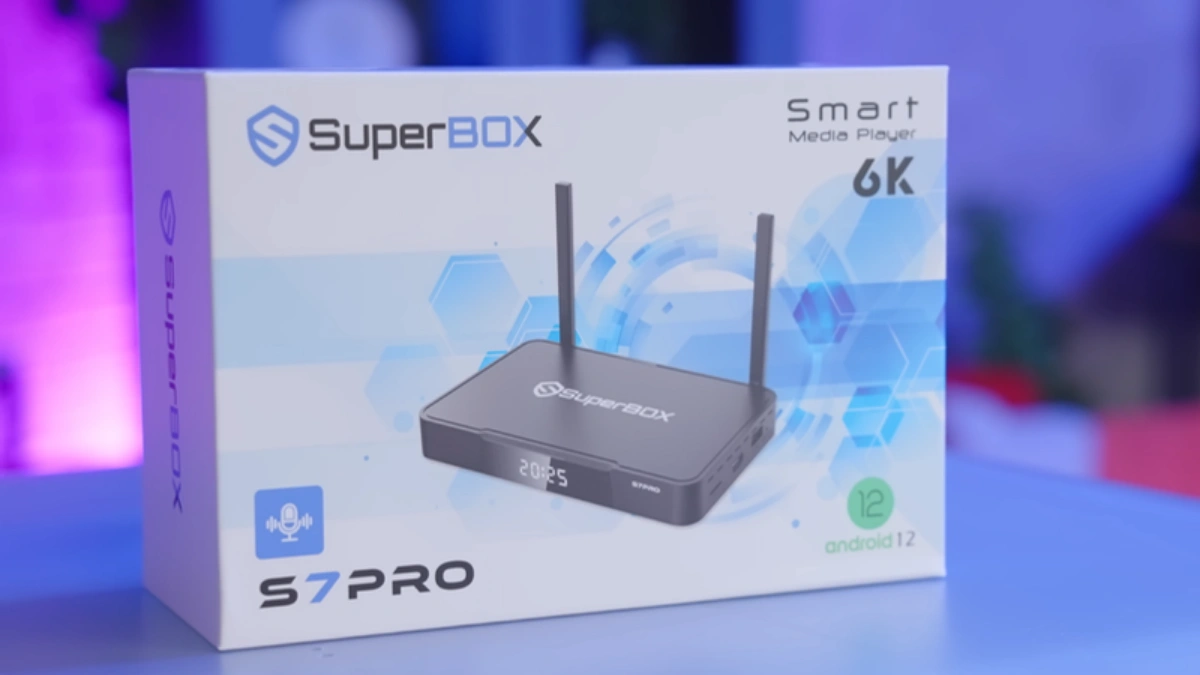
Cloud Playback vs. USB Recording vs. Cable DVR: Architectural Comparison
Traditional television providers force consumers into renting proprietary hardware DVR boxes that store recordings on internal spinning hard drives. These systems suffer from mechanical drive failures, require continuous subscription rentals ($15 to $30 every month), and limit simultaneous recordings based on physical tuner counts. SuperBox approaches television preservation through two distinct technological pathways: high-speed cloud edge caching and direct external storage recording.
| Evaluation Feature | SuperBox 7-Day Cloud Playback | SuperBox S8 USB TV Recorder | Traditional Cable DVR |
|---|---|---|---|
| Storage Location | Remote high-speed CDN cloud servers | External USB 3.0 flash drive or HDD/SSD | Internal mechanical spinning hard drive |
| Local Space Consumed | 0 GB (zero local disk usage) | Consumes attached external USB capacity | Consumes internal 500GB–1TB disk |
| Monthly Service Fees | $0.00 / month forever | $0.00 / month forever | $15.00 – $35.00 / month equipment fee |
| Retention Duration | Rolling 7 continuous calendar days | Permanent (until manually deleted) | Until hard disk capacity fills up |
| Hardware Compatibility | All models (S6, S7, S8, Supreme) | SuperBox S8 Pro, S8 Plus, S8 Max, S8 Ultra | Provider-locked set-top box only |
| Simultaneous Channels | Unlimited across all supported channels | Records active tuned broadcast feed | 2 to 6 channels based on tuner cards |
| Commercial Skipping | Instant 15-second skip via remote | Instant timeline scrubbing via remote | Standard fast-forward / 30s skip |
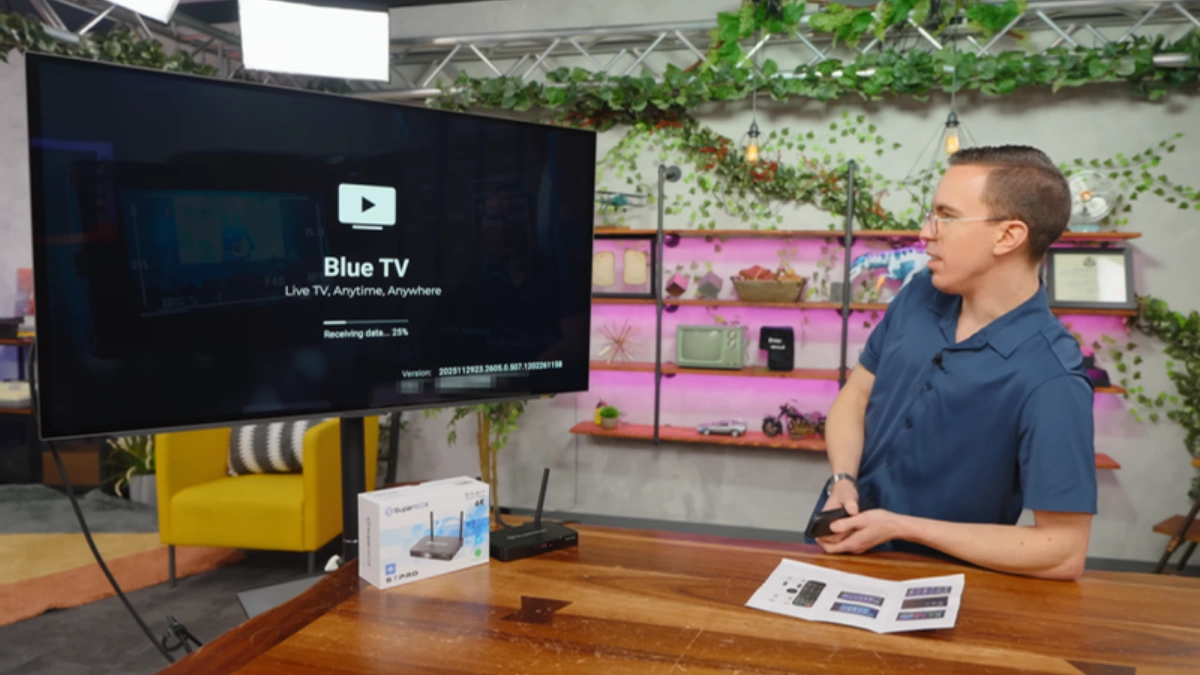
USB Storage Compatibility & Formatting Requirements
When executing local recording on the SuperBox S8 series or using third-party screen recording utilities on S6 or S7 hardware, selecting the proper storage medium is crucial. Live 1080p 60fps streams generate continuous data write streams of 8 to 15 megabits per second. If an external drive’s sustained write speed dips below the stream’s bitrate, frame buffer overflows cause dropped frames, audio sync errors, or corrupted .ts video containers.
| Storage Device Type | Recommended File System | Minimum Sustained Write Speed | Max Single File Size | Suitability Rating |
|---|---|---|---|---|
| USB 3.0 High-Speed Flash Drive | FAT32 / NTFS | 30 MB/s Write | 4GB (FAT32) / Unlimited (NTFS) | Recommended for short sporting events & movies |
| External 2.5″ Portable HDD (1TB–2TB) | NTFS | 60 MB/s Write | Unlimited (No single-file restriction) | Ideal for building long-term seasonal series archives |
| Portable NVMe Solid-State Drive (SSD) | NTFS / exFAT | 250+ MB/s Write | Unlimited (Instant seek response) | Best performance; lowest heat and silent operation |
| Generic USB 2.0 Thumb Drive | FAT32 | 4–8 MB/s Write (Too Slow) | 4GB Limit | Not Recommended (Causes write buffer crashes) |
Critical Formatting Notice: If your external drive is formatted in FAT32, the file system enforces an absolute maximum file size limit of 4 Gigabytes. A 3-hour live high-definition football game will exceed 4GB, causing the recording to terminate abruptly midway through the broadcast. Always format drives larger than 32GB using NTFS to support seamless, uninterrupted multi-hour recordings.
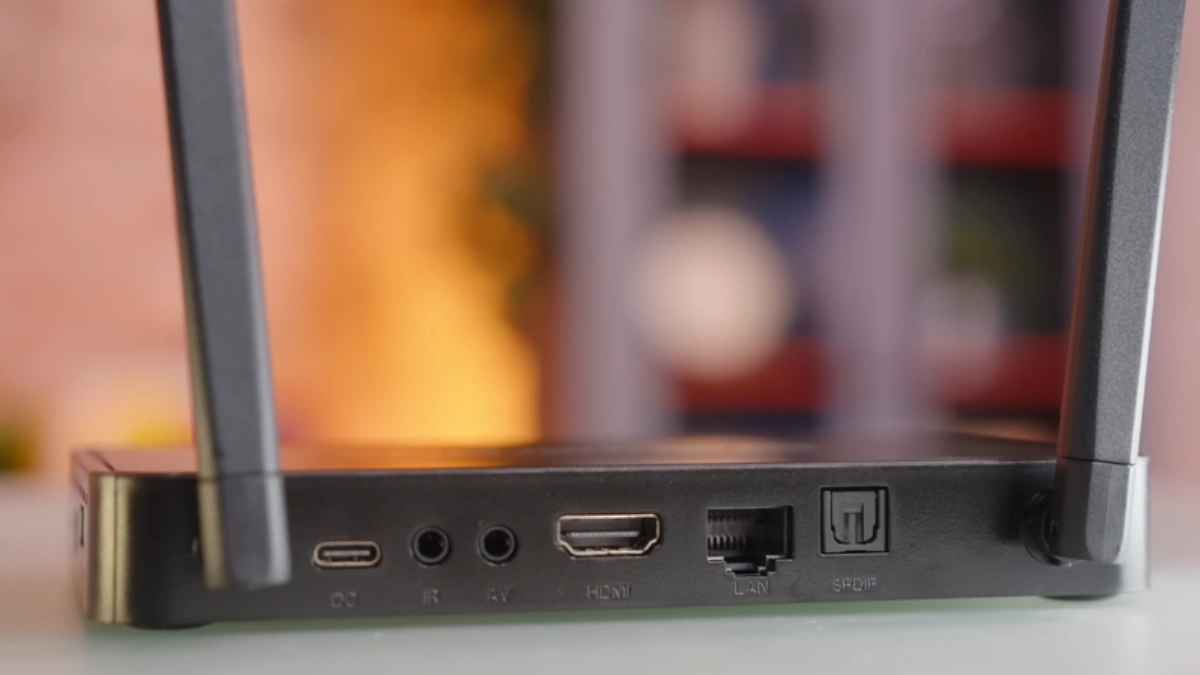
Generational Breakdown: How Recording Functions on S6, S7, and S8
Understanding the exact capabilities of your specific SuperBox hardware model ensures you leverage the right tools for your entertainment setup:
- SuperBox S6 Series (S6 Pro, S6 Max, S6 Ultra – $299.00): Operates on Android 12 with Wi-Fi 5 and 100M Ethernet. Relies on the cloud-based Playback application for 7-day catch-up viewing. Local recording can be achieved by sideloading third-party Android screen capture or IPTV recording APKs to an external USB drive.
- SuperBox S7 Series (S7 Pro $305.00, S7 Max $339.00, S7 Ultra $381.00): Features upgraded Wi-Fi 6, 1000M Gigabit Ethernet, and the RC-200L backlit remote. The 7-Day Playback cloud feature operates with near-instantaneous scrubbing latency thanks to the Gigabit data bus. S7 Max and Ultra models offer enhanced USB 3.0 controller throughput for external media storage.
- SuperBox S8 Series (S8 Pro $359.00, S8 Plus $379.00, S8 Max $399.00, S8 Ultra $449.00): The premier generation for media archivists. Features an integrated, factory-supported TV Recorder app on the home launcher ribbon that allows scheduled or one-touch live recording directly to attached USB drives while retaining full 7-Day Playback access.
EPG-Driven Automated Scheduling vs. Manual Live Capture
Modern recording workflows on Android TV hardware fall into two distinct execution modes: manual real-time capture and automated timer scheduling driven by the Electronic Program Guide (EPG). Understanding how each mode interfaces with the underlying operating system ensures scheduled events record reliably even when you are away from home.
In manual capture mode, pressing record writes the active hardware decoder pipeline directly to the mounted storage sector. However, automated scheduling utilizes Android system alarms (AlarmManager) paired with broadcast metadata. When you select a future program from the EPG schedule, the system registers the exact start and end timestamps. Five minutes prior to broadcast, the scheduler wakes the box from low-power standby, initializes the network interface, tunes the background stream, and begins streaming directly to disk without requiring the television display to power on.
Transport Stream (.ts) vs. MP4 Containers & Bitrate Optimization
Recorded broadcast feeds are written natively as MPEG Transport Streams (.ts). Unlike traditional MP4 containers—which write their file index (the moov atom) only when a recording is gracefully closed—a Transport Stream writes synchronization headers every 188 bytes. This means that if an unexpected power flicker or accidental cord disconnect occurs during a 3-hour recording, every second of video written prior to the interruption remains completely intact and playable.
Furthermore, because the SuperBox saves the original compressed bitstream (H.264 or H.265 HEVC) directly from the broadcast server without re-encoding, there is zero generational quality loss. The recorded video file retains the exact resolution, 60fps frame rate, and Dolby Digital 5.1 spatial audio fidelity of the live broadcast.
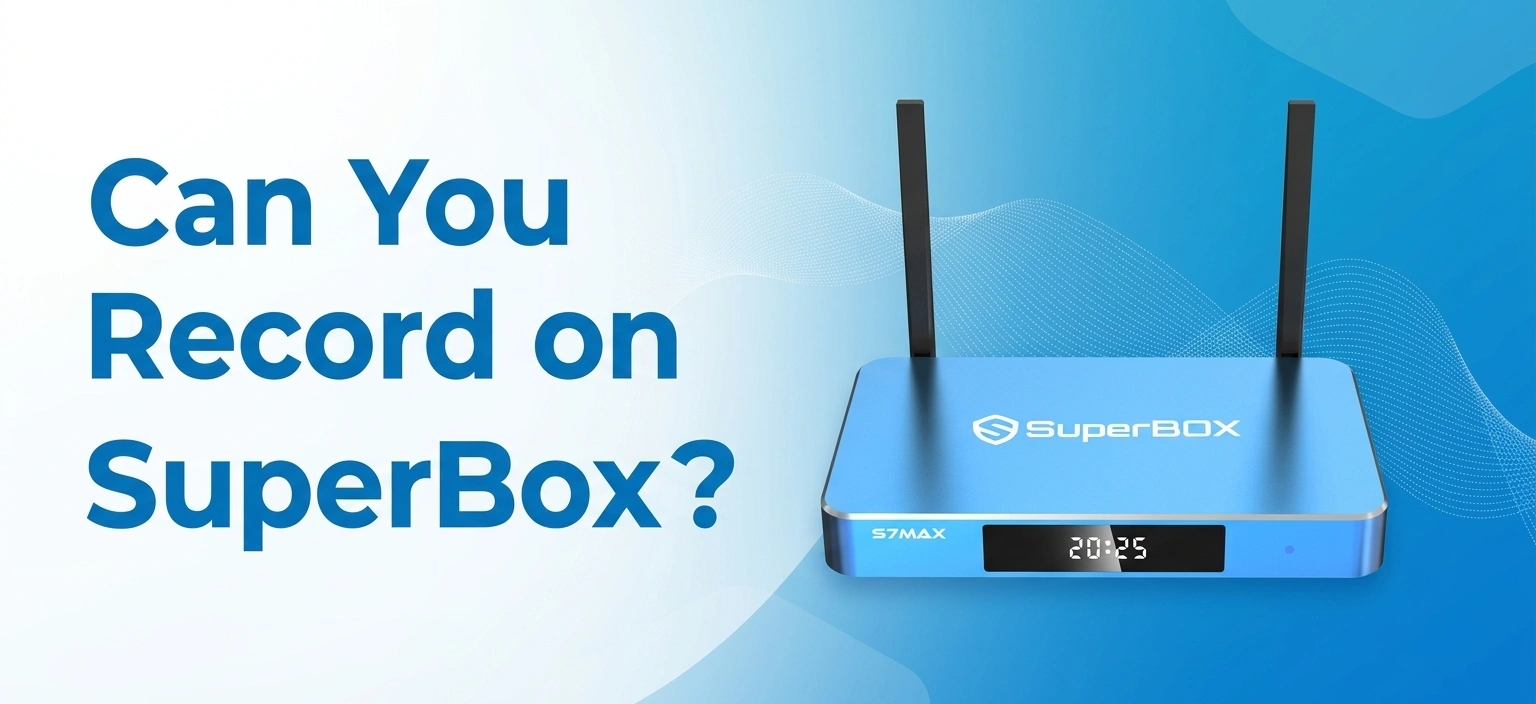
Step-by-Step Guide: How to Record and Catch Up on Live TV
Follow these sequential, verified technical steps to set up external recording media, utilize 7-Day Cloud Playback, or record broadcasts locally.
Step 1: Choose Between Cloud Catch-Up and Local USB Recording
Determine your viewing objective. If you simply want to watch a show, news segment, or sports game you missed earlier today or within the past 7 days, open the Playback application. You do not need to attach any storage device or plan in advance. If you intend to permanently save an event for offline viewing or archive a series permanently, proceed with local USB recording.
Step 2: Prepare and Format an External High-Speed USB Drive
Connect a USB 3.0 flash drive (at least 64GB) or portable external SSD/HDD to your computer. Format the partition using NTFS with standard allocation units. This ensures files larger than 4GB are written continuously without fragmentation or artificial file-size truncation.
Step 3: Connect USB Storage to the Dedicated USB 3.0 Interface
Insert your formatted USB storage device into the high-speed USB 3.0 port (typically color-coded blue) on your SuperBox. On your TV screen, an Android notification will state “USB drive connected.” Navigate to Settings > Storage and confirm that Android registers your external volume with full read and write permissions.
Step 4: Launch the Recording Engine or Navigate to Live Stream
On SuperBox S8 models, launch the native TV Recorder application from the home screen. On S6 and S7 models, open Blue TV and tune into the target broadcast channel, then activate your configured third-party recording companion utility via the remote navigation shortcut.
Step 5: Set Recording Timers or Initiate Instant Live Capture
To capture current live programming, press the Record button on your remote interface or highlight the red on-screen capture icon. A timer prompt will allow you to select recording duration (e.g., 30 minutes, 60 minutes, 180 minutes, or until the scheduled end of the current program according to the EPG guide). Confirm the selection to begin writing video streams to disk.
Step 6: Manage Recorded Video Files and Storage Quotas
When recording concludes, open the My Recordings folder or your preferred file manager. The system stores videos as unencrypted Transport Stream (.ts) or MPEG-4 (.mp4) containers labeled with the channel name, date, and program title. Periodically audit storage utilization to ensure adequate free space remains for upcoming scheduled recordings.
Step 7: Play Back Captured Video Files via Integrated Media Player
Select any recorded title from your storage library and press OK. The integrated hardware video player leverages the SuperBox Mali graphics processor to deliver buttery-smooth 60fps playback with full fast-forward, rewind, and chapter-skip functionality. You can also safely unplug the USB drive and connect it to any Windows PC, Mac, or laptop to watch your recordings completely offline.
Frequently Asked Questions
1. Can I record live television on my SuperBox without buying an external hard drive?
Yes! Every SuperBox model comes equipped with the 7-Day Playback / Time Shift service. This feature automatically records and stores hundreds of live channels on remote cloud servers for up to seven full days. You can pause, rewind, and watch programs from the past week without attaching any physical USB storage or spending extra money.
2. How does the 7-Day Playback feature differ from physical USB recording?
7-Day Playback is cloud-hosted and temporary: broadcasts are stored on high-speed internet servers for 168 hours before being replaced by newer airings, requiring zero local hard drive space. Physical USB recording writes video files directly to an external storage drive connected to your TV box, creating permanent video files that you can keep forever or transfer to a computer.
3. Which SuperBox models feature the built-in native TV Recorder application?
The native, integrated TV Recorder app is a flagship feature engineered specifically for the SuperBox S8 Series, including the S8 Pro ($359.00), S8 Plus ($379.00), S8 Max ($399.00), and S8 Ultra ($449.00). Earlier models (S6 Series at $299.00, S7 Pro at $305.00, S7 Max at $339.00, S7 Ultra at $381.00) utilize the cloud Playback app for catch-up and require third-party Android utilities for direct USB recording.
4. What file system format is recommended for external hard drives on SuperBox?
We strongly recommend formatting external recording drives using the NTFS file system. While FAT32 is compatible with Android, it has a strict 4GB individual file size limitation that causes long live recordings (such as 3-hour sports broadcasts) to fail or split. NTFS supports unlimited file sizes and high continuous write speeds.
5. Can I watch one channel while recording a different channel on SuperBox?
In standard configurations, local USB recording captures the active live stream being decoded by the video hardware. However, on the flagship SuperBox S8 Plus ($379.00), which features hardware-accelerated multi-view and Picture-in-Picture (PiP) processing, users can monitor multiple video streams simultaneously. For S6 and S7 owners, you can watch any program on 7-Day Playback while knowing other channels are automatically being archived in the cloud.
6. Where are recorded video files saved, and can I transfer them to my computer?
Recorded files are saved directly to the designated directory on your external USB drive, typically inside a folder named Recordings or TVRecord. Because the files are stored in standard, non-DRM .ts or .mp4 containers, you can disconnect the USB drive, connect it to any PC or Mac, and play or edit the video files using media players like VLC.
7. How much storage space does a 2-hour high-definition recording consume?
A standard 1080p high-definition live stream broadcast at 60 frames per second typically consumes between 2.5GB and 4.0GB of storage space per hour, depending on the broadcast bitrate. Therefore, a 2-hour sports match or movie will require approximately 5GB to 8GB of free space on your external drive.
8. Why did my scheduled USB recording stop unexpectedly or show a 0KB file?
The three most common causes are: (1) using a drive formatted as FAT32 that hit the 4GB file cap, (2) using an old or slow USB flash drive whose write speed could not keep up with the video stream bitrate, or (3) the SuperBox entering a deep sleep state that powered down the external USB port. Ensure your drive is formatted as NTFS and connected to the high-speed USB 3.0 port.
9. Is there any monthly fee or cloud storage fee to use recording features on SuperBox?
No. Neither the 7-Day Cloud Playback service nor the local USB recording applications require any subscription fees, monthly charges, or DVR equipment rentals. All streaming and recording capabilities are permanently included with your SuperBox purchase.
10. Can I record on-demand movies (VOD) or only live television channels?
Recording functionality is designed specifically for live television broadcasts, news programs, and sports events. On-demand movies and television series available in the Blue VOD application do not need to be recorded because they remain permanently available in the cloud library to stream whenever you choose, complete with pause, rewind, and chapter resume functionality.
The article was updated on:
