
Knowledge SuperBox
SuperBox “Devices Abnormal” Error: Causes and Complete Fix Guide (2026)





Seeing “Devices Abnormal” on a SuperBox can make it look as though the entire device has failed. In most cases, however, the message does not mean that the hardware is permanently damaged.
The correct solution depends on one simple question:
Is this a brand-new SuperBox showing the error during setup, or did the message appear on a device that was working normally before?
A new unit may still require seller activation. A previously working box is more likely to have an affected app with an incorrect or outdated version. These two situations require different fixes, so do not begin by factory resetting the device.
This guide explains how to diagnose and fix the SuperBox Devices Abnormal error, how to distinguish it from Device Forbidden, and what information to send customer support if the problem requires activation or account-side assistance.
Quick answer: If “Devices Abnormal” appears on a brand-new SuperBox, contact the seller that supplied the device and send your order number, model, a photo of the error, and the MAC address displayed on the television. If a previously working SuperBox shows the message only when opening one app, uninstall that affected app and reinstall its latest version from the SuperBox App Store. Do not factory reset the box unless technical support specifically recommends it.
What Does “Devices Abnormal” Mean on SuperBox?
“Devices Abnormal” is a status message that can appear when the device or an application cannot pass its normal startup check. The 2 main scenarios are:
- A new SuperBox has not yet been activated.
- An app on a previously working device has an outdated or mismatched version.
The wording is broad, but the moment when the error appears provides the strongest clue. If it is visible during the first setup or across the device, start with activation. If it appears only after launching a particular application, start with that app.
Diagnose the Error Before Changing Anything
Use this table to choose the correct troubleshooting path.
| What you see | Most likely situation | First action | Do not do first |
|---|---|---|---|
| A brand-new box shows “Devices Abnormal” during setup | Device activation has not been completed | Contact the original seller with the screen MAC and proof of purchase | Do not repeatedly reset or reinstall random files |
| The box worked before, but one app now shows the message | The affected app may have an outdated or conflicting version | Uninstall only that app, then reinstall its latest version | Do not erase the whole device |
| Several apps fail after an update | App or system versions may not be aligned | Record which apps fail and contact support before making broader changes | Do not install unofficial APK packages |
| The screen says “Device Forbidden” rather than “Devices Abnormal” | Device-authorization restriction | Contact the original seller | Do not expect a factory reset to unlock it |
| The App Store is missing after a reset | App Store recovery issue | Follow the App Store restoration procedure | Do not download installers from unknown websites |
Three Details to Check
Before troubleshooting, record:
- The exact wording of the message.
- Whether it appears at startup or only after opening a specific app.
- Whether the SuperBox is new or was working normally before the error began.
This prevents unnecessary steps. “Devices Abnormal,” “Device Forbidden,” an app crash, and a missing App Store are separate problems even when they interrupt the device in similar ways.
Cause 1: A New SuperBox Has Not Been Activated
Some newly shipped SuperBox units may remain inactive until delivery or first-time setup. Activation helps protect a device if a shipment is lost, intercepted, or otherwise does not reach the intended buyer. The seller that supplied the unit is normally the fastest point of contact because the seller can verify the order and device record.
If your new SuperBox displays “Devices Abnormal,” do not assume that it is defective. Gather the information below and contact the original seller.
What to Send the Seller
Provide all of the following in one message:
- Your full name.
- Order number.
- SuperBox model, such as Pro, Max, or Ultra.
- A clear photo of the entire television screen showing the error.
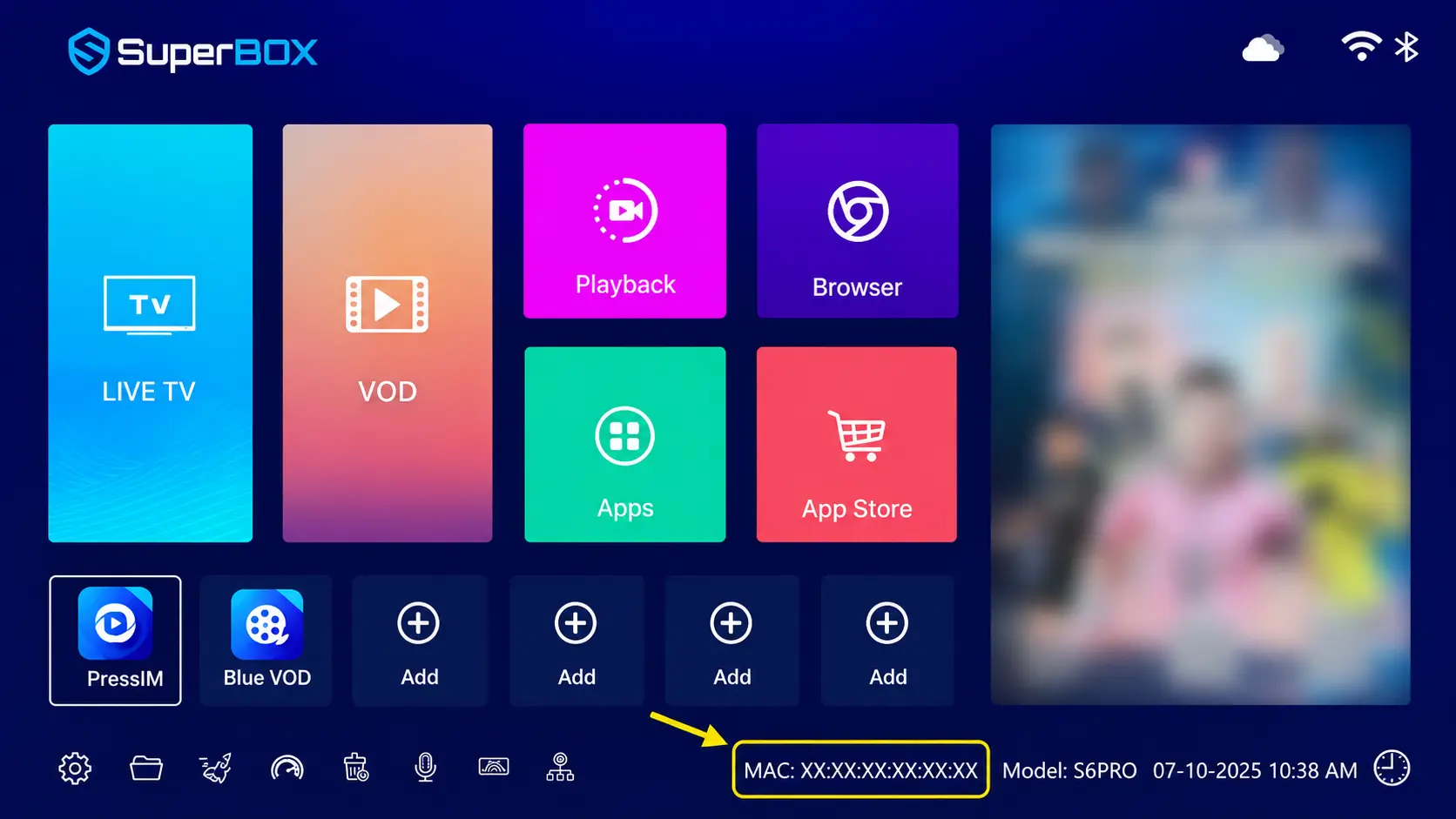
- The MAC address displayed by the SuperBox software on the television.
- A photo of the MAC label on the box or packaging, if available.
The on-screen MAC is particularly important because it identifies the device record currently being reported by the software. If the on-screen MAC differs from the label on the hardware or packaging, send both and clearly identify which one appears on the TV. A label mismatch should be handled by support rather than guessed by the customer.
Contact the Store Where You Purchased the Box
Activation is connected to the sale and device record, so contact the original seller first. If your unit was purchased from SuperBox TV Box Store, use the SuperBox TV Box Store contact page or contact Technical Support on WhatsApp at +852 9674 3876.
If the box came from another website, marketplace seller, or local reseller, contact that seller with the same information. One store generally cannot verify or modify another seller’s order record.
Do not pay an unknown third party to “activate” the device. The official SuperBox common-issues guidance advises customers to send the MAC ID to the seller and warns against unnecessary third-party activation charges.
Cause 2: An Affected App Has the Wrong Version
If the SuperBox worked correctly before and “Devices Abnormal” began appearing after an app update, the affected application may have installed an outdated or incompatible version. The safest approach is to remove only the app producing the error and reinstall the current version from the SuperBox App Store.
Before uninstalling anything, confirm which app triggers the message. Open other normal areas of the device. If the home screen and other apps work, limit the repair to the affected application.
Important: Reinstalling an app may remove that app’s local preferences, favorites, or saved settings. Take photos of any settings you may need to recreate.
How to Fix Devices Abnormal by Reinstalling the Affected App
There are two supported ways to remove an app. Use the home-screen trash function when it is available; use Android Settings when the app is not visible there.
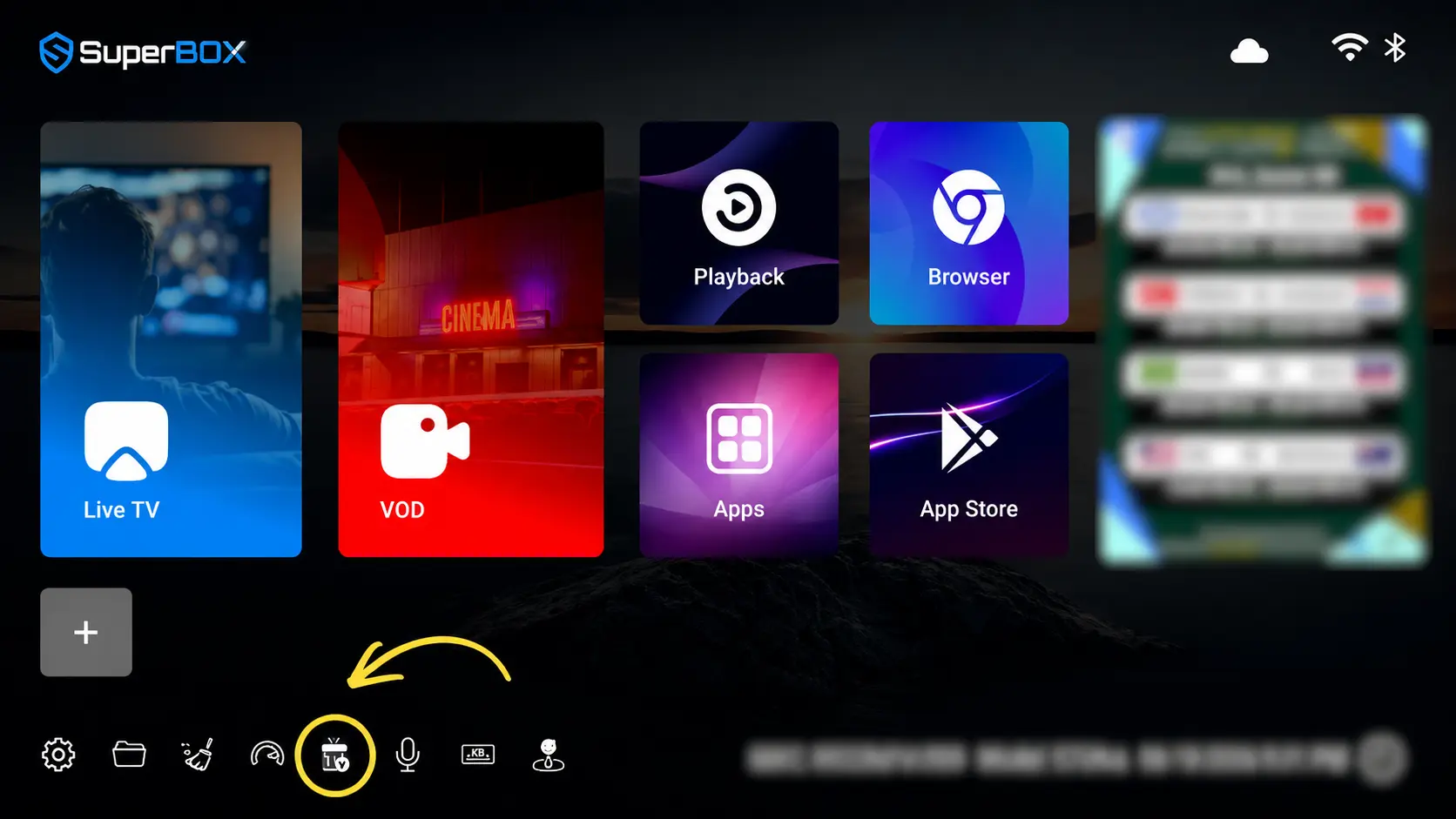
Method 1: Remove the App From the Home Screen
- Return to the SuperBox home screen.
- Move to the trash-bin icon in the lower-left area.
- Open the app-removal screen.
- Select only the app that displays “Devices Abnormal.”
- Confirm the removal.
Be careful not to select a different application. If the interface does not clearly identify the affected app, exit without deleting anything and use Method 2.
Method 2: Remove the App Through Settings
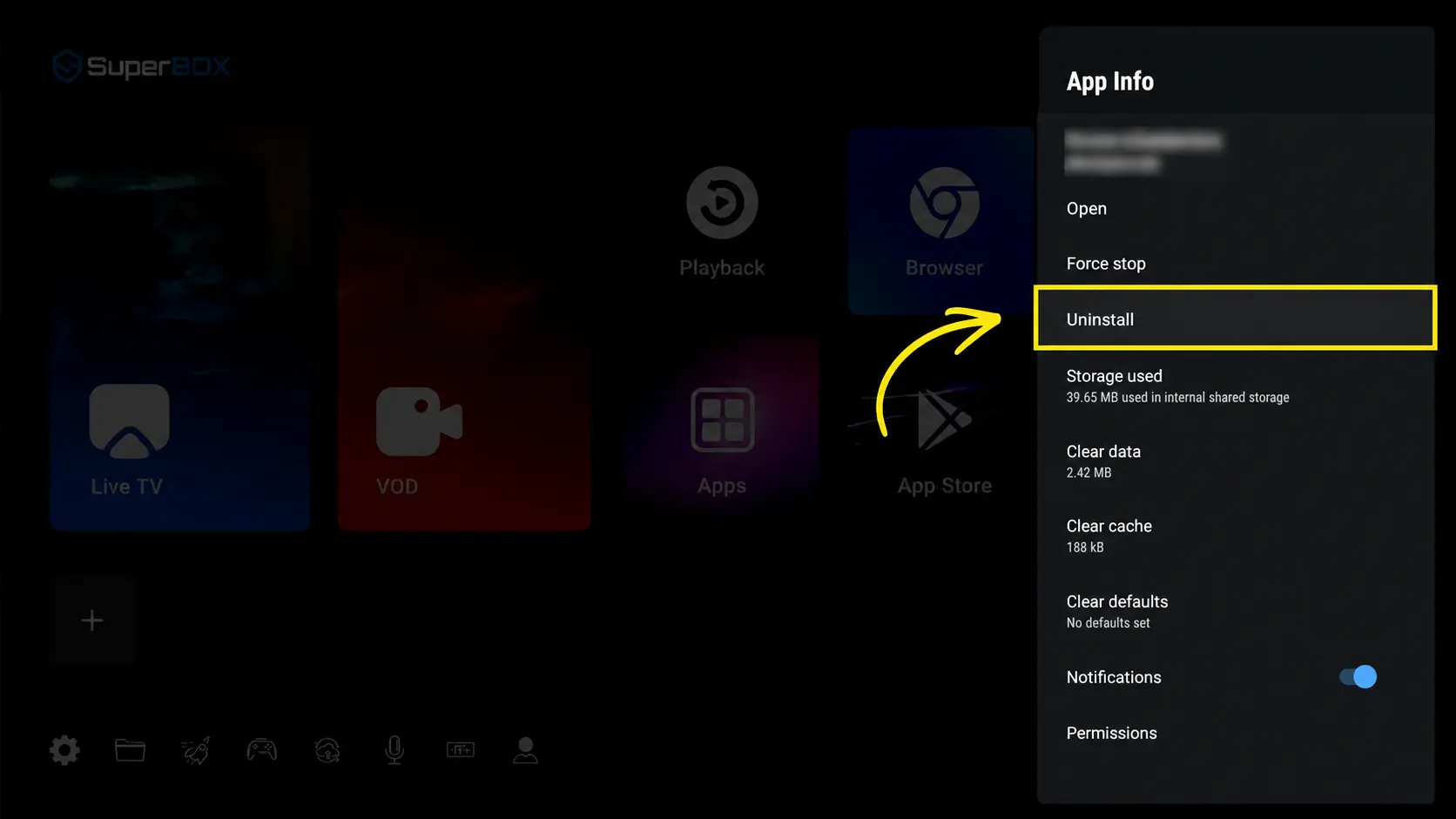
If the home-screen method is unavailable, follow this menu path:
Settings → Apps → See all apps → Show system apps
Then:
- Select the affected app.
- Choose Uninstall or the available removal command.
- Confirm the action.
- Return to the home screen after removal is complete.
Menu labels can vary slightly by model and firmware version. Some applications may be listed under system apps rather than the standard app list.
Reinstall the Latest App Version
After the affected app has been removed:
- Open the SuperBox App Store.
- Find the same application.
- Select it to install the currently available version.
- Wait until installation is complete.
- Open the app and verify whether the error has disappeared.
Do not restore the same installer from an old download folder, USB drive, message attachment, or unofficial APK website. Reusing an outdated package can recreate the same version conflict and unknown APK files create an avoidable security risk.
Verify the Repair
Do not stop at the installation confirmation. Open the app and check that:
- The “Devices Abnormal” message no longer appears.
- The app reaches its normal opening screen.
- The remote responds inside the app.
- Other applications still open normally.
If the same error returns immediately, record a short video showing the launch and error. Contact support before deleting more apps or resetting the entire box.
What If the SuperBox App Store Is Missing?
If the App Store is not visible, you cannot complete the reinstall step through the normal path. This is a separate recovery issue, especially after a factory reset.
Follow our dedicated guide to restore a missing SuperBox App Store after factory reset. It explains the browser recovery method and the subsequent OTA update needed on affected software versions.
Use only the current recovery source provided by SuperBox instructions or technical support. Short download addresses and update packages may change, so avoid copying an old installer from an unrelated post.
Devices Abnormal vs Device Forbidden
These error messages should not be treated as interchangeable.
| Error message | What it usually indicates | Correct first response | Will reinstalling one app help? | Will a factory reset help? |
| Devices Abnormal on a new box | Activation has not been completed | Send the seller the order details and on-screen MAC | No | Normally no |
| Devices Abnormal inside one app | App-version mismatch or conflict | Remove and reinstall only the affected app | Often | Not as the first step |
| Device Forbidden | Device-level authorization restriction | Contact the original seller | No | No |
The official SuperBox common-problems guide states that Device Forbidden is resolved through the seller because it concerns device authorization. Erasing local settings does not change server-side authorization status.
If your screen says Device Forbidden, photograph the exact message and contact the seller. Do not spend time repeatedly reinstalling apps or factory resetting the box.
Should You Factory Reset a SuperBox With This Error?
Not as the first step.
A factory reset erases downloaded applications, saved Wi-Fi credentials, preferences, accounts, favorites, and local device data. It may also leave the App Store needing recovery on some software versions. More importantly, a reset does not complete seller activation and does not remove a Device Forbidden authorization restriction.
For Devices Abnormal:
- New box: contact the seller for activation.
- One affected app: reinstall only that app.
- Several unexplained failures: contact technical support with evidence.
- Factory reset: use only when support recommends it or when a separately diagnosed software problem justifies it.
If technical support instructs you to reset, read our complete SuperBox factory-reset guide before proceeding so you understand what will be erased and how to restore the device afterward.
What Not to Do
Avoid these common troubleshooting mistakes:
Do Not Repeatedly Factory Reset the Box
Multiple resets do not activate a new unit or change its authorization record. They only erase local settings and create additional setup work.
Do Not Install Random APK Files
An unofficial installer may be outdated, modified, or incompatible with the device. Use the SuperBox App Store or a current recovery method supplied by support.
Do Not Delete Several Apps at Once
Removing multiple applications makes it harder to identify the original cause. Start with the one app that produces the error.
Do Not Share Only a Blurry Photo of the Box Label
Support needs the exact screen error and the software-reported MAC. Send a full-screen photo plus a close-up of the MAC information.
Do Not Pay an Unknown “Activation Service”
Activation should be handled through the seller or official support path. Unverified third parties may charge unnecessary fees without having legitimate access to the device record.
Information to Include When Contacting Support
A complete first message can reduce back-and-forth and help the technical team identify the correct fix.
| Information | Why support needs it |
| Order number and purchase email | Confirms the sale and seller record |
| Exact SuperBox model | Helps match the correct firmware and menu layout |
| On-screen MAC address | Identifies the device reported by the software |
| Photo of the printed MAC label | Helps detect a label or record mismatch |
| Full-screen error photo | Confirms the exact wording and context |
| Name of the affected app | Distinguishes an app issue from device activation |
| When the error began | Shows whether it started during setup or after an update |
| Steps already attempted | Prevents support from repeating unsuccessful actions |
Support Message Template
Hello, my SuperBox is showing “Devices Abnormal.” It is a [model name] purchased under order [order number]. The error began [during first setup / after opening app name / after an update]. The MAC shown on the TV is [on-screen MAC], and the printed label shows [label MAC]. I have attached a full-screen photo of the error and photos of both MAC locations. So far, I have tried [steps attempted]. Please check whether the device requires activation or whether I should reinstall the affected app.
Customers who purchased directly from SuperBox TV Box Store can contact Technical Support and include the information above. If the purchase came from another seller, begin with that seller because they hold the corresponding order record.
Frequently Asked Questions
Is Devices Abnormal a hardware failure?
Not necessarily. On a new unit, it may indicate incomplete activation. On a previously working box, it may be caused by an affected app with an outdated or conflicting version. Diagnose when and where the message appears before assuming the hardware is defective.
How do I activate a new SuperBox?
Contact the seller that supplied the device. Send your order number, model, a clear photo of the error, and the MAC address displayed on the TV. If the printed MAC is different, include a photo of that label as well.
Where can I find the SuperBox MAC address?
The MAC may be displayed on the SuperBox interface, often near the lower portion or lower-right area of the screen, depending on the model and software version. A MAC may also be printed on the hardware or packaging. For troubleshooting, provide the on-screen value and the printed value if they differ.
Can I fix Devices Abnormal by restarting the box?
A restart may clear a temporary display issue, but it does not complete activation or correct an outdated app package. If the message remains, follow the diagnostic path for a new device or affected app.
Should I factory reset my SuperBox?
No, not as the first response to this error. A reset erases local data and does not resolve seller activation or Device Forbidden status. Reset only when technical support recommends it for a confirmed software issue.
How do I reinstall the affected app?
Remove the affected app using the home-screen trash tool or Settings → Apps → See all apps → Show system apps, then reinstall the currently available version through the SuperBox App Store.
What if the affected app is listed under system apps?
Open Settings → Apps → See all apps → Show system apps, select the app, and use the available removal option. If no safe removal command appears, stop and contact technical support rather than forcing changes to a system component.
What if Devices Abnormal appears in more than one app?
Record the names of every affected app, take a short video, and contact technical support. Do not delete several system apps or install packages from unofficial sources.
Is Devices Abnormal the same as Device Forbidden?
No. Devices Abnormal commonly points to activation on a new box or an app-version problem on a previously working unit. Device Forbidden is an authorization restriction that must be handled through the original seller.
Can another SuperBox seller activate my device?
The original seller should be your first contact because that seller can verify the purchase and associated device record. A different retailer generally cannot manage an order it did not sell.
How long does activation take?
Processing time depends on the seller and whether the submitted MAC matches the device record. Sending the order number, on-screen MAC, printed MAC, and error photo together helps avoid delays.
What if the on-screen MAC does not match the label?
Do not guess which one is correct. Send clear photos of both to the seller or technical support and state that the values are different. Support can check the software-reported device record against the order information.
Final Thoughts
The fastest way to fix SuperBox Devices Abnormal is to avoid treating every case as the same problem.
For a brand-new SuperBox, gather the order details and on-screen MAC, then ask the original seller to verify activation. For a box that worked normally until one app began showing the message, remove only that app and reinstall its latest available version from the SuperBox App Store.
Do not begin with a factory reset, do not install unknown APK files, and do not confuse Devices Abnormal with Device Forbidden. A careful diagnosis preserves your settings, shortens the support process, and gets the device back to normal with the least disruptive fix.
Need help with a SuperBox purchased from us? Contact SuperBox TV Box Store Technical Support and send your order number, model, on-screen MAC, full-screen error photo, and a brief description of when the issue began.
The article was updated on:
