
Knowledge SuperBox
SuperBox No Sound? How to Fix Audio Problems Step by Step





You turn on your SuperBox, choose a channel or movie, and the picture looks normal but there is no audio. Before assuming the TV box is broken, answer one question: Is sound missing everywhere, or only in a particular channel, movie, or application? Those symptoms call for very different solutions.
Quick answer: If just one channel, one movie, or one app has no sound while others play normally, the issue may be with that content source or app. Record a short video showing the problem while you press the volume buttons on your remote, then send the details to Technical Support. If your entire SuperBox has no sound, begin with a 30-second power restart, then check mute, TV audio output, and HDMI connection checks. Try a different cable, HDMI port, or television if available. Consider a factory reset only as a last resort after speaking with the technical team.
1. SuperBox Sound Not Working? Identify Where the Audio Problem Occurs
A blank audio track on one movie is not the same as silence across the entire device. A quick comparison can save you from changing settings or resetting a box that is otherwise working correctly.
| What you notice | What it may suggest | Best next action |
|---|---|---|
| One Blue TV channel has picture but no sound | An issue with that channel’s audio feed | Note the channel and send a video |
| One Blue VOD movie has no audio | A problem with that title’s audio source or playback | Report the movie title and affected scene |
| One app has no sound; other apps work | An app-specific source, format, or playback issue | Identify the app and ask for an app-specific check |
| Every app and channel is silent | TV mute/output, HDMI connection, external speakers, or the box | Follow the device-wide checks below |
1.1. Compare More Than One Channel or App
Open two or three unrelated live channels, then try a movie or another app you already have installed. Keep the same TV, HDMI connection, and speakers during the comparison. If other content makes sound, the box is clearly capable of sending audio in at least one situation. That is useful diagnostic evidence, although it does not by itself prove the exact cause of the silent content.
If all content is silent, check whether your TV’s own menus or another device connected to it can make sound. This helps separate a possible TV-speaker issue from the SuperBox’s HDMI path. Do not change multiple settings at once; make one change, then test again.
1.2. Note What You See on Screen
A useful report includes whether the picture continues playing, the app and content name, the SuperBox model, and what happens when you press Volume Up, Volume Down, or Mute. The visible volume indicator can help show that the remote is responding even while the program has no sound.
2. No Sound on One SuperBox Channel, Movie, or App
When the problem follows one piece of content rather than the whole device, focus on that source first. Replacing HDMI cables or performing a factory reset is unlikely to fix a missing audio feed on a remote server.
2.1. SuperBox Blue TV No Sound on One Channel?
If one live channel has video without sound but nearby channels are working, write down the exact channel name or number. Try another channel to confirm the comparison. A temporary problem with the original channel’s audio source is one possible explanation; the technical team can investigate the correct feed when you provide its name.

2.2. No Sound on One Movie in Blue VOD
A single movie can have an audio issue even if the rest of the catalog works. Check a different movie before changing any device setting. When reporting the silent title, include its exact name and roughly where the problem occurs at the beginning, throughout playback, or at a specific timestamp. Do not assume every title uses the same audio source.
2.3. No Sound in One Application
If Blue TV works but another app is silent, or the reverse, note the affected application’s name and whether all its content is affected. The cause may be a problem with the app, its playback format, or the content it delivers. This is an app-specific question, not enough evidence to diagnose a defective SuperBox.
2.4. Record a Short Video for Technical Support
Make the video useful: show the channel, movie, or app on the television; briefly press Volume Up and Volume Down on the remote while recording the screen; and capture enough of the symptom to show that the picture is playing without audible sound. If a mute symbol appears, show whether it is on or off. Keep the clip short and clear rather than recording an entire program.
Send the clip together with your SuperBox model and the exact channel, movie, or app name to SuperBox Technical Support on WhatsApp, or reach out directly to our customer service team via email at customer@superboxtvboxstore.com or WhatsApp at +1 (604) 239-6845. The technician can check the affected source or app. Avoid posting account information, device identifiers, or private details in a public comment.
3. SuperBox Has Picture but No Sound on Any App: Six Easy Checks
If your SuperBox has no audio across every app and channel, begin with the simplest possibilities. A TV output setting or HDMI connection can affect audio even when the screen still displays a sharp picture. Complete one step at a time and test the same two apps after each change.
Step 1: Restart Your SuperBox
Unplug the power cable from your SuperBox, wait about 30 seconds, then plug it back in. Allow the box to restart fully and test the same two apps again. This simple power restart does not erase your apps or settings.
Step 2: Check Volume, Mute, and TV Audio Output
Use the TV remote to raise the television volume and confirm Mute is off. Check your SuperBox remote as well, because the buttons may control the TV, the box, or a paired audio device depending on how they are configured. Make sure the TV has not switched to Bluetooth headphones or an external audio output that is powered off.
If you usually use a soundbar or receiver, temporarily select TV Speakers in your television’s audio-output menu, where available. This is a useful comparison: if the TV’s own speakers work, the external audio route deserves closer inspection. Our SuperBox soundbar and home theater connection guide explains those setups in more detail.
Step 3: Disconnect and Reconnect the HDMI Cable
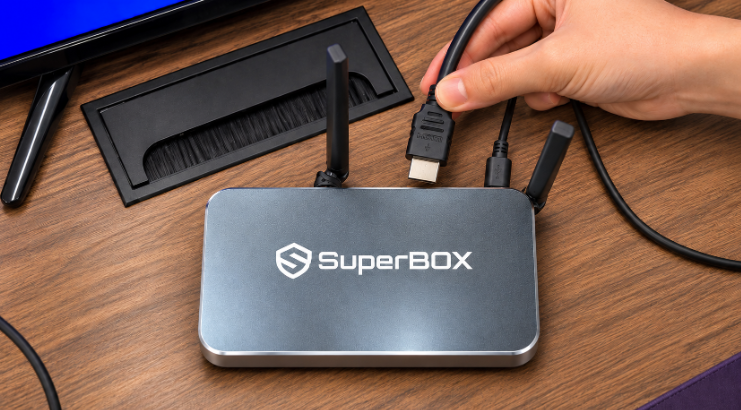
Turn off the SuperBox and television before changing the connection. Unplug the HDMI cable from both the SuperBox and the TV, wait a few minutes, then reconnect both ends firmly. Turn the devices back on, select the correct HDMI input on the TV, and check the sound again.
This is a basic connection test, not a guarantee of repair. A slightly loose or unreliable HDMI connection can affect how audio and video reach the display. If the picture returns but the sound does not, continue to the next step.
Step 4: Try Another HDMI Cable
If you have a spare compatible HDMI cable, substitute it for the current one and test the same content. Avoid changing the cable and several TV settings together: you want to know which change made a difference. If sound returns with the replacement cable, the original cable or its connection was a likely contributor.
Step 5: Try Another HDMI Port on the TV
With the equipment powered off, move the HDMI cable to another available TV port. Select that exact HDMI input with the TV remote. Test sound again in more than one app. If one port works and another does not, the TV input or its settings may be involved; that does not automatically mean the SuperBox is defective.
Step 6: Retest Audio Across Several Apps and Check the Output Route
Open at least two apps and test several different programs. If you use a soundbar, receiver, or Bluetooth audio, compare that setup with the television’s built-in speakers, if available. On compatible equipment, a PCM/Stereo output option can be a useful audio-format compatibility test; menu names vary, so follow your TV or sound system manual rather than changing unfamiliar advanced settings at random.
Test another TV if you have one: If another television with an HDMI input is available, connect the SuperBox directly to it and play the same content. If sound works on the second TV, focus on the original television, its HDMI port, audio settings, or speaker connections. If both TVs are silent, share that result with Technical Support before considering a reset. This optional comparison is particularly valuable because it does not erase data.
4. Should You Factory Reset Your SuperBox to Fix No Sound?
A factory reset is not the first solution to try. It may help with certain software or configuration problems, but it cannot repair a damaged cable, faulty TV port, broken speaker, or an unavailable channel audio source. If the SuperBox is still silent on every app after the checks above, contact Technical Support to confirm whether resetting is appropriate for your specific model and firmware.
4.1. What a Factory Reset Removes
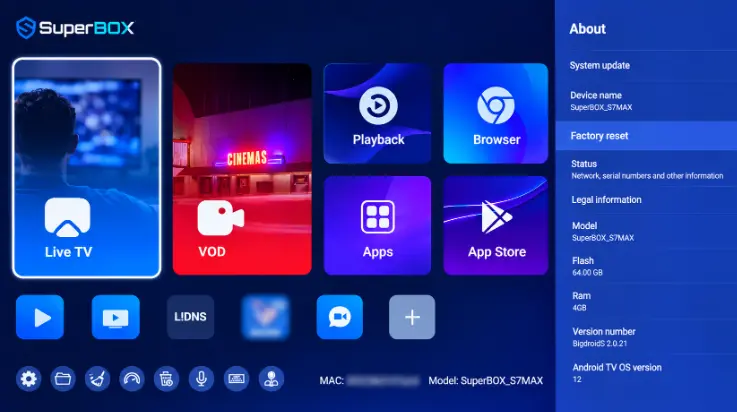
Resetting restores the device to its factory software state and erases downloaded apps, saved accounts, Wi-Fi credentials, personal settings, favorites, and locally stored data. You may have to reconnect to the internet and reinstall your apps afterward. Save any information you need and make sure you understand the recovery steps before proceeding.
4.2. SuperBox Remote Reset Shortcut: .0.0.0.0.0
Where the technician confirms that this shortcut is supported on your device, return to the Home screen and press Dot (.) followed by Zero (0), repeated five times in sequence: .0.0.0.0.0. If the sequence is accepted, the device can start the factory-reset process. Do not enter this code until you are ready to erase your data. Remote shortcuts may vary by model and firmware, and some versions may not show another confirmation screen.
The factory reset guide for SuperBox Pro, Max, and Ultra also describes the Settings-menu alternative and the setup required afterward. If a shortcut does not respond, do not experiment with random combinations or repeatedly reset the box.
4.3. What If There Is Still No Sound After Resetting?
Stop repeating the same procedure. Tell Technical Support that every app remains silent and provide the results of the cable, HDMI-port, and second-TV tests. A technician can determine whether further diagnostics or a hardware assessment is appropriate. A reset that does not help is not, by itself, proof of a hardware defect.
5. SuperBox Still Has No Sound? Warranty and Replacement Options
If there is no audio across multiple apps and televisions after suitable diagnostics, contact the seller where you originally purchased your SuperBox. That seller can verify the order and explain the warranty process. If technical assessment confirms a covered defect, the available resolution may include repair, technical assistance, or a replacement according to the applicable policy; replacement is not automatic simply because sound is missing.
For eligible devices purchased directly from SuperBox TV Box Store, the store provides a one-year limited warranty from delivery for confirmed defects arising during normal use, subject to exclusions and verification. Warranty terms at other authorized retailers can differ; do not assume every seller has identical conditions. Keep your receipt or order confirmation and describe the tests already completed. See our SuperBox support and warranty guide for contact and claim information.
When asking for a warranty assessment, share the model, proof of purchase, a short video of the silent playback, and the results of your HDMI-cable, TV-port, and alternate-TV tests. If you have already consulted Technical Support, include its findings so the original seller does not have to start from scratch.
6. Frequently Asked Questions About SuperBox No Sound
Why does my SuperBox have a picture but no sound?
The display can still receive video when the audio path is muted, routed to another output, incompatible with a speaker system, or interrupted by an HDMI connection issue. First check whether the problem occurs on all apps or only on one source.
Why is one Blue TV channel silent while others have sound?
The affected channel may have a problem with its audio feed. Note its name or number and send a short video showing the issue and your remote’s volume controls to Technical Support.
Why does one movie have no audio on Blue VOD?
The problem may be specific to that movie or its playback source. Check a different title, then report the exact movie name and where the silence occurs if the problem persists.
Why does one SuperBox app have no sound?
One app can have an app-specific or content-specific playback issue even when the box works normally elsewhere. Compare it with a second app and report which one is affected rather than immediately resetting the device.
Can an HDMI cable cause SuperBox sound problems?
Yes. An unreliable cable or connection is one possible cause of missing sound. Reseating HDMI, trying a different cable, and testing another TV port can help narrow it down.
What if my SuperBox has no sound through a soundbar?
Check the soundbar’s power, selected input, mute status, and the TV’s audio-output setting. If possible, test with the TV’s built-in speakers first. For ARC/eARC or receiver connections, use the SuperBox soundbar setup guide.
Will the .0.0.0.0.0 reset code fix missing audio?
Not necessarily. It erases local settings and data and may help only when a software configuration problem is involved. Check the HDMI and TV audio path first, and use the shortcut only after Technical Support confirms it for your model.
Should I try my SuperBox on another TV?
If you have a second HDMI-equipped TV available, yes. It is a helpful non-destructive test. Sound working on the second TV points attention toward the first TV or its connections rather than conclusively proving the box is faulty.
Is SuperBox no sound covered by the one-year warranty?
Coverage depends on your original seller, purchase date, the cause of the fault, and the warranty terms. SuperBox TV Box Store offers a one-year limited warranty on eligible directly purchased units with confirmed defects; your original seller should verify eligibility and the next step.
7. Final Thoughts: Getting Sound Back on Your SuperBox
The most useful first step for SuperBox no sound is to identify the scope: one channel, one movie, one app, or the entire box. A source-specific problem deserves a precise report and short video, while device-wide silence calls for a careful check of volume, HDMI connections, and the television’s audio route.
If simple checks do not restore the audio, testing another TV can provide valuable evidence. Reserve the .0.0.0.0.0 factory reset for cases where Technical Support has approved it and you are prepared to lose local data. If the issue persists and a defect is confirmed, contact the original seller about the applicable warranty options. That sequence avoids unnecessary resets and gives you a clearer path to getting sound back.
The article was updated on:
