
Knowledge SuperBox
Perfect Resolution for Android TV Box Complete Picture Guide





Finding the perfect resolution for android tv box setups is the easiest way to make sure your movies, live sports, and daily television shows look as sharp and lifelike as possible. When you first plug a new streaming box into your television, the factory default picture settings might not match your specific TV screen, leading to slightly blurry text, washed-out colors, or black borders around the edges.
You do not need to be an audio-video technician to get stunning picture clarity. In this friendly, beginner-friendly guide, we explain what television resolution actually means in plain English, show you how to match your box settings to your living room TV, and guide you through simple remote control adjustments that will make your screen look its absolute best.
Quick Summary: Ideal Display Settings for Android TV Boxes
– Standard 4K Smart TVs: Set your box resolution to 3840x2160p at 60Hz (or enable Auto Resolution).
– Standard 1080p HDTVs: Set your box resolution to 1920x1080p at 60Hz for clean, natural sharpness.
– Best Refresh Rate for Sports: 60Hz (60 frames per second) prevents motion blur and ball ghosting.
– Fixing Cut-Off Edges: Use the Screen Zoom or Display Position tool in Android settings to fit your screen exactly.
– Recommended Hardware: SuperBox S8 Series (S8 Ultra $449, S8 Max $399) with advanced 6K@60fps decoders.
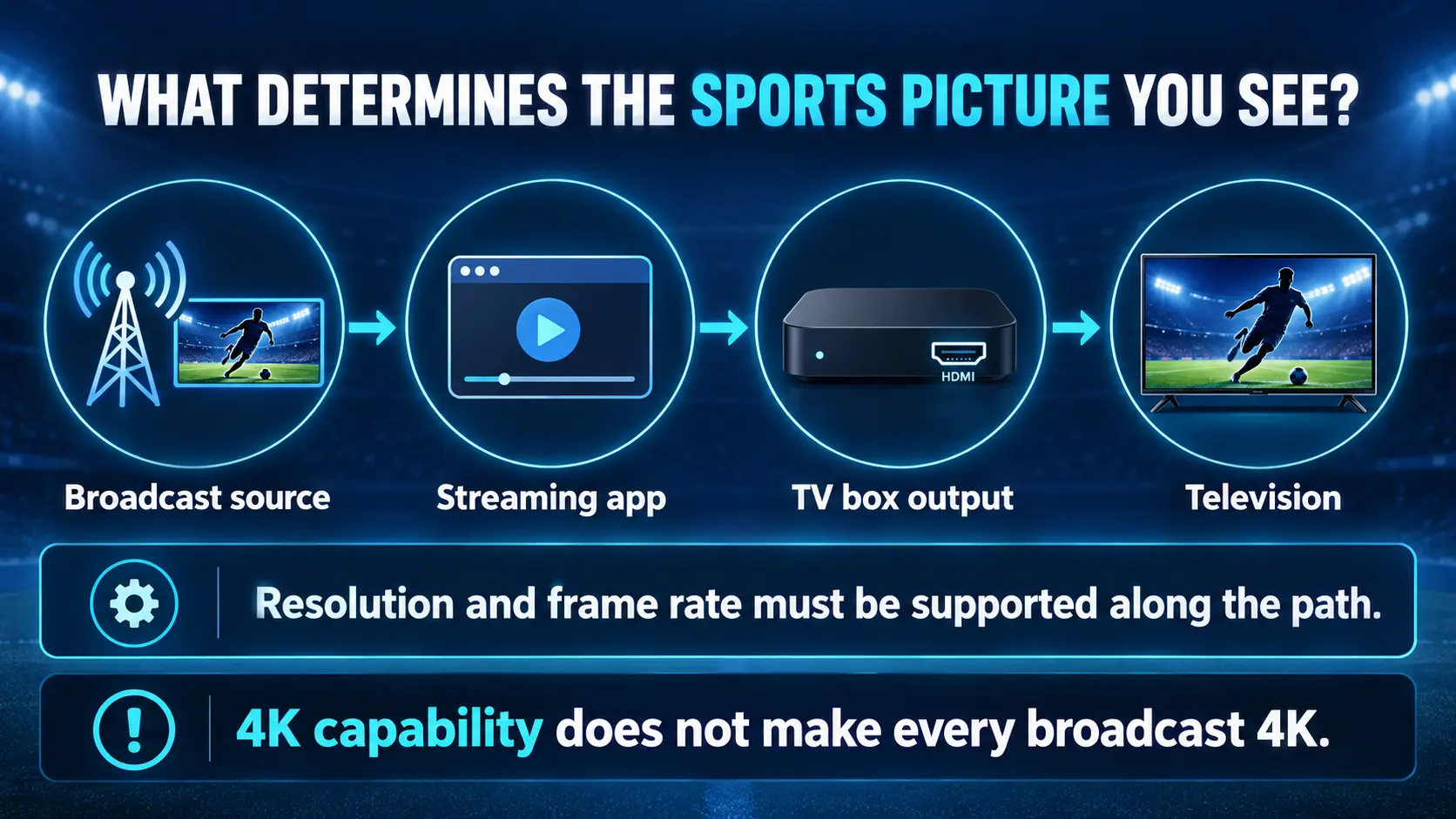
What Does Screen Resolution Mean in Simple Everyday Words?
Think of your television screen as a massive grid made up of millions of tiny colored dots called pixels. When these dots light up together, they create the images, actors, and ball games you see on your screen.
Resolution simply refers to how many of these dots are packed across your screen. The more dots your television has, the finer the details will look. Faces look clearer, text on sports scoreboards is easier to read, and grass on football fields looks distinct rather than blurry.
Here are the common resolution numbers you will see when configuring your Android TV box:
1080p Full High Definition: This represents 1,920 dots across and 1,080 dots down. It has been the standard television format for over a decade and looks great on 32-inch to 50-inch screens.
4K Ultra High Definition: This features 3,840 dots across and 2,160 dots down. That is four times as many dots as 1080p, delivering breathtaking realism on modern 55-inch, 65-inch, and larger flat screens.
6K Video Hardware Decoding: Modern consoles like the SuperBox S8 and S7 series carry powerful hardware decoders capable of processing high-efficiency video streams up to 6K resolution, giving your box plenty of power to decode dense video files without slowing down.
Why Is Refresh Rate Just as Important as Resolution?
When you browse the display settings on your television box, you will notice numbers like 60Hz, 50Hz, or 30Hz next to the resolution options. This number represents the refresh rate.
Refresh rate measures how many times per second your television updates the picture on the screen. A refresh rate of 60Hz means your television redraws the image 60 times every second.
If you watch fast-moving content like hockey games, basketball, or car chases, having your box set to 60Hz produces silky-smooth motion. If your box accidentally defaults to 30Hz, moving objects can look slightly jittery or stutter across the screen.
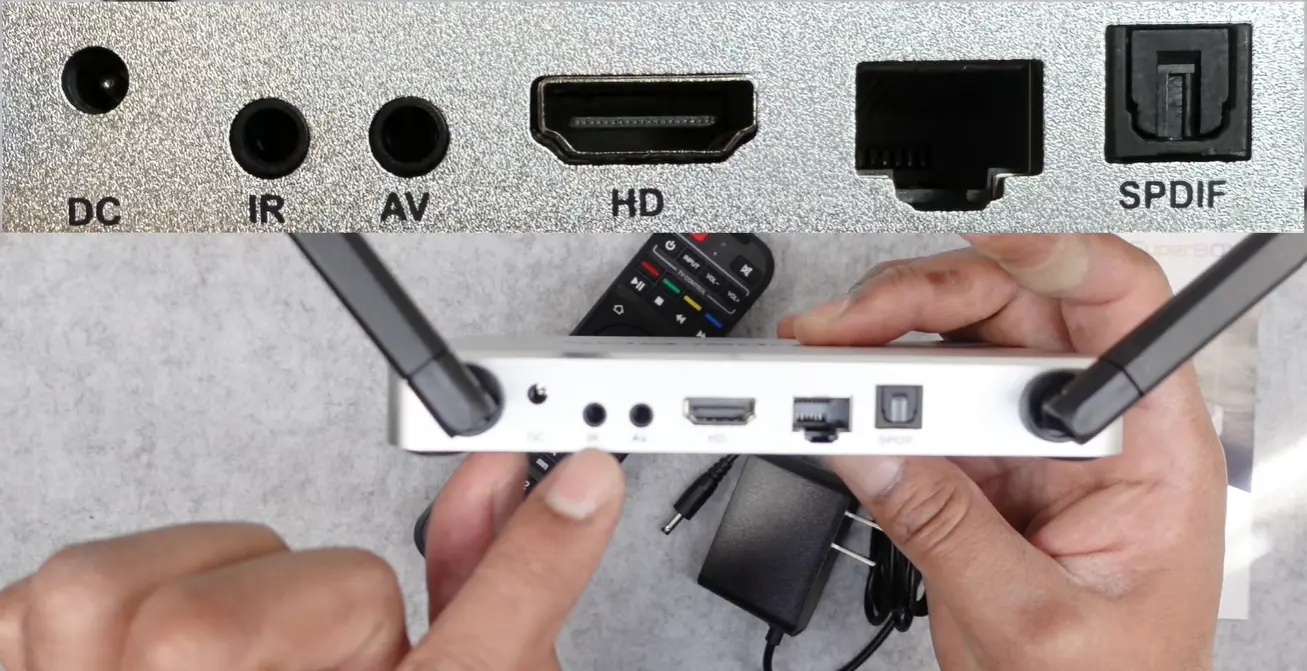
Matching Your Android TV Box to Your Television Screen
The golden rule of picture setup is matching the output signal of your box to the physical resolution of your television. Here is an easy guide based on the type of TV you have in your home.
| Your Television Type | Recommended Box Resolution | Recommended Refresh Rate | Best HDMI Connection |
|---|---|---|---|
| Modern 4K Ultra HD TV | 3840x2160p (4K) or Auto | 60Hz | HDMI 2.0 or HDMI 2.1 Port |
| Standard 1080p HDTV | 1920x1080p (Full HD) | 60Hz | Standard High-Speed HDMI |
| Smaller 720p Bedroom TV | 1280x720p or 1080p downscaled | 60Hz | Standard HDMI Port |
| Home Theater Projector | Match native projector resolution | 60Hz | High-Speed Certified HDMI |
| Computer Monitor | Match monitor display rating | 60Hz | HDMI to HDMI or DVI Cable |
Step by Step Guide to Changing Resolution on Your TV Box
Step 1: Open the System Settings Menu
From your main home launcher screen, use the arrow keys on your remote to locate and click the Settings icon, usually shaped like a small gear.
Step 2: Select Display and HDMI Settings
In the settings menu list, look for Display, Screen, or HDMI Output. Click OK to open the display configuration submenu.
Step 3: Choose Your Target Resolution and Refresh Rate
Find Screen Resolution or Display Mode. You can turn on Auto Best Resolution to let the box detect your TV automatically, or choose manually from the list (such as 4K2K 60Hz or 1080p 60Hz).
Step 4: Confirm and Save Your Changes
Your screen will briefly go black for one second while switching signals. A confirmation prompt will ask if you want to keep the new settings. Click OK or Confirm before the countdown timer expires.
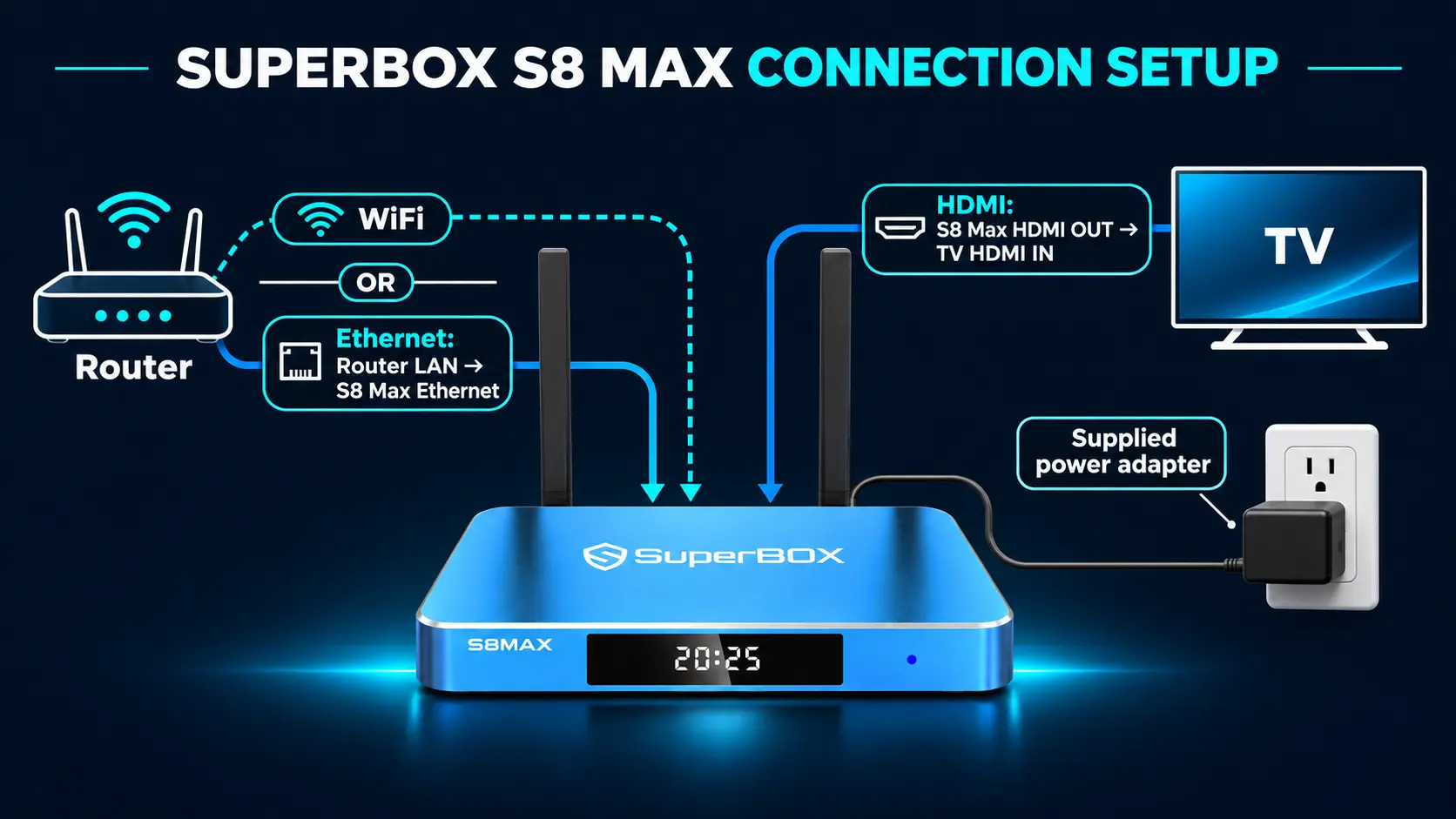
Fixing Common Everyday Television Display Problems
Picture Cut Off at the Edges (Overscan)
If words at the bottom of the screen or channel logos in the corners are partially cut off, your television is stretching the image. In your box Display settings, locate Screen Zoom, Screen Scale, or Display Position. Use the remote arrow buttons to shrink the display percentage until the white reference borders align with the edges of your TV screen.
Washed Out or Faded Colors
If blacks look gray and colors seem dull, your TV and box may have a color format mismatch. In HDMI settings, look for Color Space and toggle between YCbCr444 and RGB. Choosing the correct mode will instantly restore deep black levels and vibrant picture contrast.
Flickering Screen or Intermittent Blackouts
If your screen blinks to black every few minutes, the issue is almost always a worn or outdated HDMI cable. Modern 4K 60Hz signals carry heavy data streams. Swapping to a fresh High-Speed HDMI 2.0 cable will eliminate signal drops.
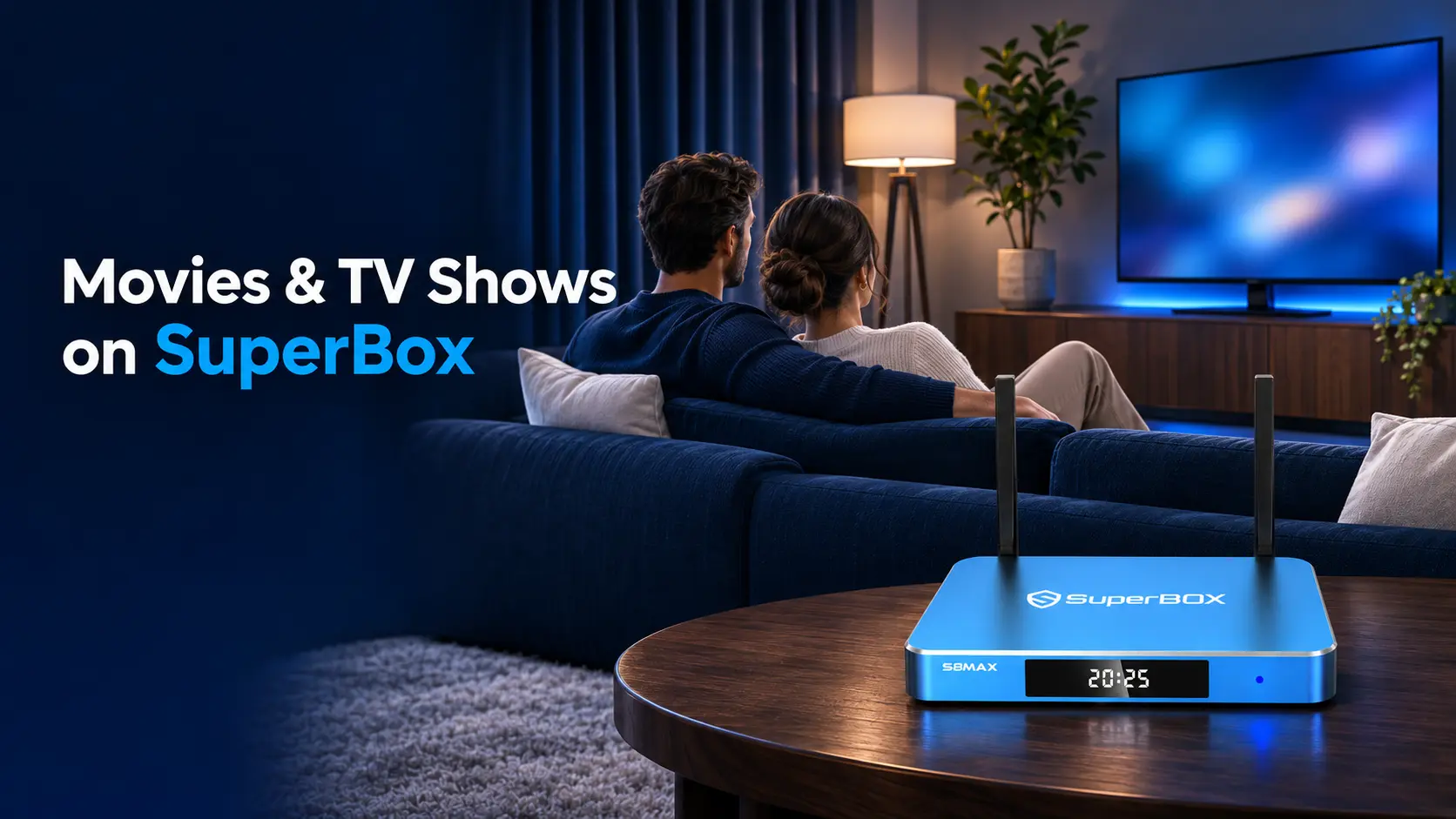
Recommended Android TV Hardware for Crystal Clear Pictures
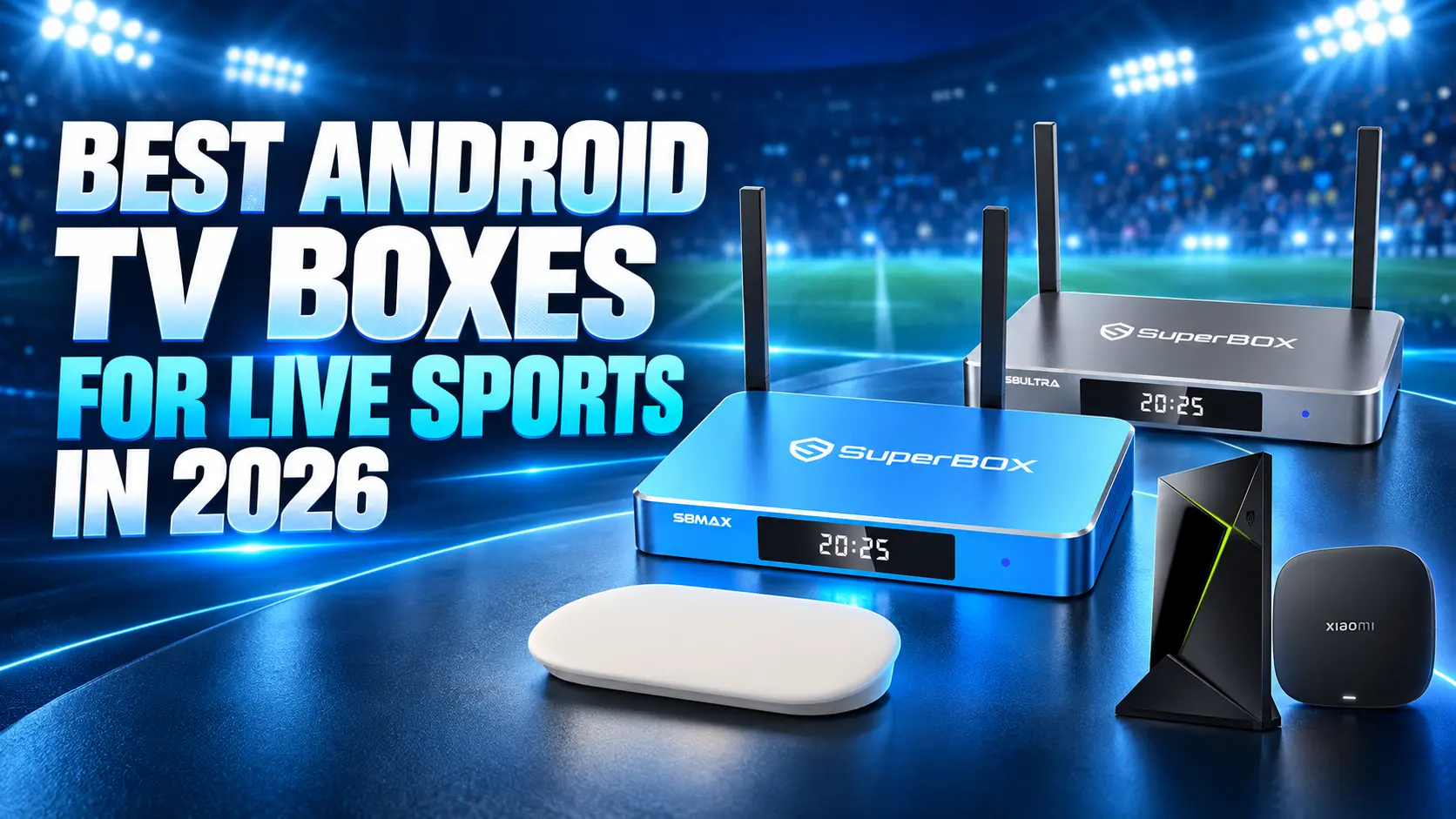
While proper configuration is essential, having capable hardware guarantees your picture always remains sharp and responsive. The SuperBox family offers exceptional video processing hardware across all tiers.
The SuperBox S8 Ultra ($449) is the flagship choice, featuring 4GB of RAM, 128GB of storage, and an exclusive backlit remote control. Its powerful hardware engine handles high-definition streams and 4K upscaling effortlessly.
The SuperBox S8 Max ($399) and SuperBox S8 Plus ($379) provide 4GB of RAM and 64GB of storage, making them popular family options for living room televisions.
For budget-focused viewers, the SuperBox S8 Pro ($359) or previous-generation SuperBox S7 Max ($339) and SuperBox S7 Pro ($305) deliver dependable 1080p and 4K playback at discounted prices.
Real Life Setup Experiences from Everyday Viewers
Practical stories from everyday streamers demonstrate how simple adjustments transform home viewing.
Case Study 1: Dan K. from San Antonio, TX. Dan connected his new SuperBox to a 65-inch 4K living room TV, but news tickers at the bottom of the screen were cut in half. He navigated to Display -> Screen Scale, zoomed down to 94%, and aligned the screen in thirty seconds. Text is now completely visible and razor-sharp.
Case Study 2: Karen L. from Minneapolis, MN. Karen noticed that hockey pucks seemed to blur during fast ice movements. She checked her box settings and saw the refresh rate was set to 30Hz. After switching the mode to 1080p 60Hz, motion immediately became smooth and natural.
Understanding HDMI Port Labels on Your Physical Television
Not all HDMI ports on modern televisions are created equal. When you look at the back or side panel of your flat screen TV, you will often notice small labels printed next to each HDMI socket, such as HDMI 1 (eARC), HDMI 2 (4K@60Hz), or HDMI 3 (MHL).
To enjoy the sharpest possible 4K picture at a full 60 frames per second, you must plug your Android TV box into an HDMI port that supports High-Speed HDMI 2.0 or HDMI 2.1. Plugging into an older HDMI 1.4 port will limit your resolution to 30Hz, creating visible stutter during fast sports action.
If your television menu includes an option called HDMI Enhanced Format, UHD Color, or Deep Color, make sure to turn that feature on for the specific HDMI port your TV box uses. This unlocks full 10-bit color depth, delivering richer sunset gradients and more vibrant stadium lighting.
For audio enthusiasts connecting a soundbar, reserve the HDMI port labeled eARC or ARC for your soundbar, and plug your SuperBox console into any adjacent high-speed HDMI port for optimal picture and sound synchronization.
Frequently Asked Questions
Should I set my Android TV box to 4K if I have a 1080p TV?
No. If your television is a 1080p screen, set your box to 1080p at 60Hz. Setting a higher resolution than your screen physically supports can cause black screens or distorted pictures.
What is the difference between 30Hz and 60Hz on a TV box?
A 60Hz setting updates the picture twice as fast as 30Hz, making live sports, action movies, and fast camera movements look significantly smoother without motion blur.
Why are the edges of my television picture cut off?
This is called overscan. You can easily fix it by opening your box Display settings and using the Screen Zoom or Screen Scale tool to adjust the picture boundaries.
Does setting a higher resolution use more internet data?
Yes. Streaming true 4K video feeds requires higher broadband bandwidth (approximately 25 Mbps), while 1080p streaming uses less data and operates smoothly on 15 Mbps connections.
How do I fix a screen that went black after changing resolution?
Do not press any buttons for 15 seconds. Most TV boxes feature an automatic safety timeout that will revert back to your previous working resolution if you do not confirm the change.
Can I use an older HDMI cable with a 4K TV box?
Older HDMI cables made for standard definition may cause screen flickering or audio dropouts on 4K signals. Using the High-Speed HDMI cable included in your SuperBox packaging ensures optimal picture fidelity.
Which SuperBox console comes with a backlit remote control?
Only the flagship SuperBox S8 Ultra ($449) includes the exclusive backlit voice remote control, which can be toggled using the OK and zero button combination.
Can I record television programs on SuperBox consoles?
On SuperBox S8 Series devices, you can plug in an external USB flash drive and use the built-in Video Recorder app to perform manual screen recordings. Scheduled timer recording is not supported.
Does changing resolution fix video buffering issues?
If your internet connection is slow, lowering the stream resolution from 4K to 1080p reduces required bandwidth and can help eliminate buffering pauses during peak internet hours.
Where can I get help if my screen settings look strange?
The SuperBox TV Box Store provides 24/7 dedicated customer service to help you calibrate your screen, configure remote controls, and optimize your home viewing experience.
The article was updated on:
