
Knowledge SuperBox
Official SuperBox Unboxing Complete Package Full Guide 2026





You can check a new SuperBox package in a few minutes before plugging anything in. For the S8 models sold by SuperBox TV Box Store, look for five things: the streaming box, its voice remote, the matching power equipment, an HDMI cable, and a user guide. The main differences you can spot during unboxing are the power connector and the included remote. The S8 Plus uses a round DC plug. The S8 Pro, Max, and Ultra use Type-C power, and the Ultra comes with the backlit remote.
Start with the exact model on your order confirmation. Then compare it with the label on the retail box and the device itself. This guide gives you a checklist by model, shows how to tell an optional extra from a missing accessory, and explains what to send your seller if the delivery needs a closer look.
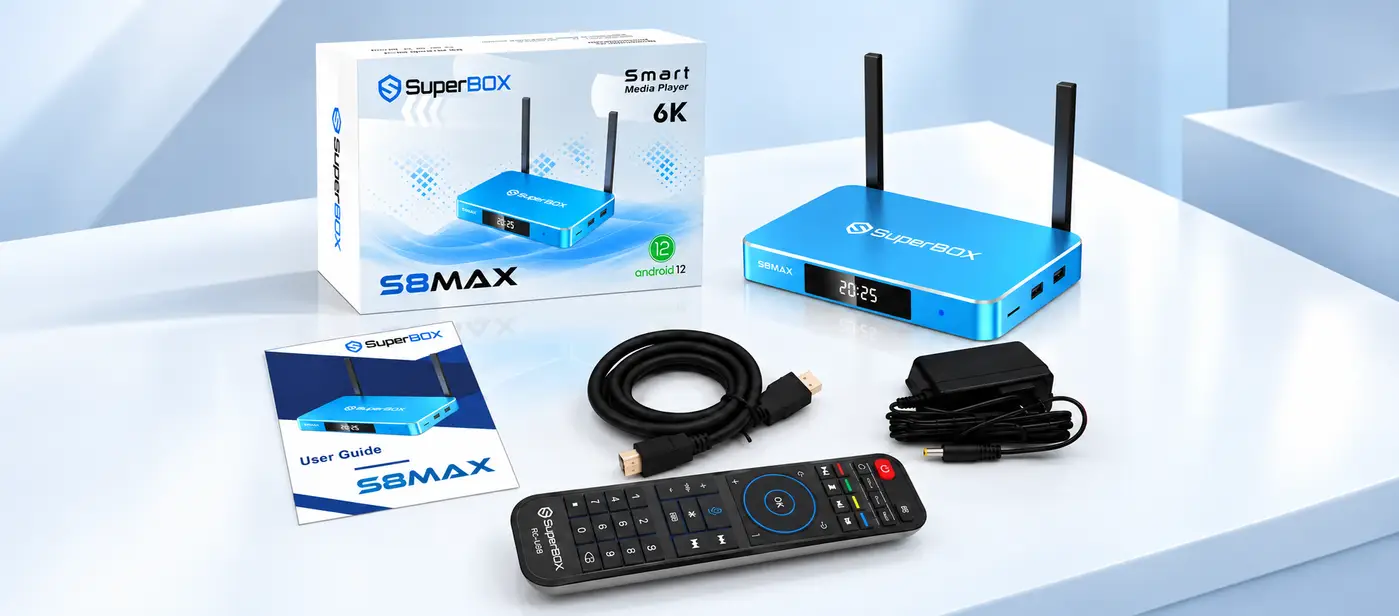
What comes in the official SuperBox package?
Set the retail box on a clear surface and unpack one unit at a time. Lift out the device and check the accessory compartments and any packaging underneath the main tray. Put the small items beside the box so you can count them. A folded guide can sit flush against the insert, and a short HDMI cable can be easy to miss when it stays coiled in a sleeve.
| Item | What to check as you unpack |
|---|---|
| SuperBox device | The full model name agrees with your order. The ports and antenna mounts look intact. |
| Voice remote | The remote matches the version listed for your model. Check the battery compartment for the markings and any packing tab. |
| Power equipment | You have the supplied adapter or power cable as listed. If the power supply has separate pieces, keep them together. |
| HDMI cable | You can identify it by the flat, tapered plugs. Check the plugs for visible damage before connecting them. |
| User guide | Check any paper sleeve or area underneath the tray. Keep the guide with the box for setup and troubleshooting. |
The outer shipping carton protects the parcel in transit. The branded retail box and its inserts hold the device and accessories. If you’re checking what arrived, look at both. An extra item promised by your seller might be packed alongside the retail box, particularly if it was offered as a separate bundle item.
Standard accessories and seller bundles
Use the listing you ordered from as the checklist for your purchase. The manufacturer’s SuperBox S8 unboxing guide describes the core kit for the series. Your model’s product page gives you the detail that matters when you’re holding a specific remote or trying to identify the power plug. A video might show an accessory that the creator added for the demonstration or that a seller included in a separate offer.
Check your order for any explicit mention of spare batteries, an Ethernet cable, a USB storage drive, or an extra remote. The core S8 package lists don’t specify those items. If a bundle promised one of them, save the listing or order confirmation and check the outer carton before reporting it missing. That gives the seller something specific to match to your order.
If you’re still deciding where to order, save the part of the listing that specifies the model, item condition, and package contents. This comes in handy if a product photo shows more items than the description lists. For an open-box or used offer, ask the seller to confirm which original accessories come with that individual unit, especially the remote and power supply. If the seller lists a replacement accessory, get the details before you buy so you know what to expect.
Compare the box contents by SuperBox model
Each model in the table is listed with the device, an HDMI cable, and a user guide. Use the other two columns to match the parts you’re most likely to mix up when opening more than one box.
| Model | Included remote | Power connection |
|---|---|---|
| SuperBox S8 Pro | Voice remote with standard buttons | Type-C |
| SuperBox S8 Plus | Voice remote with standard buttons | Round DC |
| SuperBox S8 Max | Voice remote with standard buttons | Type-C |
| SuperBox S8 Ultra | Backlit voice remote | Type-C |
| SuperBox S7 Ultra | Backlit voice remote | Type-C |
If your order says simply “Ultra,” get the series number from the listing or invoice. Both the S7 Ultra and S8 Ultra come with an illuminated remote. Check the model name on the device to tell them apart. For models outside the table, check the package list for the exact unit you ordered.
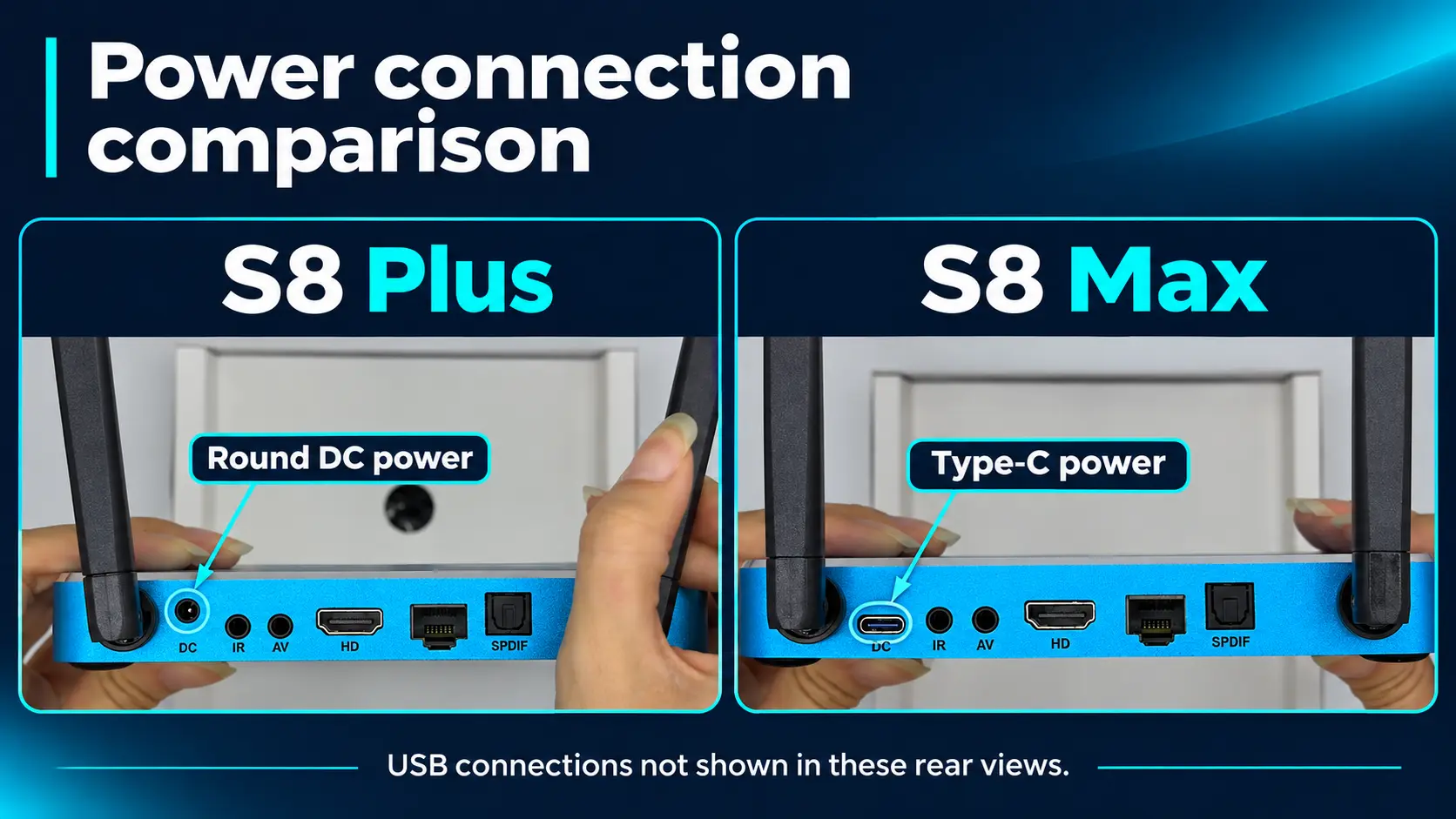
S8 Plus and S8 Max can look similar at a glance
The S8 Plus and S8 Max both come in blue housings and have 64GB of internal storage. Find the full model name on the device before sorting the cables. If the label reads S8 Plus, look for the round DC power adapter specified on the product page. If it reads S8 Max, look for the supplied Type-C power equipment. The round plug is a useful check when two kits have already been opened and the cords are on the same table.
On a Type-C model, use the power input identified on the device or in its user guide. The Type-C connection for power and a USB-C accessory port can have the same shape. Put the supplied power equipment back with its own unit once you’ve checked it. If the adapter is missing or a plug doesn’t match the labeled input, ask the seller to identify the correct replacement before using a spare from another device.
Check what the remote does and which one you received
The S8 Pro, Plus, and Max packages listed by our store include a voice remote with standard buttons. The S8 Ultra adds illuminated buttons. A microphone button identifies a voice function. To see the difference in button lighting, check the model you ordered and follow its remote guide. A remote that navigates menus can still need Bluetooth pairing before voice commands work, so a voice issue during first use is a separate check from the unboxing inventory. If you’re at that point, use the S8 remote pairing guide.
If you’re opening an S8 Ultra and an S7 Ultra at the same time, keep the remotes beside their respective boxes. Both listings include a backlit remote. Use the model labels and order records to sort the two kits. If you already mixed them up, send the seller photos of the remotes and model labels so they can identify the parts you have.
Match what arrived to your order
Compare the listing, retail label, and device label
Start with the order confirmation, which tells you what the seller agreed to send. If the seller contacted you about an upgrade or substitution, keep that message with the order record. Next, compare the model printed on the retail packaging with the label on the device. Read the full model name, including the series number and the words Pro, Plus, Max, or Ultra.
If you ordered an S8 Max and see S8 Plus on the device, report that specific difference. If the retail box says S8 Max but the device inside says S8 Plus, send a photo of both labels. Say which label belongs to which item. That helps the seller determine whether the discrepancy is in the outer label, the product packed inside, or the order record. It also gives them a way to explain a substitution if one was arranged.
When you see an identifier on more than one label, compare like with like. A serial number identifies the unit, and the MAC address identifies a network interface. A barcode on the parcel may instead be for shipping or inventory. If you’re unsure what a label refers to, photograph the full label for your seller and leave the values intact in the private copy.
Verify the seller when you need more than a packaging check
The packaging can help you confirm the model and the condition of the delivery. For seller verification, use the retailer’s name or website from your order and follow the SuperBox seller and device verification guide. The manufacturer’s lookup can help you check the seller’s authorization. If you need to verify the device separately, the guide explains where to find and check its identifier.
For purchases from SuperBox TV Box Store, our retailer information page lists our authorization details. If the business name or website in a verification result differs from the one that took your order, ask the seller to explain the relationship. Save a copy of the order confirmation so you can give them the exact name that appeared at purchase.
What to do if something is missing, damaged, or incorrect
A missing item, a damaged part, and an unexpected model call for different information. Make one careful inventory and describe what you see. Keep the packing materials and the items you received together until the seller has reviewed the report.
| What you find | What to do first | What to show the seller |
|---|---|---|
| A listed cable or guide is missing | Check the sleeves, inserts, and space under the tray. | A photo of all contents and the part of the listing that names the item. |
| The wrong model or accessory arrived | Set the mismatched item aside and keep its packaging. | The order confirmation and photos of the model labels or accessory plugs. |
| The retail box or device appears damaged | Photograph the parcel and its contents before discarding or rearranging the packing. | The outer carton, the affected part, and the surrounding packing material. |
| A promotional accessory is absent | Check the separate bundle line in your confirmation and any additional parcel details. | The bundle description and the contents of the shipment you received. |
If you ordered more than one unit or a separate accessory at the same time, check which items were assigned to the parcel that arrived. Use any shipment breakdown in the order email or ask the seller to check. For example, a pair of complete retail boxes in one carton may account for the two devices while a separately listed accessory still has its own shipment. Keep each unit paired with the contents from its own retail box while you work through the delivery.
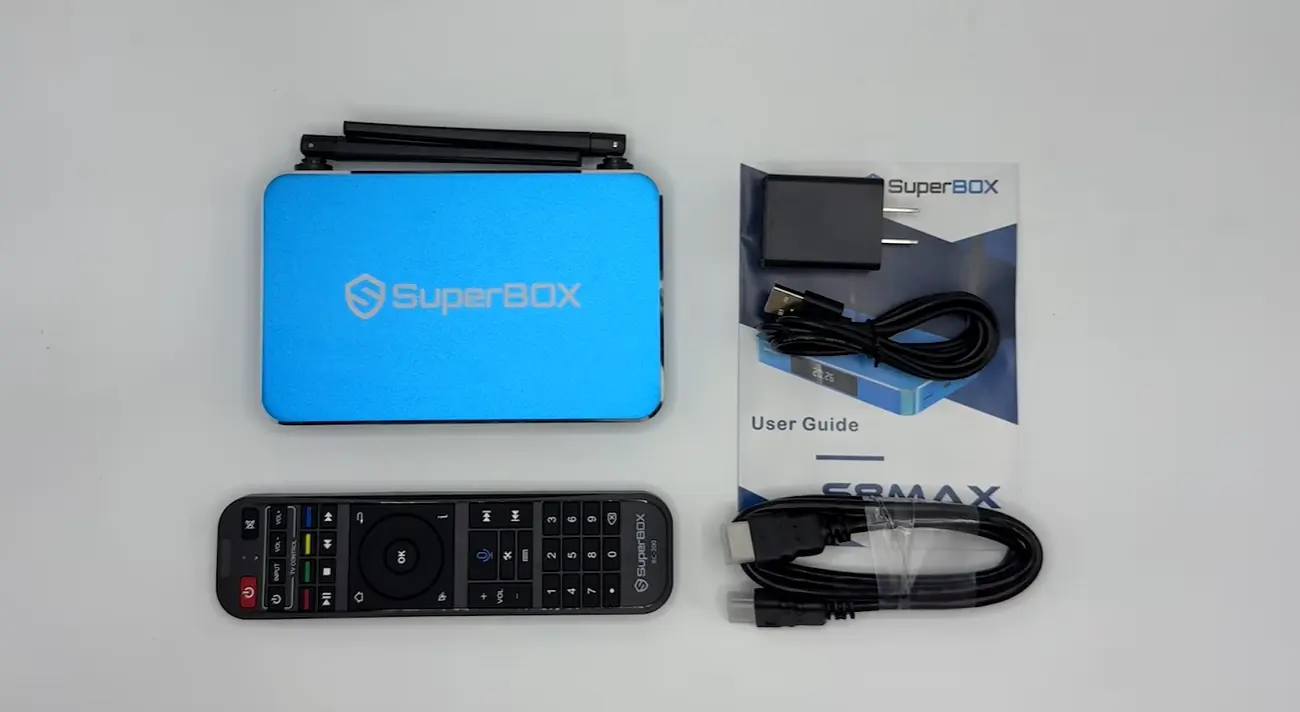
If you think the power supply or remote is missing
Check how the listing describes the item. Some lists say “power cable” and others describe a power adapter and cable together. If you have a cable and expected a separate adapter, take one photo of the cable ends and any power parts that came in the box. The seller can use the photo and model to confirm what belongs in your kit before you order anything separately.
For a remote, check the small compartments and take a photo of the full contents if the remote is absent. If a remote arrived and you suspect it’s the wrong version, photograph its face and any visible model markings. Tell the seller whether your concern is a missing feature, such as the S8 Ultra’s illuminated buttons, or a control that stopped responding. Those details help distinguish a packing issue from a problem that needs troubleshooting.
If the parcel looks like it was dropped or crushed
Start with a wide photo of the shipping carton and a close photo of any crushed corner, tear, or puncture. If you can open the package safely, take a photo of the retail box inside the carton and another of the device in its insert. Photograph the affected corner, port, or antenna mount clearly. If the device or adapter appears damaged, leave it disconnected while you get advice from the seller.
A scuff on the outer carton may leave the contents intact. A photo of how the device sat in the inserts helps show the condition of the parts when you opened it. Keep the carton available while the seller checks what happened and tells you which packaging or shipping details they need.
Send a report the seller can act on
For a direct SuperBox TV Box Store purchase, email customer@superboxtvboxstore.com. Include the order number, the model ordered, the model received if it differs, and a short description of the issue. Attach a clear photo of the complete kit and a close-up of the part or label involved. Send identifiers and shipping details privately to the seller or support team.
A message such as “I ordered an S8 Plus. I received the box, voice remote, HDMI cable, and guide, and I couldn’t find the round DC power adapter under the tray or in the accessory compartments” is enough to start a review. It tells the seller which kit to check, which part you expected, and where you already looked. If you bought elsewhere, send the same details to the seller named on your receipt.
Keep the packaging and prepare for the first setup
Put any unused sleeves, protective inserts, and papers back in the retail box. If you bought directly from our store, the refund and returns policy calls for the original packaging and accessories when returning a product. If you need to send a unit back, follow the seller’s packing instructions and use the outer shipping carton or another suitable protective carton as directed. The inserts help keep the device from moving around inside its own box.
Once the model and accessories check out, place the SuperBox where you can reach the HDMI and power ports and leave space around the antennas. Note the HDMI input you’ll use on the TV and keep the TV remote handy. If you’re setting up an S8 Max, the S8 Max unboxing and setup guide picks up with the cable connections, network, and remote pairing. Keep the matching adapter, cable, and remote with the device if you’re putting it aside as a gift or setting up several units.
Frequently asked questions
Do I need an Ethernet cable to start using my SuperBox?
You can use Wi-Fi if you have a working connection where the TV is located. For a wired connection, check whether your seller included an Ethernet cable. If you need to supply one, measure the path from the router or network jack to the TV stand. That avoids choosing a cable that’s too short once it has to run along furniture or around a corner.
Will I receive a separate warranty card?
The standard lists for the models above name a user guide. Check your exact listing for a separate warranty card and keep any paperwork that arrives. Save the order confirmation so you have a record of the seller, model, and purchase. For a direct purchase, see the store’s warranty policy for coverage and the information needed for a claim.
Should I open a SuperBox I bought as a gift?
You can check the outer shipping label and any retail model label you can see while leaving the retail box closed. If the gift will be given later and you want to check the accessories in advance, review the seller’s return terms and decide whether you’d rather inventory it now or leave the unboxing to the recipient. Either way, keep the order confirmation and save the packaging so the recipient can check the kit against the listing.
The article was updated on:
