






Connecting your SuperBox S7 Max to WiFi 6 is fully plug-and-play. Simply ensure your router broadcasts an 802.11ax (WiFi 6) signal, then navigate to your device’s Network & Internet settings to select your network and enter your password.
Special Offer: Use coupon code SAVE10 to get 10% OFF your order.
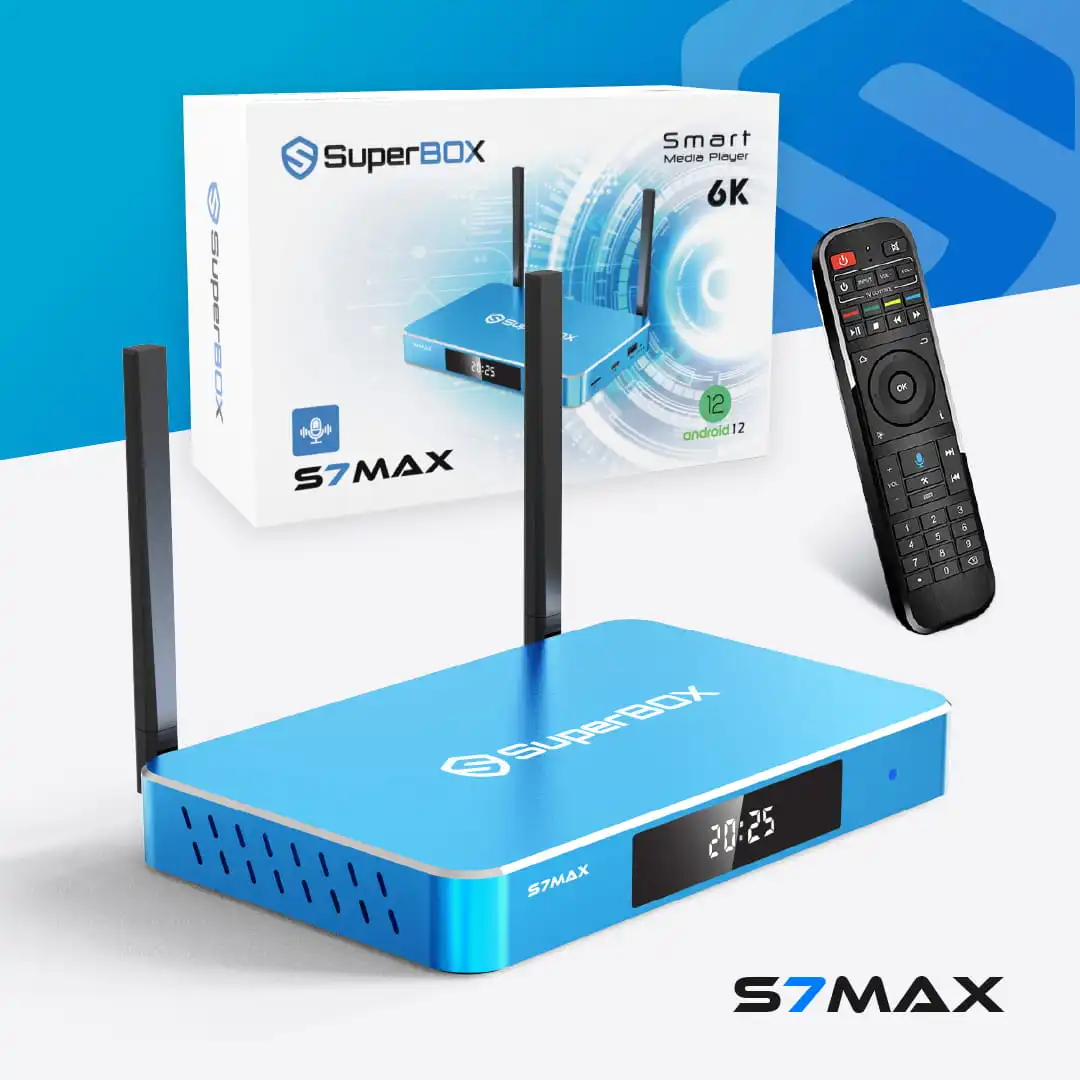
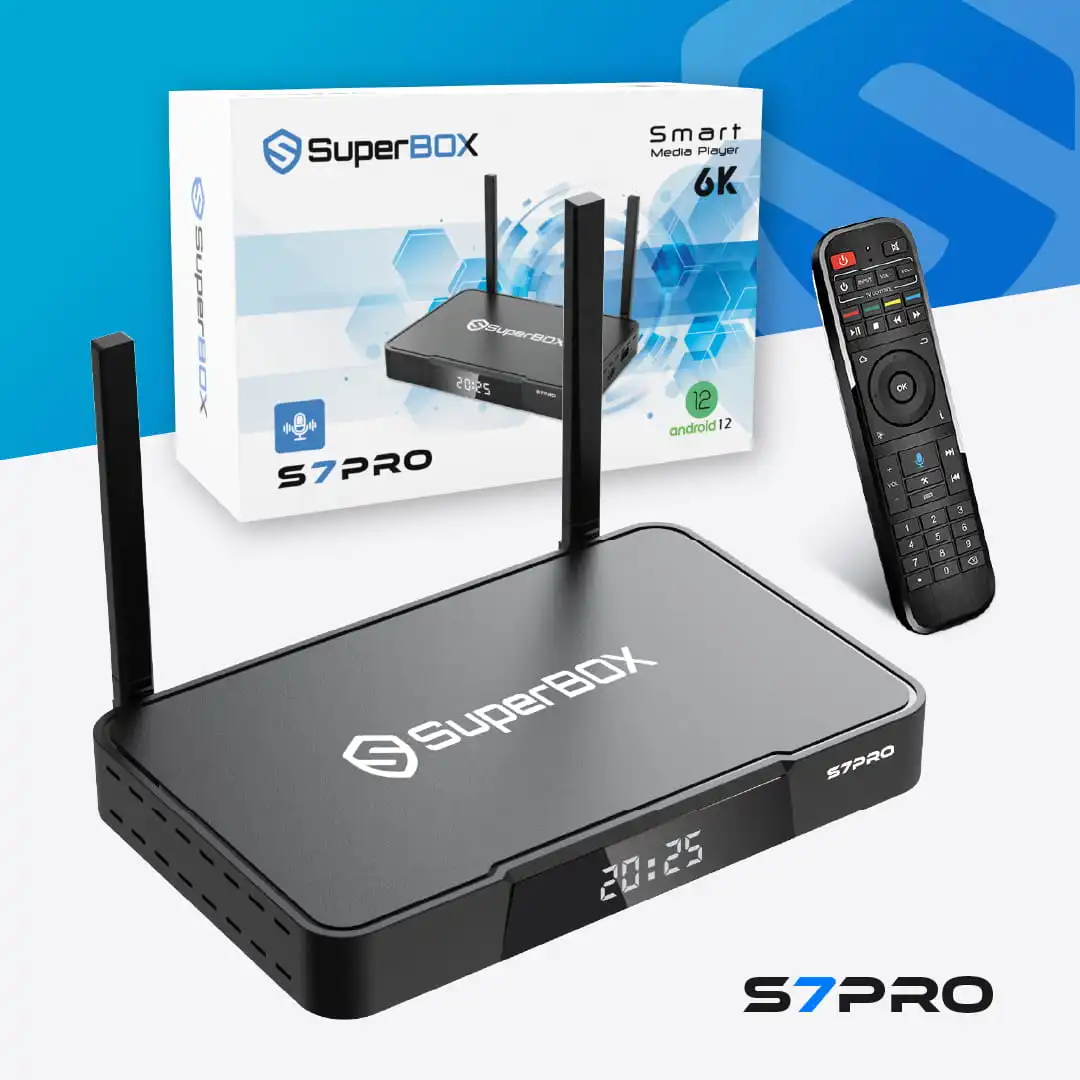
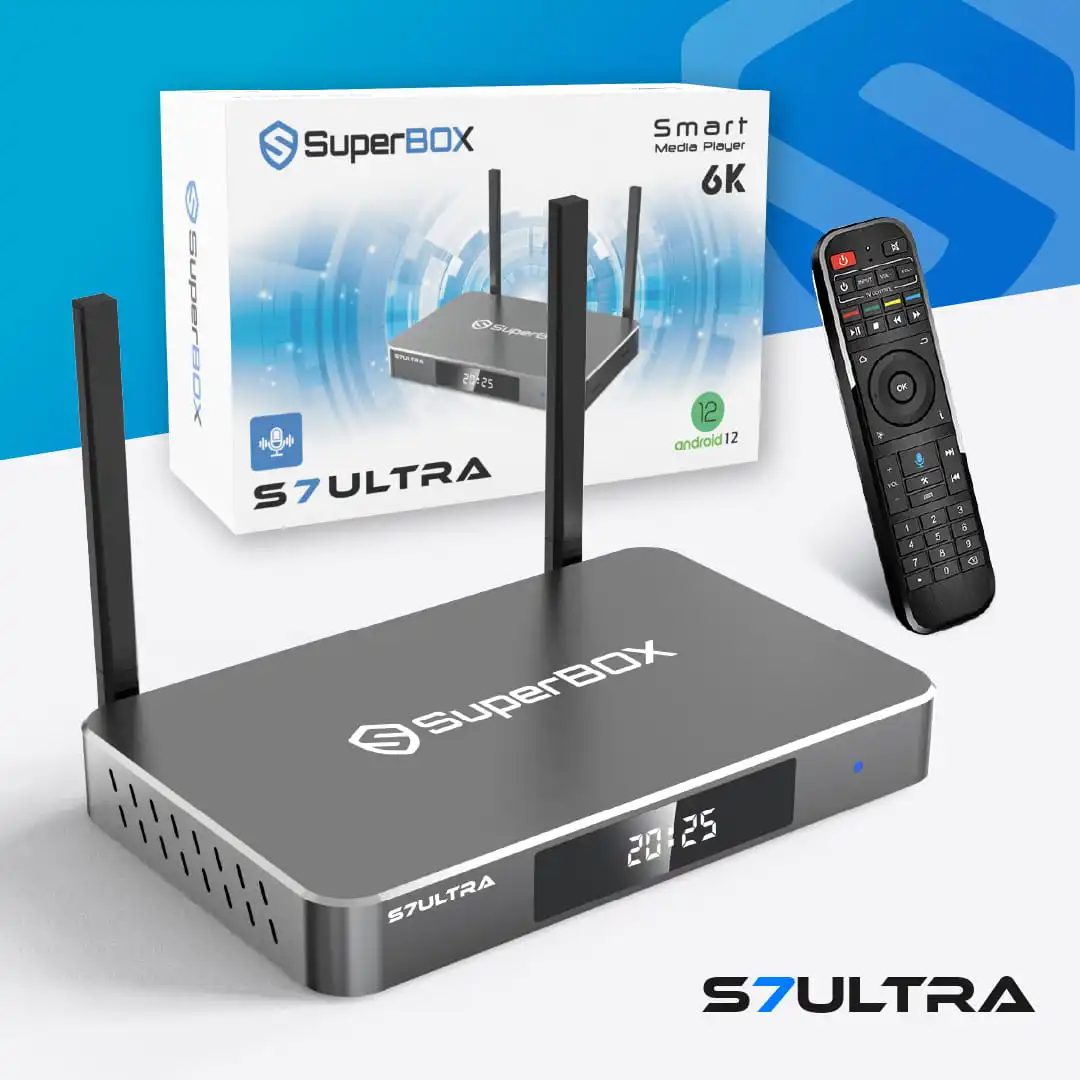
SuperBox S7 Max
Original price was: 429.00 $.399.00 $Current price is: 399.00 $.SuperBox S7 Pro
Original price was: 399.00 $.359.00 $Current price is: 359.00 $.SuperBox S7 Ultra
Original price was: 489.00 $.449.00 $Current price is: 449.00 $.
Elevating Your Superbox S7 Max Entertainment with WiFi 6
You have invested in the Superbox S7 Max, a powerful Android TV box capable of delivering breathtaking 6K resolution. To truly experience this visual fidelity without frustrating lags or buffering, a robust and efficient internet connection is paramount. This is where WiFi 6 comes in, offering significant upgrades over older Wi-Fi standards.
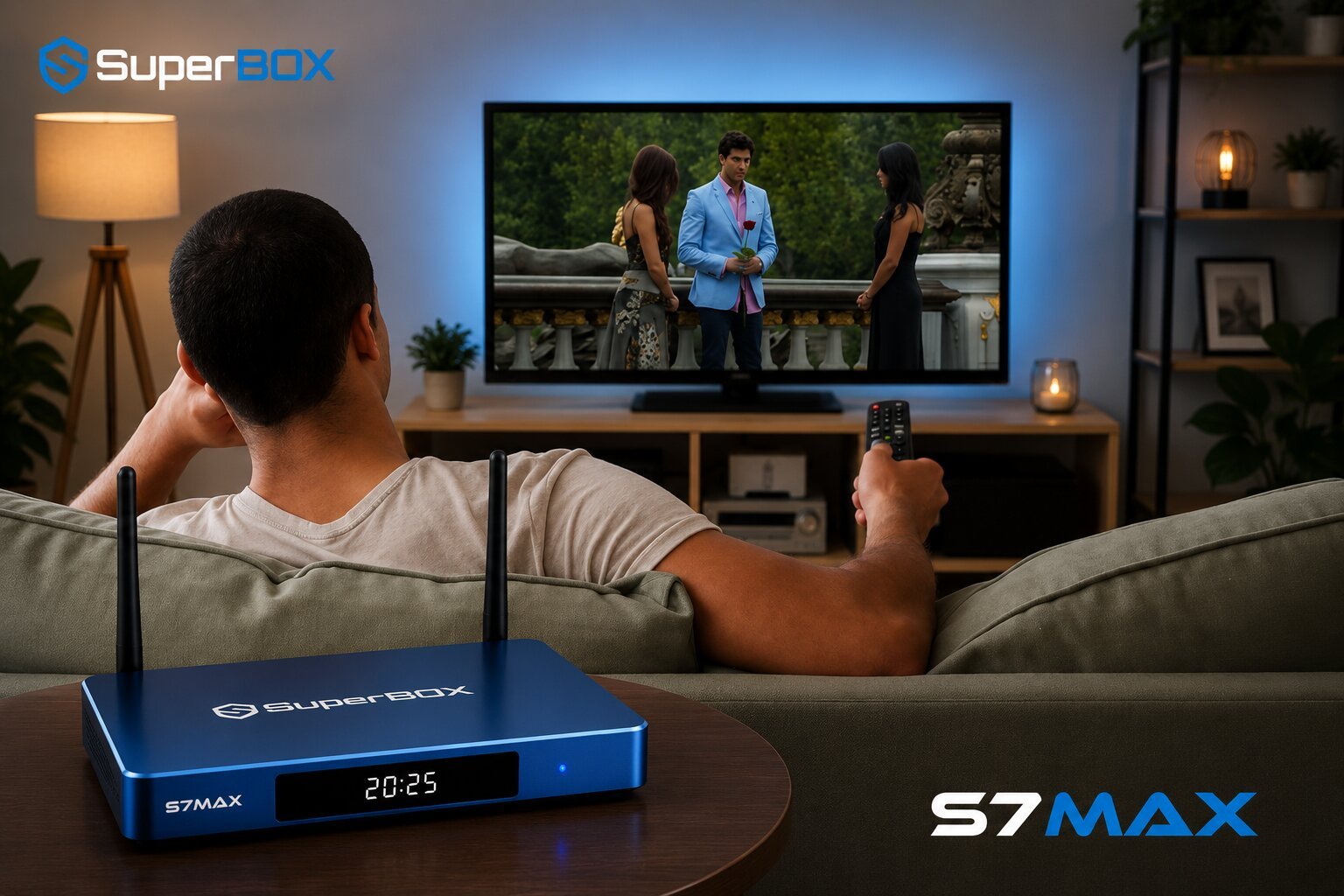
Many users face the challenge of not knowing how to properly configure their device for this advanced technology or how to troubleshoot common connection hurdles. Without a stable WiFi 6 connection, your 6K streaming experience can be severely hampered, leading to frustration and underutilization of your device’s capabilities. There are various ways to approach connecting and optimizing your Superbox S7 Max, depending on your current setup and specific needs.
This article compiles the most effective methods, complete with practical instructions and tips, to help you achieve a flawless connection and an enhanced streaming experience Superbox S7 Max.
Quick Overview: Essential Ways to Connect and Optimize Your Superbox S7 Max to WiFi 6
For those looking for a quick glance at their options, here is a summary of the key methods to connect and optimize your Superbox S7 Max to WiFi 6:
- Way 1: Performing the Initial WiFi 6 Connection is suitable for first-time setup or connecting to a new network. The main benefit is a straightforward and guided connection process, ideal for a Superbox S7 Max WiFi 6 setup guide for beginners.
- Way 2: Optimizing Your WiFi 6 Router Settings is suitable for enhancing overall network performance. The main benefit is a more stable and faster connection for all devices, contributing to improving Superbox S7 Max performance.
- Way 3: Leveraging the 5GHz Band for Optimal 6K Streaming is suitable for maximizing speed and minimizing interference for high-resolution content. The main benefit is a buffer-free 6K viewing experience, ensuring seamless media playback Superbox S7 Max.
- Way 4: Keeping Superbox S7 Max and Router Firmware Updated is suitable for ensuring compatibility, security, and peak performance. The main benefit is system stability and access to the latest features, crucial for Android TV box WiFi 6 connectivity.
- Way 5: Considering a Wired Ethernet Connection for Ultimate Stability is suitable as an alternative for users prioritizing maximum reliability and speed. The main benefit is a consistently stable and fast internet connection without wireless interference, leveraging the Gigabit Ethernet Superbox S7 Max.
Before You Start: Identifying Your Connection Needs and Current Setup
Before diving into the connection process, it is crucial to assess your current situation to choose the most effective approach. Consider these questions to ensure a smooth Superbox S7 Max WiFi 6 setup:
- Do you have a WiFi 6 compatible router? Look for AX or WiFi 6 in its specifications to confirm your home entertainment system WiFi 6 benefits.
- Is your Superbox S7 Max currently connecting to any WiFi network, or is this a fresh setup? This helps determine if you need to perform an initial connection or troubleshoot an existing one.
- Are you experiencing slow speeds, buffering, or intermittent disconnections with your current internet setup? Identifying these issues will guide you toward specific optimization or troubleshooting steps.
- What is the physical distance and number of obstructions (walls, furniture) between your Superbox S7 Max and your WiFi 6 router? Proximity plays a significant role in WiFi 6 performance.
- What kind of content do you primarily stream, such as demanding 6K videos or casual browsing? This helps prioritize connection stability and speed.
Understanding these factors will help you tailor the instructions to your specific environment and achieve the best results. Choosing the right approach based on your specific situation will save time and improve effectiveness, ensuring a fast internet for Superbox S7 Max.
General Preparations Before Connecting Your Superbox S7 Max to WiFi 6
Before you begin the connection process, ensure you have these essential items and conditions in place to facilitate a smooth Superbox S7 Max WiFi 6 connection fix:
- Superbox S7 Max: Ensure your device is powered on and connected to your TV via an HDMI cable. The Superbox S7 Max specifications WiFi 6 confirm its capability.
- WiFi 6 Router: Verify your router is powered on, broadcasting a WiFi 6 signal, and has an active internet connection. Check your router settings for optimal performance.
- WiFi Network Name (SSID) and Password: Have your Wi-Fi network’s name and password readily available. Remember that passwords are case-sensitive. This is vital for a step-by-step Superbox S7 Max WiFi 6 setup.
- Voice Command Remote: Your Superbox S7 Max remote will be essential for navigating the settings of your Android 12 TV box WiFi connection.
- Proximity: For initial setup and optimal performance, it is advisable to have your Superbox S7 Max within a reasonable range of your WiFi 6 router.
Initial setup usually takes 5-10 minutes, while troubleshooting might require a bit more time depending on the complexity of the issue.
Detailed Guide: Connecting and Optimizing Your Superbox S7 Max to WiFi 6
Way 1: Performing the Initial WiFi 6 Connection
This method is ideal for first-time users or when connecting your Superbox S7 Max to a new WiFi 6 router. It provides a detailed instructions to connect Superbox S7 Max to WiFi 6 network.
- When to apply: This method should be applied for the initial setup of your Superbox S7 Max or when you need to connect it to a different WiFi 6 network. It is suitable for all users, especially beginners looking for a Superbox S7 Max WiFi 6 setup guide.
- What to prepare specifically for this method: Ensure your Superbox S7 Max is powered on and displaying its main interface on your TV. Have your WiFi 6 network name (SSID) and password ready.
- How to actually do it:
- 1. Power on your Superbox S7 Max and ensure it has fully booted up to the main interface.
- 2. From the Superbox S7 Max home screen, navigate to the Settings icon (typically represented by a gear or cogwheel) and select it.
- 3. Within the Settings menu, find and select Network & Internet.
- 4. Ensure the Wi-Fi toggle is switched to the On position. The Superbox S7 Max will automatically begin scanning for available wireless networks.
- 5. Look for your home Wi-Fi network name (SSID) in the list. If your router broadcasts both 2.4GHz and 5GHz bands, you might see separate names, for example, MyHomeWiFi_2.4GHz and MyHomeWiFi_5GHz. For optimal 6K streaming, it is generally recommended to choose the 5GHz band if your Superbox is close to the router. Select your desired WiFi 6 network.
- 6. A prompt will appear asking for your Wi-Fi password (network security key). Carefully enter your password, paying close attention to capitalization as passwords are case-sensitive.
- 7. After entering the password, select Connect. Your Superbox S7 Max will now attempt to establish a connection to the WiFi 6 network.
- 8. Once connected, the network name will display Connected or Saved along with a strong Wi-Fi signal icon. You can then exit the settings and enjoy your streaming content.
- Advantages, limitations, or risks: This method is straightforward and user-friendly, providing a clear path on how to get Superbox S7 Max to connect to WiFi 6. The main limitation is the potential for incorrect password entry, which can lead to a Superbox S7 Max WiFi 6 authentication error.
- Tips for increasing efficiency and avoiding errors: Double-check your password before confirming. If you have a complex password, consider temporarily simplifying it on your router for easier initial connection, then changing it back.
- Signs of success when applying this method: The Superbox S7 Max shows Connected to your chosen WiFi 6 network, and you can access streaming apps and browse the internet without issues, confirming a successful Superbox S7 Max WiFi 6 connection fix.

Way 2: Optimizing Your WiFi 6 Router Settings for Superbox S7 Max
Fine-tuning your router settings can significantly enhance your Superbox S7 Max’s WiFi 6 performance, leading to a buffer-free Superbox S7 Max streaming experience.
- When to apply: This method is suitable if you have successfully connected but are experiencing less-than-optimal performance, or if you want to ensure your network is fully configured for WiFi 6 benefits. It is best for users with some familiarity with router administration. This helps with Superbox S7 Max WiFi 6 slow speed troubleshooting steps.
- What to prepare specifically for this method: You will need access to your WiFi 6 router’s administration panel, typically via a web browser on a computer connected to the same network. Have your router’s admin username and password ready.
- How to actually do it:
- 1. Open a web browser on a computer connected to your network and enter your router’s IP address (often 192.168.1.1 or 192.168.0.1) to access its administration panel.
- 2. Log in using your router’s admin credentials.
- 3. Navigate to the Wi-Fi or Wireless Settings section.
- 4. Confirm that WiFi 6 (802.11ax) is enabled for both your 2.4GHz and 5GHz bands. Some routers might have an explicit AX Mode setting.
- 5. Ensure your router is set to use a compatible security protocol, such as WPA2-PSK (AES) or the newer WPA3. This helps resolve Superbox S7 Max WiFi 6 authentication error.
- 6. If your router uses band steering (combining 2.4GHz and 5GHz into a single SSID), and you are having trouble explicitly connecting to 5GHz, consider temporarily disabling it to see if separate SSIDs appear, allowing you to choose the 5GHz WiFi 6 band directly.
- 7. Optimize router placement: Place your WiFi 6 router in a central location in your home, away from obstructions like thick walls, metal objects, and other electronic devices that could cause interference.
- Advantages, limitations, or risks: This method can unlock the full potential of your WiFi 6 network, optimizing WiFi for Superbox S7 Max. The main limitation is that it requires some technical knowledge of router settings. Incorrect changes could disrupt your network.
- Tips for increasing efficiency and avoiding errors: Always consult your router’s user manual for specific instructions. Make a note of your original settings before making any changes, so you can revert if needed.
- Signs of success when applying this method: Noticeably improved streaming quality, faster downloads, and more stable connectivity on your Superbox S7 Max, indicating successful Superbox S7 series internet setup.
Way 3: Leveraging the 5GHz Band for Optimal 6K Streaming
For the best 6K streaming experience, prioritizing the 5GHz band of your WiFi 6 network is crucial. This is the best way to connect Superbox S7 Max to WiFi 6 for 6K streaming.
- When to apply: This method is ideal for users who want to maximize speed and minimize buffering for high-resolution content like 6K. It is most effective when your Superbox S7 Max is in the same room or relatively close to your WiFi 6 router.
- What to prepare specifically for this method: Your Superbox S7 Max should be within a reasonable range of your WiFi 6 router.
- How to actually do it:
- 1. Access the Network & Internet settings on your Superbox S7 Max as described in Way 1.
- 2. In the list of available Wi-Fi networks, look for your network’s 5GHz SSID. Routers often differentiate them with _5GHz or similar suffixes, for example, MyHomeWiFi_5GHz.
- 3. Select the 5GHz WiFi 6 network and enter your password.
- 4. If your router uses band steering and you only see one SSID, ensure your Superbox S7 Max is automatically connecting to the 5GHz band. You can often verify this in your router’s client list. If not, consider temporarily disabling band steering in your router settings (as mentioned in Way 2) to force separate SSIDs and allow explicit 5GHz selection. This addresses why won’t my Superbox S7 Max connect to 5GHz WiFi 6 band.
- Advantages, limitations, or risks: The 5GHz band offers significantly faster speeds and less interference, which is perfect for demanding tasks like 6K video streaming. Its main limitation is a shorter range and less ability to penetrate walls compared to the 2.4GHz band.
- Tips for increasing efficiency and avoiding errors: Ensure your Superbox S7 Max is not too far from the router. If you have a large home, consider a mesh WiFi 6 system.
- Signs of success when applying this method: Noticeable reduction in buffering, smoother playback of 6K content, and quicker loading times for streaming apps, confirming optimal streaming device WiFi 6 performance.
Way 4: Keeping Superbox S7 Max and Router Firmware Updated
Regular firmware updates are vital for performance, compatibility, and security. This is a key step in troubleshooting Superbox S7 Max WiFi 6 issues.
- When to apply: This method should be applied periodically as a maintenance step, or when troubleshooting persistent connection issues. It is suitable for all users.
- What to prepare specifically for this method: An active internet connection for both your Superbox S7 Max and your WiFi 6 router.
- How to actually do it:
- 1. For Superbox S7 Max:
- Navigate to Settings on your Superbox S7 Max.
- Go to About or Device Preferences.
- Look for System Update, Software Update, or similar options.
- Follow the on-screen prompts to check for and install any available updates for your Android 12 OS.
- 2. For WiFi 6 Router:
- Access your router’s administration panel (as described in Way 2).
- Look for a section typically named Firmware Update, System Tools, or Administration.
- Follow the instructions to check for and install the latest firmware. This often involves downloading a file from the manufacturer’s website and uploading it to the router. These are important router settings for Android TV box.
- 1. For Superbox S7 Max:
- Advantages, limitations, or risks: Firmware updates often include performance enhancements, bug fixes, security patches, and improved compatibility with new technologies like WiFi 6. The main risk is interrupting the update process, which can potentially brick the device.
- Tips for increasing efficiency and avoiding errors: Do not power off or unplug either device during a firmware update. Ensure you have a stable power supply.
- Signs of success when applying this method: Improved system stability, resolution of previously experienced bugs, and potentially better network performance, contributing to an enhanced streaming experience Superbox S7 Max.
Way 5: Considering a Wired Ethernet Connection for Ultimate Stability
While this article focuses on WiFi 6, a wired connection remains the gold standard for stability and speed. This is an excellent alternative if you face a Superbox S7 Max internet connection problem.
- When to apply: This method is an excellent alternative if you experience persistent wireless issues, or if you simply demand the absolute fastest and most stable connection for your Superbox S7 Max, especially for continuous 6K streaming. It is suitable for users who can physically connect their device to the router.
- What to prepare specifically for this method: A standard Ethernet cable (Cat5e or Cat6 recommended) and an available LAN port on your WiFi 6 router. The Superbox S7 Max features a 1000Mbps Gigabit Ethernet port.
- How to actually do it:
- 1. Locate the 1000Mbps Gigabit Ethernet port on the back of your Superbox S7 Max.
- 2. Connect one end of the Ethernet cable to this port.
- 3. Connect the other end of the Ethernet cable to an available LAN port on your WiFi 6 router.
- 4. Your Superbox S7 Max should automatically detect and prioritize the wired connection over Wi-Fi. You can verify this in the Network & Internet settings, where Ethernet should show as connected.
- Advantages, limitations, or risks: A wired connection provides the most stable, fastest, and lowest-latency internet connection, completely eliminating wireless interference. The main limitation is the need for a physical cable, which might restrict device placement.
- Tips for increasing efficiency and avoiding errors: Use a high-quality Ethernet cable to ensure maximum data transfer speeds.
- Signs of success when applying this method: Instantaneous internet access, consistently high speeds, and absolutely no buffering during 6K streaming, ensuring buffer-free Superbox S7 Max streaming.
When to Use Which Method? And Which is Most Effective?
Choosing the most effective method depends on your specific situation and the issues you are facing. This helps in understanding how to get Superbox S7 Max to connect to WiFi 6 efficiently.
- For First-Time Setup or New Network: Start with Way 1: Performing the Initial WiFi 6 Connection. This is your foundational step for a detailed instructions to connect Superbox S7 Max to WiFi 6 network.
- For Slow Speeds or Buffering: If you are connected but experiencing performance issues, focus on Way 3: Leveraging the 5GHz Band for Optimal 6K Streaming (if not already doing so) and Way 2: Optimizing Your WiFi 6 Router Settings. These steps are crucial for Superbox S7 Max WiFi 6 slow speed troubleshooting steps.
- For Persistent Connection Failures: If your Superbox S7 Max is not connecting at all, first ensure your password is correct, then move to the troubleshooting steps in the Common Issues section. If those fail, consider Way 4: Keeping Superbox S7 Max and Router Firmware Updated. This helps resolve Superbox S7 Max WiFi 6 authentication error.
- For Maximum Performance and Stability: Combine Way 2, Way 3, and Way 4. For the absolute best, most reliable connection, especially for demanding 6K streaming, Way 5: Considering a Wired Ethernet Connection is unmatched, leveraging the Gigabit Ethernet Superbox S7 Max.
There is not a single best method that fits all scenarios. However, for consistent, high-quality 6K streaming, prioritizing a stable 5GHz WiFi 6 connection (Way 3) and ensuring your router is optimized (Way 2) are generally the most effective wireless approaches. If wireless limitations persist, a wired Ethernet connection (Way 5) will always provide superior performance

Checking Results and Enhancing Performance After Connection
After connecting and optimizing your Superbox S7 Max to WiFi 6, it is essential to verify the results and continuously enhance performance for a seamless media playback Superbox S7 Max.
- Signs of improvement or success:
- The Superbox S7 Max displays Connected to your WiFi 6 network with a strong signal strength.
- 6K video content streams smoothly without buffering or interruptions.
- Streaming applications load quickly, and navigation feels responsive.
- Download speeds for apps or updates are noticeably faster, indicating fast internet for Superbox S7 Max.
- How to perform quick and detailed checks:
- Quick Check: Open a high-resolution streaming app like YouTube 6K demos and play content. Observe for any buffering or quality degradation.
- Detailed Check: If available, use a network speed test application on your Superbox S7 Max to measure actual download and upload speeds. Compare these to your internet plan’s advertised speeds.
- If not effective: what to adjust, how to increase or decrease intensity, what other methods to try:
- Re-check Password: The most common error is still an incorrect password.
- Reboot Devices: Power cycle both your Superbox S7 Max and your WiFi 6 router/modem.
- Review Router Settings: Double-check that WiFi 6 is enabled and you are prioritizing the 5GHz band.
- Adjust Router Placement: Experiment with moving your router to a more central location or closer to your Superbox S7 Max.
- Consider Wired: If wireless issues persist despite all efforts, switch to a Gigabit Ethernet connection for guaranteed stability, leveraging the Gigabit Ethernet Superbox S7 Max.
- Suggestions for maintenance: reminders, habits, periodic procedures, tips to prevent recurrence:
- Regular Firmware Checks: Periodically check for and install firmware updates for both your Superbox S7 Max and your router.
- Periodic Reboots: Consider rebooting your router and Superbox S7 Max once a month to clear any temporary glitches.
- Monitor Network Activity: Be mindful of other high-bandwidth activities on your network that might impact streaming performance, ensuring optimal streaming device WiFi 6 performance.
Common Issues When Connecting Superbox S7 Max to WiFi 6 and How to Resolve Them
Issue 1: Superbox S7 Max Not Detecting WiFi 6 Network
- Identifying the issue: Your WiFi 6 network’s SSID does not appear in the list of available networks on your Superbox S7 Max.
- Common causes: Your router might not be broadcasting a WiFi 6 signal, the Superbox S7 Max is too far from the router, or band steering is hiding separate 5GHz SSIDs.
- Solutions and suggestions for alternative, more suitable methods:
- Ensure your router is actually broadcasting a WiFi 6 (802.11ax) signal by checking its administration panel.
- Move your Superbox S7 Max closer to the router to rule out signal strength issues.
- If your router uses band steering, temporarily disable it in your router settings to see if separate 2.4GHz and 5GHz SSIDs appear, allowing you to select the 5GHz WiFi 6 band explicitly. This helps in how to get Superbox S7 Max to connect to WiFi 6.
Issue 2: Unable to Connect to WiFi 6 (Authentication Error)
- Identifying the issue: You receive an Authentication failed or Incorrect password message after entering your Wi-Fi password.
- Common causes: The most common cause is an incorrect Wi-Fi password. It could also be an incompatible security protocol setting on your router.
- Solutions and suggestions for alternative, more suitable methods:
- Double-check your Wi-Fi password carefully, paying close attention to capitalization and special characters.
- Verify that your router is set to a compatible security protocol like WPA2-PSK (AES) or WPA3. Avoid older, less secure protocols like WEP or WPA/WPA2-TKIP. This is a direct Superbox S7 Max WiFi 6 authentication error solution.
Issue 3: Slow Speed or Buffering on WiFi 6
- Identifying the issue: Your 6K content buffers frequently, apps load slowly, or general internet browsing feels sluggish despite being connected to WiFi 6.
- Common causes: Connecting to the slower 2.4GHz band instead of 5GHz, network congestion from too many devices, physical interference, or outdated firmware. This points to Superbox S7 Max WiFi 6 slow speed troubleshooting steps.
- Solutions and suggestions for alternative, more suitable methods:
- Ensure your Superbox S7 Max is connected to the 5GHz band of your WiFi 6 network (refer to Way 3).
- Minimize other high-bandwidth activities on your network, for example, large downloads on other devices.
- Optimize your router’s placement to reduce interference (refer to Way 2).
- Update the firmware on both your Superbox S7 Max and your router (refer to Way 4).
Issue 4: Intermittent WiFi 6 Connection
- Identifying the issue: Your Superbox S7 Max frequently disconnects from the WiFi 6 network, or the signal strength fluctuates significantly.
- Common causes: Signal interference from other electronics, router being too far away, a faulty router, or an issue with the Superbox S7 Max’s Wi-Fi module. This indicates a Superbox S7 Max internet connection problem.
- Solutions and suggestions for alternative, more suitable methods:
- Identify and minimize sources of interference such as microwaves or cordless phones.
- Move your Superbox S7 Max closer to your WiFi 6 router.
- Reboot both your Superbox S7 Max and your router.
- As a last resort, try resetting the network settings on your Superbox S7 Max (Settings > Network & Internet > Wi-Fi > Advanced settings or look for a Reset network settings option). If issues persist, consider a wired Ethernet connection (Way 5) for ultimate stability.
Buying the $399 SuperBox S7 Max, 10% OFF at SuperBox TV Box Store
SuperBox TV Box Store is the most trusted retailer of authentic SuperBox TV Box S6, S7, and S8 series in the US and Canada. We provide genuine products, secure payment, fast delivery, and reliable customer support.
The SuperBox S7 Max is now available for $399.00 instead of $429.00, with tax included and free shipping. It comes with 4GB DDR3 memory, 64GB eMMC storage, a backlit voice remote, HDMI 2.1 cable, Type-C power cable, and user guide.
The S7 Max also includes pre-loaded entertainment apps such as Blue TV, Blue VOD, Playback App, 7-Day Playback, Rewind Feature, international viewing options, and 7 Bonus Prime Apps. Apps are ready to use after setup.
Each order also includes an exclusive gift bundle: Mini Keyboard, 64GB Micro SD Card, and 6-in-1 Adapter Hub.
Special Offer: Use coupon code SAVE10 to get 10% OFF your order.
To help customers shop with confidence, SuperBox TV Box Store provides:
- Free shipping in the USA & Canada: 1 business day processing, USA delivery in 2–5 business days, Canada delivery in 3–5 business days.
- Secure payment: Stripe and PayPal checkout with PCI-DSS compliance and AES-256 encryption.
- 30-day returns: unused items can be returned within 30 days, with no restocking fee.
- Refund protection: cancellations before shipment receive a 100% refund within 24 hours; approved refunds take 5–10 business days.
- Warranty support: orders are verified with serial number recording, packaging video, warranty seal, and service response within 24 business hours.
Order the SuperBox S7 Max today from SuperBox TV Box Store for $399.00, with free shipping, exclusive gifts, and dependable after-sales support.
Besides the SuperBox S7 Max, you can also check out other models like the S7 Pro or S7 Ultra.
SuperBox S7 Series:
SuperBox S7 Max
Original price was: 429.00 $.399.00 $Current price is: 399.00 $.SuperBox S7 Pro
Original price was: 399.00 $.359.00 $Current price is: 359.00 $.SuperBox S7 Ultra
Original price was: 489.00 $.449.00 $Current price is: 449.00 $.
=> Browse and shop the SuperBox S7 lineup today!
Frequently Asked Questions About Superbox S7 Max WiFi 6 Connectivity
What is WiFi 6 and why is it important for my Superbox S7 Max?
WiFi 6 (802.11ax) is the latest Wi-Fi standard designed for faster speeds, lower latency, and increased capacity, especially in environments with many devices. For your Superbox S7 Max, it ensures smoother 6K streaming, quicker app loading, and a more stable connection, even when your network is busy, providing home entertainment system WiFi 6 benefits.
Is the Superbox S7 Max truly compatible with WiFi 6?
Yes, the Superbox S7 Max explicitly features Dual-band WiFi 6 in its specifications, confirming full compatibility with the latest WiFi 6 standard on both 2.4GHz and 5GHz bands. This ensures excellent Android TV box WiFi 6 connectivity.
Should I use the 2.4GHz or 5GHz band for my Superbox S7 Max?
For optimal 6K streaming and performance, you should always prioritize connecting your Superbox S7 Max to the 5GHz WiFi 6 band if your device is within a reasonable range of your router. The 5GHz band offers higher speeds and less interference. This answers why won’t my Superbox S7 Max connect to 5GHz WiFi 6 band.
How can I tell if my router is broadcasting a WiFi 6 signal?
Check your router’s specifications or its administration panel. Look for 802.11ax or WiFi 6 enabled settings. Some routers may also display a WiFi 6 icon next to the network name in your device’s Wi-Fi list.
What if my Superbox S7 Max cannot find my WiFi 6 network?
Ensure your router is powered on and broadcasting. Move your Superbox S7 Max closer to the router. Check your router settings to confirm WiFi 6 is enabled and that your network’s SSID is visible. Temporarily disabling band steering on your router might also help, providing a Superbox S7 Max WiFi 6 connection fix.
How often should I update the firmware on my Superbox S7 Max and router?
It is recommended to check for and install firmware updates periodically, ideally every few months, or whenever you encounter performance issues. Manufacturers frequently release updates to improve stability, security, and compatibility.
Can I use a wired Ethernet connection instead of WiFi 6?
Absolutely. The Superbox S7 Max features a 1000Mbps Gigabit Ethernet port. A wired connection offers the most stable and fastest internet connection, which is ideal for consistent 6K streaming and eliminating wireless interference. This highlights the Gigabit Ethernet Superbox S7 Max as an alternative.
What security protocols are recommended for WiFi 6 with Superbox S7 Max?
For the best security and compatibility, ensure your WiFi 6 router is configured to use WPA2-PSK (AES) or the newer WPA3 security protocol. These are important router settings for Android TV box.
Will WiFi 6 improve my streaming experience for content other than 6K?
Yes, WiFi 6 benefits all streaming content by providing faster speeds, lower latency, and better efficiency, leading to quicker loading times and smoother playback for all resolutions, including HD and 4K, ensuring an enhanced streaming experience Superbox S7 Max.
When should I contact support for connection issues?
If you have diligently followed all the troubleshooting steps in this guide and are still experiencing persistent connection problems, it is advisable to contact SuperBox TV Box Store customer support or your router manufacturer for further assistance
Conclusion and Recommendations for Your Superbox S7 Max WiFi 6 Experience
Connecting your Superbox S7 Max to WiFi 6 is a crucial step toward enjoying a truly premium home entertainment experience with buffer-free 6K streaming. The key takeaways are to correctly identify your network status, choose the appropriate connection or optimization method, and consistently monitor your results.
For new users, we recommend starting with the basic connection steps, ensuring you connect to the 5GHz band for optimal performance. If you encounter any issues, systematically work through the troubleshooting tips provided. For those seeking the absolute best in stability and speed, do not hesitate to leverage the Superbox S7 Max’s Gigabit Ethernet port for a wired connection.
We encourage you to bookmark this guide for future reference, perform periodic checks for firmware updates, and always prioritize a stable, fast connection to maximize your Superbox S7 Max’s capabilities.